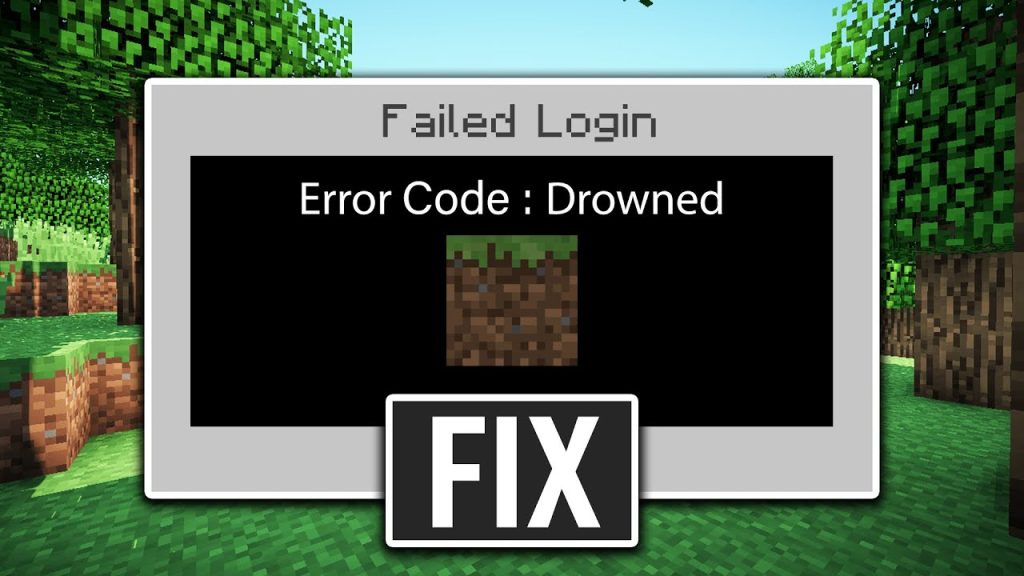
Minecraft players sometimes encounter Error Code: Drowned when the game can’t load the data it needs to start or open a world. It often appears in Minecraft: Bedrock Edition and usually shows up during world loading, syncing, or when starting the game after an interruption.
For most players, the message appears without warning and stops the world from opening. In this guide, we’ll explain what Error Code: Drowned means, why it happens, and the troubleshooting steps you can try to fix it.
What Is Minecraft Error Code: Drowned?
Error Code: Drowned appears when the game tries to load a world and the data tied to it doesn’t respond the way it should. Instead of moving you into the world, Minecraft displays this message because something in that save isn’t working as expected.
The error is tied specifically to the world you’re opening, and not the game as a whole. It can show up whether the world is stored on your device or synced through the cloud, and it simply means Minecraft can’t use that world’s data in its current state.
Causes of Error Code: Drowned in Minecraft
Several issues can stop a world from opening in Bedrock Edition. These are the most common reasons players see the Drowned message:
- Corrupted world files: If a world doesn’t save properly or is closed during a crash, freeze, or power loss, parts of its data may become unusable. When Minecraft tries to load that world, it stops and shows the error.
- Cloud sync conflicts: On platforms with cloud saves, the error can appear when the local copy and the cloud copy don’t match. If Minecraft can’t confirm which version is correct, it may block the world from opening.
- Interrupted or incomplete downloads: Worlds that were downloaded or restored from the cloud may not open if the process didn’t finish fully. Missing or incomplete data prevents Bedrock from loading the world.
- Damaged or missing world components: Each world relies on several files, including level data and metadata. If any of these pieces are removed or altered, the world becomes unusable and triggers the Drowned message.
- Storage or permission issues: Some devices restrict or lose access to the folders where Minecraft stores world data. If the game can’t read or write the world’s files, it treats the save as unavailable and stops loading.
Ways to Fix Minecraft Error Code: Drowned
There are a few ways to recover a world that won’t open. These fixes focus on getting Minecraft to read the save properly again:
Restart Minecraft and your device
Close Minecraft completely instead of just backing out to a menu, then restart your device and open the game again to clear any processes that were stuck while the world was loading. If the error was triggered by a one-off glitch or an interrupted attempt to open the save, that fresh start can be enough to let the world load normally.
Check your internet connection
If the world is stored or backed up through the cloud, Minecraft needs a stable internet connection to reach the latest version of that save. A weak signal, brief disconnection, or switching networks mid-load can cause the game to stop and show Drowned. Make sure you’re on a steady connection, then try opening the same world again.
Re-sync the world again
On platforms like Xbox, PlayStation, Switch, Windows, and mobile, your worlds may exist both locally and in the cloud. If those versions get out of sync, Minecraft can refuse to load the world at all. After confirming you’re online, give the game time to finish syncing or reopen it so it can pull a fresh copy. If the cloud version is intact, the world often starts working again.
Create a copy of the world
In many cases, Minecraft is able to open a copied version of a world even when the original throws the Drowned error. From the world list, use the option to make a copy of the affected save. The game builds a new version of the world based on the existing data, and this new copy may load successfully while the original remains broken.
Remove resource or behavior packs
If the world was using a resource pack or behavior pack that is now damaged, missing, or incompatible, Minecraft may refuse to load it. Open the world settings (if accessible) and turn off any custom packs attached to that save. Once the world is no longer trying to load content it can’t find or use, it has a better chance of opening.
Reinstall Minecraft
If several worlds fail to open and the same error keeps appearing, your Minecraft installation may be corrupted. Reinstalling replaces the core game files with a clean copy, removing anything that was preventing worlds from loading. Cloud-synced or separately backed-up worlds can usually be restored after reinstalling.
Frequently Asked Questions
Error Code: Drowned appears when Minecraft: Bedrock Edition can’t read the files needed to open a world. The game stops the load instead of opening damaged or incomplete data. It’s a sign that the specific world’s files aren’t responding the way the game expects.
Reinstalling Minecraft can help if the issue comes from corrupted game files rather than the world itself. A clean install replaces damaged Bedrock files that may interfere with loading worlds. Cloud-synced or backed-up saves can usually be restored afterward.
Yes, corrupted world files are one of the most common causes of the Drowned error. A world that didn’t save correctly or was interrupted during loading may become unreadable. When that happens, Minecraft blocks the world from opening and shows this message.
You can fix the error by refreshing the game, re-syncing the world, or opening a copied version of the save. Removing any damaged resource or behavior packs may also help. If nothing works, reinstalling Minecraft usually restores the files the game needs to load worlds again.

PureVPN

January 28, 2026

2 months ago