
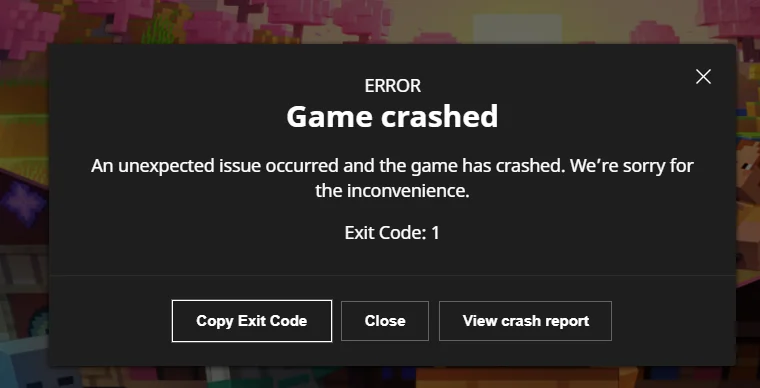
When you encounter Minecraft Error Code 1, the game usually fails to launch and closes before reaching the main menu. In some cases, the launcher briefly displays the error code before stopping the game process, leaving little information about what caused the launch to fail.
The error is commonly seen in Minecraft Java Edition and it can appear during startup, after updates, or when custom settings are in use. This guide explains what Error Code 1 actually means, why it happens, and how you can fix it.
What Is Minecraft Error Code 1?
Minecraft Error Code 1 is a generic error message when the game fails to complete its startup process. The code signals that something prevented Minecraft from initializing correctly, but it does not display the specific reason for the failure.
Therefore, fixing Error Code 1 on Minecraft requires troubleshooting beyond the launcher message itself. This involves reviewing game files, configuration settings, or diagnostic logs to determine what prevented Minecraft from starting properly.
Causes of Minecraft Error Code 1
Not sure why you’re getting Error Code 1 on Minecraft? These are some of the most common causes:
- Incompatible or misconfigured Java: Minecraft depends on Java to run. If the launcher is pointing to the wrong Java runtime, or Java versions don’t match what the setup expects, startup can fail with Error Code 1.
- Corrupted or incomplete game files: A failed update, interrupted download, or damaged file can prevent required game components from loading. When Minecraft can’t load what it needs, the launcher may return Error Code 1.
- Mods or mod loader conflicts: Incompatible mods, outdated mod versions, or a mismatched mod loader (like Forge or Fabric) can stop Minecraft during startup. This is especially common after updating the game version.
- Problematic JVM arguments or memory settings: Custom JVM flags and memory allocation settings can break startup if they’re invalid or too aggressive. Incorrect launch parameters can cause Minecraft to exit during initialization.
- Outdated or incompatible graphics drivers: Minecraft still relies on your GPU driver for rendering to initialize correctly. If the driver is outdated or unstable, the game may fail early in the launch process.
- Antivirus or firewall interference: Security tools can block Java or the Minecraft Launcher from running normally. If the game process is restricted or quarantined, Minecraft may fail to start and throw Error Code 1.
Ways to Fix Minecraft Error Code 1
If Minecraft Error Code 1 keeps showing up, the fixes below cover the most reliable ways to resolve it:
Check and Update Java
Minecraft is Java-based, so make sure the launcher is using a supported Java version. If you’re using a custom Java installation, confirm the path is correct in the launcher settings. Updating Java or switching back to the bundled Java version can resolve compatibility issues.
Repair or Reinstall Minecraft Game Files
Corrupted or missing files can stop Minecraft from launching properly. Use the launcher’s repair option if available, or reinstall Minecraft to restore clean game files. This process does not remove saved worlds if they are backed up correctly.
Disable Mods and Mod Loaders
If you’re running mods, try launching Minecraft without them to see if the issue resolves. Outdated or incompatible mods and mod loaders are a common trigger for Error Code 1. Update mods to match your game version before re-enabling them.
Reset JVM Arguments and Memory Settings
Custom JVM arguments or memory values can cause Java to terminate the game early. Reset all JVM options in the launcher to their default values and avoid adding unsupported flags to ensure Minecraft starts with stable launch parameters.
Update Graphics Drivers
Outdated or incompatible GPU drivers can prevent Minecraft from loading its rendering system. Download the latest drivers directly from your graphics card manufacturer. Keeping drivers up to date helps avoid launch failures linked to rendering issues.
Check Antivirus and Firewall Settings
Some antivirus or firewall programs block Java or the Minecraft Launcher. Temporarily disable security software to test if it’s causing the issue. If confirmed, add Minecraft and Java as exceptions instead of leaving protection turned off.
How to Check Minecraft Logs for Error Code 1
The quickest way to get more detail about this error is to look at Minecraft’s log files. Here’s how to do it:
- Open the Minecraft game directory, which contains the files used during launch. On Windows, this is typically the .minecraft folder created by the launcher.
- Go to the logs folder and locate the file named latest.log. This file records details from the most recent launch attempt.
- Open latest.log in a text editor and scroll toward the bottom. Errors or warnings near the end usually relate to why the game failed to start.
- Check the crash-reports folder if it exists. Any crash reports there are timestamped and may provide more detailed information than the launcher.
- Look for messages related to Java errors, missing files, mod loading failures, or invalid launch arguments, as these are commonly linked to Error Code 1.
Frequently Asked Questions
Minecraft Error Code 1 is a generic launch error that indicates the game did not start successfully. The code itself does not explain the underlying issue and serves only as a signal that something went wrong during launch.
Yes, mods can cause Error Code 1 if they are outdated, incompatible with the game version, or conflicting with other mods. Mod loaders such as Forge or Fabric can also trigger the error when misconfigured.
Reinstalling Java is not always necessary. In many cases, the issue can be resolved by updating Java, fixing the Java path in the launcher, or switching back to the launcher’s bundled Java version.
Fixing Error Code 1 usually involves checking Java settings, repairing game files, disabling mods, and reviewing logs for clues. The exact fix depends on what caused the game to fail during launch.

PureVPN

December 15, 2025

4 months ago