
QR codes are everywhere today, from restaurant menus to payment systems, Wi-Fi logins, and marketing campaigns, all work through them. They’re convenient, fast, and often a contact-free way to access information. But with convenience comes risk. Scanning the wrong QR code can expose you to phishing attacks, malware downloads, and privacy leaks.
In this blog, we’ll cover all the ways to scan QR codes across different devices, explore security and privacy concerns, and share real customer experiences.
What Is a QR Code and Why is It Important For Your Privacy?
QR (Quick Response) codes are two-dimensional barcodes that store information, like URLs, contact data, geolocation, or Wi-Fi credentials. They’re designed to be read by cameras and special scanning apps.
Common Uses of QR Codes
- Opening webpages (menus, links, check-ins)
- Making payments (Apple Pay, Google Pay, UPI)
- Joining Wi-Fi networks without typing a password
- Sharing contact details (vCard)
- Tracking packages
- Authentication (2FA codes, login prompts)
When you scan a QR code and open its linked content, several privacy-related actions may occur behind the scenes:
- Your IP address can be logged.
- Your device information (browser, OS version, model) can be collected.
- Your location data may be inferred.
- Tracking cookies can be installed in your browser.
- You may be redirected through multiple tracking URLs before landing on the final page.
So, illegitimate use of a QR code can be a privacy risk you must be aware of.
How to Scan QR Codes: Device-by-Device Guide
Depending on the device you’re using, the process of QR code scanning can look slightly different.
1. Android Devices
Most modern Android phones (Samsung, Google Pixel, Xiaomi, OnePlus) have built-in QR scanning functionality. Using the Stock Camera App
- Open the Camera app.
- Point it at the QR code—no need to press a button.
- A notification or link should pop up—tap it.
Note: On some devices, you’ll need to toggle on “Scan QR codes” in camera settings.
Using Google Lens
- Open the Google Lens app (or long-press on the home button to launch it).
- Aim at the QR code.
- Tap the detected link to open it.
Third-Party QR Scanner Apps
There are dedicated apps on Google Play: QR Code Reader, Barcode Scanner, Kaspersky QR Scanner, etc. These often offer additional features like history tracking and safety warnings.
2. iPhone & iPad
Apple made QR scanning simple by building it right into iOS.
Using the Camera App
- Open the Camera app.
- Point at the QR code.
- Tap the notification banner to open the linked content.
From Control Center
Some iPhones let you add a QR code scanner icon to the Control Center for quick access.
Using Third-Party Apps
Apps like NeoReader and QR-Reader for iPhone give extra features like bulk scanning or saving history.
3. Windows Laptops & PCs
Desktops don’t usually have QR scanning built in—but you can still scan using:
With a Webcam
- QR Scanner for PC (web-based): Open a browser tab that uses your webcam to scan QR codes.
- Third-party software: Apps like QR Code Desktop Reader let you decode screenshots and webcam images.
Without a Webcam
- Take a picture of the QR code with your phone.
- Email it to yourself and upload it to a web-based decoder like zxing.org or webqr.com.
4. macOS (MacBook, iMac)
Using Photo Booth + Online Scanner
- Snap a photo of the QR code using Photo Booth.
- Upload the image to an online scanner like WebQR.
Native Scanner in macOS Ventura and Later
Some newer macOS versions allow QR scanning directly from the camera via Control Center or Finder.
5. Smart Wearables & Other Devices
Smartwatches (Apple Watch, Wear OS)
Some models let you display QR codes (like boarding passes) but don’t scan them. You must use the paired phone instead.
Smart Glasses & AR Devices
Devices like Google Glass or AR headsets sometimes support QR scanning through built-in camera apps.
Step-by-Step: Scanning a QR Code Securely
No matter the device, follow these universal steps:
- Ensure the QR code looks printed or displayed in a trusted context.
- Look before you scan. Don’t scan codes on suspicious posters or unknown emails.
- Preview the URL. Most scanners show the link preview before opening; review it carefully.
- Consider using PureVPN and mobile security apps that help block malicious sites.
- Avoid auto-actions. Don’t let apps automatically trigger payments or installations.
Security & Privacy Risks of Scanning QR Codes
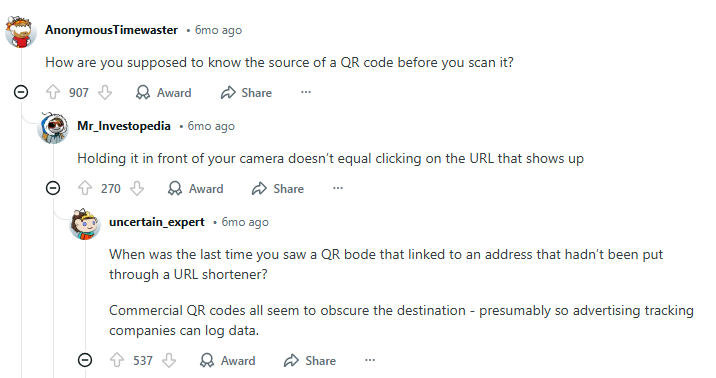
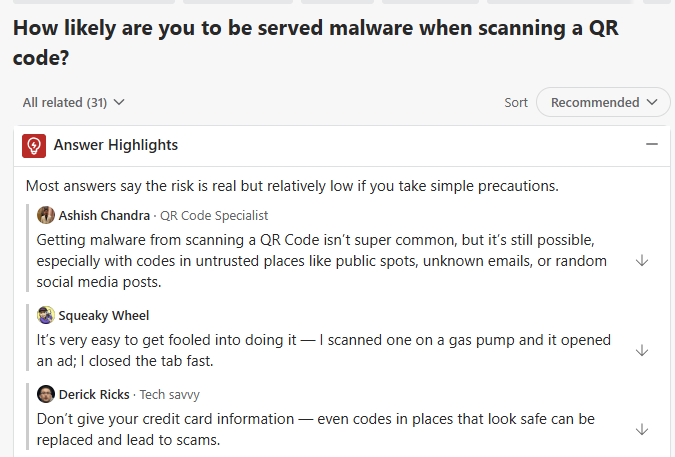
While scanning QR codes seems innocent, users on various forums frequently report issues:
1. Hidden Malicious URLs
Cybercriminals can embed malicious URLs that:
- Phish for credentials
- Trigger malware downloads
- Lead to fake login portals
2. Malware Downloads
Malicious QR codes can redirect users to unofficial app download pages instead of legitimate app stores. On Android devices, this often involves prompting users to install APK files from unknown sources. Once installed, these apps can steal data, monitor activity, or give attackers control over the device.
3. Privacy Leakage
Certain QR codes don’t just open a webpage, they can quietly initiate background tracking. Once scanned, they may enable location tracking, capture unique device fingerprints (such as browser type, OS version, and hardware details), or begin collecting personal data without clear user consent.
In many cases, this happens instantly when the linked page loads, making it important to review URLs carefully before interacting further.
4. Automatic Actions
Some QR codes trigger:
- Payments
- Wi-Fi auto-join
- App launches
If a QR code triggers a payment prompt, it can be a scam.
What to Do to Stay Safe When Scanning QR Codes
Here’s how to keep your device and data secure:
- Validate Before You Open: Check URL previews for legitimacy.
- Use a Secure Scanner: Choose scanners that block malicious links and show previews.
- Keep Your OS Updated: Install updates to protect against exploits.
- Use PureVPN for Privacy: Encrypt traffic and hide your IP.
- Be Extra Careful in Public Places: Avoid scanning suspicious or tampered QR codes.
Frequently Asked Questions
QR codes themselves don’t hold viruses, but they can link to malicious sites that host malware.
Yes, built-in camera apps usually scan for free. Third-party apps may offer extra features, but you must stay cautious while using third-party tools.
Yes, phishing scams often use QR codes to bypass email filters.
They can collect data if you visit a malicious site, if you don’t use a VPN or browser privacy settings.
Compare it to official sources, check for tampering, and use a scanner that previews links.
Wrap Up
QR codes are incredibly useful and part of everyday digital life. But with that convenience comes risk. Whether you’re on Android, iPhone, or a desktop device, knowing how to scan QR codes safely is very important. Always preview the link before opening, use security-focused scanners and privacy tools, be cautious in public or suspicious contexts, and consider PureVPN to protect your data