Table of Contents
Getting Error Code 2 on your Steam cart can be frustrating, especially when you’re ready to checkout and complete your purchase. This error usually pops up as a notification like “Error Code 2 – Steam cart could not be loaded” or simply prevents the cart from functioning properly.
In this guide, we will break down what Error Code 2 means, why it happens, and how to fix it on Windows, macOS, and mobile devices. All solutions are simple, clear, and tested to get you back to buying your favorite games hassle-free.
What is Steam Error Code 2?
Error Code 2 is a Steam client or server response indicating that your shopping cart could not be loaded. Essentially, Steam is unable to fetch your cart data, usually due to cache issues, network problems, or temporary server disruptions.
It doesn’t necessarily mean your account is banned or restricted, most of the time, it’s a minor glitch you can fix quickly.
General Fixes for Steam Cart Error Code 2
Before diving into platform-specific solutions, trying a few general troubleshooting steps can often resolve the issue quickly. Error Code 2 on Steam usually occurs due to temporary glitches, connectivity problems, or corrupted local data. Follow these steps carefully:
Refresh Your Steam Client or Browser
Sometimes, the issue is temporary and can be resolved by a simple refresh. Close Steam entirely, including any background processes running in the Task Manager (Windows) or Activity Monitor (Mac). Reopen Steam and check your cart again. For browser users, log out and log back in, or try opening Steam in a private/incognito window to bypass potential browser conflicts.
Clear Cache and Cookies
Old or corrupted cache files and cookies can prevent your cart from loading correctly. On the Steam client, you can clear the download cache by going to Steam > Settings > Downloads > Clear Download Cache. For web users, clearing your browser cache and cookies ensures that outdated data doesn’t interfere with the cart. After clearing, restart your browser and log in again.
Check Steam Server Status
If Steam servers are down or undergoing maintenance, you might see Error Code 2 regardless of your device settings. Check the current Steam server status at Steam Status to confirm whether the problem is server-side. If servers are down, waiting until the maintenance is complete is usually the only solution.
Restart Your Device and Network
A fresh reboot often resolves temporary software conflicts or network-related issues. Restart your PC, Mac, or mobile device, and make sure no unnecessary applications are running in the background.
Additionally, restarting your router or modem can refresh your network connection, helping eliminate connectivity issues that may prevent your Steam cart from loading properly.
Update Steam Client and System Software
Running an outdated Steam client or operating system can trigger unexpected errors. Ensure your Steam client is updated to the latest version. On Windows, check for updates through Settings > Update & Security, and on macOS, go to System Settings > Software Update. Updating ensures compatibility and can prevent cart-related errors.
Disable VPNs, Proxies, or Firewalls Temporarily
Sometimes network restrictions caused by VPNs, proxies, or firewalls can interfere with Steam’s cart functions. Temporarily disabling these services can help determine if they are causing Error Code 2. Make sure to re-enable your security measures after testing.
See Also: How to Port Forward Steam Server
Try a Different Device or Network
If the error persists, attempting to access your Steam cart from a different device or network can help isolate the issue. For example, if your PC shows Error Code 2, try your mobile device or a different Wi-Fi network. If it works elsewhere, the problem may be specific to your original device or network configuration.
Check for Background Applications
Certain software, like third-party security tools or download managers, can interfere with Steam’s connection to its servers. Temporarily disabling such applications while accessing your cart may resolve the error. Pay attention to software that monitors network traffic, as this can block cart functionality.
Verify Account Permissions
Ensure your Steam account has proper permissions to make purchases. If your account is restricted, suspended, or has recent changes in payment methods, the cart may fail to load. Visit your Steam Account Settings > Account Details > View Purchase History to check for issues.
How to Fix Steam Error Code 2 in Windows
Steam Error Code 2 is a frustrating issue that Windows users may encounter while trying to play games, add items to the cart, or upload content on the Steam platform. Essentially, this error occurs when Steam cannot process your request, often interrupting your gaming experience, especially during purchases or gameplay. The causes can vary widely, including server overload, permission problems, network issues, or corrupted game files. Understanding these causes is key to applying the right solution.
1. Check Steam Server Status
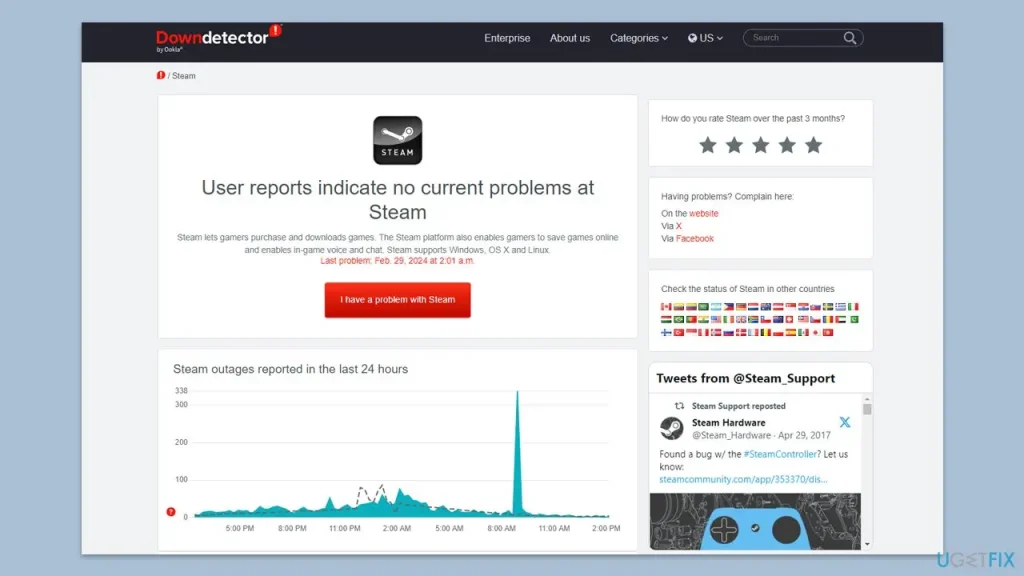
Before troubleshooting your system, it’s important to verify if the issue originates from Steam’s servers. Overloaded or down servers can prevent requests like launching games or adding items to a cart from being processed, resulting in Error Code 2. Checking server status allows you to confirm whether the problem is local to your PC or widespread. Use resources like the Steam Server Status page or Downdetector for real-time updates.
2. Restart Your PC and Steam Client
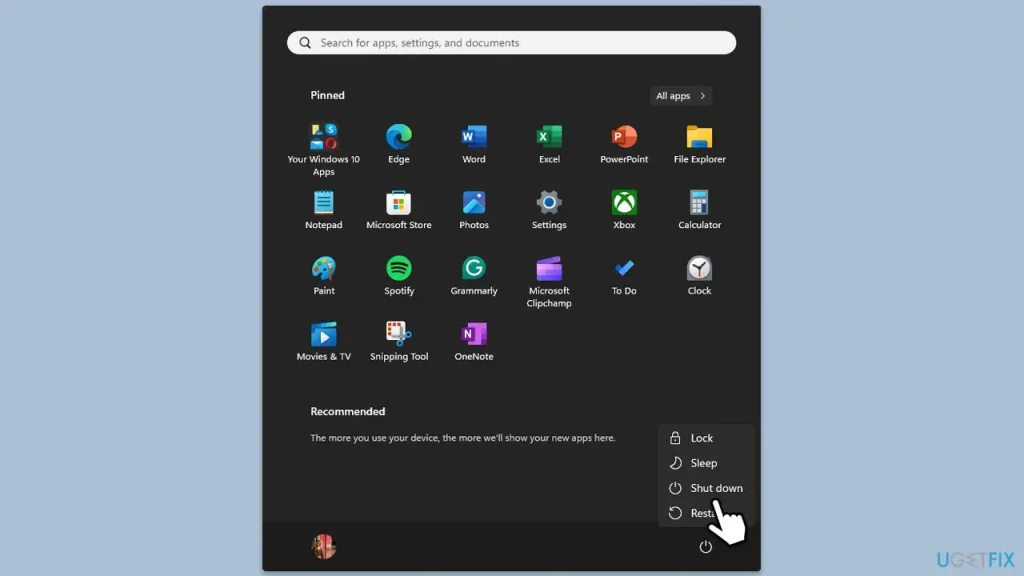
Temporary software glitches or background processes in Windows can sometimes block Steam’s proper functioning. Restarting your PC and the Steam client refreshes system resources, closes conflicting processes, and can often resolve minor errors. Ensure that Steam is fully closed, including the system tray, before restarting. After rebooting, relaunch Steam to see if the error persists.
3. Run Steam as Administrator
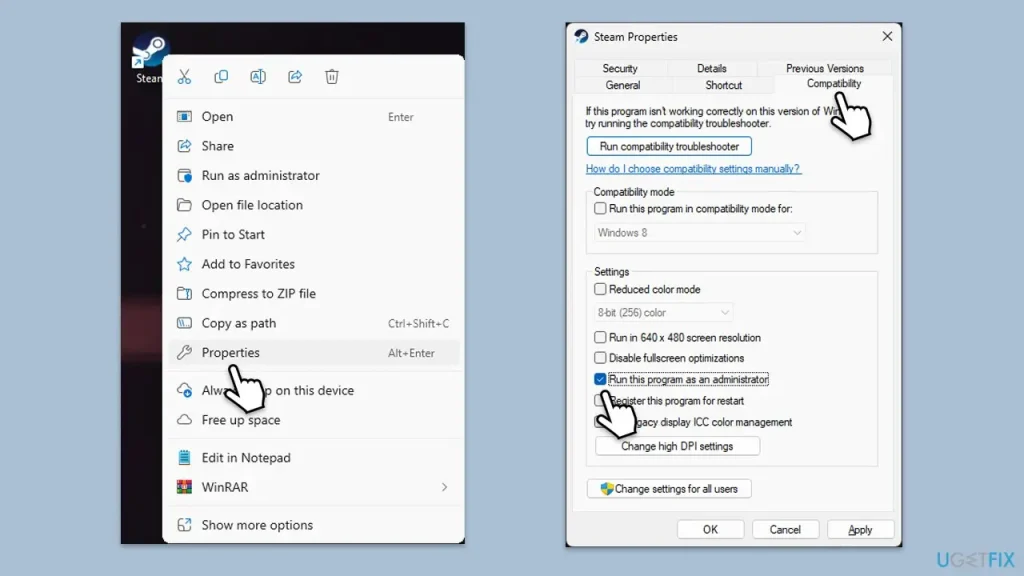
Steam requires access to certain system files and folders to operate correctly. If your account lacks proper permissions, Steam may fail to complete specific tasks, leading to Error Code 2. Running Steam as an administrator ensures it has the necessary rights to access system files, apply updates, and interact with installed games. To do this, right-click the Steam shortcut, select Properties, navigate to the Compatibility tab, and check Run this program as an administrator.
4. Disable Steam Family Sharing
Steam Family Sharing is designed to allow multiple users to access a shared library of games. However, this feature can occasionally interfere with access permissions, causing games to fail to launch or generating Error Code 2.
Disabling Family Sharing temporarily can help determine if it is the cause of the issue. To do this, open Steam, go to Settings → Family, and uncheck Authorize Library Sharing on this Computer. After restarting Steam, check whether the error is resolved.
5. Verify the Integrity of Game Files
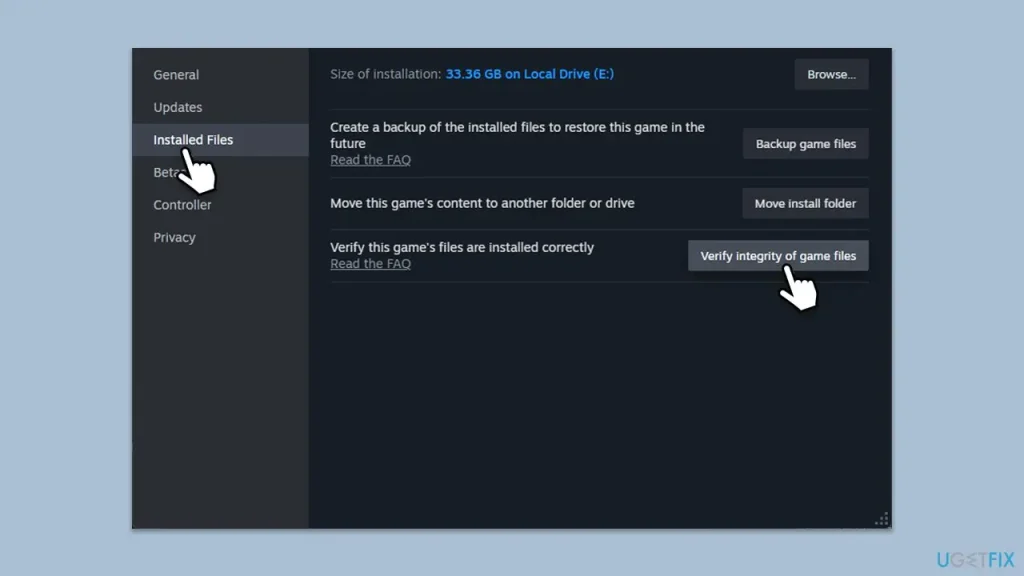
Corrupted or missing game files are a common reason why Steam games fail to launch or trigger errors like Code 2. Fortunately, Steam includes a tool to check and repair installed game files. To verify integrity, open your Steam Library, right-click the problematic game, select Properties → Installed Files, and click Verify Integrity of Game Files. Steam will scan the files and automatically replace or repair any that are damaged.
6. Change Steam Download Region
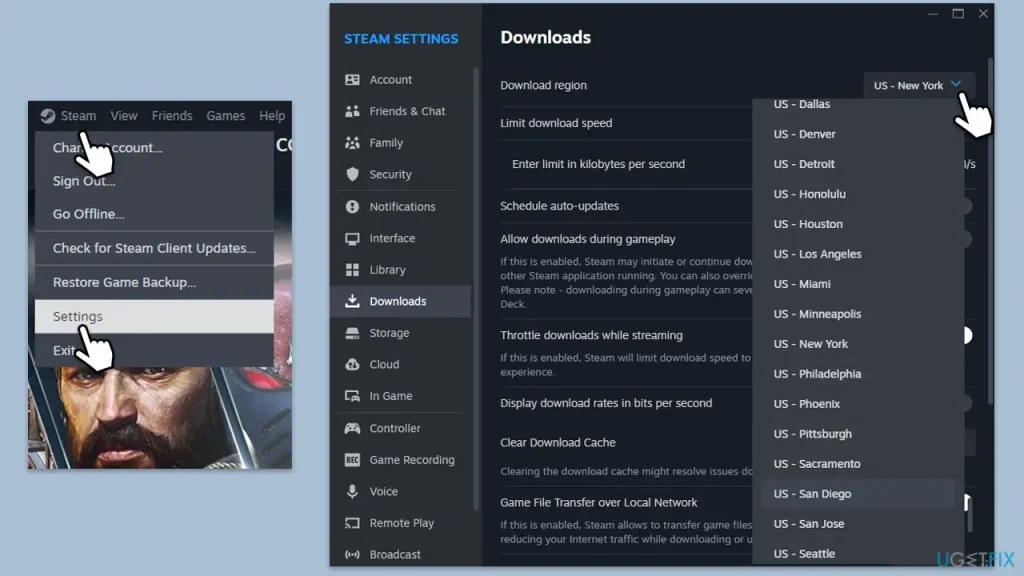
Occasionally, Steam servers in your region may experience congestion, especially during new game releases or peak usage hours. Changing the download region allows Steam to connect to a less busy server, potentially resolving server-related issues that trigger Error Code 2.
To adjust this, go to Steam → Settings → Downloads, select a different server under Download Region, and restart the client.
7. Check Your Internet Connection
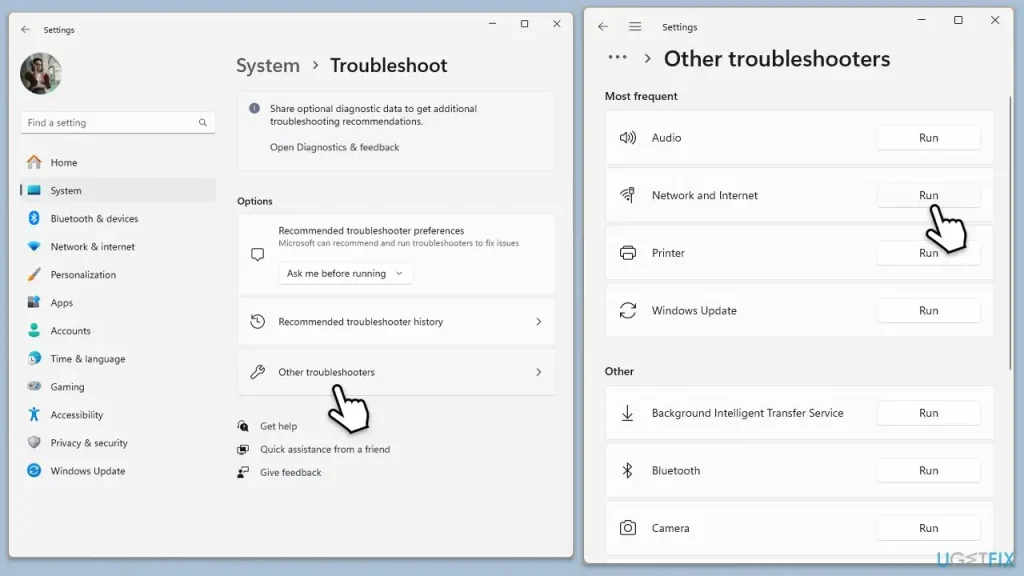
A stable and fast internet connection is essential for Steam to communicate with its servers. Unstable networks, slow connections, or firewall restrictions can interrupt these communications, causing Error Code 2. On Windows 11, type Troubleshoot in the search bar, select Other troubleshooters, and run the Network & Internet troubleshooter.
Windows 10 users can navigate to Settings → Network & Internet → Advanced network settings and run the Network Troubleshooter.
8. Reinstall Steam
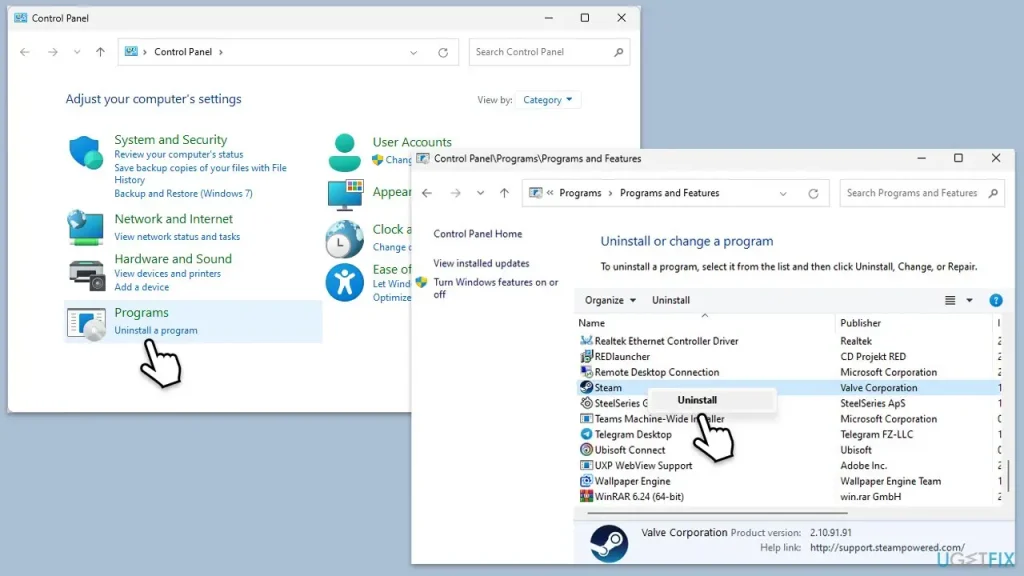
If the above steps fail, reinstalling Steam can fix persistent errors by replacing corrupted client files. Begin by uninstalling Steam from Control Panel → Programs → Uninstall a program, then restart your PC. Download the latest version of Steam from the official website and install it.
9. Use Automatic Repair Tools
For users who prefer a more automated approach, tools like Fortect can scan your Windows system for damaged files, fix registry issues, and repair errors affecting Steam. Such tools are particularly helpful when the error stems from deeper system problems, including corrupted Windows files or malware interference.
Steam Cart Fixes for Mobile (iOS / Android)
Mobile devices can also experience Error Code 2 due to temporary glitches, network restrictions, or app-specific issues. Follow these steps based on your device:
Force-Close Steam App
Memory glitches or temporary errors may prevent your cart from loading. Force-close Steam and reopen it:
- On Android: Tap Recent Apps → Swipe Steam away.
- On iOS: Swipe up from the bottom and close Steam from the app switcher.
Reopening the app resets the session and often resolves minor cart errors.
Clear Steam App Cache (Android Only)
Android devices allow manual cache clearing, which removes corrupted temporary data:
- Go to Settings → Apps → Steam → Storage → Clear Cache.
- Relaunch Steam and check your cart.
Note: iOS does not allow manual cache clearing, so reinstalling the app is the preferred solution for iPhones and iPads.
Reinstall the Steam App
If the problem persists, uninstalling and reinstalling Steam ensures all corrupted or outdated files are replaced:
- Backup any offline games or settings if necessary.
- Install the latest version from Google Play Store or Apple App Store.
This is especially effective if previous fixes didn’t work, as it gives you a clean app installation.
Switch Between Wi-Fi and Mobile Data
Network routing issues or restrictions by your ISP can trigger Error Code 2. Try:
- Switching from Wi-Fi to mobile data, or vice versa.
- Connecting to a different Wi-Fi network.
This helps determine whether the issue is related to your network connection rather than the Steam app itself.
Common Issues Behind Steam Cart Error Code 2
Steam Cart Error Code 2 usually appears when the platform is unable to load your cart properly. While it may seem frustrating, this error often results from a handful of common issues rather than a permanent problem with your account.
One frequent cause is temporary server downtime or maintenance, which prevents Steam from processing cart requests. Another is corrupted cache or cookies, data stored locally in your Steam client or web browser that conflicts with the platform’s servers.
Network restrictions, such as VPNs, proxies, or firewalls, can also block access to your cart. On mobile devices, temporary app glitches or outdated app versions can trigger this error.
How to Fix Steam Error Code 2 When You Can’t Add Items?
If you’re seeing Steam Error Code 2 while trying to add items to your cart, start by refreshing the Steam client or browser and clearing your cache and cookies. Disable any VPNs or proxies, update your Steam client or browser, and check your network connection. If the issue persists, try reinstalling Steam or switching networks, as temporary server or local connectivity problems often cause this error.
Frequently Asked Questions
Error Code 2 appears when Steam cannot properly load your cart. It can result from server downtime, corrupted cache or cookies, network restrictions, or app-specific glitches on mobile devices.
Yes. Steam may block connections coming through VPNs or proxies. Temporarily disabling them often resolves the error and allows your cart to load normally.
Clearing cache and cookies can help, especially if corrupted data is preventing Steam from accessing your cart. On the Steam client, clearing the download cache is effective, while browser users should clear cookies and cache.
Absolutely. Restarting your PC, Mac, or mobile device refreshes temporary memory and network connections, often resolving minor glitches that cause Error Code 2.
If all general and platform-specific solutions fail, consider reinstalling the Steam client or app. This replaces corrupted files and ensures you have the latest updates. Additionally, checking for ongoing server issues on Steam’s status page can clarify whether the problem is on their end.

Arsalan Rashid

January 28, 2026

2 months ago