
When you use a Pepephone internet connection in Spain, most of your devices connect through the router’s built-in firewall and Network Address Translation (NAT). While this setup keeps your network secure, it can sometimes block incoming connections that certain apps, games, or devices need. That’s where port forwarding comes in, it opens a “door” in your router so specific traffic can reach the right device.
Whether you’re setting up a game server, accessing a security camera remotely, or improving peer-to-peer connections, understanding how port forwarding works on a Pepephone router can save you a lot of time and frustration.
Use PureVPN’s Port Forwarding Add-on to Get Around Pepephone
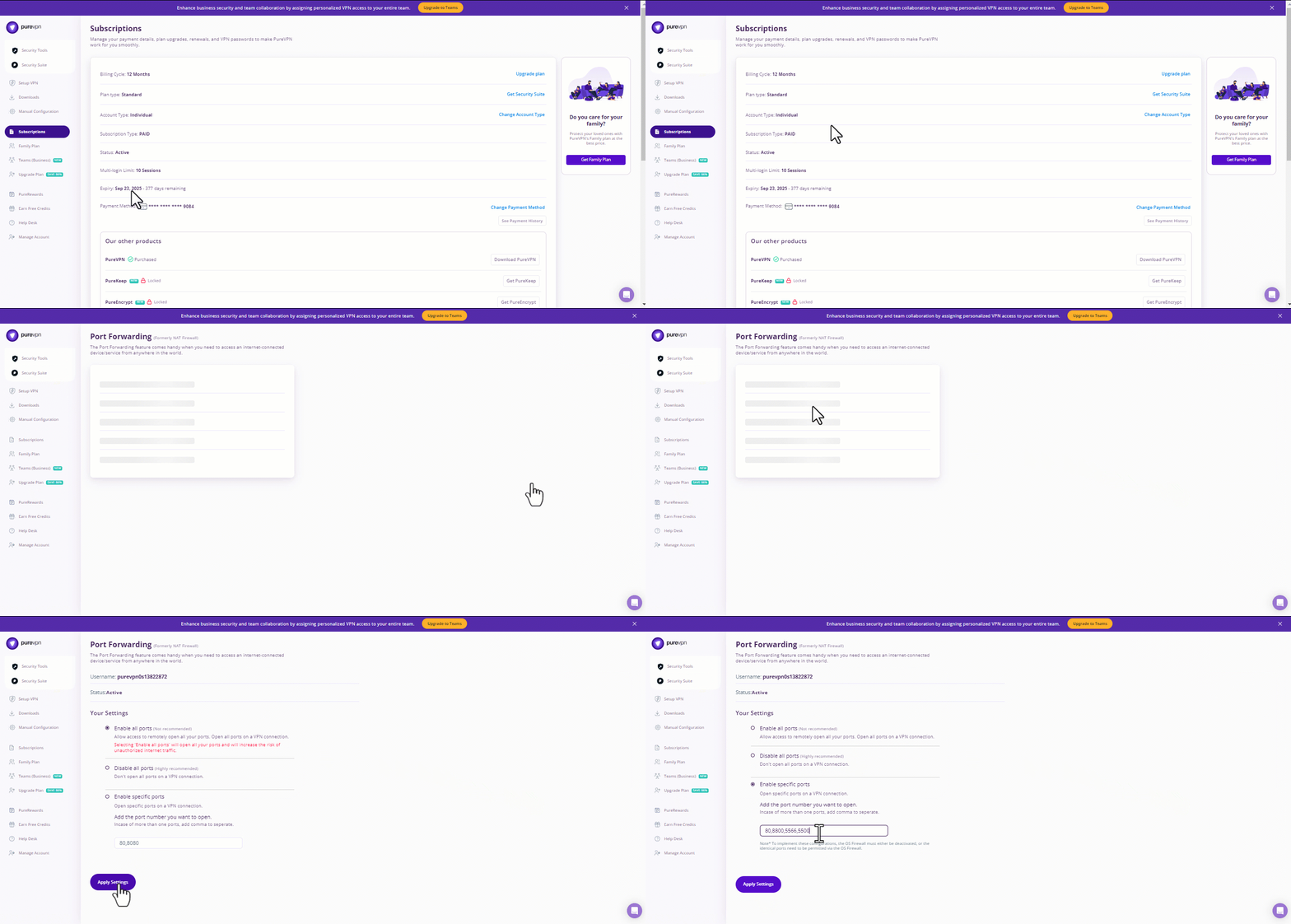
If you want to port forward on Pepephone without CGNAT barriers, using PureVPN’s Port Forwarding add-on is the easiest way. Here’s how to do it:
- Sign up for PureVPN, include the Port Forwarding add-on, and complete your payment.
- Download and install the PureVPN app for your device and log in with your account details.
- Open the Member Area, click Subscriptions and then Configure next to Port Forwarding.
- Select Enable specific ports, enter the ports you wish to forward, and click Apply Settings.
- Connect to a port forwarding-supported server to activate your settings and bypass CGNAT limitations!
What Is Port Forwarding and Why Use It?
Port forwarding tells your router:
“If you see data coming in on a certain port, send it directly to a specific device inside my network.”
Common Uses
- Gaming – Reduce lag, host multiplayer matches, and ensure stable connections.
- Remote access – View your CCTV or IP cameras from outside your home network.
- File sharing – Improve peer-to-peer speeds in apps like BitTorrent.
- Custom servers – Run your own website, game server, or FTP server from home.
- IoT devices – Control smart home devices while away from home.
Without port forwarding, your router might block or misroute this incoming traffic, resulting in connection errors.
Pepephone Routers and Their Interfaces
Pepephone typically provides low-cost but capable routers depending on your plan. Most are models from brands like ZTE, Sagemcom, or Askey, each with slightly different menus. However, the port forwarding steps are generally similar.
Typical Pepephone router IP addresses:
| Router Model | Default Gateway (to access settings) | Default User/Pass |
|---|---|---|
| ZTE H298A | 192.168.1.1 | admin / admin |
| Sagemcom F@ST 5657 | 192.168.0.1 | admin / admin |
| Askey RTF8115VW | 192.168.1.1 | admin / admin |
(Tip: If your router login details were changed during installation, you’ll need to ask Pepephone support or check your service paperwork.)
Before You Begin: Key Things to Know
- Static IP for the Device
Assign a static IP to the device you want to forward ports to. Without it, the device’s internal IP could change after a restart, breaking your port forwarding setup. - Know Your Ports
Find out which port(s) your application requires. Some need a single port (e.g., 25565 for Minecraft), others use a range. - Public IP Address Check
Pepephone uses CGNAT (Carrier Grade NAT) for some customers, which shares a public IP among multiple users. If you’re under CG-NAT, port forwarding won’t work until you request a public IPv4 from Pepephone support (usually free).

Step-by-Step: Setting Up Port Forwarding on Pepephone
Step 1: Access Your Router’s Admin Panel
- Open a web browser on a device connected to your Pepephone network.
- Type your router’s gateway address (e.g.,
192.168.1.1) into the address bar and hit Enter. - Enter your admin username and password.
Step 2: Assign a Static IP to Your Device
- Navigate to LAN settings or DHCP settings.
- Locate your device in the connected devices list.
- Bind its MAC address to a fixed IP.
- Save changes.
Why this matters: Without a static IP, your forwarded ports may end up pointing to the wrong device after a reboot.
Step 3: Locate the Port Forwarding Section
Depending on the model, it might be labeled as:
- Port Forwarding
- Virtual Server
- NAT Rules
- Application Sharing
Step 4: Create a New Port Forwarding Rule
Here’s what to enter:
- Service Name – A label like “Minecraft Server” or “Camera Access.”
- Protocol – TCP, UDP, or Both (depends on your app’s requirements).
- External Port – The incoming port number.
- Internal IP Address – The static IP of your device.
- Internal Port – Usually the same as external, unless your app specifies otherwise.
Example table for Minecraft server:
| Field | Value |
|---|---|
| Service Name | Minecraft |
| Protocol | TCP |
| External Port | 25565 |
| Internal IP | 192.168.1.50 |
| Internal Port | 25565 |
Step 5: Save and Reboot
- Click Save/Apply to activate the rule.
- Reboot your router if needed.
Step 6: Test Your Port
Use online tools like canyouseeme.org to confirm the port is open.
If it’s still closed:
- Make sure your application is running.
- Double-check firewall settings on your device.
- Confirm you have a public IP (no CG-NAT).
Pepephone CG-NAT and How to Bypass It
CG-NAT is a cost-saving measure where multiple customers share a single public IP. While fine for browsing, it blocks incoming traffic, making port forwarding impossible.
Solution: Contact Pepephone customer service and request to be moved to a public IPv4. They usually process it within 24–48 hours and don’t charge extra.
Security Considerations
Opening ports means exposing parts of your network to the internet. To reduce risks:
- Only forward ports you actually need.
- Use strong passwords for services you expose.
- Keep your router firmware up to date.
- Consider PureVPN with port forwarding add-on for an extra security layer.
Troubleshooting Common Issues
| Problem | Possible Cause | Fix |
|---|---|---|
| Port still closed | CG-NAT enabled | Request public IP |
| Wrong device receiving traffic | Device IP changed | Set static IP |
| Works locally but not remotely | ISP blocking port | Try different port or contact Pepephone |
| Service unreachable | Local firewall blocking connection | Allow app in firewall settings |
Alternative: UPnP
If manual port forwarding feels complicated, Universal Plug and Play (UPnP) can allow apps to open ports automatically. However, it’s less secure since any app can request ports without your approval.
Conclusion
Port forwarding on a Pepephone router is a straightforward process once you understand the basics, assign a static IP, open the necessary ports in your router, and ensure you’re not behind CG-NAT. This simple tweak can dramatically improve gaming performance, remote access, and custom server hosting from your home.

PureVPN

August 11, 2025

8 months ago


