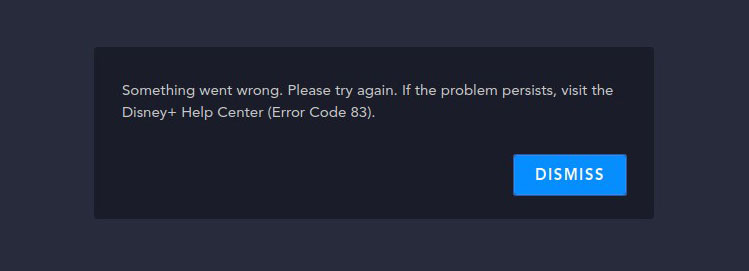
Disney Plus Error Code 83 is a playback error that appears when the platform can’t verify that your device or connection is allowed to stream the content you’re trying to watch. Instead of starting the video, the app blocks the request and shows the error, often without a clear explanation.
Since the error occurs due to device compatibility checks, DRM requirements, or basic network conditions, it can show up on phones, browsers, smart TVs, and consoles alike. This guide breaks down what the error actually means and simple fixes that can help you get Disney Plus working again.
What Is Disney Plus Error Code 83?
Disney Plus Error Code 83 appears when the service can’t confirm that your device or app is able to play the selected content. This usually happens when the device isn’t supported, the app or browser is outdated, or the platform can’t validate playback through your current connection.
In simple terms, Error Code 83 means Disney Plus blocked the video because something in your device, software, or network didn’t meet the requirements needed for streaming. It’s a general compatibility or authorization failure, which is why it can appear across different devices.
Causes of Disney Plus Error Code 83
Error Code 83 can appear for several different reasons, all related to Disney Plus being unable to authorize playback. These are the most common verified causes:
- Unsupported or outdated device: Disney Plus requires certain operating systems and hardware to stream securely. Devices running older software or unsupported models may fail compatibility checks and trigger Error Code 83.
- Outdated Disney Plus app or browser: If the Disney Plus app or your browser is running an outdated version that doesn’t meet the platform’s current requirements, the service may block playback.
- DRM or HDCP verification failure: Disney Plus uses DRM (such as Widevine) and HDCP to protect content. When these protections fail or aren’t supported by the device, the service blocks playback and shows Error Code 83.
- Network issues or restricted connections: Weak Wi-Fi, unstable networks, or restrictive setups such as school, work, or carrier networks can interrupt authorization. If the request doesn’t complete properly, Error Code 83 can appear.
- Browser configuration problems: Browsers with disabled or outdated DRM modules, especially Widevine on Chrome or Edge, may fail to verify playback rights. In these cases, Disney Plus cannot complete the streaming check.
- Temporary account or device authorization errors: Occasionally, Disney Plus fails to validate the device for your account, leading to authorization errors. This can happen after switching devices or logging in from multiple locations.
Ways to Fix Disney Plus Error Code 83
Because Error Code 83 can come from different compatibility or connection issues, fixing it often requires trying a few targeted steps. Here are the most reliable fixes:
Check if your device is supported by Disney Plus
Error Code 83 frequently appears when the device, OS version, or hardware isn’t officially supported. Visit Disney’s list of compatible devices and confirm that yours meets the minimum requirements. If the device or OS is too old, Disney Plus may block playback entirely.
Update the Disney Plus app or your browser
An outdated Disney Plus app or browser is one of the most common causes for Error Code 83. Update the app and/or your browser to the latest version from official sources. Newer versions include updated DRM modules and compatibility improvements required for streaming.
Enable DRM components in your browser
If DRM is disabled or not functioning, Disney Plus cannot verify playback rights. In Chrome, Edge, or Firefox, make sure that Widevine is enabled and not blocked by settings or extensions. Disney Plus will not load protected content if DRM components fail validation.
Restart your device and reopen Disney Plus
A simple restart can often clear temporary authorization or DRM-loading issues. Rebooting resets the app, browser, and system processes that Disney Plus relies on to verify compatibility. Many users report Error Code 83 disappearing after a full device restart.
Switch to a different browser or device
Some Error Code 83 cases are browser-specific, especially when certain versions of Chrome, Edge, or Firefox fail DRM checks. Trying another browser, or switching from your browser to the Disney Plus app, helps determine whether the issue is limited to that environment.
Check your internet connection or try another network
Unstable Wi-Fi, restricted networks, or certain carrier networks can interrupt playback authorization. Connecting to a different network, switching from mobile data to Wi-Fi, or restarting your router can help the authorization request complete successfully.
Check your HDMI cable and display (for TVs and monitors)
If you’re using an external display, HDCP issues can trigger Disney Plus Error Code 83. A non-HDCP-compliant TV, monitor, or HDMI cable may block playback. Switching to a certified HDCP cable or using a compatible display often resolves this issue.
Reinstall the Disney Plus app
If the app’s files are damaged or incomplete, reinstalling can restore missing components needed for DRM and compatibility checks. This is particularly useful on mobile devices, TVs, and streaming boxes where app updates occasionally fail to install correctly.
Log out of Disney Plus and sign back in
Temporary account or device authorization errors can prevent playback from being approved. Logging out from the Disney Plus app clears the existing authorization token and forces the service to revalidate your device when you sign back in.
Frequently Asked Questions
Error Code 83 appears when Disney Plus can’t confirm that your device, app, or browser meets the requirements needed to play protected content. It’s a compatibility or authorization failure rather than a single technical issue. The platform blocks playback until the check passes.
The error can appear during server-side issues, especially when Disney Plus is having trouble validating devices or processing playback requests. If many users experience Error Code 83 at the same time, it often indicates a temporary problem on Disney’s end.
Sometimes. Unsupported hardware or outdated operating systems are common triggers for Error Code 83. If your device doesn’t meet Disney Plus’ current requirements, or the OS is too old to handle DRM or HDCP checks, the service may block playback.
Check that your device is supported and that the Disney Plus app or your browser is fully updated. If that doesn’t work, enable DRM components, restart your device, and test another browser or network. If HDCP issues or corrupted app files are involved, switching the HDMI cable or reinstalling the app can help.
If the issue continues after trying the standard fixes, go ahead and contact Disney Plus Support. They may ask for your device model, OS version, app/browser version, and screenshots to check for account-specific or compatibility problems.

PureVPN

December 23, 2025

1 month ago