
Ever found yourself Browse Amazon, only to discover that the product you’ve been eyeing isn’t available in your region? Or perhaps you’ve recently moved to a new country and are grappling with how to get your Amazon account to reflect your new home. You’re not alone. Amazon, with its vast global network, often tailors its offerings, pricing, and even digital content libraries based on your registered location. This can lead to frustration if your “virtual” address doesn’t match your “actual” one.
But here’s the good news: changing your Amazon location is entirely possible, though it’s not a one-size-fits-all solution. Depending on why you want to change your location and what aspects of Amazon you’re hoping to access, the process can vary. This guide will walk you through every facet of changing your Amazon location, offering a unique, in-depth perspective that goes beyond basic instructions to truly empower your global shopping and content experience.
Why Does Your Amazon Location Even Matter? The Regional Ripple Effect
Before we dive into the “how,” let’s understand the “why.” Your Amazon location isn’t just a simple address; it’s a key that unlocks (or locks) specific features and content. Here’s how:
Product Availability:
This is perhaps the most common reason. Items sold by specific regional sellers or those with distribution restrictions won’t appear on Amazon sites outside their designated region. Imagine trying to buy a local craft from Amazon Japan while logged into your Amazon US account – it’s often not possible.
Pricing and Currency:
Prices fluctuate significantly between Amazon marketplaces due to local taxes, import duties, and currency exchange rates. A product might be cheaper (or more expensive!) in a different country.
Shipping and Delivery:
Your shipping address is intrinsically linked to your chosen Amazon marketplace. If you’re in Germany, you generally can’t order from Amazon.com and expect seamless delivery to your German address without potential international shipping complexities or restrictions.
Digital Content (Kindle, Prime Video, Music, Apps):
This is where it gets particularly nuanced. Digital rights are often geo-restricted due to licensing agreements. A movie available on Prime Video US might not be on Prime Video UK, and an eBook might only be purchasable from the Kindle store of a specific country. Your Amazon account’s “digital country” plays a crucial role here.
Local Deals and Promotions:
Amazon often runs region-specific sales events and promotions. Changing your location can open doors to these exclusive offers.
Understanding these ripple effects helps you determine which method for changing your location is most appropriate for your specific needs.
The Many Faces of “Changing Location”: A Strategic Overview
When we talk about changing your Amazon location, we’re actually referring to a few distinct scenarios. It’s crucial to identify yours before proceeding.
- Changing Your Shopping Location (Browse/Ordering from a Different Marketplace): This is for when you want to browse products or make a one-off purchase from a different country’s Amazon site (e.g., you’re in the US but want to see what’s on Amazon.co.uk). Your core Amazon account typically remains tied to your primary country.
- Transferring Your Account to a New Country (Permanent Relocation): This is the significant step you take when you’ve moved to a new country permanently and want your entire Amazon experience – including digital content access and payment methods – to reflect your new residence.
- Adjusting Digital Content Region (Kindle, Prime Video, Apps): This specifically addresses the geo-restrictions on digital purchases and streaming. It’s often part of the full account transfer but can sometimes be tweaked independently for specific services.
Let’s break down each scenario with actionable steps.
Methods to Change Location on Amazon
There are some actionable methods to change your shopping location or account. Let’s discuss!
Method 1: Changing Your Shopping Location (Browse Other Marketplaces)
This is the simplest and most common change. It allows you to view and potentially purchase from a different Amazon country site without fully migrating your account. This is ideal for comparing prices, finding unique products, or buying a gift for someone in another country.
On the Amazon Website (Desktop):
- Go to Amazon.com (or your current Amazon domain): Start by opening your preferred browser and navigating to your usual Amazon homepage.
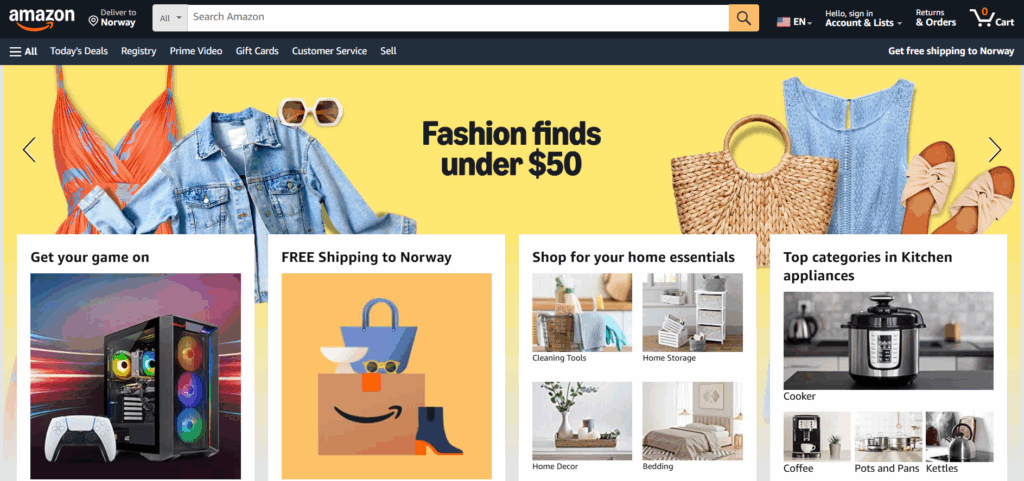
- Hover Over the Flag Icon: In the top right corner of the Amazon homepage, you’ll see a flag icon (usually representing your current country) next to “Deliver to [Your Location]”. Do not click it yet, just hover your mouse over it.
- Select “Change country/region”: A dropdown menu will appear. At the bottom, you’ll find “Change country/region.” Click on this.
- Choose Your Preferred Country/Region: A new pop-up or page will appear with a dropdown list of available Amazon marketplaces (e.g., “United Kingdom – Amazon.co.uk”, “Germany – Amazon.de”). Select the country you wish to browse.
- Click “Go to website”: Amazon will redirect you to the chosen country’s marketplace in a new tab or window. Prices will be in the local currency.
On the Amazon Shopping App (Mobile):
- Open the Amazon Shopping App: Log in to your account.
- Tap the Profile Icon: Located at the bottom of the screen, it usually looks like a person’s silhouette.
- Tap the Flag/Country Code: At the top right of the profile screen, you’ll see a small flag icon with a country code (e.g., “US”). Tap on this.
- Select Your Desired Country: A list of countries will appear. Choose the Amazon marketplace you want to browse. You can also change the language here.
- Tap “Done” or “Apply”: The app will refresh, displaying the selected country’s Amazon store.
Important Considerations for Shopping Across Borders:
- Shipping Limitations: While you can browse, direct international shipping from one Amazon domain to an address in a different country isn’t always straightforward or even possible for all items. Many sellers on a specific country’s Amazon site only ship domestically.
- Payment Methods: Your payment method might need to be associated with a billing address in the country you’re shopping from, or Amazon’s international payment processing might apply currency conversion fees.
- Login Continuity: Your login credentials are generally universal across Amazon marketplaces, but sometimes you might be prompted to re-enter them.
Method 2: Transferring Your Entire Amazon Account to Another Country (For Permanent Relocation)
This is the more involved process for those who have permanently moved to a new country and want their primary Amazon account to reflect this change, especially for digital content and seamless local purchasing.
- Go to Amazon.com (or your current Amazon domain) and sign in.
- Hover over “Account & Lists” in the top right corner.
- From the dropdown menu, click on “Content & Devices.”
- Within “Manage Your Content and Devices,” click on the “Preferences” tab.
- You’ll see “Country/Region Settings” with your current country listed. Click the “Change” button next to it.
- A new page will prompt you to enter a valid physical address in your new country of residence. This is crucial for verifying your eligibility to transfer.
- After entering your new address, click “Update.” Amazon will then present you with information about the implications of transferring your account. This is a critical step where you’ll see what digital content (like Kindle books, Prime Video purchases, app purchases) might transfer and what might not.
- Not all digital content is transferable due to licensing agreements. You might lose access to some Prime Video titles, app purchases, or Kindle Unlimited benefits from your old region. Amazon will typically warn you about these specific implications during this step.
- Subscriptions like Kindle Unlimited are often region-specific and may be canceled upon transfer. You might need to re-subscribe in your new country.
- If you agree to the terms, confirm the transfer. Your Amazon account will now be associated with your new country, and you’ll typically be redirected to that country’s Amazon domain (e.g., Amazon.de if you moved to Germany).
Key Considerations for Account Transfer:
- Payment Method Update: You’ll likely need to update your payment methods to one with a billing address in your new country.
- Existing Orders/Subscriptions: It’s best to complete any pending orders and be aware of any active subscriptions (like Prime, Kindle Unlimited, Music Unlimited) before initiating a full account transfer, as some may be impacted or canceled.
- One Account, One Home: Your Amazon account can generally only be registered to one country at a time for digital content purposes. You can’t simultaneously have your Prime Video account linked to the US and your Kindle library to the UK.
- No Going Back (Easily): While you can theoretically transfer back, it’s generally recommended only to do a full account transfer if you’re making a permanent move. Repeated transfers can cause complications with digital content.
- Japanese and Chinese Accounts: Note that Amazon.co.jp and Amazon.cn accounts typically cannot be transferred to other regions.
Method 3: Change Location on Amazon Via VPN (Temporary Solution)
You might have heard of using a Virtual Private Network (VPN) to change your “location” on Amazon. While a VPN can mask your IP address and make it appear as if you’re Browse from a different country, it’s a very different beast from formally changing your Amazon account’s registered location.
How a VPN Works (and Doesn’t Work) for Amazon:
- Browse and Price Comparison: Yes, a VPN can allow you to connect to a server in, say, the UK, and then browse Amazon.co.uk as if you were physically there. This is useful for price comparisons or viewing region-specific products.
- Digital Content (The Tricky Part): This is where VPNs often hit a wall with Amazon. Amazon’s digital content services (Prime Video, Kindle, Music) don’t solely rely on your IP address. They also check your registered Amazon account’s country, your billing address, and even past purchasing patterns. If your account is registered in the US, connecting to a UK VPN server won’t magically unlock the entire UK Prime Video library for you. You’ll likely still be served content based on your account’s registered country.
When a VPN might be useful (and safe) with Amazon:
- Security and Privacy: Using a VPN for Amazon encrypts your internet traffic, enhancing your privacy and security, especially on public Wi-Fi. This is a legitimate and recommended use case regardless of Amazon.
- Temporary Browse/Price Checks: As mentioned, it’s great for quickly checking out other Amazon marketplaces without changing your official account settings.
- Accessing Your Own Content While Traveling: If your Amazon account is registered in the US, and you’re traveling in Europe, a VPN connected to a US server might help you access your existing US Prime Video library if Amazon’s basic geo-detection tries to block you based on your current physical location. This is different from trying to access another country’s library.
Change Amazon Location via With PureVPN in Easy Steps
Once installed, launching PureVPN gives you access to 6,000+ servers in 65+ countries.
- Open the PureVPN app and log in.
- Click the “Country” or “Location” tab to browse available servers.
- Select your preferred country/city (e.g., U.S., UK, Canada or any other).
- Click “Connect” and your IP address will change instantly.
- Use Amazon with ease by spoofing location.
Wrapping It All Up: The Smart Way to Handle Amazon Location
Changing your Amazon “location” depends on why you’re doing it:
| Goal | What to Change | Where |
|---|---|---|
| View deals / local products | Country/Region storefront | Website or app |
| Send items to new address | Shipping address | Dashboard or checkout |
| Deliver to locker/safe spot | Pickup address | Checkout flow |
Frequently Asked Questions
No, Amazon allows only one shipping address per order. Create multiple orders if needed
Contact Amazon or carrier ASAP to see if rerouting is possible. You might need to wait for return and reorder .
Gift card balances stay locked to the original storefront, they don’t transfer
You can temporarily switch to access local deals/shipping, then easily switch back if needed.
1- Change your country via Account & Lists → Your Content and Devices → Preferences → Country/Region Settings (or Settings → Country & Language in the app).
2- Change your shipping address under Your Account → Your Addresses or at checkout.
3- Use pickup locations by selecting “Change to pickup” during checkout and choosing a locker nearby.

PureVPN

June 30, 2025

9 months ago


