
At times, your iPhone suddenly starts freezing, showing software glitches, or running slowly. In these cases, you need a clean slate for your device, such as a factory reset. Factory resetting your iPhone brings your device back to square one when you first took it out of the box.
Erasing all personal information, settings, and apps is crucial when you’re selling or giving away your iPhone, to prevent your personal data from going into the wrong hands. Before jumping into a factory reset, you need to take all necessary steps to back up your data for restoring later on when needed.
Step-By-Step Guide to Factory Reset Your iPhone
Factory reset restores the original settings of your iPhone, removing all your personal data, apps, and customization. It’s important when you are facing troubleshooting issues, selling your device, or taking a fresh start. Here’s the guide for a secure and smooth reset:
- Back Up Your iPhone Data
Before you start the factory reset, back up all your data to prevent yourself from getting into any future hassle. You can either use iCloud or iTunes/Finder on your computer to back up.
- To back up using iCloud, connect your iPhone to Wi-Fi.
- Open Settings, click Your Name, choose iCloud, and select iCloud backup.
- Tap Back Up Now and wait for the process to finish.
- To back up using iTunes/Finder, connect your iPhone to the computer.
- Open Finder (on macOS Catalina or later) or iTunes (on Windows or older macOS).
- Choose your device and select Back Up Now.
- Sign Out
Before resetting your iPhone, you need to sign out of iCloud and disable Find My iPhone to let the next user easily set up the device.
- Open Settings, Click Your Name, and Sign Out.
- Confirm with your Apple ID and password.
- Ensure your Find My iPhone is turned off.
- Factory Reset
Now you can easily reset after the back up and signing out.
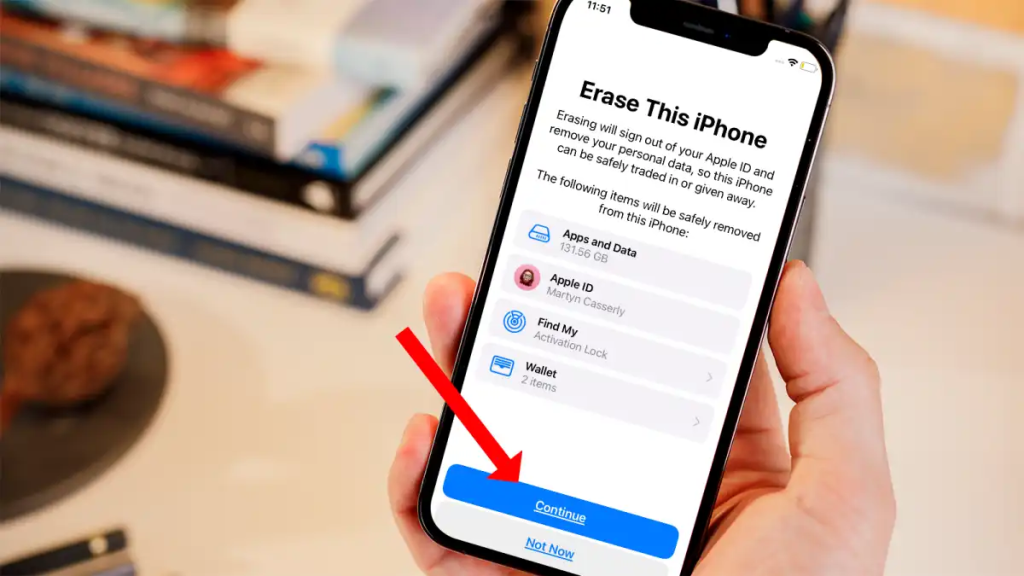
- Open Settings, go to General, and click Transfer or Reset iPhone.
- Click Erase All Content and Settings.
- Enter passcode if required.
- Confirm by choosing Continue or Erase iPhone.
- Set Up Your iPhone as New
As soon as your iPhone restarts, a “Hello” setup screen will appear. You can either:
- Set Up Your iPhone as new if you want to sell it.
- Restore from iCloud or iTunes backup, if you want your data. Follow the prompts on the screen to start.
An Alternate Method to Reset Your iPhone
You can reset your iPhone through a computer if it is unresponsive or frozen.
- Connect your iPhone to your computer.
- Open Finder or iTunes.
- Choose your device and click Restore iPhone to confirm.
- It will erase all the data and install the latest version of iOS.
How to Reset iPhone Settings Without Erasing Data
If you only want to fix minor issues without deleting photos or apps:
- Go to Settings > General > Transfer or Reset iPhone.
- Select Reset > Reset All Settings.
- Enter your passcode and confirm.
This resets system settings (Wi-Fi, Bluetooth, privacy preferences) without touching personal data.
Why You Might Need to Factory Reset Your iPhone
Factory resetting isn’t only for troubleshooting. Here are some common scenarios where a reset can save time or protect your data:
- Performance issues: If your iPhone feels slow or keeps crashing, a factory reset clears out system clutter.
- Before selling or trading in: Always reset to protect personal photos, messages, and payment info.
- After major iOS updates: Sometimes older settings conflict with new iOS versions, causing glitches.
- Persistent software bugs: When all else fails (force restarts, app re-installs), a full reset often fixes deep system bugs.
Does Factory Reset Delete Everything Permanently?
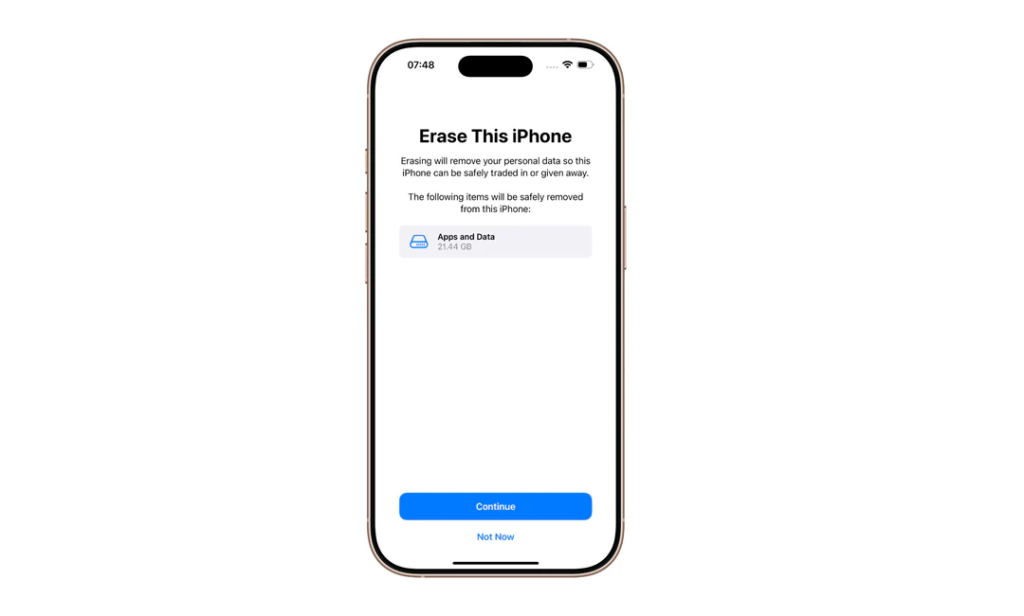
Yes, once you reset your iPhone, all personal files, apps, and settings are erased.
However, if you’ve backed up via iCloud or iTunes, you can easily restore your contacts, photos, and app data afterward.
Tip: Even after a reset, Apple servers still store activation data, so you’ll need your Apple ID and password to reactivate your phone (known as Activation Lock).
What Happens to Your Apple ID After Reset?
Your Apple ID remains active; it’s just disconnected from the reset device.
If you plan to sell or hand over your iPhone, make sure:
- You’ve signed out of iCloud.
- “Find My iPhone” is turned off.
- The device no longer appears under your Apple ID list (check via appleid.apple.com).
This ensures the next user can activate the iPhone without your credentials.
How to Restore Your iPhone After Factory Reset
Once your iPhone reboots, you’ll be guided through the setup screen.
Here’s what to do next:
- Choose Set Up Manually or Quick Start if you have another Apple device.
- Connect to Wi-Fi and sign in with your Apple ID.
- Select Restore from iCloud Backup or Restore from iTunes/Finder.
- Wait until the transfer completes, it may take a while depending on your backup size.
Troubleshooting: When Factory Reset Doesn’t Work
If your iPhone doesn’t reset properly or gets stuck on the Apple logo:
- Try a hard restart (Volume Up → Volume Down → hold Side Button).
- Connect to a computer and use Recovery Mode to reinstall iOS.
- If the issue persists, contact Apple Support or visit an Apple Authorized Service Provider — sometimes hardware faults mimic software issues.
Frequently Asked Questions
Connect your iPhone to the computer, hold Volume Up, Down, and Side Button together until recovery mode appears. Select Reset iPhone in iTunes or Finder.
Put your iPhone into recovery mode using the buttons and select Restore iPhone on your computer to erase or reinstall iOS.
Yes. It removes all the files and apps, including the malicious ones.
If you’ve forgotten your passcode or Apple ID, you can still factory reset your iPhone using Recovery Mode on a computer. Connect your iPhone to iTunes or Finder, enter Recovery Mode, and select Restore iPhone. However, if Find My iPhone is enabled, you’ll still need the Apple ID credentials to activate it again after reset.
A factory reset usually takes 5–10 minutes, depending on your iPhone model and storage size. If you’re restoring from a backup afterward, the setup and data transfer can take an additional 15–30 minutes.

Tanzeel Ahmed

December 23, 2025

4 months ago