
If you tried to join a Roblox experience and were blocked by “Error Code 403”, it’s frustrating especially when you’re mid-session or ready to play. This guide follows the same troubleshooting structure and scope and focuses on how to fix Error Code 403 on Roblox: what it means, common causes, device-by-device fixes and escalation steps.
What is “Error Code 403” on Roblox and why it appears
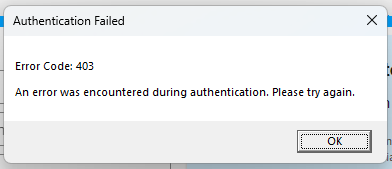
Error Code 403 on Roblox is essentially an “access denied” response: the game or an asset-server is refusing the client’s request. In HTTP terms 403 means the server understands the request but refuses to authorize it. In Roblox this commonly appears when the client tries to download assets, authenticate a session, or join a place and the request is rejected because of permissions, invalid/expired credentials, or manipulated request headers. While it looks like a server-side denial, many practical causes are client or network related, so the fixes below cover both sides.
Common causes behind Error Code 403
Why does Roblox return a 403? The frequent culprits players see are:
1. Authentication / session token problems
If your login token or cookie is missing, expired, or corrupted, Roblox web endpoints may deny asset or join requests with a 403. Refreshing credentials often resolves this.
2. Corrupted cache, cookies, or local files
Stale cookies or cached auth data can cause malformed requests that the server rejects. Clearing cache forces fresh tokens and headers.
3. Firewalls, antivirus, or network filtering that modify requests
Security tools or gateway devices that inspect/modify traffic can strip or rewrite headers (like Authorization or Origin), resulting in rejected requests.
4. VPNs, proxies, or IP reputation issues
Proxies and VPNs can help (by bypassing bad routing) or hurt (by changing headers, IP reputation, or adding header/packet modifications) test with them off and on.
5. Missing or altered referer/origin headers (browser or wrapper issues)
Roblox’s asset/CDN endpoints sometimes rely on correct headers. Privacy extensions or network devices that strip these headers can trigger 403 responses.
6. Server- or developer-side permission changes
Developers can restrict places or assets (groups, age, region). If a resource is intentionally locked down you’ll receive 403 until permissions are changed.
- Related Read: Understanding and Fixing “Error Code 279” on Roblox
How to Fix Error Code 403: Device-by-device
Start with the quick, universal steps — many problems are resolved immediately.
General fixes (all devices)
- Sign out and sign back in — forces new authentication tokens.
- Clear browser cache & cookies or app cache — removes stale or corrupted auth data.
- Temporarily disable VPNs/proxies — rule out routing or header changes.
- Try another network (mobile hotspot) — isolates ISP or router interference.
- Allow Roblox through firewall/antivirus — make sure nothing is blocking or altering requests.
On PC (browser and Roblox Player)
- If you use a browser: fully sign out of Roblox.com, clear cache & cookies, disable privacy extensions (adblockers/script-blockers) and try again or use another browser to rule out extension/header issues.
- If you use the Roblox Player/desktop client: sign out both in the client and on the website, clear local Roblox temp data (e.g.,
%LOCALAPPDATA%\Robloxon Windows), and reinstall the client if corruption is suspected. - Advanced: open browser developer tools or a network capture to inspect failing requests, look for missing Authorization/Origin headers or 403 responses from CDN endpoints.
On Mobile (Android / iOS)
- Force-close the app and clear app cache (Android) or uninstall + reinstall the Roblox app to reset tokens.
- Toggle between Wi-Fi and mobile data to test whether a gateway or carrier is injecting/restricting traffic.
- Disable mobile VPN apps and ensure battery/data-saver modes aren’t restricting background network access.
On Consoles / Other Platforms
- Sign out and re-link your account if necessary, use a different network (tether), and check for any router-level parental controls or firmware features that may rewrite requests. Reinstall the client if the platform supports it.
When fixes don’t work, what else to check?
If 403 persists after the steps above, consider:
- Place or asset restrictions — confirm the experience isn’t restricted to certain groups, ages, or regions; contact the developer.
- ISP / corporate filtering — some ISPs, schools, or workplaces inject or modify headers; test using mobile data or a different ISP.
- Account moderation flags — rare but possible; if you suspect account-level restrictions, contact Roblox Support and share the exact error and steps tried.
- Server-side rollout or bug — developers may have changed permissions accidentally; check dev announcements or support channels.
If the problem clearly looks server-side (developers reporting issues, multiple players affected), the fix will require action from the place owner or Roblox engineers.
Extra notes for developers & advanced users
- For developers: audit asset permissions, group access, and CDN headers, ensure your CDN or middleware isn’t rejecting requests for missing referer/origin headers.
- Advanced debugging: use packet captures or browser devtools to find which header or token is missing/altered and where the 403 originates (Roblox CDN vs. authentication endpoint).
- VPN nuance: a VPN can sometimes avoid ISP-side header manipulation, but it can also change header behavior or use a shared/blacklisted IP range that triggers 403s, test both ways.
Summary
Roblox Error Code 403 usually means an authorization/access problem often caused by bad tokens, stripped headers, proxies/VPNs, or permission restrictions rather than a pure connectivity timeout. Begin with the quick fixes: sign out and back in, clear browser/app cache, disable VPN/proxies, try another network, and reinstall if necessary. If these don’t work, confirm developer-side restrictions and contact Roblox Support with details of your troubleshooting.
Frequently Asked Questions
Not always. 403 normally means access was denied for the request (permission or token issue). If you suspect moderation, check your account notifications and contact Roblox Support.
Yes. clearing cookies and cached auth data forces new session tokens and often resolves authorization failures that lead to 403 responses.
Sometimes. if your ISP is altering requests or your IP is being blocked — but VPNs can also change headers or use IPs with poor reputation, which might make the error worse. Test both with and without a VPN.
That usually indicates place-specific restrictions or asset permission issues. Reach out to the game’s developer or check group/age restrictions.
Simple client-side fixes often take minutes. If resolution requires developer changes or Roblox/ISP intervention, it may take hours.

PureVPN

December 3, 2025

3 months ago


