
Hulu error code RUNUNK13 usually appears when a video refuses to load or play, whether you’re watching on a smart TV, browser, mobile app, or a streaming device. It’s a common playback error that happens when Hulu can’t properly load, decode, or verify the video stream.
It’s usually caused by corrupted playback data, browser issues, outdated software, or a temporary problem on Hulu’s side. In this guide, we’ll walk you through how to fix Hulu error code RUNUNK13 so you can get back to streaming your favorite movies and shows again:
What is Hulu error code RUNUNK13?
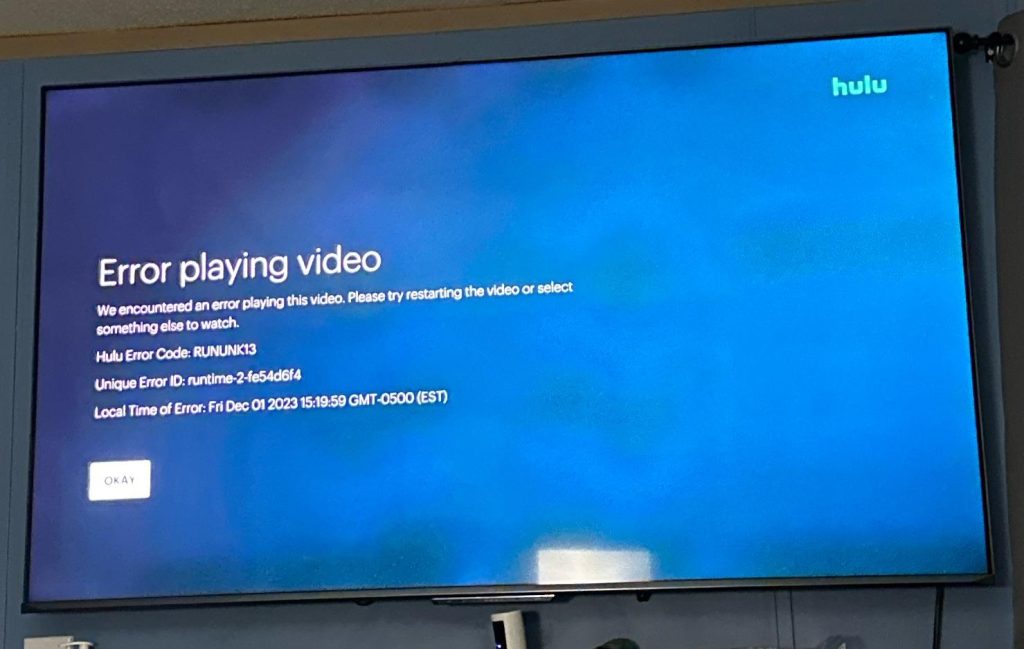
In simple terms, it’s a playback error that appears when the app can’t load or process a video correctly. It usually happens when the data needed to start the stream becomes corrupted, the browser can’t decode the video, or the app fails to communicate properly with Hulu’s servers.
Instead of playing the video, Hulu returns the RUNUNK13 error code to signal that something interrupted the playback process. You’ll typically see it when trying to start a movie or show, but it can also appear after pausing, resuming, or skipping through content, particularly on browsers or older devices.
What causes Hulu error code RUNUNK13?
If you’re getting the RUNUNK13 error while streaming on Hulu, it’s usually triggered by a few common issues on your device or browser:
- Corrupted playback data or app cache: When temporary Hulu files become damaged, the app can’t load the metadata needed to start the stream, which triggers RUNUNK13.
- Browser cache, cookies, or session conflicts: Outdated cookies or cached video data can cause Hulu to load the wrong playback session or fail DRM authorization.
- Outdated Hulu app: Old app versions may use outdated playback engines or communication protocols that no longer match Hulu’s streaming system.
- Outdated browser or device firmware: Browsers, DRM modules, or streaming devices on older firmware often struggle to decode Hulu’s video formats correctly.
- Browser extensions or ad blockers: Extensions that modify or block content can interfere with Hulu’s web player and prevent the video from loading.
- Hardware acceleration conflicts: GPU decoding issues or unstable drivers can break playback initialization, especially in Chrome or Edge.
- Network instability or short connection drops: Weak Wi-Fi, packet loss, or brief disconnects can interrupt the initial playback handshake.
- Hulu server-side issues: Regional outages, backend errors, or service maintenance can cause RUNUNK13 across all devices.
- Playback authorization or DRM verification issues: Expired or corrupted session tokens can block Hulu from confirming playback rights.
How to fix Hulu error code RUNUNK13
Getting the Hulu RUNUNK13 error code? Don’t worry. Try the following fixes one by one, and you should be able to get Hulu streaming normally again:
Clear the Hulu app cache or data
Corrupted temporary files often trigger RUNUNK13. Clearing the Hulu app cache forces it to rebuild fresh playback data and usually fixes the issue. On Android, Fire TV, and some smart TVs, you can clear cache and data in the app settings. If your device doesn’t support this, reinstalling the Hulu app achieves the same result.
Clear your browser cache and cookies
If you’re streaming on Chrome, Firefox, Safari, or Edge, old cookies or cached video data can block Hulu from loading new playback sessions correctly. Clearing cache and cookies removes outdated DRM tokens, broken session data, and corrupted video fragments that often lead to RUNUNK13. After clearing, restart your browser before retrying Hulu.
Disable browser extensions, especially ad blockers
Extensions that filter scripts or block ads can interfere with Hulu’s web player and prevent it from loading playback scripts. Ad blockers, privacy shields, VPN extensions, and script blockers are the most common sources of RUNUNK13 on browsers. Disable extensions temporarily, refresh Hulu, and check whether the video plays without the error.
Disable hardware acceleration in your browser
Hardware acceleration uses your GPU to decode Hulu’s video stream. If your GPU driver is outdated or unstable, playback may fail to initialize and trigger RUNUNK13. Disabling hardware acceleration forces Hulu to use software decoding, which often fixes the error.
Switch Hulu playback quality to “Data Saver”
Some users report that switching the playback quality to Data Saver fixes RUNUNK13, especially on browsers and older devices. Lower-quality streams require less decoding power and smaller buffers, which can bypass playback initialization issues.
Update the Hulu app
Outdated Hulu apps may use older playback engines or old communication protocols that no longer match Hulu’s current backend. Installing the latest version ensures your app has the newest streaming logic, DRM verification, and bug fixes needed to avoid RUNUNK13. Check your device’s app store and install any available updates.
Update your browser or device firmware
Older browsers and outdated firmware can break DRM modules, video decoding, and playback authorization. Updating your browser, TV, Roku, Fire TV, or streaming stick ensures compatibility with Hulu’s current streaming requirements. After updating, restart the device to refresh system-level processes.
Restart the device you’re using
Restarting clears temporary system glitches, resets background processes, and forces the Hulu app to load fresh playback data. Power off your device completely for about 30 seconds, then turn it back on and relaunch Hulu. This simple reset often resolves persistent RUNUNK13 errors.
Restart your router or modem
Even brief internet drops or packet loss can interrupt the playback handshake that Hulu needs to start the video. Restarting your router clears connection faults and gives you a fresh network session. Unplug it for 20–30 seconds, plug it back in, and wait for it to fully reconnect before trying Hulu again.
Check if Hulu is down
If Hulu’s servers are having issues, you may see RUNUNK13 across every device you own. Visit Hulu’s support page or check platforms like DownDetector to see if other users are reporting outages. If Hulu is experiencing problems, you’ll need to wait until they resolve the issue.
Try Hulu on another device or browser
Switching to a different device or browser helps identify whether the issue is device-specific or browser-specific. If Hulu works elsewhere, the problem likely lies with your primary device’s cache, browser, or firmware, and not with Hulu’s service or your account.
Disable your VPN or proxy
Some proxies or older VPN protocols can cause Hulu to fail DRM checks or misread your region, which can trigger RUNUNK13. Temporarily disable them to see if the video plays correctly. If you’re using PureVPN, switching to WireGuard minimizes the chances of any playback conflicts.
Reinstall the Hulu app completely
If nothing else works, reinstalling the Hulu app wipes every corrupted file tied to playback, DRM, or account sessions. Delete the app, restart your device, and install Hulu again from your app store. This often resolves the most persistent and stubborn cases of RUNUNK13.
- Related Read: How to Fix Hulu Error Code P-DEV320
When to contact Hulu support
If you’ve tried all the fixes and RUNUNK13 keeps coming back, the issue may be tied to your Hulu account, DRM authorization, or Hulu’s servers, all of which require support to resolve. Contact Hulu support if:
- The error appears on every device you own: If RUNUNK13 shows up on your TV, browser, phone, tablet, and streaming sticks, it’s no longer a device issue. This usually means your account session is corrupted or Hulu is blocking playback unintentionally.
- Hulu works on other networks but not your home Wi-Fi: If the app streams fine on mobile data, a hotspot, or another Wi-Fi network, Hulu support may need to refresh your account or help diagnose whether your IP or region is being flagged incorrectly.
- Your account has billing, subscription, or region-related restrictions: Expired billing, declined payments, or region mismatches can trigger DRM and authorization errors. Hulu support can confirm whether RUNUNK13 is tied to your subscription status.
- You suspect a Hulu outage or service disruption: If other users are reporting issues or DownDetector shows spikes, Hulu support can confirm whether there’s a server-side problem affecting RUNUNK13 specifically.
- All troubleshooting steps fail: If you’ve cleared cache, updated apps, disabled extensions, restarted devices, reinstalled Hulu, checked your network, and the error still persists, Hulu support will need to reset your session or investigate server-side logs.
Final word
RUNUNK13 can look frustrating, but it’s almost always a simple playback issue that clears once you refresh your data, update your software, or adjust a few settings. After trying the fixes above, you should be able to stream normally again. However, if the error still refuses to go away, Hulu support can pinpoint exactly what’s causing it.

PureVPN

December 2, 2025

4 months ago


