What is Netflix Error Code D7361-1253?
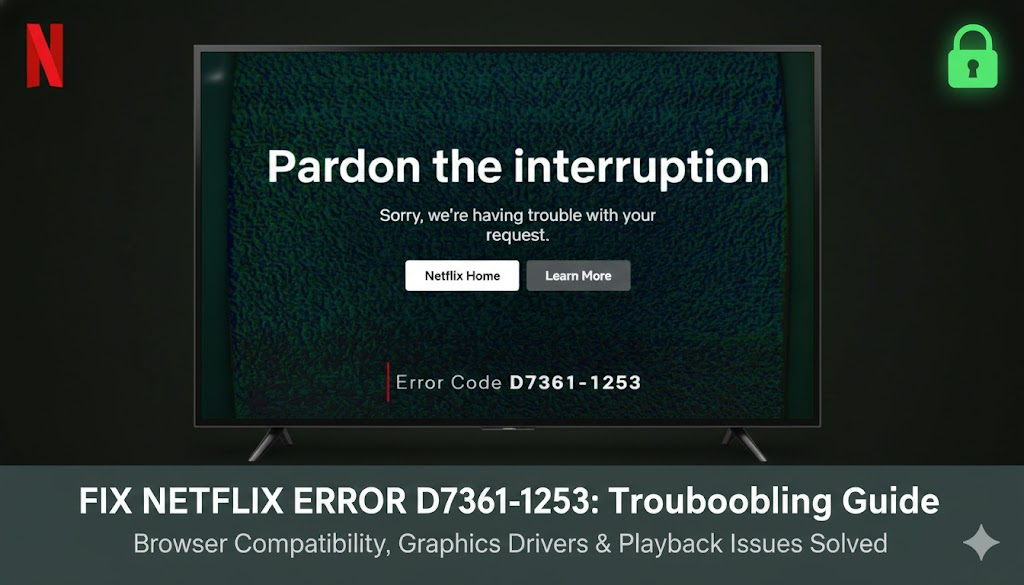
Netflix Error Code D7361-1253 is a browser-based playback issue that appears when your system cannot handle Netflix’s DRM-protected video streams. This usually happens due to outdated browsers, corrupted video playback components, blocked DRM modules, faulty audio device detection, or unstable network routing. The error is most commonly seen on Chrome, Edge, Firefox, and Safari on desktop devices. Restoring proper DRM functionality, updating browser components, and stabilizing your network connection typically resolves the issue quickly.
Example error messages:
- “Whoops, something went wrong… D7361-1253. Please try again later.”
- “Playback failed due to D7361-1253. Please check your system and browser settings.”
- “Netflix cannot play this title right now (D7361-1253). Please try again later.”
This error prevents Netflix from streaming content, making it impossible to watch your favorite shows or movies until it is resolved. Users often experience repeated failures if the underlying cause, such as DRM issues or network instability, is not addressed.
Understanding Netflix Error Code D7361-1253
Netflix Error Code D7361-1253 is closely tied to how browsers handle protected video content. When your device fails to authenticate or decrypt Netflix’s DRM-protected streams, playback stops immediately, and this error appears. Understanding the technical roots of this error helps you apply the right fix—whether it’s updating Widevine, fixing your audio device, resetting browser settings, or improving network routing.
Example error message: “Playback failed due to D7361-1253. Please check your system and browser settings.”
This error is not permanent and can often be resolved by addressing software, hardware, or network factors. For example, ensuring your browser is updated and clearing cached data often prevents recurring issues.
Causes of Netflix Error Code D7361-1253
Netflix Error Code D7361-1253 can appear due to multiple reasons, including:
- Outdated browsers that fail to support the latest DRM modules.
- Corrupted DRM modules that block playback.
- Hardware acceleration conflicts causing rendering issues.
- Audio device detection issues preventing secure playback.
- Browser cache or cookies corruption.
- VPN, proxy, or network routing issues that interfere with Netflix authentication.
Understanding these causes can help you quickly determine which fix is likely to work for your specific situation. In many cases, multiple issues together can trigger this error, so a step-by-step approach is often necessary.
Fix 1: Update Your Browser
Updating your browser ensures compatibility with Netflix’s DRM system and the latest video playback standards.
Steps:
- Open your browser.
- Go to Settings > About.
- Allow the browser to auto-update.
- Restart your browser.
- Try streaming Netflix again.
This simple fix often resolves the error immediately, especially if your browser hasn’t been updated in several months.
Fix 2: Restart Your Device
Restarting your device refreshes system resources, clears temporary conflicts, and ensures all updates are properly loaded.
Steps:
- Close Netflix and your browser.
- Restart your computer.
- Launch Netflix again to check if the error is resolved.
A device restart often fixes temporary DRM handshake issues without needing further troubleshooting.
Fix 3: Check Your Audio Output Device
Netflix requires an active and properly configured audio device for playback.
Steps:
- Right-click the speaker icon on your taskbar.
- Select Sound Settings.
- Ensure your correct audio device is selected.
- Reconnect headphones or external speakers if needed.
Proper audio detection is crucial because DRM protocols verify that the system can securely handle both video and audio playback.
Fix 4: Clear Browser Cache and Cookies
Old cache or corrupted cookies can prevent Netflix from authenticating DRM content.
Steps:
- Open Browser Settings.
- Navigate to Privacy & Security > Clear Browsing Data.
- Select Cached images/files + Cookies.
- Clear the data and restart the browser.
Clearing cache also removes temporary files that may conflict with streaming scripts, improving playback stability.
Fix 5: Enable or Disable Hardware Acceleration
Hardware acceleration can sometimes cause conflicts with video decoding, especially on older graphics cards.
Steps (Chrome/Edge):
- Go to Settings > System in your browser.
- Toggle Use hardware acceleration when available.
- Restart your browser.
Experiment with both enabling and disabling to see which setting works best for your hardware configuration.
Fix 6: Update or Reset Widevine Content Decryption Module
Widevine is essential for Netflix playback; a corrupted module can trigger D7361-1253.
Steps (Chrome):
- Type
chrome://components/in your Chrome address bar. - Find Widevine Content Decryption Module.
- Click Check for Update.
- Restart the browser.
Keeping Widevine up to date ensures secure video decryption and prevents playback errors.
Fix 7: Disable Conflicting Browser Extensions
Certain extensions like ad-blockers or privacy tools can interfere with DRM verification.
Steps:
- Go to Extensions in your browser.
- Disable ad-blockers, script blockers, or privacy tools.
- Refresh Netflix and test playback.
Disabling extensions temporarily helps identify whether they are the cause of the error.
Fix 8: Reinstall Your Browser
If other steps fail, reinstalling your browser resets all components and removes corrupted files.
Steps:
- Uninstall the current browser.
- Restart your device.
- Download and install the latest browser version.
- Test Netflix playback.
This method ensures a clean slate, eliminating persistent errors caused by browser corruption.
Fix 9: Check Network Stability
An unstable network can prevent Netflix from completing DRM verification.
Steps:
- Restart your modem/router.
- Switch from Wi-Fi to wired Ethernet if possible.
- Avoid public or restricted networks.
- Temporarily use a mobile hotspot.
Stable network connections reduce the chance of interrupted DRM handshakes, minimizing errors like D7361-1253.
Fix 10: Use PureVPN for Stable Network Routing
Although primarily a DRM error, poor network routing can trigger playback failures.
PureVPN helps by:
- Providing stable, Netflix-supported IP routing.
- Avoiding ISP throttling and network congestion.
- Ensuring proper regional access to Netflix content.
Using a reliable VPN can prevent connectivity issues from amplifying playback errors.
Device-Specific Fixes
How to Fix Netflix Error Code D7361-1253 on Windows PC
- Update Windows and GPU drivers.
- Reset browser flags to default.
- Disable game overlays like Discord or Xbox Game Bar.
- Check for background apps that might interfere with streaming.
How to Fix Netflix Error Code D7361-1253 on macOS
- Update macOS.
- Reset Safari or switch to Chrome.
- Clear DRM certificates via Keychain if needed.
- Close unnecessary apps to free system resources.
How to Fix Netflix Error Code D7361-1253 on Chromebook
- Update ChromeOS.
- Powerwash device if Widevine continues to fail.
- Remove conflicting extensions.
- Ensure ChromeOS settings allow media playback.
Why Browsers Cause Netflix Error Code D7361-1253
Browsers are the most common source of this error due to how they handle DRM verification. If the browser cannot authenticate the DRM components correctly, playback fails. Updating the browser and its components reduces this risk significantly.
How Network Quality Influences D7361-1253
Poor network routing or unstable connections break DRM sessions required for secure playback. Even an updated browser can fail if network conditions are suboptimal. Optimizing your network, or using a stable VPN like PureVPN, ensures smooth playback.
Why Audio Devices Trigger This Error
Netflix requires an active audio output device for DRM verification. If the system fails to detect an audio device or if it malfunctions, playback is blocked to maintain security.
FAQs About Netflix Error Code D7361-1253
1. What does Netflix Error Code D7361-1253 mean?
It indicates a DRM-related browser or system issue preventing secure playback.
2. Does this error occur on mobile apps?
No, it mainly affects desktop browsers where DRM modules are directly used.
3. Can VPNs cause D7361-1253?
Unstable or poorly routed VPNs can trigger this error, but PureVPN’s stable servers help maintain proper routing.
4. Is Widevine involved?
Yes, outdated or corrupted Widevine modules commonly trigger this error.
5. How does audio output affect this error?
Netflix requires an active audio device for DRM verification; missing or malfunctioning devices stop playback

Tanzeel Ahmed

December 24, 2025

1 month ago