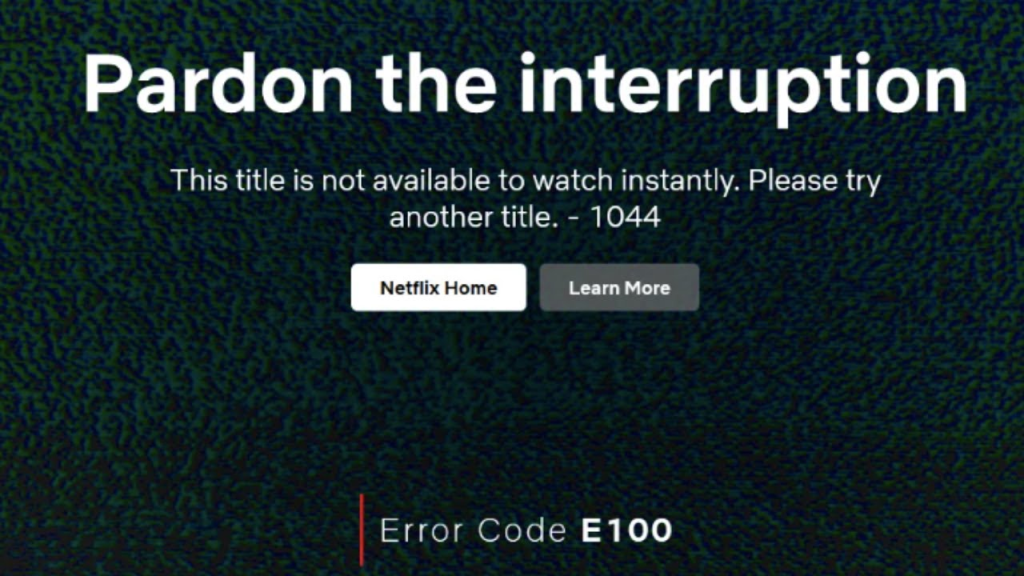
Netflix error code E100 is a system-level initialization failure that appears when the Netflix app is unable to load configuration data, authenticate your device, or establish a clean connection with Netflix servers. This error can appear on Smart TVs, Android, iOS, Windows, Roku, Fire Stick, PlayStation, Xbox, and other streaming devices.
You’ll typically see errors like:
- “Something went wrong. Please try again (E100)”
- “Unable to start Netflix app”
- “App cannot initialize. Error E100.”
This detailed guide covers all causes, device-specific solutions, advanced fixes, and network remedies, with a slight mention of how PureVPN can help if the issue is routing-related.
What Causes Netflix Error Code E100?
Netflix Error E100 typically appears when the app fails during its initialization stage. The most common technical causes include:
1. Corrupted App Cache
Temporary Netflix files (DRM tokens, playback data, graphics cache) may become corrupted, leading to E100.
2. Outdated Device Firmware
Smart TVs, consoles, and streaming sticks require updated DRM libraries. Older firmware can break Netflix initialization.
3. DNS or Routing Conflicts
If your ISP routes you to a malfunctioning Netflix CDN, the app fails while loading essential data.
4. Blocked Network Ports
Netflix requires open access to ports 80, 443, 8080, and certain UDP ports. If blocked, E100 may appear.
5. Partial App Installation or Update Failure
Interrupted updates can cause Netflix to load incomplete system files.
6. Regional Server Issues
If Netflix’s local CDN is unstable, switching to an alternate route (for example, via PureVPN) may help
.
Universal Fixes for Netflix Error Code E100
1. Restart Your Device Completely
A hard reboot clears RAM, reloads core files, and flushes temporary Netflix data.
Steps:
- Turn off the device.
- Unplug it for 20 seconds.
- Plug back in and restart.
2. Restart Your Router
This forces a fresh network configuration and assigns a new route to Netflix servers.
Steps:
- Power off router.
- Wait 30 seconds.
- Restart.
3. Clear Netflix App Cache and Data
Corrupted local data is the number one cause of E100.
4. Update Netflix App
Ensures the latest DRM and initialization packages are installed.
5. Update Device Firmware or OS
Outdated firmware causes DRM or SSL handshake failures.
6. Reinstall Netflix Completely
Removing and reinstalling Netflix eliminates troublesome system files.
Netflix Error Code E100 can also be understood by examining how Netflix validates your device, account status, and content permissions in the background. When these systems experience a mismatch, whether due to corrupted app data, outdated firmware, or network routing inconsistencies, the device fails to authenticate properly. This results in the E100 error appearing across smart TVs, streaming sticks, gaming consoles, and mobile devices.
In some cases, regional content authorisation also plays a role. If Netflix detects that your device’s IP address does not match the expected region for your account, it can trigger sync or verification issues. Using a reliable VPN like PureVPN helps stabilise these region-based conflicts by ensuring consistent routing and preventing accidental IP mismatches that may cause the E100 error to appear repeatedly.
Device-Specific Fixes for Netflix Error Code E100
Below are the most complete and effective fixes for each device type.
Fix Netflix Error E100 on Samsung Smart TV
- Cold Reboot the TV
Hold the power button on the remote until the TV restarts.
- Reset Smart Hub
Settings → Support → Self Diagnosis → Reset Smart Hub.
- Change DNS Servers
Settings → Network → Network Settings → DNS → Manual.
Use:
- 8.8.8.8
- 8.8.4.4
- 1.1.1.1
- Clear Netflix Cache
Settings → Device Care → Manage Storage → Netflix → Clear Cache.
Reinstall Netflix from Smart Hub
Removes corrupted dependencies.
Fix Netflix Error E100 on LG WebOS TV
- Clear App Cache
Settings → Support → TV Management → App Manager → Netflix → Clear Cache.
- Reset Location Settings
Settings → General → Location → Off. This resolves CDN mismatch issues.
- Update WebOS
Settings → Support → Software Update.
- Reinstall Netflix
LG Content Store → Netflix → Reinstall.
Fix Netflix Error E100 on Sony Android TV
- Force Stop and Clear Data
Settings → Apps → Netflix → Force Stop → Clear Cache → Clear Data.
- Update Android System WebView
Essential for Netflix interface rendering.
- Reinstall Netflix
Reinstalls DRM and configuration files.
Fix Netflix E100 on Fire TV / Fire Stick
- Clear Cache and Data
Settings → Applications → Manage Installed Apps → Netflix → Clear Cache and Clear Data.
- Force Stop the App
Ensures no corrupted sessions remain in memory.
- Deregister Firestick
Settings → Account → Deregister → Sign in again.
- Reinstall Netflix
Amazon Appstore → Netflix → Reinstall.
Fix Netflix Error E100 on Roku
- Remove the Netflix Channel
Highlight Netflix → Press the Star button → Remove Channel.
- Restart Roku
Settings → System → System Restart.
- Reinstall Netflix
Adds a clean version of the app.
Fix Netflix Error E100 on Windows 10/11
- Reset the Netflix App
Settings → Apps → Netflix → Advanced → Reset.
- Reset Network Stack
Run Command Prompt as administrator:
netsh winsock reset
ipconfig /flushdns
ipconfig /renew
- Delete Local Netflix App Data
Go to:
C:\Users\[YourName]\AppData\Local\Packages\Netflix*
Delete the folder and restart.
- Update Graphics and DRM Dependencies
Outdated Windows DRM modules can trigger E100.
Fix Netflix Error E100 on iPhone and iPad
- Offload Netflix
Settings → General → iPhone Storage → Netflix → Offload App.
- Reset Network Settings
Settings → General → Reset → Reset Network Settings.
- Reinstall Netflix
Fresh installation ensures complete initialization.
Fix Netflix E100 on Android Phones
- Clear Netflix Cache and Data
Settings → Apps → Netflix → Storage.
- Disable Battery Optimization
Battery → App Optimization → Do Not Optimize Netflix.
- Update System WebView
Play Store → Android System WebView → Update.
- Reinstall Netflix
Ensures full restoration.
Fix Netflix Error E100 on PlayStation (PS4/PS5)
Rebuild Database
- Shut down console.
- Hold the power button until two beeps.
- Enter Safe Mode.
- Select Rebuild Database.
Clear Saved Netflix Data
Settings → Storage → Saved Data → Netflix → Delete.
Reinstall Netflix
PlayStation Store → Netflix → Reinstall.
Fix Netflix E100 on Xbox One and Xbox Series X/S
- Clear Persistent Storage
Settings → Disc & Blu-ray → Persistent Storage → Clear.
- Perform Full Power Cycle
Hold power button for 10 seconds → unplug → wait a minute → restart.
- Reinstall Netflix
Microsoft Store → Netflix → Reinstall.
Advanced Network Fixes for Netflix Error Code E100
If the issue is networking-related, use the following fixes.
Change DNS (Most Common Fix)
Use Google DNS:
- 8.8.8.8
- 8.8.4.4
- or Cloudflare: 1.1.1.1
Disable IPv6
Some ISPs route IPv6 traffic poorly, causing Netflix to fail during handshake.
Check Required Network Ports
Ensure the following ports are not blocked:
TCP: 80, 443, 8080
UDP (for gaming consoles): 3478, 3479, 3480
Use PureVPN (Routing Fix)
If Netflix is failing due to regional CDN issues, local throttling, or route instability, connecting through PureVPN can reroute your traffic to a stable Netflix server path. This often fixes initialisation-level errors like E100.
Extreme Fixes (Use Only If Necessary)
- Factory Reset Device
Resets firmware, apps, and hidden settings.
- Reset Router to Default
Removes conflicting firewall, QoS, or DNS rules.
- Replace Faulty Router
Old routers often corrupt routing tables and create packet-loss issues.
Prevent Netflix Error E100 in the Future
- Keep your streaming device firmware updated.
- Restart your TV and streaming devices weekly.
- Maintain stable DNS settings.
- Keep WiFi router firmware updated.
- Avoid using unstable VPNs, proxies, or SmartDNS.
- Use a stable service like PureVPN if you travel and Netflix fails to load due to regional configuration.
Frequently Asked Questions About Netflix Error E100
Because the app cannot load or validate its initialization files, often due to corrupted data, outdated firmware, or DNS issues.
Yes. If your ISP blocks ports or routes traffic poorly, Netflix may fail to load.
If your local routing or CDN is unstable, a VPN like PureVPN can provide a better, stable path to Netflix servers.
No. This error is not related to account bans or restrictions.
Try a factory reset of your device, router reset, or test Netflix on a different network. If it works elsewhere, the issue is network-related.
To power cycle ps4, turn off the console completely, unplug the power cable for at least 30 seconds, then plug it back in and restart the system.
Power cycle ps4 helps fix freezing issues, network problems, and performance glitches by refreshing the system’s hardware and memory.

Tanzeel Ahmed

January 13, 2026

2 months ago