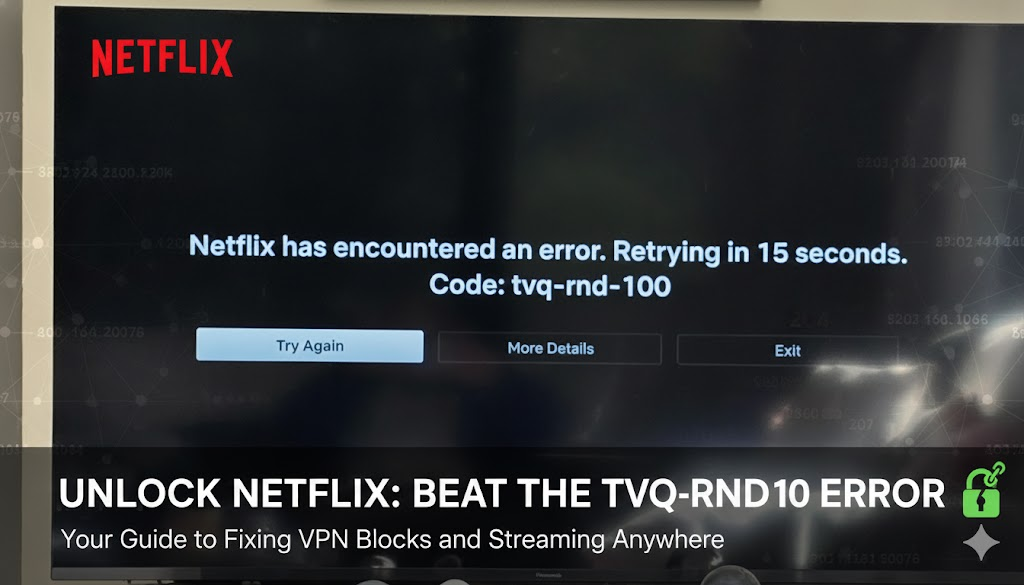
Netflix error code TVQ-RND-101 is a common issue that appears when the Netflix app fails to initialize due to network, device, or app-related problems. Users may see messages like:
- “We’re having trouble connecting to Netflix. Please try again. (TVQ-RND-101)”
- “Cannot load Netflix at this time.”
This guide provides full troubleshooting steps, device-specific fixes, network solutions, and tips for preventing this error. We also mention how PureVPN can help in cases where the problem is related to regional access or network routing.
Understanding Netflix Error Code TVQ-RND-101
Netflix TVQ-RND-101 typically occurs due to network inconsistencies, device software issues, or app-related problems. This error prevents the app from initializing properly, which stops users from streaming content.
Causes of Netflix Error Code TVQ-RND-101
Netflix TVQ-RND-101 typically occurs due to:
- Corrupted App Cache or Data: Old or corrupted app data can prevent Netflix from loading.
- Network Issues: Slow or inconsistent internet, DNS problems, or router issues.
- Device Firmware Outdated: Smart TVs, streaming sticks, or consoles with outdated software can trigger this error.
- ISP or Region Restrictions: Sometimes ISPs or local network configurations block Netflix connections.
- Account Authorization Issues: Incorrect login data or multiple devices logged in simultaneously.
How Network Issues Trigger TVQ-RND-101
Sometimes, TVQ-RND-101 appears not because of the app itself, but due to network problems. Incorrect DNS settings, unstable internet, or ISP restrictions can prevent Netflix from connecting to its servers. Using a reliable VPN like PureVPN can reroute traffic to a stable Netflix server path, preventing IP mismatch issues.
General Fixes for Netflix Error Code TVQ-RND-101
1. Restart Your Device
Power off, unplug for 30 seconds, then restart to clear temporary glitches.
2. Restart Your Router
Refresh network settings to eliminate routing conflicts.
3. Clear Netflix App Cache and Data
Removes corrupted files causing initialization errors.
4. Update Netflix App
Install the latest version to ensure compatibility and fix bugs.
5. Update Device Firmware or OS
Ensures proper DRM support and prevents app crashes.
6. Reinstall Netflix
Completely removes defective system files and restores proper function.
Device-Specific Fixes
Fix Netflix Error Code TVQ-RND-101 on Smart TVs (Samsung, LG, Sony)
- Cold restart TV and unplug for 60 seconds.
- Clear Netflix app cache.
- Reset Smart Hub (Samsung) or app manager (LG).
- Update TV firmware.
- Reinstall Netflix.
Fix Netflix Error Code TVQ-RND-101 on Streaming Devices (Firestick, Roku)
- Clear cache and data.
- Force stop app.
- Reinstall Netflix.
- Restart device.
Fix Netflix Error Code TVQ-RND-101 on Mobile Devices (Android, iOS)
- Clear app cache and data (Android).
- Offload or reinstall Netflix (iOS).
- Reset network settings.
- Ensure System WebView is updated (Android).
Fix Netflix Error Code TVQ-RND-101 on Windows 10/11
- Reset Netflix app in Settings.
- Flush DNS and reset network stack via CMD.
- Delete local Netflix app data folder.
- Update graphics and DRM dependencies.
Fix Netflix Error Code TVQ-RND-101 on Consoles (PS4, PS5, Xbox)
- Rebuild console database (PlayStation).
- Clear persistent storage (Xbox).
- Reinstall Netflix.
- Full power cycle.
Fix Netflix Error Code TVQ-RND-101 on Network
- Change DNS: Google DNS (8.8.8.8, 8.8.4.4) or Cloudflare DNS (1.1.1.1, 1.0.0.1).
- Disable IPv6 if your ISP misroutes packets.
- Ensure required ports are open: TCP 80, 443, 8080; UDP 3478, 3479, 3480.
- Use PureVPN for regional routing or IP mismatch issues.
Preventing Netflix TVQ-RND-101
- Keep apps and firmware updated.
- Restart devices weekly.
- Maintain stable internet and DNS settings.
- Avoid multiple simultaneous logins causing account authorization conflicts.
- Use a reliable VPN like PureVPN when traveling or dealing with region-based issues.
Advanced Troubleshooting Tips
If basic fixes do not work, consider resetting your router to default settings, performing a factory reset on your device, or checking for faulty network hardware. These measures ensure the network and device environment is clean and prevents recurring errors.
FAQs
The app cannot properly initialize due to corrupted cache, network issues, outdated firmware, or account/device authorization problems.
A poorly configured VPN can trigger errors. A stable VPN like PureVPN can help in case of network or regional routing issues.
Yes, if multiple devices are logged in or authorization fails, this error can appear.
In most cases, yes. Clearing corrupted data and installing a fresh version resolves the issue.
It can appear on any device, but the root cause often varies: Smart TVs and streaming sticks usually face firmware/app issues, while mobiles may face cache or network problems.
To set up port forwarding on an arris router, log in to the router’s admin panel, go to Advanced Settings, select Port Forwarding, and enter the required port information.
Port forwarding on an arris router improves connectivity for online gaming, remote access, and hosting services by allowing external traffic through the firewall.

Tanzeel Ahmed

January 13, 2026

2 months ago