Netflix Error Code UI3012 is one of the most common errors users encounter while streaming on a browser or certain devices. It usually indicates a network connectivity issue, browser conflict, WiFi interference, or routing problem between your device and Netflix servers. In some cases, regional routing inconsistencies can also cause UI3012, where a reliable VPN like PureVPN can help stabilize access.
This guide provides every fix, root cause, device-specific steps, browser-specific solutions, and real-time FAQs to help you resolve Netflix Error Code UI3012 quickly.
Understanding Netflix Error Code UI3012
Netflix Error Code UI3012 appears when your device cannot maintain a stable connection with the Netflix service. This is most common on web browsers (Chrome, Edge, Firefox), but can also occur on desktop apps and network-dependent devices.
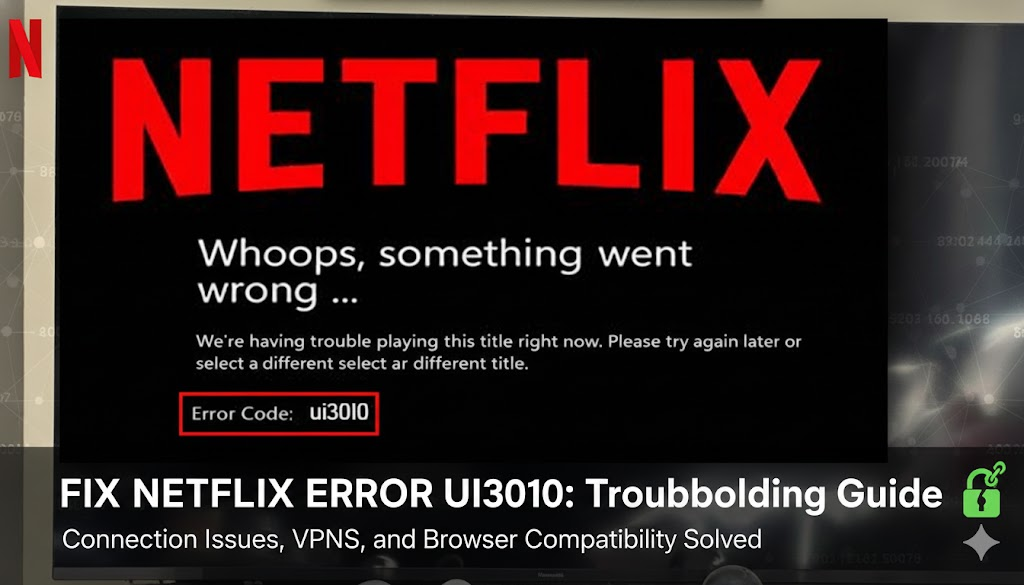
You may see the message:
- “Whoops, something went wrong… Unexpected Error. (UI3012)”
This usually signals that something on your local network or browser is blocking Netflix’s request.
Why Netflix Error Code UI3012 Happens
The UI3012 error is typically triggered by issues such as:
- Weak or unstable internet connection
- Browser extensions interfering with Netflix
- Corrupted cache or cookies
- WiFi signal interference
- VPNs, proxies, or firewalls blocking requests
- Network routing inconsistencies (your ISP routing traffic incorrectly)
- Outdated browser or Netflix app
- DNS conflicts
How Netflix Error Code UI3012 Affects Streaming
UI3012 prevents Netflix from loading content, signing in, or accessing video libraries. If the connection repeatedly drops, the app or browser fails to fetch essential data. Understanding this helps pinpoint whether the issue is browser-related, WiFi-related, or network-level.
General Fixes for Netflix Error Code UI3012
Follow these steps in order for best results.
1. Refresh the Page
Often Netflix UI3012 is triggered by a temporary connection timeout.
- Press Ctrl + F5 for a hard refresh.
2. Check Your Internet Connection
- Disconnect and reconnect WiFi.
- Restart router (unplug for 60 seconds).
- Ensure you have at least 5–10 Mbps speed.
- Try switching from WiFi to a wired Ethernet connection.
3. Clear Browser Cache and Cookies
On Chrome/Edge/Firefox:
- Go to Settings.
- Open Privacy & Security.
- Clear browsing data.
- Restart browser.
Corrupted cache is a major cause of UI3012.
4. Disable Browser Extensions
Ad-blockers, proxy extensions, or privacy tools often break Netflix.
- Go to Extensions.
- Disable all extensions.
- Refresh Netflix.
If this works, re-enable extensions one by one.
5. Update Your Browser
Outdated browsers break Netflix playback.
- Go to Settings → About.
- Install updates.
- Restart browser.
6. Try Another Browser
If UI3012 persists on Chrome:
- Try Firefox or Edge.
This helps isolate whether it’s a browser-specific issue.
7. Disable VPN/Proxy (Unless Using PureVPN)
Low-quality VPNs or proxies often cause routing conflicts.
If you need to access Netflix while traveling or facing routing issues:
- Use PureVPN, which provides stable Netflix-supported routing.
8. Improve WiFi Signal
Weak signals trigger UI3012.
- Move closer to router.
- Remove physical obstructions.
- Avoid microwave/2.4GHz interference.
- Switch router to 5 GHz band.
9. Reset DNS Settings
On Windows:
- Open CMD as Admin and type:
ipconfig /flushdnsipconfig /releaseipconfig /renew
On Mac:
- Terminal →
sudo dscacheutil -flushcache
10. Restart Your Device
A simple restart clears temporary network stacks and browser conflicts.
Device-Specific Fixes for Netflix Error Code UI3012
How to Fix UI3012 on Windows PC
- Clear browser cache.
- Disable proxy settings.
- Reset network stack using CMD.
- Update browser.
How to Fix UI3012 on Mac
- Clear Safari/Chrome cache.
- Disable private relay.
- Flush DNS.
- Restart Mac.
How to Fix UI3012 on Chromebook
- Clear browsing data.
- Update ChromeOS.
- Disable extensions.
- Restart device.
How to Fix UI3012 on Smart TVs Using Browser Mode
- Restart TV.
- Clear browser cache.
- Connect via Ethernet.
- Restart router.
Advanced Fixes for Netflix Error Code UI3012
Change DNS to Public DNS
Using stable DNS improves routing.
Google DNS:
- 8.8.8.8
- 8.8.4.4
Cloudflare DNS:
- 1.1.1.1
- 1.0.0.1
Reset Network Adapter (PC Only)
- Settings → Network & Internet
- Network Reset
- Restart PC
Use PureVPN to Fix Routing Issues
Some ISPs route traffic inefficiently, causing Netflix timeouts.
PureVPN helps by:
- Providing stable routing
- Avoiding ISP throttling
- Maintaining consistent IP
- Fixing region-based connection failures
How to Prevent Netflix Error Code UI3012 in the Future
- Keep browser updated.
- Clear cache monthly.
- Restart router weekly.
- Avoid overcrowded WiFi channels.
- Use PureVPN when traveling or facing unstable routing.
FAQs About Netflix Error Code UI3012
It means your device has network connectivity issues preventing Netflix from completing a request.
Not usually, it’s typically an issue on your device or network.
Yes, extensions like ad-blockers can interfere with Netflix loading.
Unstable VPNs can, but PureVPN helps avoid routing issues.
In most cases, corrupted cache is the main cause, so yes.
Most common on Chrome, but can appear on any browser.

Tanzeel Ahmed

December 24, 2025

3 months ago