In today’s digital world, privacy issues are at the top of the list of people’s concerns, and they are the main reason for users to hide their numbers on Android. Whether it is a business call that you are returning, a new person that you are trying to contact, or just the case when you want to remain anonymous, hiding your number protects your identity.
When doing so, the party you are calling will see “Private Number” or “Unknown Caller” instead of your actual details. The best part is you can do this in a flash, without even relying on any third-party applications. Scroll down to know how:
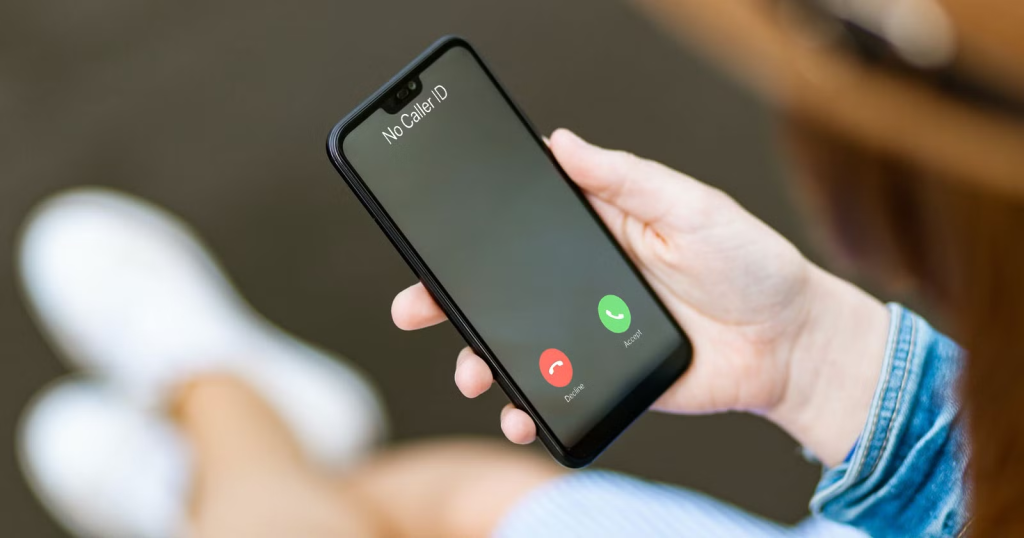
4 Easy Methods to Hide Your Android Phone Number
Keep your calls private with these four quick methods. Hide your Android phone number from built-in settings to dialer codes, to protect your identity within seconds.
Method 1: Hide Your Number with Android Settings
Blocking your number is very simple if you use the built-in settings of the phone. The exact steps may depend on your phone brand (like Samsung, Google Pixel, Xiaomi, etc.), but the operation usually remains the same. To do this, follow the steps below:
- Launch the Phone application.
- Choose Settings, navigate to Calls, and click Additional settings.
- Click Caller ID.
- Select Hide number.
- Your number will be hidden from all outgoing calls once this is turned on. You can revert this action anytime by clicking on Show number.
Method 2: Dialer Code
To hide your caller ID for one specific dialer, you can add a dialer prefix code instead of changing your phone settings. Here’s how:
- Open your dialer.
- Dial *67 if in the US or Canada, or #31# for other countries.
- Enter the number you want to call, e.g. *67 415-555-1234
- Press Call.
- The receiver will see “Private Number” or Unknown Caller” written instead of your actual number.
Method 3: Block Caller ID Asking the Carrier
Your mobile carrier can also be asked to permanently turn off your caller ID for outgoing calls. This choice is of great help if you are the type of person who usually makes anonymous calls or wants to protect your privacy. To do that:
- Get in touch with the customer service of your carrier (like T-Mobile, AT&T, or Sprint).
- Tell them to “block outgoing caller ID” on your phone number.
- The change will take effect immediately and apply to all calls made.
Method 4: Use a Secondary App
Numerous applications, including Google Voice, TextNow, and Skype, offer the option to call using a secondary number rather than the primary one. If you are a freelancer, a small business owner, or a person using one mobile phone for different purposes, this is just the thing for you! It provides more privacy, and at the same time, professionalism is maintained.
Why You Might Want to Hide Your Android Number
There are several reasons people choose to hide their phone numbers. Some do it to maintain privacy when calling unknown contacts, while others use it for professional purposes. For example, small business owners or freelancers might not want their personal numbers shared publicly. In some cases, hiding your number can also help prevent spam calls or protect your data from being stored by unknown parties. Whatever your reason, Android makes it easy to protect your identity when calling.
Things to Know Before You Hide Your Number
Before activating the “Hide Number” option, keep these points in mind:
- Some services, like emergency hotlines (911, 112, etc.), will still receive your caller ID for safety reasons.
- Many businesses and automated systems automatically reject calls from private numbers.
- Certain regions or carriers may not support caller ID blocking, especially for international calls.
- If your call must be returned, consider temporarily showing your number so the receiver can reach you back.
Hide Your Number Temporarily vs Permanently
You can choose between temporary and permanent caller ID blocking depending on your needs:
- Temporary hiding (using prefix codes like *67 or #31#) is ideal for one-time calls or occasional anonymity.
- Permanent hiding (via Android settings or carrier) applies to all outgoing calls — suitable for users who prioritize long-term privacy.
Both options are reversible, so you can switch back anytime.
How to Verify if Your Number Is Hidden
After activating the hide number feature, it’s smart to confirm whether your calls are truly private. To test it:
- Call a friend or another phone you own.
- If the receiver sees “Private Number” or “Unknown Caller,” your setting is working.
- If your number still appears, restart your phone or check with your carrier to ensure caller ID blocking is active.
Boost Your Privacy Beyond Caller ID
Hiding your number is a great start, but for full digital privacy, consider using tools like VPNs (Virtual Private Networks) to mask your IP address and location while browsing or using calling apps. A VPN adds an extra layer of anonymity and protects your data from being tracked online.
Frequently Asked Questions
Some businesses and people automatically block private numbers, and emergency services do not accept private caller IDs.
Making your number private helps you protect your identity, saves you from unwanted callbacks, and keeps your privacy while contacting unknown recipients.
You cannot fully hide your number on WhatsApp, but you can limit its visibility by going to Settings, clicking Privacy, choosing About/Phone Number, and selecting Nobody or My Contacts Only.

Tanzeel Ahmed

December 23, 2025

4 months ago