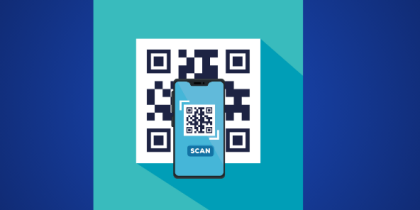
Music has always been a social experience, something to share, enjoy, and connect over. Spotify Jam takes that idea and turns it into a real-time, collaborative listening session, allowing you and your friends to enjoy the same music together no matter where you are.
Whether you’re hanging out in person, studying with long-distance friends, or planning a group road trip playlist, Spotify Jam turns your queue into a shared, synchronized environment. Everyone hears the same tracks at the same time and can add songs to shape the vibe together.
But figuring out how to join, start, or use Spotify Jam can feel confusing, especially if the option doesn’t appear on your device or your friends can’t connect.
This guide explains everything, from how the feature works, who can join, and the devices it supports, to step-by-step instructions for starting a Jam, joining one, and fixing common issues. By the end, you’ll know exactly how to jump into a Jam with your friends and enjoy music together effortlessly.
We’ll cover:
- What Spotify Jam is and how it works
- Requirements for starting or joining a Jam
- How to join a Jam on iPhone, Android, desktop, or smart devices
- How to start a Jam if you want to host
- What you can do inside a Jam
- Fixing missing Jam options and joining issues
- Extra tips for the best shared listening experience
What Is Spotify Jam?
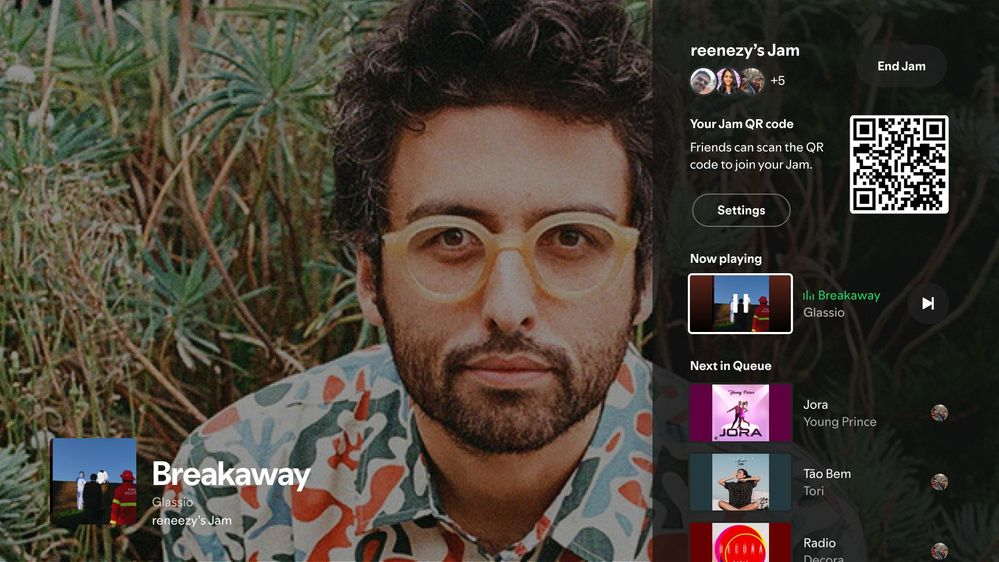
Spotify Jam is Spotify’s real-time social listening feature that lets up to 32 people listen to the same music together. When a Jam is active, the host manages the session, but participants can also add songs to the shared queue and enjoy synchronized playback across all devices. The feature works whether everyone is sitting in the same room or scattered across different cities.
Inside a Jam, everyone sees the same queue, the same progress bar, and the same audio in real time. This makes it ideal for parties, study sessions, virtual hangouts, or simply sharing new music with friends. Jam brings a “group playlist meets live listening party” vibe—and unlike sending playlists, it feels immediate, collaborative, and fun.
Who Can Join: Premium vs Free Users
Spotify Jam does not require every participant to be a Premium subscriber. Only the host must have a Spotify Premium subscription to start the Jam. Free users can join as long as they receive an invite link or QR code.
Joining remotely or locally works the same for most users, but free accounts may hear occasional ads depending on Spotify’s current rules in your region. Premium users experience uninterrupted playback.
This makes Jam accessible: one Premium user can host, and everyone else can still enjoy the experience.
How to Join a Spotify Jam
Joining a Jam is simple once you receive an invitation. The session host can share the invite as a link, a QR code, or through device-to-device proximity if you’re physically near each other. On your device, joining follows a few steps:
When you tap the invite link, Spotify automatically opens and connects you to the session. If you’re using the QR code, simply scan it with your camera, tap the notification, and you’ll be added to the Jam instantly.
On most devices, once you join, the shared queue appears, and music plays in sync with everyone else. If the host enables collaborative controls, you can start adding songs to the session, see who added what, and enjoy the Jam in real time. If you’re joining in person, proximity joining with Bluetooth might also prompt you to enter the session automatically.
Regardless of your device, iPhone, Android, or desktop, the joining process is smooth once you have an invite, and you can leave the session anytime if needed.
How to Start a Spotify Jam (For Hosts)
If you’re hosting a Jam, you need an active Premium membership. Starting a Jam is easy. Open the Spotify app and play any track, album, or playlist. Tap the “Connect” or speaker icon, which you normally use to select a Bluetooth or external device. You’ll see an option labeled “Start a Jam.”
Once the Jam begins, Spotify generates a shareable invite link and a QR code. If your friends are nearby, Bluetooth detection may allow them to join instantly. As the host, you control the main playback by default, but you can choose whether participants are allowed to skip, pause, or adjust the queue.
A Jam can run for hours, and you can stop it at any time by leaving the session. Keep in mind that if the host leaves, the entire Jam ends automatically.
What You Can Do Inside a Spotify Jam
Inside a Jam, the experience becomes collaborative and dynamic. Everyone hears the same music in real time, so conversations and reactions stay in sync. Participants can add songs directly from their library, playlists, or search results, and the queue visibly updates so everyone can see who added each track.
The host may choose to lock playback controls, but even then, most Jams allow guests to contribute tracks. If controls are open, participants can skip songs, return to previous tracks, or pause playback, making the session feel like a shared remote control.
The experience works on phones, tablets, computers, smart speakers, cars, and even smart TVs, making it flexible for group environments. The synchronization stays tight, keeping everyone perfectly aligned, which is what makes Jams enjoyable even when people are miles apart.
Why Spotify Jam Is Useful
Spotify Jam transforms music listening from a solo activity into a shared moment. It brings friends together during long-distance calls, movie nights, gaming sessions, workouts, or even group study times. It creates a community feeling around the music and lets everyone contribute to the vibe.
It’s especially great for:
- Long-distance friendships
- Parties and small gatherings
- Family listening sessions
- Online hangouts or gaming nights
- Discovering new music from friends’ tastes
Thanks to Spotify’s large music library and recommendation engine, Jams spark conversations and help you find new tracks you may not have discovered alone.
Troubleshooting: If You Can’t Join or Start a Jam
Sometimes the Jam option doesn’t appear, or friends can’t join. Most issues have simple fixes.
If you can’t start a Jam, first make sure you are a Premium user, Free accounts cannot host. Restarting the app or updating Spotify often refreshes the interface so the Jam button appears again.
If you can’t join a friend’s Jam, confirm that your Spotify app is logged in and updated. Opening the invite link while logged into your account usually resolves connection issues. If you’re joining in person, enable Bluetooth and ensure your friend’s device is detectable. Occasionally, desynchronized playback occurs, and leaving and rejoining the session typically corrects it.
In rare cases, older devices or outdated versions of Spotify may limit Jam functionality, but updating the app or switching to another device fixes most problems.
Tips for the Best Spotify Jam Experience
To elevate your listening session, consider switching to Bluetooth speakers or a smart TV if the group is local. When remote, stable Wi-Fi keeps music perfectly synchronized. You can also prepare a “starter playlist” before the Jam so the session begins with a good flow. If your group enjoys sharing music, keep controls open and allow everyone to contribute freely.
Most importantly, treat Jams as a fun social moment, it’s less about perfection and more about enjoying music together.
FAQs
No. Only the host needs Premium. Guests with free accounts can still join.
You must be a Premium user and have the latest version of the app.
Up to 32 people can join a single session.
Yes, unless the host has restricted controls.
Yes, though joining is easier on mobile. Playback remains synchronized across devices.