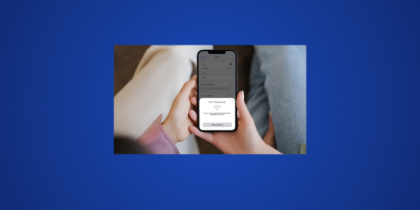
If you’re having trouble signing in to your OpenAI account, a password reset is usually the quickest way to regain access. The same login is used for ChatGPT and other OpenAI services, so resetting your password applies wherever you log in.
Whether you forgot your password or just can’t sign in, resetting it only takes a few simple steps. Below, we’ll cover how to reset your OpenAI password and what to check if something doesn’t work as expected.
Reasons you may need to reset your OpenAI password
Here are some common situations where you might need to reset your OpenAI password:
- You forgot your password: It happens, especially if you don’t sign in often or rely on autofill. If you can’t remember the exact password, resetting it is the quickest way to get back in.
- Your password isn’t being accepted: Even when you’re sure you’re entering it correctly, saved passwords can become outdated or small typos can prevent you from signing in.
- You’re signed out and can’t log back in: Sessions can expire after inactivity or when switching devices, leaving you at the login screen until you reset or recover your password.
- You want to secure your account: If you see unexpected login prompts or activity you don’t recognize, resetting your password is a sensible first step to stop unauthorized access.
OpenAI password reset instructions
If you’re unable to sign in, just follow these steps to reset your OpenAI password:
- Go to the OpenAI sign-in page and click Log in.
- If prompted, select the service you want to access (like ChatGPT).
- Enter the email address associated with your account.
- On the password screen, use the Forgot password? option.
- Check your inbox for the reset email and follow the link to create a new password.
- Sign in again using your updated password.
Didn’t get the password reset email from OpenAI?
If the reset email hasn’t arrived, a few quick checks can help you understand why.
Check your spam or junk folder
Password reset emails can sometimes be filtered by your email provider, especially if they’re automated messages. Search your inbox for “OpenAI” or “password reset” and check any filtered folders before requesting another link.
Confirm you entered the correct email address
Make sure the email you entered matches the one you originally used to sign up. If you use different emails, it’s easy to mix them up during the reset process. Requesting a reset again with the correct address can resolve the issue quickly.
Wait a few minutes and request another reset
Email delivery isn’t always instant. Network delays or temporary delivery issues can slow things down. Give it a few minutes before requesting another reset link, and avoid sending multiple requests back to back.
Check inbox filters, rules, or storage limits
Custom email rules can automatically move or archive incoming messages without you noticing. A full mailbox can also prevent new emails from arriving altogether. Review your filters and check if there’s available storage.
What to do if you signed up using Google, Microsoft, or Apple?
If you use a social login, password resets are handled by the provider you signed in with. When you choose “Continue with Google,” “Continue with Microsoft,” or “Continue with Apple,” your OpenAI account is linked to that provider rather than a separate password.
That means you won’t receive a password reset email from OpenAI. To regain access, reset your password through your Google, Microsoft, or Apple account settings, then sign in again using the same method.
Tips to create a strong password for OpenAI
When setting a new OpenAI password, it’s worth keeping a few basics in mind:
Use a long, unique password
Longer passwords are generally harder to guess than shorter ones. Try using a phrase or a combination of unrelated words that you don’t use for any other account, so your OpenAI login stays separate from the rest.
Avoid obvious or personal details
Information such as names, birthdays, or simple number patterns can be easier to guess, especially if they’re used elsewhere. Picking something that isn’t tied to personal information makes your password more resilient.
Don’t reuse passwords across accounts
Using the same password in multiple places can create unnecessary risk, especially if another service experiences a security issue. Keeping your OpenAI password separate helps reduce the chances of problems elsewhere affecting your access.
How can a dedicated password manager help?
Managing passwords across different accounts can quickly get complicated, particularly when you’re trying to keep them long and unique. A dedicated password manager like PureVPN password manager stores all your login details in one place, making it easier to sign in without relying on memory or scattered notes.
It can also help you create strong passwords and keep track of updates when you reset or change them, so you don’t have to go through recovery steps repeatedly. Having your passwords organized can reduce confusion and make access smoother while keeping each account separate.
Frequently asked questions
After you reset your password, you’ll need to use the new one for future sign-ins. You may be asked to sign in again on other devices to continue accessing your account.
No, if you originally signed in using one of those options, OpenAI doesn’t create a separate password for you. You’ll need to reset your password through the provider you used, then sign in again using the same method.
If you no longer have access to the email you signed up with, there isn’t a direct self-service option to reset your password. You would need to contact OpenAI support and share details to help verify your account.
If the reset email doesn’t arrive, it’s often due to a typo in the address, checking the wrong inbox, or email filtering. Waiting a few minutes and requesting a new link can help, and it’s worth confirming you’re using the correct email.