
Netflix’s household system often causes problems for people who aren’t doing anything unusual. You open the app, try to watch something, and suddenly you’re told your device isn’t part of the household. Netflix usually shows this error when you’re not on the same internet connection the household was set on, or when your home network changes without warning.
In this guide, we’ll show you how to bypass the Netflix household error using methods that actually work so you can get back to streaming your favorite shows and movies again.
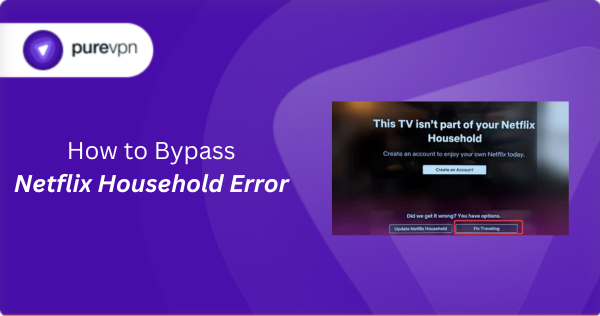
Why Netflix shows the household error
The Netflix household error usually appears for a few common reasons. These are the ones people run into most often:
You’re not on the same internet connection the household was set on
This is the most common trigger of the Netflix household error. The platform ties your household to the home internet used on your main TV. If you’re on a different Wi-Fi network, a second home, office Wi-Fi, hotel internet, or mobile data, Netflix sees it as a completely different location and blocks the device.
Your home network changed without you realising It
Some users say they started seeing the household error right after their ISP changed their public IP or shifted them to a different routing range. This usually happens on dynamic IP plans or if your ISP uses CGNAT. Even though Netflix doesn’t explain the details, these network changes can make your home look “new,” which leads to a mismatch.
Your device hasn’t connected from home in a long time
People who travel or switch between locations often report that devices fall out of the household after being away for weeks or months. Netflix expects devices to check in from the home network from time to time, and extended absence can trigger a block when they reconnect from another location.
You replaced or reset your router/modem
Some users notice the error right after installing a new router, switching to a different modem, or resetting their network equipment. Even if the Wi-Fi name and password stay the same, the system behind your network may look different to Netflix, causing it to ask you to re-confirm the household.
Someone else used your account from a different location
Several users report that when a family member logs in from another home, whether intentionally or by mistake, it can cause Netflix to tighten verification for everyone. This sometimes results in the household error even on the main home network until the system settles.
You’re using a network Netflix doesn’t treat as a home connection
This includes hotels, airports, corporate networks, shared building Wi-Fi, or university dorms. Many users mention that Netflix is quick to flag these networks as “non-home,” which leads to the household error even if you verify the device.
7 proven methods to bypass the Netflix household error
Most people fix the Netflix household error using a handful of reliable methods. These are the ones that consistently help users get their account working again:
Method #1: Update or set your Netflix Household on the main TV
If you’re seeing the household error at home, the quickest fix is to reset your household on the TV that Netflix treats as your primary device. Open Netflix on your main TV, go to the household settings, and set or update your home location. This ties your Netflix account back to your home network, which usually clears the error on any device using the same connection.
Method #2: Connect the device to the account owner’s Wi-Fi
If a device isn’t on the same internet connection the household was set on, Netflix flags it instantly. To fix this, connect the device to the account owner’s home Wi-Fi, open Netflix, and play something for a few seconds to confirm the device as part of the household. After that, you can switch back to your usual network, and Netflix will keep the device authorised for a while.
Method #3: Verify the device through email
When you watch from a different network, Netflix may ask you to confirm the device and send a verification link to the account owner’s email. Opening that link confirms the device and gives it temporary access even if you’re not on the home Wi-Fi. It isn’t a permanent fix, but many people use this method when travelling or watching Netflix from another location.
Method #4: Restart your router if your ISP changed your IP
Some users start seeing the household error after their ISP quietly changes their public IP address. Restarting your router forces a fresh connection to your ISP and can sometimes restore the previous IP or assign one that Netflix recognises as your home network. If the error appeared suddenly despite being on your usual Wi-Fi, this is a quick fix worth trying.
Method #5: Try Netflix on web or mobile
TVs and streaming boxes are where Netflix enforces the household rules the strictest. Many users report that when a TV refuses to play because of the household error, the same account still works on a browser or the mobile app. Netflix allows more flexibility on phones and laptops, so switching devices often lets you keep watching without changing any household settings.
Method #6: Route your connection through your home Wi-Fi
Some people avoid the error by sending their traffic through a computer that’s left on at home and connected to their home Wi-Fi. With remote tunneling software linking two devices together, your laptop or phone can use your home internet in the background. When Netflix sees the connection coming from your home network, it treats the device as part of the household.
Method #7: Add an extra member to your account
If someone in another home needs regular access, the most reliable option is to add them as an extra member. Netflix allows you to pay for an additional slot so another person outside your household can use their own login without triggering the household error. It isn’t a workaround, but it’s the only official way to share Netflix across two different locations.
Can I use a VPN to bypass the Netflix household error?
No, a VPN cannot bypass the Netflix household system. This error isn’t triggered by your country, your region, or the type of IP you’re using. Netflix decides whether a device belongs to a household based on your home network, not the geographical location of your IP.
A VPN can change where your traffic appears to come from, but it cannot imitate your home Wi-Fi, which is the only thing Netflix checks when enforcing the household rule. Even if a VPN server is unblocked for streaming, Netflix still sees it as a completely different network.
Netflix’s household detection depends on factors a VPN cannot replicate, including:
- Your home’s actual internet connection
- The TV used to set the household
- Device activity tied to the home network
- Whether the same Wi-Fi was recently used by the device
If you need Netflix to treat a device as being at home, the only thing that works is being on the actual home network (physically or by routing your connection through a computer at home that uses your home Wi-Fi). A VPN server located elsewhere cannot do that.
Final word
The household error appears when Netflix no longer recognises the network your account is tied to. Once you fix that mismatch with the methods above, the error stops showing up and you can get back to watching without interruptions.

PureVPN

December 2, 2025

3 months ago


