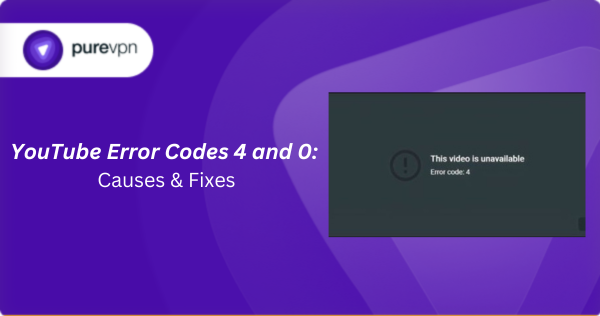
When YouTube shows Error Code 4 or Error Code 0, it usually means something interrupted the video request. Error 4 is linked to a network issue, while Error 0 typically appears when the browser or app can’t load data correctly. Both errors stop playback the same way, but their causes are different.
The good news is that fixes are simple once you know what you’re dealing with. In this guide, we’ll break down what each error means, the causes behind them, and what you can do to get YouTube working again.
What is YouTube Error Code 4?
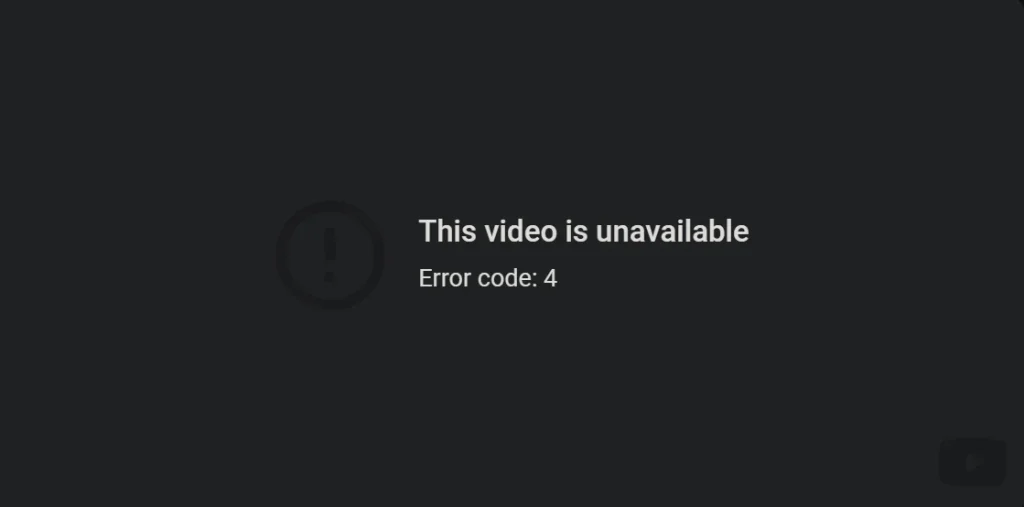
YouTube Error Code 4 appears when the video player can’t load or maintain the connection it needs to start playback. It’s a network-related error, meaning something is preventing the browser or app from reaching YouTube’s servers reliably. The message, “This video is unavailable. Error Code: 4” often appears before a video starts or when switching quality or loading a new clip.
Causes of YouTube Error Code 4
Several factors can trigger this error. Here are the most common ones:
- Unstable or weak internet connection: When the connection drops or fluctuates, YouTube can’t load or maintain the video stream. This interruption triggers Error Code 4 before playback even starts or when switching to another clip.
- DNS resolution problems: If your DNS can’t resolve YouTube’s servers quickly or correctly, the playback request fails, preventing the video player from reaching YouTube reliably and resulting in Error Code 4.
- Corrupted browser cache or cookies: Damaged or outdated site data can break the request YouTube sends to load a video. When the player receives an invalid response, Error Code 4 appears instead of starting playback.
- Ad blockers or script blocking extensions: Some extensions block YouTube scripts required for loading and playing videos. When these scripts can’t run, YouTube fails to fetch the stream and shows Error Code 4.
- Outdated browser, app, or operating system: When the browser, YouTube mobile app, or OS is outdated, it may not support YouTube’s current playback requirements. This mismatch can stop videos from loading and lead to Error Code 4.
- Temporary YouTube service issues: Sometimes YouTube briefly fails to process video requests on its end due to a service outage. When this happens, the player cannot load the stream and displays Error Code 4.
What is YouTube Error Code 0
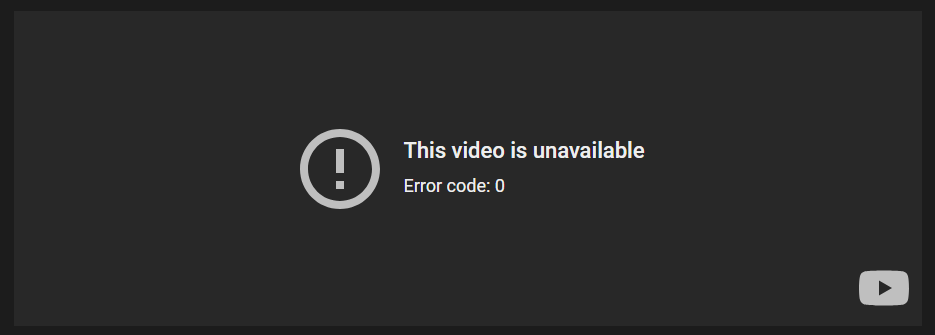
YouTube Error Code 0 appears when the browser or app fails to complete a request needed to load the video. It’s often linked to issues with local data, a blocked script, or an interruption in how the page communicates with YouTube’s servers. The message, “This video is unavailable. Error Code: 0” typically shows up when a video fails to start or when refreshing the page.
Causes of YouTube Error Code 0
A few different issues can trigger this error. These are the most common ones:
- Corrupted or outdated browser data: When cookies or cached files become damaged, YouTube may receive an invalid request and fail to load the video. This often leads to Error Code 0 when starting or refreshing a video.
- Script blocking extensions: Extensions that block JavaScript or modify page behavior can interrupt the requests YouTube needs to load videos. When essential scripts can’t run, the video fails to start and shows Error Code 0.
- Ad blockers interfering with player scripts: Some ad blockers unintentionally block YouTube elements required for video playback. If a required script is blocked, YouTube cannot complete the request and displays Error Code 0.
- Outdated browser or app version: Older versions of browsers or the YouTube mobile app may not support current playback requirements. This compatibility issue can cause incomplete requests and trigger Error Code 0.
- Temporary YouTube-side issues: If YouTube briefly fails to process or respond to playback requests, the player may display Error Code 0. These issues are typically short-lived and occur during service disruptions.
How to fix YouTube Error Code 4
Since this error is tied to connection or loading issues, the fixes are straightforward. Here’s what you can try:
Check and stabilize your internet connection
A weak or unstable internet connection prevents YouTube from loading the video stream. Test another website, switch to a different network if available, or move closer to your router for a more stable signal.
Restart your router or modem
Connection interruptions can usually be fixed by rebooting your router or modem. Restarting refreshes your network session and often resolves temporary connectivity issues that lead to Error Code 4.
Change your DNS (Google DNS or Cloudflare)
If DNS is failing to resolve YouTube’s servers, switching to a reliable DNS provider can help. Updating DNS settings improves how your device reaches YouTube, which can prevent the error from showing.
Clear your browser cache and cookies
Corrupted or outdated site data may break YouTube’s playback request, leaving you unable to stream. Clearing cache and cookies removes the damaged data and forces YouTube to load fresh resources.
Disable browser extensions
Some browser extensions interfere with YouTube’s required scripts and prevent videos from loading. Temporarily disable ad blockers or script filters, then refresh the page to see if playback starts correctly.
Update your browser, YouTube app, or OS
Outdated versions of browsers, the YouTube mobile app, or the operating system can become incompatible with YouTube’s current playback requirements. Keeping them updated is important for full compatibility.
Restart your device
Temporary software glitches or background process issues can stop YouTube from loading videos properly. Restart your device to clear these issues and reset the network and browser/app environment.
How to fix YouTube Error Code 0
Since Error Code 0 comes from a failed request, these steps help refresh YouTube and clear what’s blocking it:
Refresh the page and try again
Error Code 0 can appear when a request fails temporarily, meaning YouTube is unable to process it. Refreshing forces the browser or app to resend the request, which often resolves the issue quickly.
Clear YouTube site data or clear your browser cache
Corrupted cookies or cached files usually interrupt how YouTube loads videos. Clearing site data removes the damaged files so the player can process a clean request the next time you open a video.
Turn off browser extensions
Some browser extensions block or modify scripts that YouTube relies on for loading video data properly. Disable ad blockers or script filters temporarily, then refresh YouTube to check if the error clears.
Try YouTube in another browser
If Error Code 0 interrupts your streaming only in one browser, it might be tied to its cached data or extensions. By testing YouTube elsewhere, you can confirm whether the issue is specific to that browser.
Update your browser or YouTube app
If your browser or YouTube app is not updated, it may not support YouTube’s current playback requirements. Updating them is the only way to restore full compatibility and reduce request-related errors.
Check for YouTube outages
Error Code 0 can appear during temporary YouTube service disruptions. These issues are more often than not short lived and resolve on their own once YouTube starts processing requests normally again.
Frequently asked questions
Error Code 0 usually appears when the browser or app can’t complete a request needed to load the video. Corrupted site data, blocked scripts, or an outdated browser are the most common triggers.
Error Code 4 is generally caused by a network interruption that stops YouTube from loading the video stream. DNS issues, unstable connectivity, outdated software, or blocked scripts can all trigger the error.
Start by checking your internet connection and restarting your router if needed. Clearing your browser cache, updating your software, or disabling extensions can also resolve the issue. If the error continues, switching DNS providers may help.
Refresh the page to resend the request, then clear your cached data if the error returns. Disabling extensions or trying YouTube in another browser can help isolate the cause. Updating your browser or app is also important for compatibility.
Final word
Both Error Code 4 and Error Code 0 stem from failed network or data requests. Addressing corrupted data, script interference, or connection issues usually resolves them quickly. Use the fixes above to restore proper YouTube playback.

PureVPN

December 24, 2025

3 months ago