
The AT&T BGW320-500 is a robust fiber gateway provided by AT&T, offering high-speed internet, Wi-Fi 6 (802.11ax) capabilities, and voice services. While designed for ease of use, configuring advanced network settings like port forwarding on this device can sometimes be a puzzle for users looking to host game servers, set up remote access to devices, or optimize specific applications. This comprehensive guide will demystify port forwarding on the AT&T BGW320-500, offering a step-by-step approach, troubleshooting tips, and unique insights to ensure your network serves your specific needs.
Whether you’re a gamer, a small business owner, or just someone looking to access your home network from outside, understanding how port forwarding works and how to properly set it up can make a huge difference in your online experience.
Understanding Port Forwarding: The Digital Doorman
At its core, port forwarding is a network address translation (NAT) technique that redirects incoming internet traffic from a specific port on your router to a particular device on your local network. Imagine your AT&T BGW320-500 as a large apartment building with a single public address. When someone sends a letter to that address, the postman needs to know which apartment (your device) inside the building should receive it. Port forwarding acts as that instruction, telling your router, “Any traffic coming in on port X should go to device Y on my internal network.”
This is crucial for applications that require direct, unsolicited incoming connections from the internet. Common use cases include:
- Online Gaming: Hosting dedicated game servers (e.g., Minecraft, Valorant, Call of Duty) for friends.
- Why Port Forwarding? Remote access tools port forwarding ensures external requests reach the correct internal device.
- Double NAT Issues – If you’re using a secondary router (e.g., ASUS, Orbi), improper settings can lead to double NAT, blocking forwarded ports.
- AT&T’s Restrictions – Unlike some ISPs, AT&T doesn’t use CGNAT (Carrier-Grade NAT) on fiber plans, meaning you should have a public IP for port forwarding.
- Remote Access: Connecting to a security camera system, Network Attached Storage (NAS), or a home server from outside your local network.
- Voice over IP (VoIP): Ensuring clear communication for certain VoIP services.
- Peer-to-Peer Applications: Optimizing performance for torrenting or other P2P software.
Getting to Know the BGW320-500 Router
The BGW320-500 is a gateway device provided by AT&T for fiber internet customers. It’s a combination modem/router that supports Wi-Fi 6, high-speed gigabit connections, and integrated ONT (optical network terminal) capabilities.
Its web interface offers advanced settings, including IP passthrough, firewall configurations, and of course, port forwarding. Unlike some older routers, the BGW320-500 uses a clean user interface but still requires careful steps to set things up.
How to Navigating the AT&T BGW320-500 Interface
Before you begin, you’ll need to access your AT&T BGW320-500’s administrative interface.
- Connect to Your Network: Ensure your device (computer, laptop) is connected to your BGW320-500’s Wi-Fi network or directly via an Ethernet cable.
- Open a Web Browser: Launch your preferred web browser.
- Access the Gateway: In the address bar, type
http://192.168.1.254and press Enter. This is the default IP address for most AT&T gateways. - Enter Device Access Code: You’ll be prompted for a Device Access Code. This code is typically found on a sticker on the side of your BGW320-500 router.
Once logged in, you’ll find yourself in the gateway’s administrative panel.
Step-by-Step Guide to Port Forwarding on the BGW320-500
The AT&T BGW320-500 uses a section called “NAT/Gaming” for port forwarding configurations.
- Navigate to Firewall Settings: From the main menu, select “Firewall.”
- Go to NAT/Gaming: Within the Firewall section, click on “NAT/Gaming.”
- Acknowledge Warning (if any): You might encounter a warning message about the risks of port forwarding. Read it carefully and proceed if you understand the implications. Sometimes, a restart of the gateway is recommended if you get this warning.
- Choose or Create a Custom Service:
- Existing Applications: If your desired application is listed in the “Service” drop-down menu, select it.
- Custom Services: For applications not listed or for specific port configurations, select “Custom Services.”
- Service Name: Enter a descriptive name for your application or device (e.g., “Minecraft Server,” “IP Camera”).
- Global Port Range: This is the external port or range of ports that your router will listen for. If it’s a single port, enter the same number in both “Global Port Range” fields (e.g., 25565 to 25565 for Minecraft). It’s generally recommended to create a separate entry for each port rather than a broad range, unless absolutely necessary.
- Base Host Port: This is the internal port on your device where the incoming traffic will be directed. For many applications, this will be the same as the Global Port Range.
- Protocol: Select the appropriate protocol: TCP, UDP, or Both. Consult your application’s documentation to determine the correct protocol. For gaming, often both TCP and UDP are required.
- Add Service: Click “Add” to save this custom service.
- Select the Destination Device:
- From the “Needed by Device” drop-down menu, select the name or IP address of the device on your internal network that will receive the forwarded traffic.
- Important: For consistent port forwarding, it’s highly recommended to assign a static IP address to the device you are forwarding ports to. This prevents the device’s IP from changing, which would break your port forwarding rule. You can usually do this in your device’s network settings or within the BGW320-500’s “IP Allocation” or “DHCP Reservation” settings.
- Add to Hosted Applications: Once the device is selected, click “Add.” Your new port forwarding rule will appear in the “Hosted Applications” list.
- Save Changes: Finally, click “Save” to apply your port forwarding configuration.
Common Pitfalls & Troubleshooting
1. Port Forwarding Stops Working
- ISP Blocking Ports: Some ISPs block common ports (e.g.,
80,443). Try alternate ports (e.g.,8080).
2. Double NAT Issues
If you’re using a secondary router (e.g., ASUS, Orbi):
- Enable IP Passthrough: This bypasses the BGW320’s NAT, letting your own router handle forwarding.
- Go to Firewall > IP Passthrough.
- Set Allocation Mode to Passthrough DHCP Fixed.
- Enter your router’s MAC address (found on its label).
- Disable BGW320’s Wi-Fi: Reduce interference by turning off its radios.
3. Firewall Blocking Connections
Even if the router forwards the port, the Windows firewall or antivirus on the device might block the traffic. Add exceptions for the port or application in your system’s firewall settings.
Disable the BGW320’s Packet Filter (under Firewall > Advanced) or check the device’s local firewall (Windows Defender, etc.).
4. Dynamic IP Addresses
If your internal device gets a different IP address after rebooting, the forwarding rule won’t work anymore. To avoid this:
- Assign a static IP to your device via the BGW320-500’s DHCP settings.
- Alternatively, set a static IP directly on the device.
Configure AT&T Router BGW320-500 Port Forwarding with PureVPN
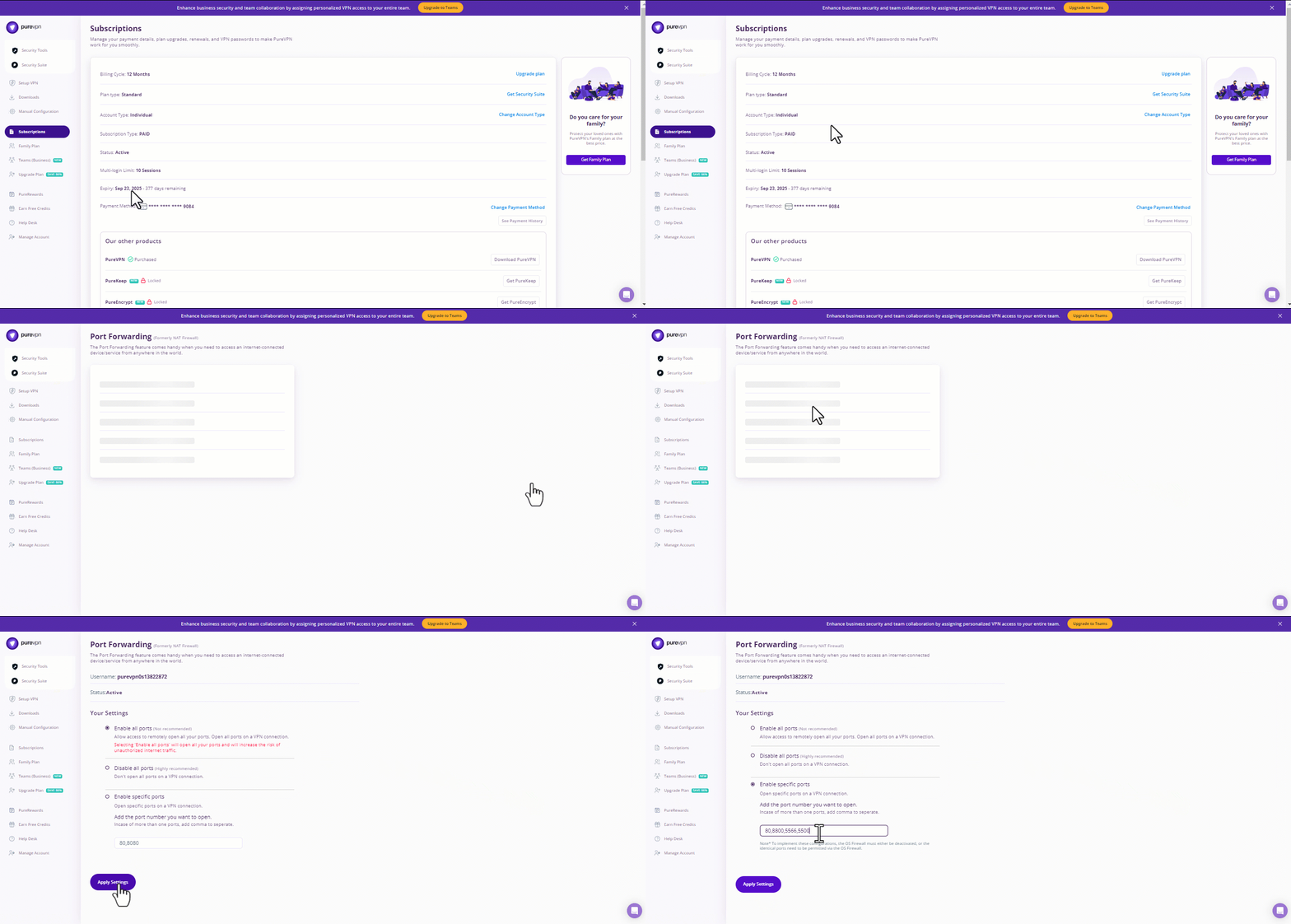
Here is how you can use PureVPN to port forward AT&T Router BGW320-500 in just a few clicks:
- Sign up for PureVPN, add Port Forwarding to your plan, and complete the payment.
- Download and install the PureVPN app, launch it, and log in using your credentials.
- Access the PureVPN Member Area, go to Subscriptions and click Configure next to Port Forwarding.
- Choose Enable specific ports, enter the ports you want to open, and click the Apply Settings button.
- Open the PureVPN app, connect to a port forwarding-supported server, and you are good to go!
Final Thoughts
Port forwarding on the AT&T BGW320-500 router may seem daunting at first, but with a bit of guidance, it’s entirely manageable. Whether you’re enabling remote desktop, hosting a game server, or running smart home services, proper port forwarding ensures those external connections work seamlessly and securely.
Just remember the three keys to success: set the correct internal IP, define the right port and protocol, and test your connection. With this knowledge, you can unlock the full potential of your home network.

PureVPN

October 9, 2025

4 months ago


