Amazon Firestick turns any regular TV into a powerful smart entertainment hub, giving you access to movies, TV shows, live sports, music, and even useful utility or productivity apps. Because of its flexibility and ease of use, many new users often ask how to download apps on Firestick.
While the basic process is straightforward, there are actually several ways to install apps depending on what you want to use. Some apps are officially available through the Amazon Appstore, while others require a few extra steps to install from external sources.
Understanding these options is important, especially if you want to expand your Firestick beyond the default apps. Whether you’re installing popular streaming services, regional apps, or third-party tools, knowing the correct method helps you avoid errors and stay secure.
This guide explains all the ways to download apps on Firestick, from official installations to safe sideloading methods, so you can get the most out of your device.
How to Download Apps on Firestick from the Amazon Appstore
The Amazon Appstore is the safest and easiest way to install apps on Firestick. Most popular streaming apps like Netflix, YouTube, Amazon Prime Video, Disney+, and Spotify are available here.
Steps to Download Apps from the Appstore
- Turn on your Firestick and go to the Home Screen
- Select the Find option, then click Search
- Type the name of the app using the on-screen keyboard or voice search
- Select the app from the search results
- Click Get or Download
- Wait for the installation to complete
Once installed, the app will appear in your Apps Library and can be launched immediately.
How to Download Apps on Firestick Using Voice Search
Firestick’s Alexa voice remote makes app installation even easier.
Steps
- Press and hold the Alexa (microphone) button on the remote
- Say something like: “Download YouTube” or “Open Netflix”
- Select Get or Download when prompted
This method is especially helpful if you want to avoid typing using the remote.
How to Access Downloaded Apps on Firestick
After installing an app, you can find it by:
- Going to Home → Your Apps & Channels
- Selecting See All
- Scrolling to locate the installed app
You can also move frequently used apps to the front for easier access.
How to Install Third-Party Apps on Firestick (Sideloading)
Some apps are not available in the Amazon Appstore. To install them, you need to sideload apps using an APK file.
Step 1: Enable Apps from Unknown Sources
- Go to Settings
- Select My Fire TV
- Click Developer Options
- Turn on Apps from Unknown Sources
- Confirm the warning message
Step 2: Install the Downloader App
Downloader is a commonly used tool for installing third-party apps.
- Open Search on Firestick
- Type Downloader
- Select the app and click Download
- Open Downloader once installed
Step 3: Download and Install the App
- Open Downloader
- Enter the APK URL or short code of the app you want
- Click Go
- When prompted, select Install
- Delete the APK file after installation to save space
The app will now appear in your Apps Library.
How to Move Sideloaded Apps to the Home Screen
Sideloaded apps may not appear automatically on the home screen.
- Go to Your Apps & Channels
- Select See All
- Highlight the app
- Press the Menu button on the remote
- Choose Move or Move to Front
Troubleshooting App Download Issues on Firestick
If you’re having trouble downloading apps, try these fixes:
- Check internet connection: Weak Wi-Fi can interrupt downloads
- Restart Firestick: Go to Settings → My Fire TV → Restart
- Clear app cache: Settings → Applications → Manage Installed Apps
- Check storage space: Delete unused apps if storage is full
- Update Firestick software: Settings → My Fire TV → About → Check for Updates
Is It Safe to Download Third-Party Apps on Firestick?
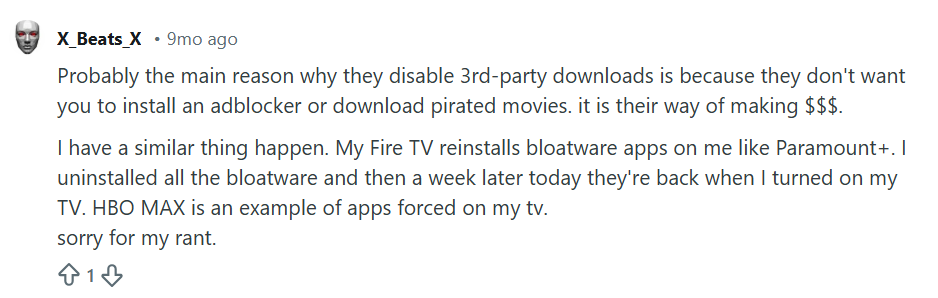
Downloading third-party apps on Firestick can be safe, but it does come with certain risks if proper precautions are not taken. Apps installed from unknown sources are not reviewed by Amazon, which means they could contain malware, intrusive ads, or hidden tracking components.
To reduce these risks, it’s important to only download apps from reputable and well-known websites that have positive user reviews and a history of providing safe APK files. You should also pay close attention to app permissions and avoid installing apps that request access to features or data that are unnecessary for their function.
Using a reliable VPN can further enhance safety by protecting your privacy and encrypting your internet traffic, especially when sideloading apps. Additionally, keeping your Firestick’s software up to date ensures you receive the latest security patches, helping protect your device from vulnerabilities and potential threats.
Conclusion
Downloading apps on your Amazon Firestick is a straightforward process once you understand the different methods available. For most users, the easiest way is to use the Amazon Appstore, where you can browse and install official apps directly to your device.
These apps are verified by Amazon, making them safe and reliable. However, Firestick also supports sideloading, which allows you to install third-party apps not available in the Appstore. This method requires a few extra steps, such as enabling apps from unknown sources and using trusted tools like the Downloader app.
Sideloading can greatly expand Firestick’s functionality, giving you access to regional apps, niche streaming services, or apps with features not offered in the official store. To ensure safety, always download APK files from reputable sources, avoid apps that request unnecessary permissions, and keep your Firestick updated. Following these precautions allows you to customize your Firestick fully and enjoy a secure, seamless streaming experience.
Frequently Asked Questions
Yes, Firestick runs on Android-based Fire OS, so many APK files work.
Some apps are restricted by region or not officially supported by Amazon.
A VPN is not required, but it helps with privacy and security, especially when sideloading apps.
Yes. Go to Settings → Applications → Manage Installed Applications to uninstall apps.