Streaming a show should be the easiest part of your day, but when Netflix suddenly stops working on your Vizio TV, it quickly turns into frustration. Most Netflix issues on Vizio TVs are caused by temporary app glitches, internet hiccups, or outdated software, and they’re usually easy to fix. In this guide, we’ll walk you through simple solutions you can try to get Netflix working again.
How to fix Netflix not working on Vizio TV
Here are the most common reasons Netflix stops working on Vizio TVs and what you can do to resolve each issue:
Check if Netflix is down
Before changing any settings on your Vizio TV, check whether Netflix itself is experiencing an outage. If Netflix is down or having regional issues, the app may fail to load, show error messages, or stop playing content.
Try opening Netflix on another device like your phone, laptop, or tablet using the same network. If it’s not working there either, the issue is likely on Netflix’s end, and the best option is to wait until service is restored.
Restart the Netflix app
Sometimes, Netflix issues on Vizio TVs are caused by a temporary app glitch rather than a bigger system problem. Restarting the Netflix app forces it to reload fresh data and can quickly clear minor bugs that cause freezing, black screens, or loading errors.
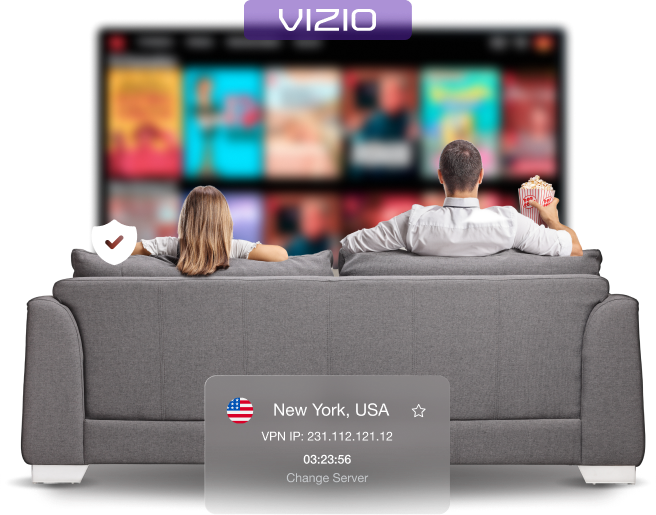
To do this, exit Netflix completely and return to the Vizio home screen. Wait a few seconds, then open the app again and try playing a title. If Netflix loads normally after restarting, the issue was likely a short-lived app hiccup.
Power cycle your TV
Power cycling your Vizio TV clears temporary system memory and refreshes background processes that can interfere with Netflix. It’s particularly useful when the app opens but freezes, crashes, or won’t load content.
Turn off the TV and unplug it from the power outlet. Wait at least 30 to 60 seconds to allow residual power to drain, then plug the TV back in and turn it on. Once the home screen loads, open Netflix again and check if playback returns to normal.
Test internet connection
Testing your internet connection directly on the Vizio TV helps confirm whether Netflix issues are being caused by connectivity problems. Even if other devices seem to be online, the TV may be struggling with a weak signal, DNS errors, or an unstable connection.
To do this, go to Settings, open Network, and run the built-in connection test to check if your TV is properly connected to Wi-Fi or Ethernet and can reach the internet. If the test fails or shows limited connectivity, Netflix may not load or stream reliably.
Restart your internet
Restarting your internet connection can help resolve network slowdowns or routing issues that prevent Netflix from loading properly on your Vizio TV. Turn off your modem and router, then unplug both devices from power.
After waiting about 30 seconds, plug them back in and allow the connection to fully restart. Once your internet is back online, reconnect your TV to the network and open Netflix again. This often resolves issues caused by temporary network instability.
Sign out of Netflix
Signing out of Netflix can help fix problems caused by account sync issues or corrupted session data. If Netflix opens but won’t play anything, shows a profile error, or keeps loading endlessly, logging out and back in can refresh the connection between your TV and your account.
Open the Netflix app on your Vizio TV, go to Get Help, and then select Sign Out. After signing out, restart your TV, then sign back into Netflix and try streaming a title again to see if the issue has been resolved.
Update Vizio TV software
Keeping your Vizio TV software up to date is important for apps like Netflix to work properly. Netflix updates on Vizio TVs are delivered through system updates. Open Settings, go to Admin and Privacy (or System on older models), and select Check for Updates.
If an update is available, install it and allow the TV to restart. Outdated software can cause compatibility issues, app crashes, or loading errors, so installing the latest update often resolves Netflix problems without needing further troubleshooting.
Identify Netflix error code (if shown)
If Netflix displays an error message or code on your Vizio TV, it can provide useful clues about what’s going wrong. Error codes usually point to specific issues, such as network connectivity problems, sign-in errors, or temporary service interruptions.
Make a note of the exact code shown on the screen, then check what it means using Netflix’s Help Center. In many cases, the recommended fix involves restarting the TV, checking your internet connection, or signing out and back in.
Perform a factory reset
A factory reset should be treated as a last resort when Netflix still isn’t working after trying all other fixes. Resetting your Vizio TV restores it to its original settings, which can resolve deeper software issues that affect apps like Netflix.
Remember, this process removes installed apps, saved logins, and custom settings. To proceed, open Settings, then Admin and Privacy, go to Reset TV to Factory Defaults, and confirm the reset. Once done, set up the TV again and reinstall Netflix.
Final word
Netflix issues on Vizio TVs are usually straightforward to troubleshoot and don’t require advanced fixes. Going through the steps above helps isolate the cause and avoid unnecessary changes. Once the issue is identified, Netflix should return to normal without much effort.

Arsalan Rashid

December 31, 2025

3 months ago