
Google Password Manager makes it easy to store and autofill login credentials across devices. If you use Chrome or Android, chances are your passwords are already saved in your Google account.
But what happens when you no longer trust a website, change credentials, share a device, or simply want better control over your digital privacy?
Knowing how to delete passwords from Google Password Manager isn’t just about cleaning up old logins. It’s about protecting your personal data, preventing unauthorized access, and reducing your exposure to cyber threats.
Let’s walk through how to delete Google password manager without any hassle.
What Is Google Password Manager?
Google Password Manager is a built-in password storage tool connected to your Google Account. It works across:
- Chrome browser
- Android devices
- Google Account web dashboard
It allows you to:
- Save passwords automatically
- Autofill login credentials
- Generate strong passwords
- Check passwords for data breaches
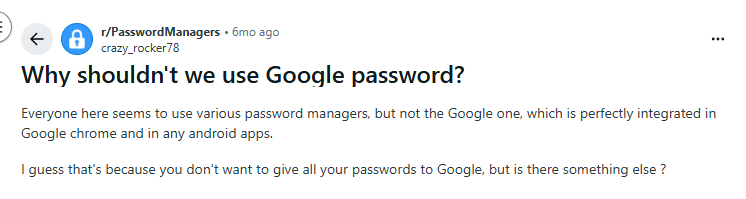
While convenient, storing passwords in a browser-based manager may not always be the best choice, specifically for shared devices or high-risk environments.
How to Delete Passwords from Google Password Manager on Desktop (Chrome)
If you use Google Chrome on Windows, macOS, or Linux, here’s how to remove saved passwords.
Method 1: Delete Passwords via Chrome Settings
- Launch the Chrome browser on your desktop.
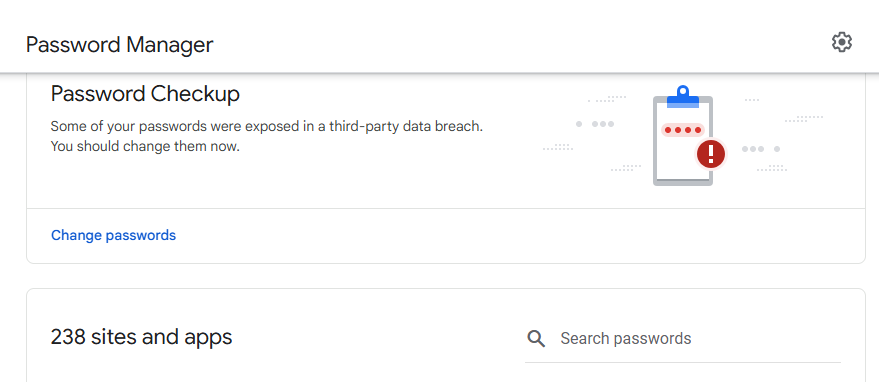
- Click the three-dot menu (top-right corner) → Settings → Autofill and Passwords → Password Manager.
- Or directly visit: passwords.google.com
Locate the Saved Login
- Select the login entry you want to delete.
- Click Delete
- Confirm your device authentication (Windows PIN, Mac password, etc.).
The password will now be permanently removed from your Google account.
Method 2: Delete All Saved Passwords in Chrome
If you want to wipe everything:
- Go to Chrome Settings
- Privacy and Security
- Clear Browsing Data
- Choose “Advanced”
- Select “Passwords and other sign-in data”
- Click Clear Data
⚠ Important: This removes passwords from Chrome locally. If sync is enabled, they may still exist in your Google Account unless deleted there as well.
How to Delete Passwords from Google Password Manager on Android
Google Password Manager is deeply integrated into Android. Here’s how to delete it:
- Go to your Android device Settings.
- Tap Google
- Select “Manage your Google Account.”
- Go to Security
- Scroll to “Password Manager.”
- Select the Website
- Choose the login you want to delete.
- Tap Delete
- Authenticate using fingerprint, PIN, or face unlock.
Your password will be removed from all synced devices.
How to Delete Passwords from Google Password Manager on iPhone
If you use Chrome on iOS:
- Open Chrome
- Tap three dots → Settings
- Tap Password Manager
- Select the saved login`
- Tap Delete
Alternatively, visit passwords.google.com in Safari or Chrome and delete entries directly from your Google Account dashboard.
How to Delete Passwords Directly from Your Google Account
You can manage everything from: https://passwords.google.com
This is the central dashboard tied to your Google Account. From here you can:
- View all saved credentials
- Delete individual passwords
- Check compromised passwords
- Turn off password saving
If you’re concerned about security, this is the safest place to verify what’s stored.
Security Risks of Leaving Old Passwords Saved
Deleting passwords isn’t just about organization. It’s about minimizing attack surfaces.
1. Shared Device Risk
If someone gains access to your logged-in browser, they can:
- View saved credentials
- Export passwords
- Access accounts instantly
Even brief physical access can be dangerous.
2. Google Account Compromise
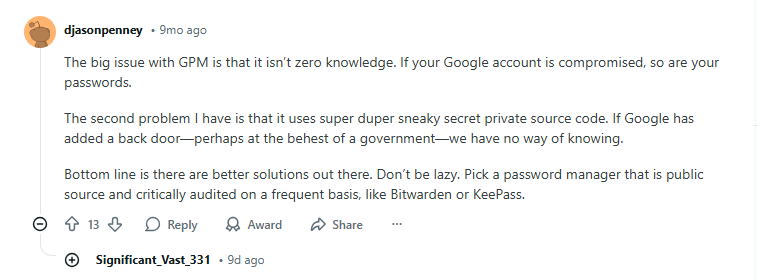
If your Google account is hacked:
- All saved passwords become accessible
- Autofill could expose financial or social accounts
- Recovery options may be modified
Since Google Password Manager ties everything to one account, it creates a centralized risk point.
3. Browser-Based Storage Limitations
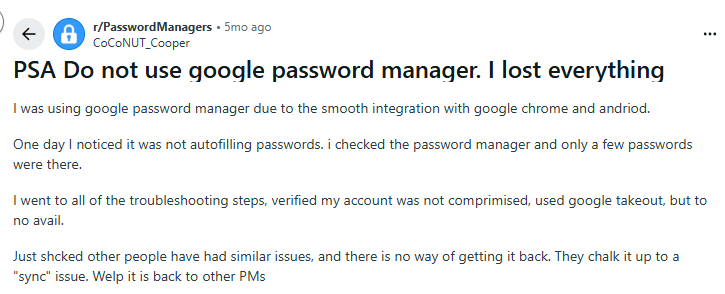
Unlike standalone encrypted vaults, browser password managers:
- Rely heavily on device-level security
- Are often targeted by malware
- Can be extracted if a system is compromised
This is why security professionals often recommend reviewing stored passwords regularly.
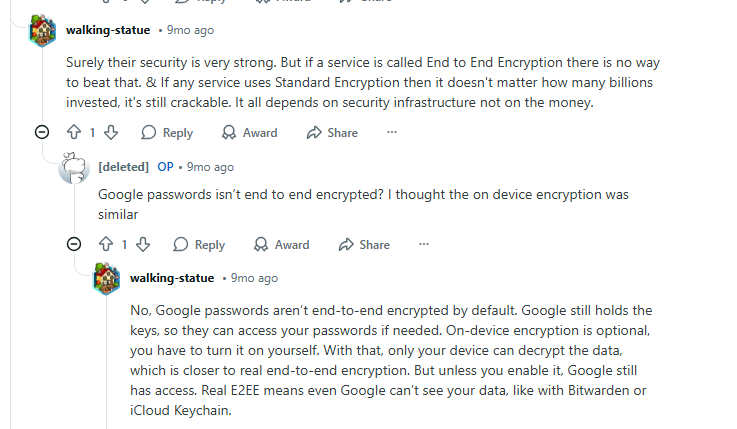
Privacy Considerations When Using Google Password Manager
Google states that stored passwords are encrypted. However, there are broader privacy factors to consider:
Syncing Across Devices
If sync is enabled, passwords are stored in your Google account cloud storage. This means:
- They exist beyond your local device
- Access depends on Google account security
Data Exposure in Case of Breach
While Google uses strong encryption, no cloud system is immune to targeted attacks.
Metadata Concerns
Even if password contents are encrypted, metadata such as:
- Websites visited
- Frequency of login
- Associated accounts can reveal patterns about your digital life.
For privacy-conscious users, deleting unnecessary saved passwords reduces exposure.
When Should You Delete Saved Passwords?
Consider removing passwords if:
- You no longer use the account
- You changed the login credentials
- The website suffered a data breach
- You’re switching to another password manager
- You’re selling or giving away a device
Regular password hygiene improves overall cybersecurity posture.
How to Turn Off Google Password Manager
If you don’t want Google to save passwords going forward:
- Open Chrome
- Go to Settings
- Autofill and Passwords
- Toggle off “Offer to save passwords”
You can also disable automatic sign-in from the same section.
Why a Dedicated Password Manager Can Strengthen Your Privacy
Browser-based password storage looks convenient to many, but doesn’t always equal control. If your credentials are tied to a single account, your digital life may become more centralized than you realize.
That’s why you need a better solution for your privacy. PureVPN Password Manager is designed as a standalone encrypted vault. It provides:
- End-to-end encryption to protect stored credentials
- Built-in password generator for creating strong, unique logins
- Encrypted vault storage separate from browser sync
- Cross-device access across desktop and mobile platforms
- Integration with broader security tools for layered protection
Why You Need Safer Password Management in 2026
Cyber threats are becoming more automated, targeted, and harder to detect. Simply saving passwords isn’t enough anymore; proactive management is essential. These habits should be non-negotiable in 2026.
1. Enable Two-Factor Authentication (2FA)
Add an extra verification layer to your accounts, more importantly, to your primary email or Google account. Even if your password is exposed, 2FA reduces the chances of unauthorized access.
2. Audit Your Saved Passwords Regularly
Review stored credentials every few months. Remove logins you no longer use and update weak or reused passwords to minimize your attack surface.
3. Avoid Shared Browser Profiles
Never share browser profiles on work or home devices. Each user should have a separate operating system login to prevent accidental access to saved credentials.
4. Use Strong, Unique Passwords Everywhere
Reusing passwords across multiple websites increases risk. If one account is breached, attackers often attempt credential stuffing on other platforms.
5. Monitor for Data Breaches
Use password health or breach monitoring tools to check whether your credentials have appeared in known leaks. Early detection allows you to reset compromised accounts quickly.
Wrap Up
Learning how to delete passwords from Google Password Manager is a simple but powerful step toward better digital hygiene. While Google’s built-in password tool offers convenience, keeping old credentials stored indefinitely can increase risk if you share devices or rely heavily on a single Google account.
Regularly reviewing and deleting outdated passwords reduces exposure, improves privacy, and strengthens overall security. Moving to a dedicated password manager gives you more control and protects your accounts with layered security.
Frequently Asked Questions
No. It only removes the saved login credentials. Your account with the website remains active unless you delete it separately.
If your Chrome profile is logged in and unlocked, yes. They may access saved passwords unless device-level authentication is enabled.
Yes. Google encrypts stored passwords. However, access still depends on your Google account security and device integrity.
The deletion syncs across all devices connected to the same Google account.
Standalone managers often offer additional encryption layers and separation from browser sessions. However, the best option depends on your security needs and how you use your devices.