Seeing Error Code 403 on Roblox can feel confusing, especially when it suddenly blocks you from opening a game or even the Roblox website. The message basically means Roblox is not letting you in but does not explain why.
This guide breaks everything down in a simple way. You will learn what Error 403 actually means, the common reasons it appears, and the exact fixes that work on Windows, macOS, and browsers. No jargon, no complicated steps, just clear explanations and solutions to get you back into your game.
What is Roblox Error 403 (HTTP 403 / Forbidden)?
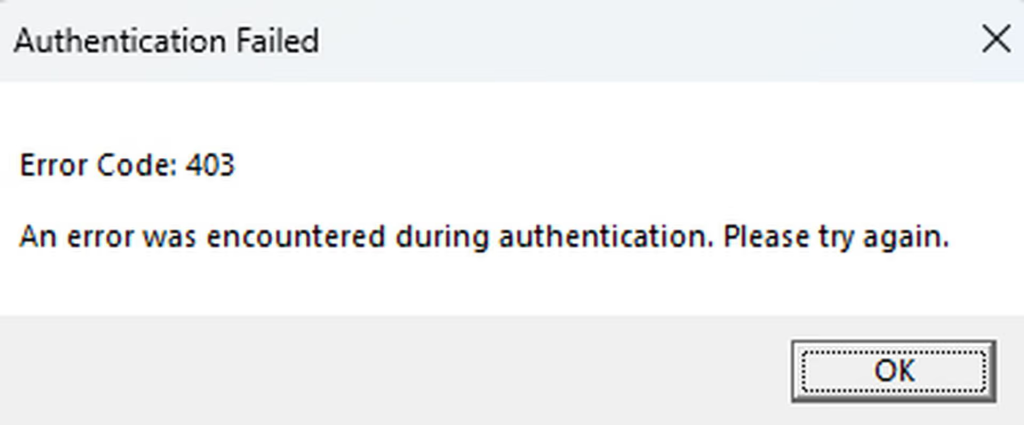
A 403 is an HTTP “Forbidden” response, the Roblox server is refusing access. Practically, that means the client (your browser or Roblox player) attempted to reach a resource or authenticate and the server denied the request (authentication failed, blocked IP, missing permission, or security rule). It’s not always an account ban, often it’s a client, network, or routing issue.
Fixing Error Code 403 on Roblox – General Fixes
Refresh the Page or Relaunch Roblox
A simple refresh or app restart can clear temporary communication glitches between your device and Roblox servers. This quick step resets minor session issues and often restores access without deeper troubleshooting, especially when the error is caused by brief or unstable network activity.
Clear Browser Cache and Cookies
Outdated browser data can interfere with Roblox authentication, leading to repeated 403 errors. Clearing your cookies and cache removes corrupted session tokens and forces Roblox to generate new, valid credentials.
Log Out, Close the App, and Log Back In
Fully quitting Roblox Player or Bloxstrap and then signing back in helps fix session mismatches. This step resets your active login state and removes temporary files that may be causing authentication conflicts.
Disable VPNs and Proxies Temporarily
VPNs and proxies can change your IP address or route your traffic through servers Roblox doesn’t trust. Turning them off temporarily helps you determine whether they’re causing the authentication error.
Restart Your Device and Router
Rebooting your device and router clears cached network data, resets your IP lease, and establishes a fresh route to Roblox servers. This simple step fixes many 403 errors that stem from local network conflicts, unstable Wi-Fi, or temporary connection drops within your home network.
Error Code 403 Roblox Fixes for Windows & macOS (Roblox Player and Browser)
Clear Roblox Local Cache on Windows and macOS
Roblox often stores temporary data that becomes corrupted over time, leading to repeated 403 errors. Deleting the local cachewhether through %LOCALAPPDATA%\Roblox on Windows or the Roblox support files on macOS, forces the client to rebuild fresh authentication data.
Reinstall Roblox for a Clean Setup
If cache resets don’t help, a full reinstall often fixes deeper file corruption. Uninstalling Roblox, rebooting your device, and installing a fresh client ensures all damaged components and outdated dependencies are replaced.
Update Browser and Disable Problematic Extensions
When using Roblox through a browser, outdated software can interfere with login or authentication. Updating your browser, clearing cookies, and disabling extensions, especially ad blockers or privacy tools, prevents them from blocking Roblox’s login or API requests.
Check for Conflicts With Third-Party Launchers
Tools like Bloxstrap and other unofficial launchers sometimes override Roblox’s files or interfere with how it connects to servers. If you see repeated 403 errors, switching back to the official Roblox launcher helps identify whether these tools are the cause.
Error Code 403 Roblox Fixes for Windows / macOS (Roblox Player & Browser)
1. Clear the Roblox local cache completely
On Windows, open the Run dialog, type %LOCALAPPDATA%\Roblox, and delete the entire Roblox folder. On macOS, remove the Roblox application support files from the system’s Library directory. These files store temporary data that can become corrupted over time. When this happens, Roblox may fail to authenticate correctly and trigger a 403 error.
2. Reinstall Roblox to remove damaged system files
If clearing the cache doesn’t help, uninstall Roblox from your system, restart your computer, and then download a fresh build. Rebooting in between is important because some leftover temporary files only disappear after a restart.
Corrupted installation files are a common cause of failed authentication, launcher issues, and repeated 403 messages, and a clean installation usually restores normal functionality.
3. Fix browser-specific issues when opening Roblox links
For players launching Roblox through a web browser, outdated browser versions or bad cookies can interfere with Roblox’s login handshake. Update your browser to the latest version, clear your cookies and site data, and temporarily disable all extensions.
Privacy and ad-blocking extensions are known to block traffic that Roblox uses for account authentication, so turning them off helps confirm whether an extension is causing the 403 error.
4. Look for conflicts with third-party tools or launchers
Some users rely on custom tools such as Bloxstrap or other modified launchers. Although these tools are convenient, several reports show that they can disrupt Roblox’s authentication requests and cause repeated 403 responses.
Switch back to the official Roblox launcher and test again. If the error disappears, the third-party tool was likely interfering with the login process.
Error Code 403 Roblox Fixes for Mobile (Android / iOS)
1. Force-close the Roblox app and restart it
Mobile devices often keep apps running in the background, and temporary glitches in memory can cause Roblox to return a 403 error the next time it tries to authenticate. Force-closing the app resets its active session.
2. Clear Roblox app cache on Android
For Android devices, go to Settings → Apps → Roblox → Storage and tap Clear Cache. Mobile cache files can become outdated or corrupted, especially if you update Roblox frequently. Clearing the cache forces the app to rebuild clean data on the next launch. iOS does not offer manual cache clearing, so users typically skip this step.
3. Reinstall Roblox to fix corrupted app data
If performance delays, failed loading screens, or authentication errors continue, uninstall the app and install a new copy from the App Store or Play Store. This removes corrupted resources, outdated configuration files, and partial updates that may be preventing Roblox from connecting correctly.
4. Switch between Wi-Fi and mobile data to rule out network issues
Roblox 403 errors sometimes have nothing to do with the app itself. Your ISP, Wi-Fi network, or router may be blocking or misrouting Roblox traffic. Switching from Wi-Fi to mobile data, or vice versa, helps confirm whether the issue is related to a specific network. Many users report that the 403 disappears instantly when they change networks, which points to a temporary ISP or routing problem.
Common Causes of Error 403 on Roblox
Corrupted Browser Cache, Cookies, or Roblox Local Files
Error 403 often appears when your browser cache, cookies, or Roblox’s local files contain outdated or invalid session data. These corrupted files prevent Roblox from verifying your login and may cause the server to deny access.
VPNs, Proxies, or Sudden IP Changes
When you use a VPN or proxy, your IP address constantly changes or routes through shared networks that Roblox may flag. This can break authentication and trigger an access-denied response. Disabling VPNs or switching back to your regular network often helps restore a stable, trusted connection.
Firewall, Antivirus, or Router Blocking Roblox
Security software sometimes blocks Roblox domains, ports, or background services by mistake. Firewalls, parental controls, or strict router rules can prevent essential Roblox traffic from passing through, resulting in a 403 error.
Server-Side Restrictions or Private/Place Access Rules
Developers may run into 403 errors when a game, asset, or teleport destination has restricted access. Private experience settings, moderated content, or unapproved TeleportService actions can all prevent players from entering.
Account or Authentication Glitches
Switching between multiple Roblox accounts or staying logged in for too long can cause mismatched session tokens. When Roblox detects conflicting login data, it may return a 403 forbidden error. Logging out from all devices and signing back in refreshes your credentials and restores proper authentication.
ISP Routing Issues or Roblox Service Outages
Sometimes the issue isn’t on your device at all. Poor routing from your ISP, regional network congestion, or temporary Roblox outages can block access and generate 403 errors. Testing another network or checking Roblox status pages helps confirm whether the problem is service-related.
Frequently Asked Questions
Not usually. 403 means forbidden or authentication failed, often session, cache, or routing related — not a moderation ban. If you suspect a ban, Roblox Support can confirm.
No, sometimes yes (if your ISP routing is the problem), sometimes no (VPN IPs or slow routing can make auth fail). Test with VPN off and on.
Error Code 403 is an “access denied” message from Roblox. It happens when the server blocks your login or game request, usually due to authentication issues, corrupted cache, network restrictions, or account conflicts. It does not always mean your account is banned.
Yes, most cases of Error 403 can be fixed on your own. Simple steps like clearing your browser or app cache, logging out and back in, disabling VPNs or proxies, and restarting your device or router usually resolve the issue.
Sometimes. VPNs can change your IP or route traffic through servers Roblox does not trust. This may trigger Error 403. Turning off your VPN or switching to a stable network often fixes the problem.
Reinstalling Roblox is one of the most reliable solutions if other fixes do not work. Uninstalling, rebooting your device, and installing a fresh copy removes corrupted files or cache that could be causing the error.
If none of the common solutions work, check your internet connection, try a different network, and ensure Roblox services are not down. If the error persists, contact Roblox Support with details of what you have tried, including screenshots and error messages.

Arsalan Rashid

January 28, 2026

2 months ago