
Sharing your Wi-Fi password used to mean spelling out a long, complicated string of characters. But modern iPhones make the process almost effortless. With built-in features from Apple, you can securely share network access in seconds without typing.
Whether you’re helping a guest connect at home, setting up a new device, or managing office connectivity, this detailed guide walks you through everything you need to know about sharing Wi-Fi passwords on iPhone.
Why Share Wi-Fi Passwords Directly from iPhone?
Before jumping into the steps, it helps to understand why the native sharing feature is so useful.
Key Benefits
- Faster connections, no manual password entry
- Fewer typos eliminate human error
- More secure, password stays hidden
- Convenient for guests, especially in homes and offices
- Works automatically, once requirements are met
For most users, this is the easiest and safest way to grant network access without revealing sensitive credentials.
Requirements for Wi-Fi Password Sharing on iPhone
The feature is simple, but it only works when certain conditions are met. Make sure both devices satisfy the following.
Device Requirements
Both devices must:
- Be iPhones, iPads, or Macs
- Have Wi-Fi and Bluetooth turned on
- Be within close physical range
- Be running relatively recent system versions
- Have personal hotspots turned off
Account Requirements
This part is critical and often overlooked:
- Both users must be signed into their Apple accounts
- Each person’s email must be saved in the other’s Contacts
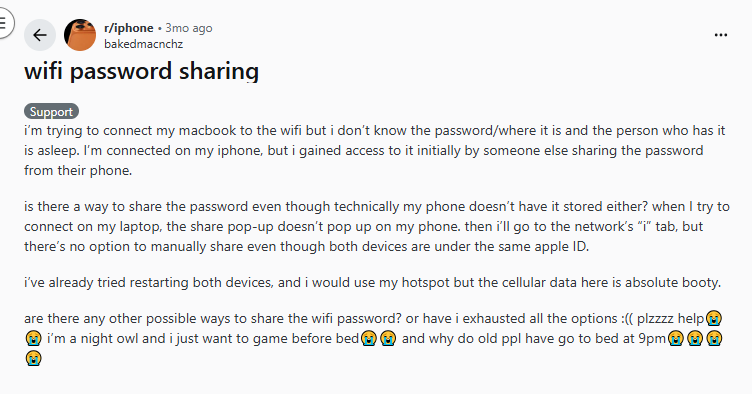
- The device sharing the password must already be connected to the Wi-Fi network
If even one of these conditions isn’t met, the sharing prompt may not appear.
How to Share Wi-Fi Password on iPhone (Step-by-Step)
Let’s walk through the exact process.
Step 1: Unlock Both Devices
Make sure:
- Both iPhones are awake and unlocked
- Bluetooth and Wi-Fi are enabled
- Devices are close to each other (within a few feet)
Pro tip: Keep screens on during the process to avoid interruptions.
Step 2: Connect the Guest Device to Wi-Fi
On the device that needs access:
- Open Settings
- Tap Wi-Fi
- Select the target network
At this point, the device will show the password field.
Step 3: Wait for the Share Prompt
On the iPhone already connected to Wi-Fi:
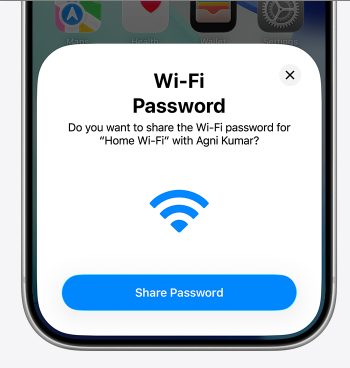
- A pop-up should appear automatically
- It will ask if you want to share the password
Tap Share Password. Within seconds, the other device will connect without typing anything.
Step 4: Tap “Done”
Once sharing completes:
- Tap Done on the host device
- Confirm the guest device is connected
That’s it, the process usually takes under 10 seconds when everything is set up correctly.
Alternative Method: Share Wi-Fi Password via QR Code
While iPhones don’t natively generate Wi-Fi QR codes, some users prefer this method for larger groups.
When QR Codes Help
QR sharing is useful when:
- You have many guests
- Devices aren’t in contacts
- Mixed device types are present
- You want a semi-permanent sharing option
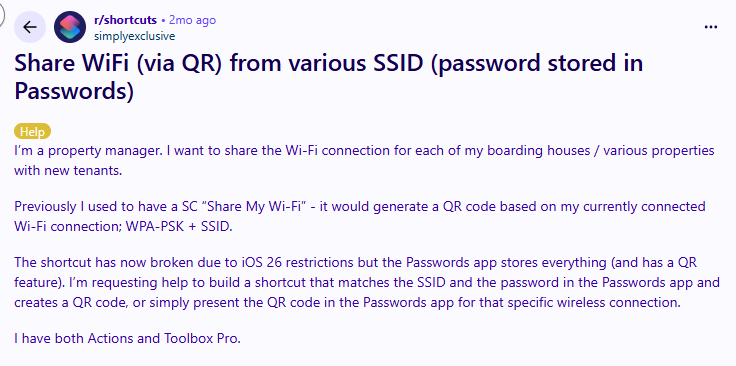
How to Create a Wi-Fi QR Code
You can:
- Use a trusted QR generator
- Enter your network name and password
- Print or display the code
- Guests scan to connect
Security note: Only use reputable tools and avoid publicly posting your QR code.
How to Share Wi-Fi Password from iPhone to TV, Laptop, Android, Mac & More
While iPhones make sharing Wi-Fi effortless between Apple devices, things work a bit differently when you’re connecting TVs, Windows laptops, Android phones, or other gadgets. Let’s break it down by device type so you know exactly what works.
Sharing Wi-Fi Password from iPhone to Mac
This is the easiest scenario because both devices are inside the Apple ecosystem.
What You Need
- Both devices signed into Apple accounts
- Each user saved in the other’s Contacts
- Wi-Fi and Bluetooth turned on
- Devices close together
Steps
- On the Mac, click the Wi-Fi icon and select the network
- Unlock the iPhone already connected
- Tap Share Password when the popup appears
- Click Done
The Mac should connect instantly without typing the password.
Sharing Wi-Fi Password from iPhone to Another iPhone or iPad
This follows the same native process and is the most seamless option.
Quick Steps
- Guest device opens Settings → Wi-Fi
- Select the network
- Bring the host iPhone nearby
- Tap Share Password
- Tap Done
Connection usually completes in seconds.
How to Share Wi-Fi Password from iPhone to Android
Here’s where things change. Native one-tap sharing does not work between iPhone and Android devices. But you still have reliable alternatives.
Method 1: Show the Password Manually (iOS 16 and later)
Modern iPhones let you view saved Wi-Fi passwords.
Steps
- Go to Settings → Wi-Fi
- Tap the (i) next to your network
- Tap Password
- Authenticate with Face ID/Touch ID
- Show the password to the Android user
They can now enter it manually.
Method 2: Use a Wi-Fi QR Code (Recommended for Groups)
This is often the smoothest cross-platform solution.
Steps
- Use a trusted Wi-Fi QR generator
- Enter your network name and password
- Display the QR code
- Android user scans via camera
Most modern Android phones connect instantly after scanning.
How to Share Wi-Fi Password from iPhone to Windows Laptop
Windows laptops can’t receive Apple’s automatic sharing, so you’ll use one of these methods.
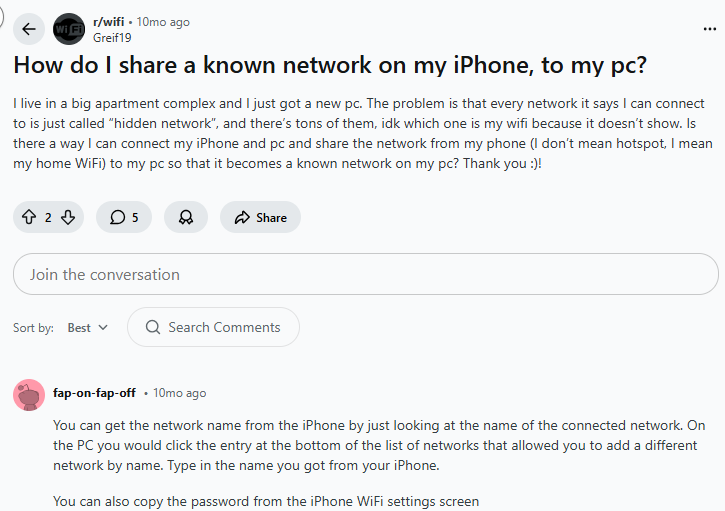
Option 1: View and Type the Password
Follow the same steps:
- Settings → Wi-Fi
- Tap (i) next to network
- Reveal password
- Enter it on the laptop
Simple and reliable.
Option 2: Use QR Code (If Laptop Supports It)
Some newer Windows devices support Wi-Fi QR scanning.
Process:
- Generate QR code
- Scan using camera app
- Connect automatically
How to Share Wi-Fi Password from iPhone to Smart TV
Smart TVs vary widely, so the method depends on the model.
Method 1: Manual Entry (Most Common)
This is the standard approach.
Steps
- Open TV network settings
- Select your Wi-Fi network
- Reveal password on iPhone
- Enter using TV remote
Works on almost all TVs, but is slightly tedious with remote typing.
Method 2: QR Code (Supported on Some TVs)
Some newer smart TVs support scanning. Works best on:
- Certain Android TV models
- Some Google TV devices
- Select modern smart TVs
Check your TV’s network setup menu.
Method 3: Use Temporary iPhone Hotspot (Quick Hack)
If typing is painful:
- Turn on Personal Hotspot
- Connect TV to hotspot
- Later switch TV to main Wi-Fi
This is handy during initial setup.
How to Share Wi-Fi Password with Gaming Consoles
For devices like PlayStation or Xbox, automatic sharing isn’t supported.
Best Method
- Reveal the password on the iPhone
- Enter manually on the console
Tip: Use a short guest network password if you connect devices often.
How to Share Wi-Fi with Multiple Guests at Once
If you frequently host visitors, repeating the process gets annoying. Try these smarter approaches.
Option 1: Create a Guest Network
Best long-term solution:
- Separate network name
- Limited device access
- Easy password rotation
Option 2: Keep a Wi-Fi QR Code Ready
Many households now:
- Print the QR code
- Frame it near the router
- Share digitally with guests
The process is fast, scalable, and cross-platform.
Troubleshooting: Wi-Fi Password Not Sharing on iPhone
Sometimes the magic doesn’t happen. Here’s how to fix common problems.
Issue 1: No Share Password Pop-Up
Possible causes:
- Devices not in Contacts
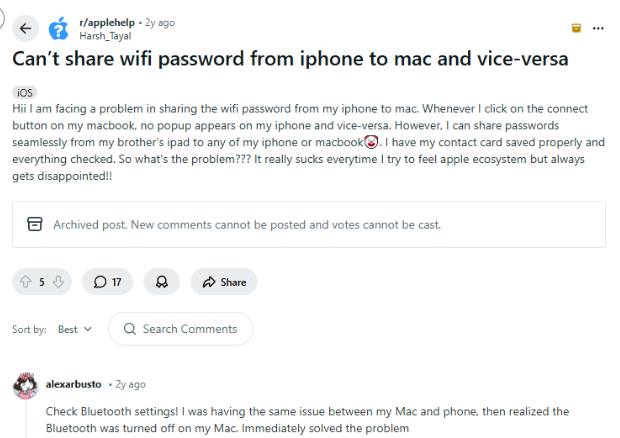
- Bluetooth off
- Devices too far apart
- Personal hotspot enabled
- Software outdated
Fixes:
- Re-save contacts with the correct Apple IDs
- Toggle Bluetooth off and on
- Move devices closer
- Turn off Personal Hotspot
- Restart both devices
Issue 2: Sharing Fails Repeatedly
If the prompt appears but connection fails:
Try this:
- Forget the network on the guest device
- Reconnect and trigger sharing again
- Restart the Wi-Fi router
- Reset network settings (last resort)
Issue 3: “Cannot Share Password” Message
This usually means account verification failed.
Checklist:
- Are both Apple IDs in Contacts?
- Is the host device actually connected to Wi-Fi?
- Is Bluetooth enabled on both devices?
- Are devices unlocked?
Fixing any of these usually resolves the issue.
Security and Privacy Considerations While Sharing a Password on an iPhone
Convenience is great, but security should never take a back seat. The good news is that WiFi password sharing on iPhone is built with privacy at its core. When you share access, the actual password is never displayed to the other person, which immediately reduces the risk of it being copied or misused later.
The transfer itself is encrypted, so the credentials aren’t exposed during the process. Another important thing is that only approved contacts can trigger the sharing prompt, adding a layer of intentional control.
Plus, the feature only works when both devices are within close range, which prevents remote abuse. Altogether, this makes iPhone WiFi sharing far safer than the old habit of verbally telling someone your password.
Risks to Be Aware Of When You Share Your Password on an iPhone
Even with protections, you should stay cautious.
1. Untrusted Contacts
If someone is in your Contacts, they may trigger sharing when nearby. To avoid this, periodically review your Contacts list.
2. Public or Semi-Public Environments
In crowded spaces (offices, cafés, events), accidental sharing could occur. So you must only unlock your phone when needed, remove unknown contacts and consider using a guest network.
3. Network Exposure
Remember: sharing Wi-Fi gives full network access. Therefore, you must use a guest Wi-Fi network, enable router isolation if available, and monitor connected devices.
Some Useful Tips for Seamless Wi-Fi Sharing Across All Devices
Want Wi-Fi sharing to work instantly every time? A few small habits can make the experience much smoother.
- First, keep your contacts updated. Double-check that email addresses are correct, names match properly, and Apple accounts are accurately linked. Most sharing failures happen because of simple contact mismatches.
- It’s also smart to keep all devices updated. Software updates often fix hidden bugs and improve compatibility between devices, so staying current can prevent those frustrating moments when the share prompt refuses to appear.
- If you frequently have guests at home, consider setting up a guest network. Creating a separate guest SSID helps keep your main network private, limits access to internal devices, and gives you the flexibility to change the guest password periodically without disrupting your primary setup.
- Physical distance matters too. For the most reliable results, keep devices within a few feet of each other during the sharing process. Being too far apart can prevent the prompt from triggering.
Also, automatic sharing isn’t always the best choice. There are times when manual control is the safer route, for example, when hosting large gatherings, using sensitive work or corporate networks, living in shared spaces, or anytime you don’t fully trust the person requesting access.
In these situations, it’s wiser to use a temporary password or a dedicated guest network instead of relying on automatic sharing.
A Smarter Privacy Layer for Your Wi-Fi
Sharing Wi-Fi is convenient, but it’s worth remembering that anyone who connects to your network, even trusted guests, can see more of your traffic than you’d like. That’s where adding a privacy layer becomes useful.
Using PureVPN alongside your regular Wi-Fi setup helps encrypt your internet traffic, so your browsing activity stays private even when multiple devices are on the same network.
- Keeps your data encrypted in cafes, airports, and all risky networks
- Adds a protective tunnel even on trusted networks
- Helps secure connections when accessing work resources
- Limits how much your provider can monitor traffic
Frequently Asked Questions
Within a few feet (Bluetooth range), but keeping devices side-by-side gives the most reliable results.
Not directly using the built-in feature. For Android users, you’ll need to manually enter the password or use a QR code method.
Most commonly, contacts are not saved properly, Bluetooth is disabled, personal hotspot is enabled, devices are too far apart, or software is outdated.
No. The system securely transfers the credentials without displaying the actual password.
Yes. To remove access, change the Wi-Fi password, or remove the device from your router’s connected list.
Yes. Both devices only need Wi-Fi and Bluetooth enabled, and a close proximity. Internet connectivity isn’t required for the sharing handshake.
Conclusion
Sharing a Wi-Fi password on an iPhone is one of those small features that makes a big difference in everyday convenience. When everything is set up correctly, the process takes just seconds, no awkward password dictation required.
Still, smart users balance convenience with caution. Keep your contacts tidy, use guest networks when appropriate, and stay mindful of where and when you share access.