

Chrome does not let individual tabs use different IP addresses by default. Chrome applies one proxy configuration to the entire browser, so changing the proxy usually affects every open tab. If you need one Chrome tab to appear in the United States and another to appear in the United Kingdom, you need a solution that isolates proxy connections at the tab level.
This guide explains why traditional proxy methods require manual configuration and how IP Per Tab simplifies the process by assigning a separate residential IP to each Chrome tab.
Why do all Chrome tabs share the same IP address?
Chrome shares the same network configuration across browser tabs. A proxy configured through Chrome or most proxy extensions applies to the browser session instead of a single tab. This behavior creates problems for users who need multiple IPs for browsing at the same time. Changing the browser proxy every few minutes interrupts these workflows.
Why is manual proxy configuration difficult?
Manual proxy configuration requires users to set up and manage every proxy connection themselves. The process involves multiple technical steps, and even a small configuration error can prevent the proxy from working correctly.
A typical setup includes:
- Purchase a proxy service.
- Retrieve the proxy IP address, port, username, and password.
- Choose the correct protocol (HTTP, HTTPS, or SOCKS5).
- Install a proxy management extension.
- Create a new proxy profile.
- Enter the proxy credentials manually.
- Save and activate the profile.
- Create separate profiles for every additional location or proxy.
- Switch between profiles whenever a different IP address is needed.
- Verify that the correct proxy is active before browsing.
The process becomes even more complex when multiple IP addresses are required at the same time. Managing several proxy profiles, credentials, and locations adds unnecessary complexity to a task that should be simple.Most users only want a different IP address for a browser tab, not a manual networking setup.
What is the easiest way to isolate IP addresses across Chrome tabs?
Using IP Per Tab by PureVPN is the simplest way to assign a different residential IP address to individual Chrome tabs without configuring proxies manually. IP per tab allows you to assign and change IPs for every opened browser tab within 3 seconds. You can also set domain rules and assign specific websites a unique country’s residential IP.
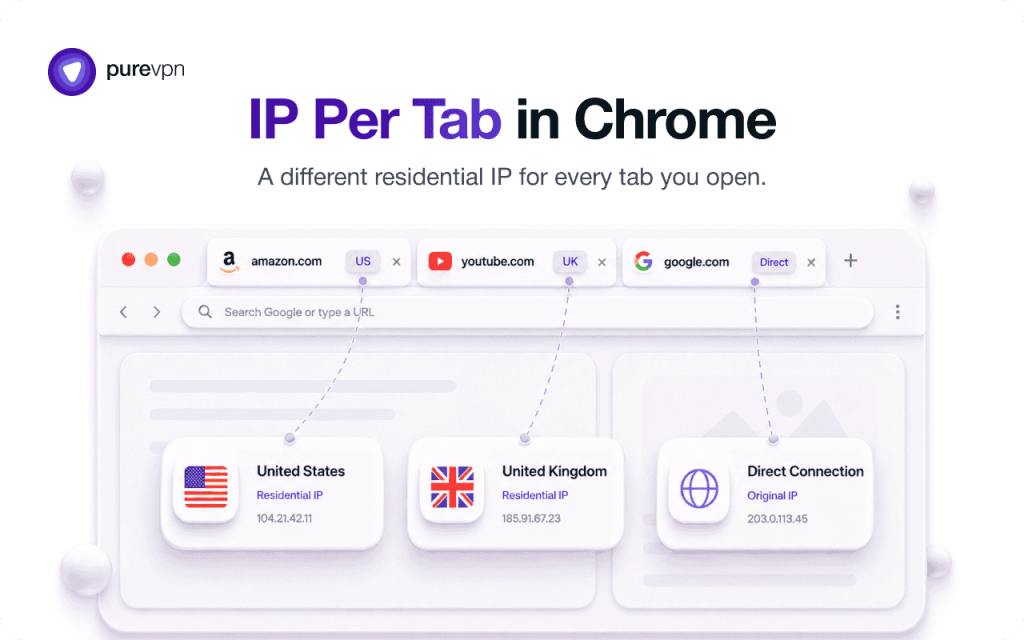
Instead of creating proxy profiles or entering IP addresses and ports, IP Per Tab lets you choose a location directly from the extension. The selected tab receives its own residential IP while other tabs continue using their existing connections.
The workflow removes most networking steps that traditional proxy managers require.
How does IP Per Tab work?
IP Per Tab routes browser traffic at the tab level instead of changing Chrome’s browser-wide proxy settings. The setup requires only four steps.
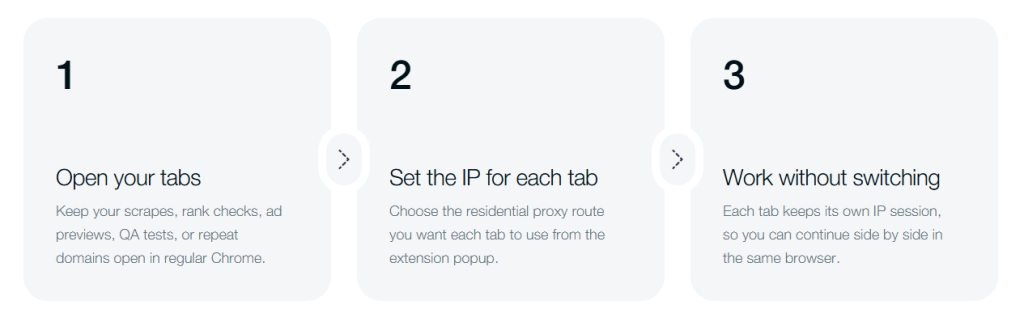
Step 1: Install IP Per Tab
Install the Chrome extension from the Chrome Web Store.
Step 2: Sign In
Log into your account.
Step 3: Select a Country
Choose the residential proxy location for the active tab.
Step 4: Continue Browsing
The selected tab now uses its own residential IP address. Other tabs remain unchanged.
Note:
- No manual proxy profiles are required.
- No IP addresses need to be copied.
- No ports need to be entered.
IP Per Tab vs manual proxy configuration
The biggest difference is workflow. Manual proxy management focuses on configuring networking settings. IP Per Tab focuses on assigning an IP address to a browser tab.
| Feature | Manual Proxy Configuration | IP Per Tab |
| Manual IP entry | Yes | No |
| Port configuration | Yes | No |
| Proxy protocol selection | Yes | No |
| Multiple proxy profiles | Usually required | Not required |
| Different IP per Chrome tab | Limited or manual | Yes |
| Browser-wide proxy changes | Usually | No |
| Beginner-friendly | No | Yes |
Who benefits most from the IP Per Tab Chrome Extension?
The IP Per Tab Chrome Extension is designed for professionals who need different IP addresses in multiple browser tabs without manually configuring proxies. Instead of switching proxy profiles or opening multiple browser windows, users can assign a separate residential IP to each tab and continue working without interruption.
| User | How IP Per Tab Helps |
| SEO Professionals | SEO professionals can compare localized Google search results, SERP features, and keyword rankings from multiple countries at the same time without repeatedly changing proxy settings. |
| Digital Marketers | Digital marketers can verify geo-targeted advertisements, landing pages, and marketing campaigns from different regions in a single Chrome browser session. |
| Social Media Managers | Social media managers can assign separate residential IP addresses to different client accounts by using individual browser tabs instead of switching browser profiles or proxy configurations. |
| E-commerce Sellers | E-commerce sellers can manage regional storefronts, monitor localized product listings, and review marketplace experiences from multiple locations without opening separate browser windows. |
| QA Engineers | QA engineers can test location-based website behavior, language settings, redirects, pricing, and regional content simultaneously by assigning a different IP address to each browser tab. |
| Affiliate Marketers | Affiliate marketers can verify geo-targeted offers, affiliate links, and localized landing pages from different countries without interrupting other browsing sessions. |
| Web Scraping and Data Teams | Web scraping and data teams can organize scraping tasks by routing different browser tabs through separate residential IP addresses instead of manually switching proxy profiles. |
Why use residential IP addresses?
Residential IP addresses originate from internet service providers instead of data centers. Many websites recognize residential traffic as typical consumer internet traffic.
Residential proxies often provide:
- Better compatibility with location-sensitive websites
- More accurate regional testing
- Lower likelihood of automated traffic detection compared with many data center IPs
The right proxy type depends on your workload, but residential IPs are commonly preferred for location-based browsing.
Frequently Asked Questions
No. Chrome applies proxy settings to the browser rather than individual tabs. A dedicated solution is required to isolate IP addresses at the tab level.
No. IP Per Tab removes the need to enter proxy IP addresses, ports, usernames, and protocols manually. Users simply select a location for the active tab.
Yes. IP Per Tab allows different browser tabs to use different available residential proxy locations independently.
No. Changing the IP address for one tab does not modify the connections used by other tabs.
Yes. IP Per Tab is designed for users who want separate IP addresses without learning proxy protocols or configuring networking settings manually.
Final Thoughts
Chrome does not provide native per-tab IP isolation. Traditional proxy workflows solve the problem, but they require manual configuration, proxy profile management, and browser-wide settings.
IP Per Tab removes those steps by allowing users to assign a residential IP address directly to an individual Chrome tab. The result is a faster workflow for users who need separate browser identities without managing proxy infrastructure.

Arsalan Rashid

August 11, 2026

2 months ago


