You’ve connected to your VPN, the app shows “Connected,” but websites won’t load, apps can’t reach the internet, and everything looks offline.
If this happens to you, don’t worry, it’s one of the most common VPN issues, and it’s rarely a sign that anything is actually broken. In most cases, it comes down to network settings, protocol configuration, or a temporary routing conflict, and it’s usually fixable in a few minutes.
Here’s how to work through it, in the order that resolves it fastest.
1. Switch Protocols
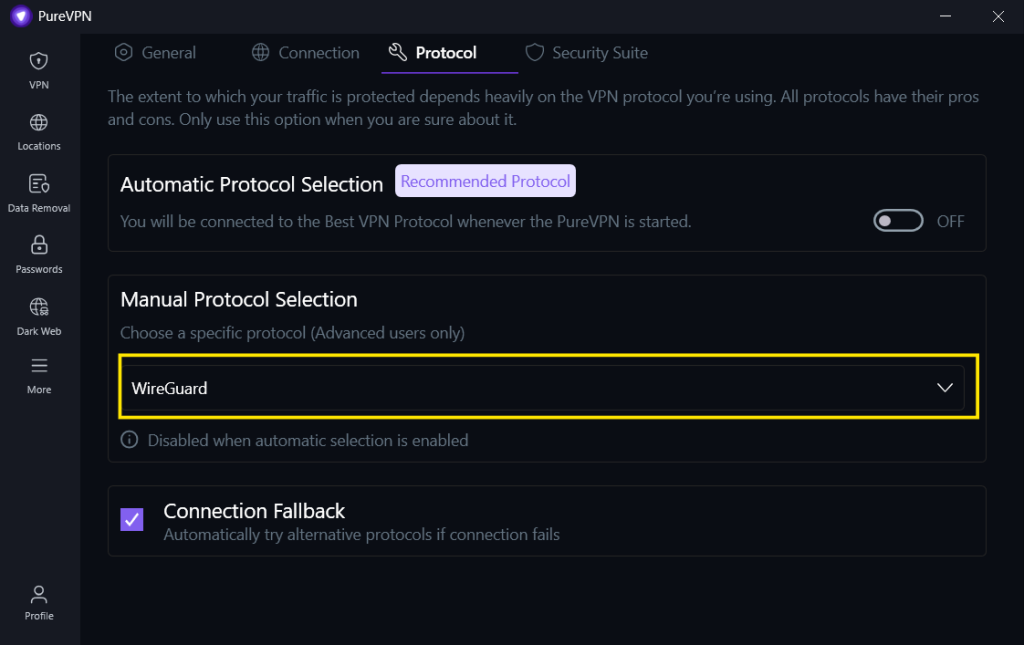
The protocol your VPN is using affects both connectivity and speed, and some networks handle certain protocols better than others.
Try switching to WireGuard/UDP first — it’s built for fast, stable, reliable connections and resolves this issue more often than any other single fix.
2. Connect to a Different Server
If switching protocols doesn’t help, the server you’re on may have a reachability issue independent of anything else. Try, in order:
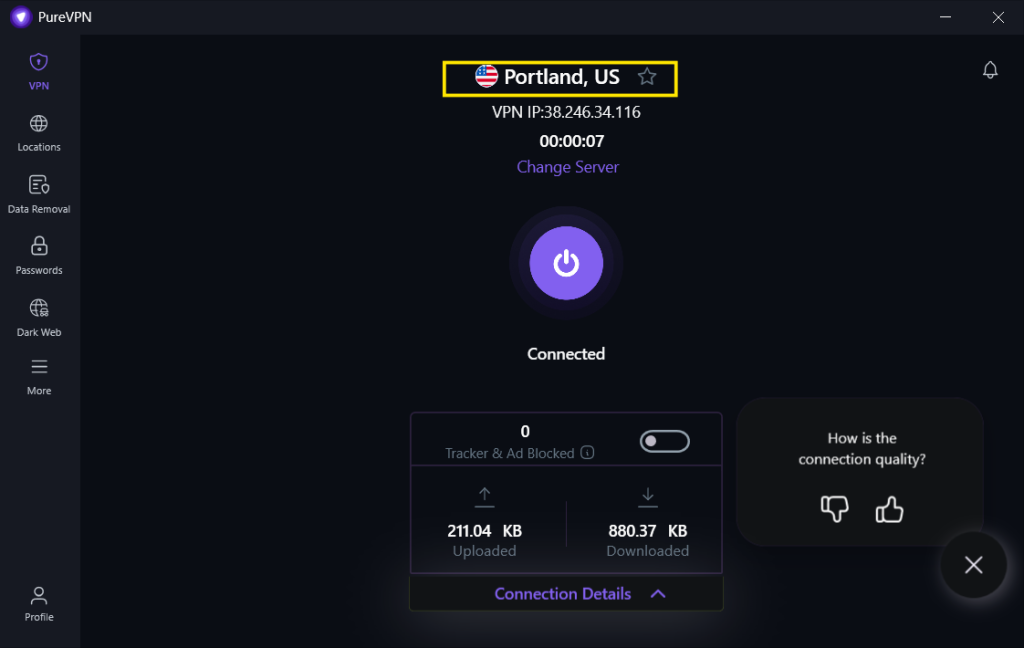
- A specific city, if city-level locations are available
- Another server in the same country
- A server in a nearby country
3. Check Your Internet Connection
Disconnect the VPN and confirm your internet works normally without it.
If you still can’t get online with the VPN off, the issue is with your network — not the VPN.
4. Restart the VPN Connection
A fresh connection clears most temporary routing issues. To do it properly:
- Disconnect the VPN
- Fully close the app (not just minimize it)
- Reopen the app and reconnect
5. Restart Your Device
It sounds basic, but restarting refreshes your device’s network services and resolves a surprising number of connectivity problems that persist through app-level fixes.
6. Update or Reinstall the App
An outdated app version can cause connection issues. Make sure you’re running the latest version — and if the problem continues, reinstalling restores the default network configuration from scratch.
7. Try a Different Network
If you’re on public Wi-Fi, a workplace, or a school network, certain restrictions may specifically interfere with VPN traffic. Try:
- A different Wi-Fi network
- A mobile hotspot
- Mobile data
This quickly tells you whether the issue is specific to that network.
Final Thoughts
A VPN showing “Connected” with no internet access is almost always a temporary configuration or network issue — not a broken app. In most cases, switching protocols, trying a different server, restarting the connection, or updating the app will get you back online within minutes.