
A VPN is most effective when it protects you automatically, without waiting for you to remember to turn it on. That’s where auto-connect comes in, activating your VPN the instant your device starts using the internet, closing the small but risky gaps where your real IP or data could slip through.
In this guide, we’ll explain what VPN auto-connect means, why it matters for everyday security, and how you can set it up across different platforms like Windows, macOS, Linux, iOS, and Android using PureVPN.
What is VPN Auto-Connect?
VPN auto-connect is a useful feature that starts your VPN connection automatically whenever your device goes online. Instead of relying on you to connect, it activates on its own the moment your system starts up or an app triggers internet activity.
Different platforms handle it in different ways, but the outcome is the same. Your IP stays hidden and your traffic stays encrypted without any manual steps. It works alongside features like a Kill Switch to maintain a stable, uninterrupted VPN connection.
Ways Auto-Connect VPN Improves Security
When enabled, auto-connect improves your security in different ways like:
- Minimizing unprotected moments by activating the VPN as soon as your device goes online, instead of waiting for you to connect manually.
- Protecting your data from the first request so apps and background services communicate through an encrypted tunnel the moment connectivity begins.
- Reducing human error as the VPN tunnel activates without relying on you to remember to turn it on each time you use your device.
- Supporting consistent security when paired with a Kill Switch, keeping traffic blocked until the VPN connection is established.
How to Set up VPN Auto-Connect with PureVPN
PureVPN makes it easy to enable auto-connect on your device so the VPN starts protecting you the moment you go online. Here’s how to do it in different platforms:
On Windows

If you want the PureVPN app to open automatically whenever your computer starts, you can enable it in just a few steps:
- Click the Settings icon in the left panel of the PureVPN app.
- In the General tab, find Launch On System Start.
- Toggle the option to turn it on.
You can also enable PureVPN to connect automatically as soon as the app opens, so you don’t have to do it manually:
- Click the Settings icon in the left panel of the PureVPN app.
- In the General tab, find Auto-Connect After Launch.
- Toggle the option to turn it on.
- After enabling it, choose your preferred default connection option from the drop-down menu:
- Recommended Location: Connects to the best available server.
- Recently Connected Location: Connects to the last server you used.
- Specific Location: Lets you choose a country or city you want to connect to every time.
- Recommended Location: Connects to the best available server.
On macOS

If you want the PureVPN app itself to open automatically when your Mac starts, here’s how you can enable it:
- Click Preferences from the left panel of the PureVPN app.
- In the General tab, scroll down to find Start on Launch.
- Check the box next to the option to enable it.
PureVPN can also automatically connect to your selected server as soon as the app launches. Just follow these steps:
- Click Preferences from the left panel of the PureVPN app.
- In the General tab, find the Auto-Connect After Launch option.
- Enable it, and then choose your preferred behavior from the drop-down menu:
- Recommended Location: Connects to the best available server.
- Recently Connected Location: Connects to the last server you used.
- Specific Location: Lets you select a specific country or city to connect to each time.
On Linux
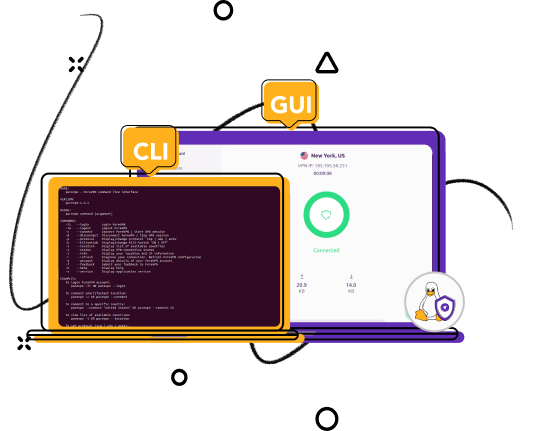
You can set PureVPN to connect automatically as soon as the Linux app opens, so you don’t have to do it manually.
- Click Preferences from the left panel of the PureVPN app.
- In the General tab, find Auto Connect After Launch.
- Turn it on to establish an automatic connection whenever the app starts.
- After enabling it, choose how the app should connect on launch from the drop-down menu:
- Recommended Location: Connects to the best available server.
- Recently Connected Location: Connects to the last server you used.
- Specific Location: Lets you select a preferred country or city to connect to each time.
On Android

The Always-on VPN feature activates PureVPN whenever your device uses the internet. Follow these steps to enable it:
- Tap the More icon in the bottom-right corner of the PureVPN app.
- Tap VPN.
- In the General settings, tap the Always-on option.
- A pop-up will ask for confirmation. Tap Open Android Settings.
- Tap the PureVPN app icon.
- Toggle Always-on VPN to enable it.
- You can also toggle Block connections without VPN to prevent your device from sending traffic until PureVPN is connected.
iOS

VPN on Demand automatically connects to PureVPN when you access specific domains that you’ve added to the list. Here’s how to enable it:
- Tap the hamburger menu in the top-left corner of the PureVPN app.
- Tap Settings.
- In General settings, tap VPN on Demand.
- Toggle Enable for Domain to turn it on.
- Enter the domain you want to trigger the VPN connection (for example, a banking or work-related domain).
In Short
Does PureVPM support auto-connect?
Yes, PureVPN supports automatic connection through:
- Windows & macOS: Launch on Startup + Auto-Connect After Launch
- Linux: Auto-Connect After Launch
- Android: Always-On VPN
- iOS: VPN on Demand
Frequently asked questions
Most VPN apps connect to the last used or “recommended” location if no specific server is selected. If your VPN is choosing unexpected regions, check your auto-connect settings and set a fixed location. Changing the default option prevents random country selection.
Enable the app’s startup and auto-connect options in your VPN’s settings. On supported platforms, this lets the app launch and connect on its own when your device becomes active.
Startup launch may be disabled in your VPN settings or blocked by your operating system’s startup permissions. Re-enable the option and ensure the app is allowed to run at system start.
Windows 11 handles VPN reconnect behavior at the OS level, and many VPN apps provide their own auto-connect options. Support varies by provider, so check each VPN’s Windows app documentation. PureVPN, for example, includes an auto-connect after launch feature.
Your VPN’s startup launch settings are enabled, prompting the app to start and connect when your device becomes active. You can adjust or disable this behavior in settings.
Network changes can interrupt an active VPN tunnel because the connection path shifts. The VPN may need to reconnect depending on how your OS handles transitions. Re-opening the VPN app or enabling reconnect options can help.
Startup permissions may be disabled, the app may not be set to launch on boot, or your OS may block background startup processes. Updating the app usually resolves this. Check your system’s startup settings as well.

PureVPN

December 10, 2025

3 months ago