
If you’ve ever tried to play on a Minecraft server and encountered the “getsockopt” error, you know how frustrating it can be. This message typically pops up when the game cannot establish a connection to the server, and more often than not, the issue boils down to something simple: port forwarding.
Port forwarding is a crucial step in making your Minecraft server accessible to others, and when it’s not set up correctly, getsockopt minecraft error are bound to occur. In this guide, we’ll walk you through everything you need to know about fixing this error, with easy-to-follow steps to get you back into the game.
What is the “getsockopt” error in Minecraft?
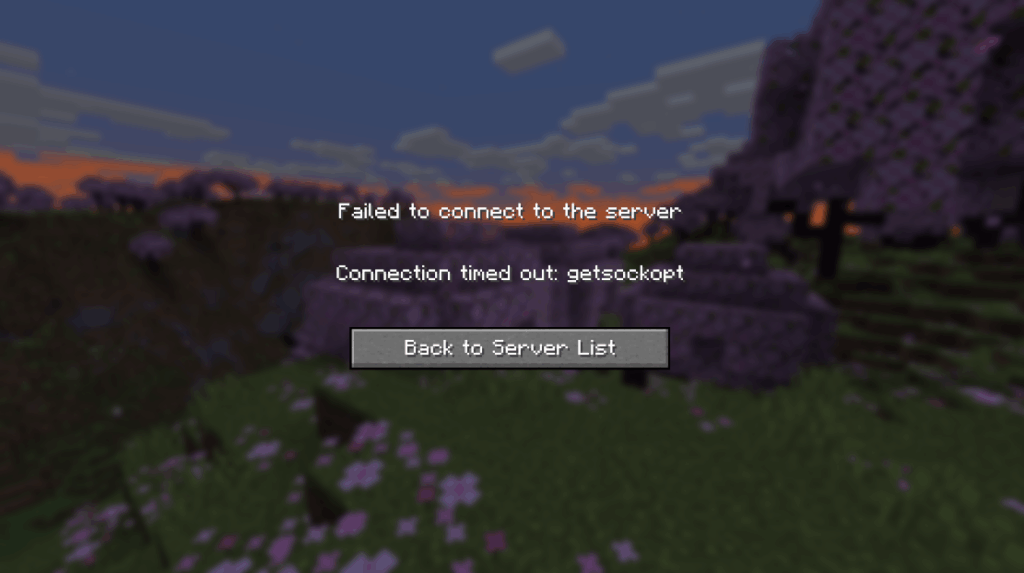
The “getsockopt” error is one of those annoying issues that can pop up when you’re trying to connect to a Minecraft server. Essentially, it’s a connection problem. When you see this error, it means that Minecraft is having trouble reaching the server you’re trying to connect to.
This can happen when the game is unable to complete the handshake between your device and the server, usually due to network-related problems. While it sounds technical, the fix is often pretty straightforward, such as fixing a misconfigured port forwarding setting.
Why port forwarding matters for Minecraft servers?
Port forwarding is a key step when setting up a Minecraft server, especially if you want others to join your world. Think of it as opening the front door to your server. Without it, your game can’t communicate with anyone outside your local network.
Minecraft uses a specific port (default is 25565) to allow connections from other players outside your network. When you forward this port on your router, you’re basically telling it, “Hey, let any traffic on this port get through to the server.”
Without this step, anyone trying to join your server from outside your home network will hit a wall, and you’ll see errors like the “getsockopt” issue. So, if you’re hosting a server and want people to connect, proper port forwarding is non-negotiable.
How to check if port forwarding is causing the “getsockopt” error
Before diving into fixing port forwarding, it’s a good idea to first confirm if it’s the culprit behind the getsockopt minecraft error. Here’s how you can check:
- Test local connectivity: Start by checking if your Minecraft server works locally. Open Minecraft on the server device and try connecting using localhost or the local IP address. If it works fine, the server is running, and port forwarding might be the issue.
- Use an external IP: Try connecting to your Minecraft server using your public IP (you can find this by searching “What’s my IP” on Google). If you can’t connect this way, port forwarding is likely misconfigured or missing.
- Test the port: Use an online tool like canyouseeme.org to check if your port (25565) is open. Enter your public IP and port number to see if the server is reachable. If it’s not, port forwarding isn’t working.
- Ask a friend to connect: If possible, ask someone outside your network to try connecting. If they’re unable to join, that’s another strong indication that port forwarding might be the issue.
By following these steps, you’ll have a better idea of whether the “getsockopt” error is tied to port forwarding or something else.
How to set up port forwarding for Minecraft
Setting up port forwarding for Minecraft is essential to allow players outside your local network to connect to your server. Here’s how to do it correctly:
- Log into your router
- Open your web browser and type in your router’s IP address in the address bar (common ones are 192.168.1.1, 192.168.0.1, or 10.0.0.1).
- Enter the login credentials (usually found on a sticker on your router or in its manual).
- Find the port forwarding section
- Once logged in, navigate to the Port Forwarding section of your router’s settings. This may also be called Virtual Server, NAT Forwarding, or Applications and Gaming depending on your router brand.
- Add a new port forwarding rule
- In the Port Forwarding section, create a new rule or entry. You’ll need to enter the following details:
- Service Name/Description: Something like “Minecraft” or “Minecraft Server.”
- Port Range: Enter 25565 for both the start and end ports (this is the default Minecraft port).
- Protocol: Select TCP (some routers may offer both TCP and UDP; if so, select TCP).
- Local IP Address: Enter the static IP address of the computer running the Minecraft server. You can find this by typing ipconfig (on Windows) or ifconfig (on Mac/Linux) in the command prompt/terminal.
- Local Port: Enter 25565 (the same port you’re forwarding).
- Enabled/Active: Make sure the rule is enabled or activated.
- After entering all the details, click Save or Apply to store the settings.
- Assign a static IP to your Minecraft server
- It’s important that your Minecraft server uses a static IP so the port forwarding rule always points to the right device. You can set a static IP on your computer through the router’s settings or on your device’s network settings.
- Restart the router and Minecraft server
- After applying the port forwarding settings, restart your router and Minecraft server to make sure everything is set up correctly.
- Test the connection
- Once everything is set up, use the steps from the previous section to test if port forwarding is working and the “getsockopt” error is resolved.
Use PureVPN’s Port Forwarding Add-On for Easier Setup
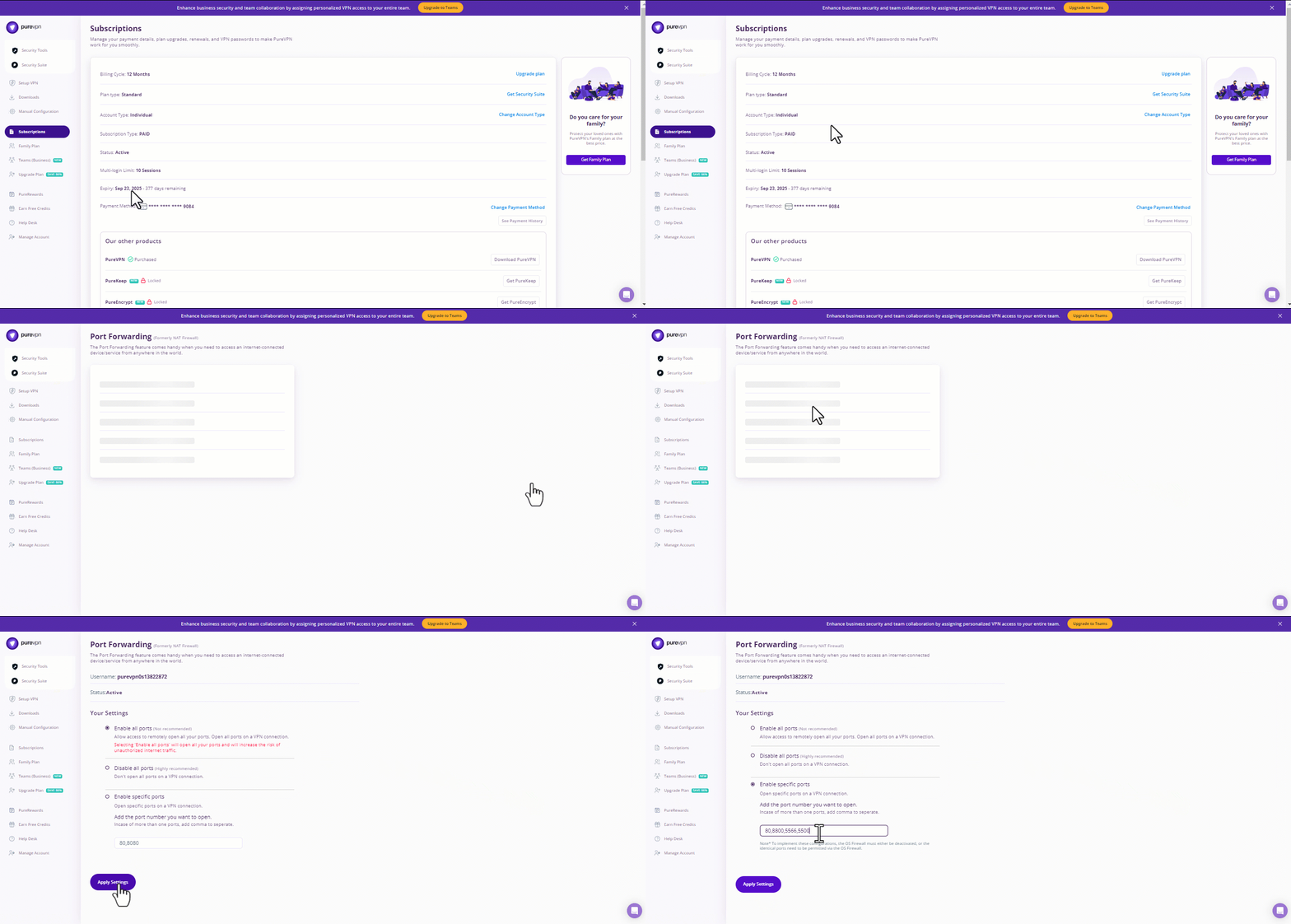
If you’re looking for a hassle-free solution to port forwarding, PureVPN’s Port Forwarding add-on is a great option. It eliminates many of the manual steps involved in setting up port forwarding on your router.
With PureVPN’s Port Forwarding add-on, you can easily forward the required ports without the need to mess with your router settings. Sounds cool, right? Here’s how you can get started with it right away:
- Sign up for PureVPN and get the Port Forwarding add-on.
- Go to the Member Area and open Subscriptions.
- Click Configure next to Port Forwarding.
- Select Enable specific ports, enter the required ports for Minecraft, and click Apply Settings.
- Open the PureVPN app, connect to a port forwarding-supported server, and you are good to go!
Other fixes if port forwarding doesn’t resolve the “getsockopt” error
If port forwarding isn’t solving the minecraft getsockopt error, there are a few other things you can try. Sometimes, the issue is deeper than just port settings, and here are some additional checks to help get your server up and running:
Allow the ports through your firewall
First, check your firewall settings. Even after port forwarding, your computer’s firewall might still be blocking Minecraft. Make sure both the Minecraft application and port 25565 are allowed through your firewall.
Bypass ISP restrictions or CGNAT
If your ISP is using Carrier-Grade NAT, that could also prevent port forwarding from working correctly. CGNAT means multiple customers share a single public IP address, which makes port forwarding nearly impossible. Reach out to your ISP to see if they can provide a static public IP or use a port forwarding VPN to bypass CGNAT.
Review your router’s settings
It’s also a good idea to check your router settings for anything that might be blocking the connection. Features like Access Control, Parental Controls, or MAC Address Filtering could restrict traffic to your server. Disable any unnecessary security features or add the IP of your server device to the allowed list to make sure the connection is open.
Switch to a Minecraft hosting service
If you’ve tested everything and the issue still persists, consider moving your server to a Minecraft hosting provider. Services like Apex Hosting or HostHorde take care of all the technical details, including port forwarding, server maintenance, and optimization, so you can focus on the game without worrying about network issues.
Final word
The “getsockopt” error in Minecraft is often a result of misconfigured port forwarding. By following the steps outlined above, you can resolve this issue and make your server accessible to players outside your local network. If port forwarding alone doesn’t fix the error, remember to check your firewall, bypass CGNAT restrictions, and review your router’s settings.

PureVPN

December 22, 2025

3 months ago


