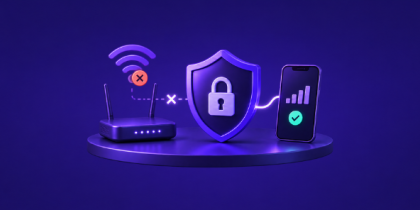
A VPN is supposed to protect your internet connection without getting in the way of the things you use every day.
But sometimes, after connecting to a VPN, you may notice that your printer disappears, shared folders stop opening, your NAS becomes unreachable, or other devices on your local network are suddenly inaccessible.
Your internet may still work perfectly. The VPN may show as connected. Yet the devices sitting just a few feet away from you are no longer reachable.
The good news is that you usually do not need to disconnect your VPN every time you want to print a document, access a shared drive, or connect to another device on your home or office network.
Here’s why it happens and what you can do about it.
Why Does a VPN Affect Local Network Access?
When you connect to a VPN, the VPN changes how your device routes network traffic.
Normally, your computer can communicate directly with other devices connected to the same local network, including:
- Network printers
- NAS and storage devices
- Shared folders and drives
- Other computers
- Media servers
- Smart home devices
- Office equipment
Once a VPN connection is active, however, your traffic may be routed through the encrypted VPN tunnel.
Depending on your VPN configuration and security settings, traffic intended for your local network may also be routed differently or blocked altogether.
That is why you can sometimes browse the internet normally while being unable to reach a printer or another device connected to the same Wi-Fi network.
1. Enable Local Network Access
The first thing to check is whether your VPN provides a setting for local network communication.
Some VPN applications allow you to create an exception for devices on your local network while keeping your internet traffic protected through the VPN tunnel.
In the PureVPN app, for example, you can enable Local Network Access.
With Local Network Access enabled, your device can continue communicating with compatible devices on the same trusted network while your VPN remains connected.
This means you can potentially continue using:
- Wireless and network printers
- NAS devices
- Shared folders
- Network drives
- Other computers on your network
- Local media devices
- Smart devices
without turning off your VPN protection for your internet connection.
This can be especially useful when working from home, accessing office resources, or using a private network with multiple connected devices.
2. Make Sure Both Devices Are on the Same Network
If enabling Local Network Access does not solve the problem, check whether both devices are actually connected to the same local network.
For example, your laptop might be connected to your main Wi-Fi network while your printer is connected to a guest network.
Even if both networks are coming from the same router, guest networks are often isolated from other connected devices for security reasons.
Check the network connection on both devices and make sure they are connected to the same Wi-Fi or local network.
You should also check whether your router has settings such as:
- Guest network isolation
- AP isolation
- Client isolation
- Device isolation
These settings can prevent devices from communicating with each other even when they appear to be connected to the same network.
3. Reconnect Your VPN
If you have just enabled Local Network Access, disconnect and reconnect your VPN.
VPN applications may need to establish a new connection before changes to routing or network permissions take effect.
A simple reconnect can often resolve the issue.
If the device you are trying to access still does not appear, you can also try restarting:
- Your computer
- The printer or NAS
- The VPN application
- Your router, if necessary
Then reconnect to the network and VPN.
4. Check Your Firewall Settings
Sometimes the VPN itself is not the only thing preventing local network communication.
Your operating system firewall, antivirus software, endpoint security application, or another security tool may be blocking connections between devices on your local network.
Check your firewall settings and make sure that local network communication is allowed.
You may also need to confirm that the specific service you are trying to use has permission to communicate over your private network.
For example, Windows users can check whether network discovery and file or printer sharing are allowed on private networks.
The exact options will depend on your operating system and security software.
5. Check the Device’s Local IP Address
If you normally connect to a NAS, shared folder, media server, or another computer using a local IP address, make sure the address has not changed.
Local devices commonly use private IP addresses such as:
192.168.x.x
10.x.x.x
or
172.16.x.x – 172.31.x.x
Routers can assign new local IP addresses to devices after a restart or reconnect.
If you saved an old IP address, bookmark, mapped drive, or shortcut, it may no longer point to the correct device.
Checking the device’s current local IP address can help rule this out.
Is It Safe to Enable Local Network Access?
Local Network Access is useful, but it is important to understand what the setting does.
Normally, a VPN can help isolate your internet traffic and reduce unnecessary exposure to other devices on a network.
Enabling Local Network Access creates an exception that allows your device to communicate with other devices on the same local network while the VPN remains connected.
For that reason, you should generally enable it only on networks you trust.
Good examples include:
- Your home network
- A private office network
- A network you personally manage
You should be more cautious on unfamiliar or public networks, such as:
- Airports
- Hotels
- Cafés
- Shopping centers
- Public Wi-Fi hotspots
On these networks, you may not know who else is connected.
If you do not need access to local devices while using public Wi-Fi, keeping local network access disabled can provide stronger isolation.
VPN Connected but Printer Still Not Working?
If your printer remains unavailable, work through these checks:
- Confirm the printer is powered on and connected to the network.
- Make sure your computer and printer are on the same Wi-Fi network.
- Enable Local Network Access in your VPN application.
- Disconnect and reconnect your VPN.
- Check your firewall or security software.
- Restart the printer and your computer.
- Try accessing the printer using its local IP address.
If the printer becomes accessible after disconnecting your VPN, but disappears again when you reconnect, local network routing or VPN security settings are likely involved.
What About NAS and Shared Drives?
The same principle applies to NAS devices and shared storage.
A NAS generally communicates with your computer through your local network rather than through the public internet.
If VPN routing prevents that local connection, your mapped drives or NAS interface may appear unavailable even though the device itself is working normally.
Enabling Local Network Access can allow your computer to communicate directly with the NAS while your other internet traffic continues through the VPN.
You should also verify that file sharing protocols and firewall rules are allowed on your trusted private network.
Do You Have to Disconnect Your VPN to Use Local Devices?
In many cases, no.
If your VPN supports local network access, you can potentially keep the VPN connected while continuing to communicate with devices on your trusted home or office network.
This gives you a more practical setup:
Internet traffic stays protected by the VPN, while local traffic can still reach the devices you actually need.
That means you should not have to choose between accessing your printer and keeping your VPN connected every time you work.
Final Thoughts
If your printer, NAS, shared folders, or other local devices suddenly become inaccessible after connecting to a VPN, the problem is often related to how local traffic is being routed.
Start by enabling Local Network Access, confirm that both devices are connected to the same network, reconnect the VPN, and check your firewall settings.
For PureVPN users, enabling Local Network Access can help you stay connected to devices on your trusted local network without giving up VPN protection for your internet traffic.
Just remember that local network access is best used on networks you trust.
Your VPN and your local devices do not have to work against each other. With the right configuration, you can keep both accessible at the same time.