


What is VPN for
LG UN7300 TV
A VPN for LG UN7300 Smart TV masks your real location to help you access content and services not available in your region. It also encrypts your internet connection, protecting your viewing habits and allowing you to stream your favorite movies and TV shows without worrying about prying eyes.
How to Set Up a VPN on LG UN7300 Android TV
Just follow these simple steps to get started:
Step 01
Sign up for a PureVPN account
Step 02
Download our Android TV VPN app from the Play Store
Step 03
Log in, connect to your desired VPN server location, and you are good to go!
Why Do You Need a VPN for LG UN7300?
By using a VPN for LG UN7300, you can:

Bypass Bandwidth Throttling
Stop annoying buffering during your favorite shows. Stream effortlessly in high quality, even when the network is busy. Experience smooth, uninterrupted playback every time on your LG UN7300 without slowdowns from your internet provider.

Stream Privately & Securely
Protect your streaming activities from third parties. Keep your data and location hidden from ISPs, hackers, and advertisers, so you can watch with complete peace of mind on your LG UN7300 without leaving digital footprints.

Watch Region-Locked Content
Access entertainment options from around the world. Stream shows, movies, and live events that are otherwise unavailable in your region, and enjoy a wider variety of content on your LG UN7300’s WebOS platform.
Other Ways to Set Up a VPN on LG UN7300
If you prefer not to install the app, check out these alternative methods to set up PureVPN on your LG UN7300:

Sideload PureVPN App

First, enable Developer Mode on your LG UN7300 by going to Settings, then General, and clicking on "About This TV" several times. Next, install an app launcher like LG Content Store. Download the PureVPN APK file to a USB drive, connect it to your TV, and use the file manager to install it. Open the app, sign in to your account, select a server, and connect.

Install PureVPN on Router
Open your router’s settings in a web browser and enter the required details, including the server address, protocol, and login credentials. After configuring everything, save the settings and restart the router. Every device connected to the router will use the VPN for a secure and private online experience, including your LG UN7300 Smart TV.
Why Choose PureVPN for LG UN7300?

Split tunneling
Choose which apps use the VPN and which do not, giving you more control over your connection while using different streaming services on your LG TV.

20 Gbps Speeds
Enjoy buffer-free streaming with 20 Gbps speeds, providing seamless viewing with no interruptions on your LG UN7300’s 4K display.

Shortcuts
Access your favorite apps and channels quickly with our custom shortcuts. Save time and effort while enjoying a safer connection on your LG Smart TV.

WireGuard Protocol
Get faster speeds and better security with the WireGuard protocol for smooth, private streaming that keeps your LG UN7300 protected.

Use on Up to 10 Devices
Secure up to 10 devices at once—including your LG UN7300 Smart TV—with a single subscription for whole-home protection.

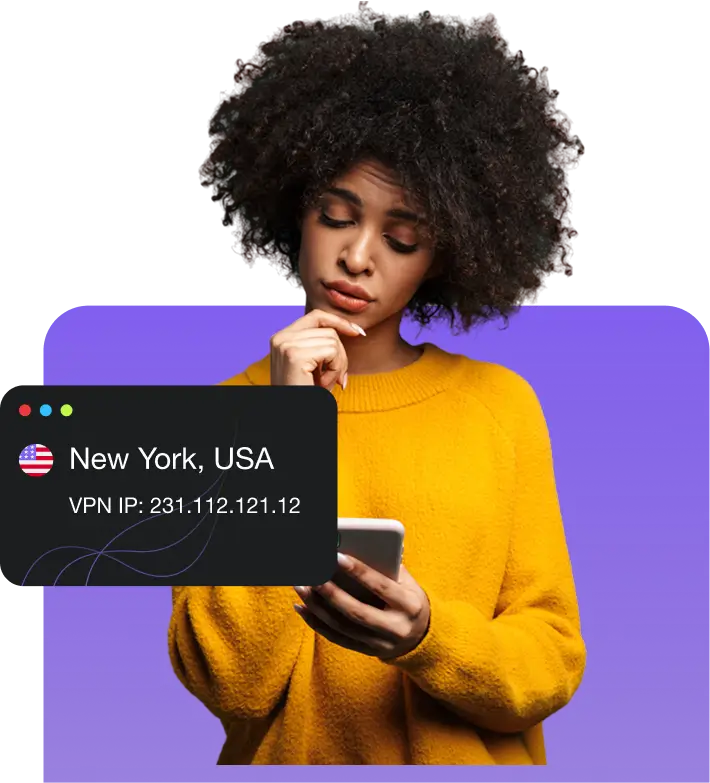


PureVPN vs. Free VPN for LG UN7300 Android TV
Wondering whether you should use a paid or free VPN with your LG UN7300 Android TV? Here's what you get with PureVPN vs. a free VPN:
What you'll get
|
|
|


Frequently Asked Questions
Do I need a VPN for my LG Smart TV?


Absolutely. A VPN on your LG Smart TV will allow you to get around bandwidth throttling, stream content with added privacy and security, access otherwise unavailable movies and TV shows, and protect your viewing data from being collected.
How to install a VPN on LG UN7300?
Since LG TVs run on WebOS, the easiest way to use a VPN is to set it up on your router. Alternatively, you can use SmartDNS services provided by PureVPN, share a VPN connection from another device, or use compatible streaming devices like Amazon Fire Stick with your LG UN7300.
What is the best VPN for LG UN7300?
PureVPN is one of the best VPNs for LG UN7300, offering fast speeds, global servers, unlimited bandwidth, and strong privacy protection. It works well with WebOS through router setup and provides excellent support for LG Smart TV users.
Can I use a VPN directly on my LG UN7300?
LG Smart TVs do not natively support VPN apps. However, you can use PureVPN on your LG UN7300 by setting up the VPN on your router, using SmartDNS, sharing a connection from another device, or using streaming devices that support VPN apps.
How do I know if my VPN is working on my LG UN7300?
The simplest way to check if your VPN is working is to open a web browser on your LG UN7300 (if available) and check your IP address using an IP lookup tool. If it shows a different location than your actual one, the VPN is working correctly.
Should I try a free VPN for LG UN7300?
Most free VPNs come with hidden costs like slower speeds, limited server options, and potential security risks. In fact, these services are also known to log and sell your data, compromising your privacy. For this reason, you are better off sticking to premium VPNs like PureVPN for your LG Smart TV.
Does PureVPN support LG UN7300 TV?
Yes, PureVPN supports LG UN7300 TV through router setup or SmartDNS methods. While WebOS does not directly support VPN apps, PureVPN offers multiple solutions to protect your LG Smart TV and access global content libraries through secure connections.
Is it legal to use a VPN on LG Smart TV?
Using a VPN to protect your privacy and security is perfectly legal. However, countries like Russia and China have stricter rules around VPN use. Just remember, using a VPN does not make illegal activities legal, even when streaming on your LG UN7300.

