
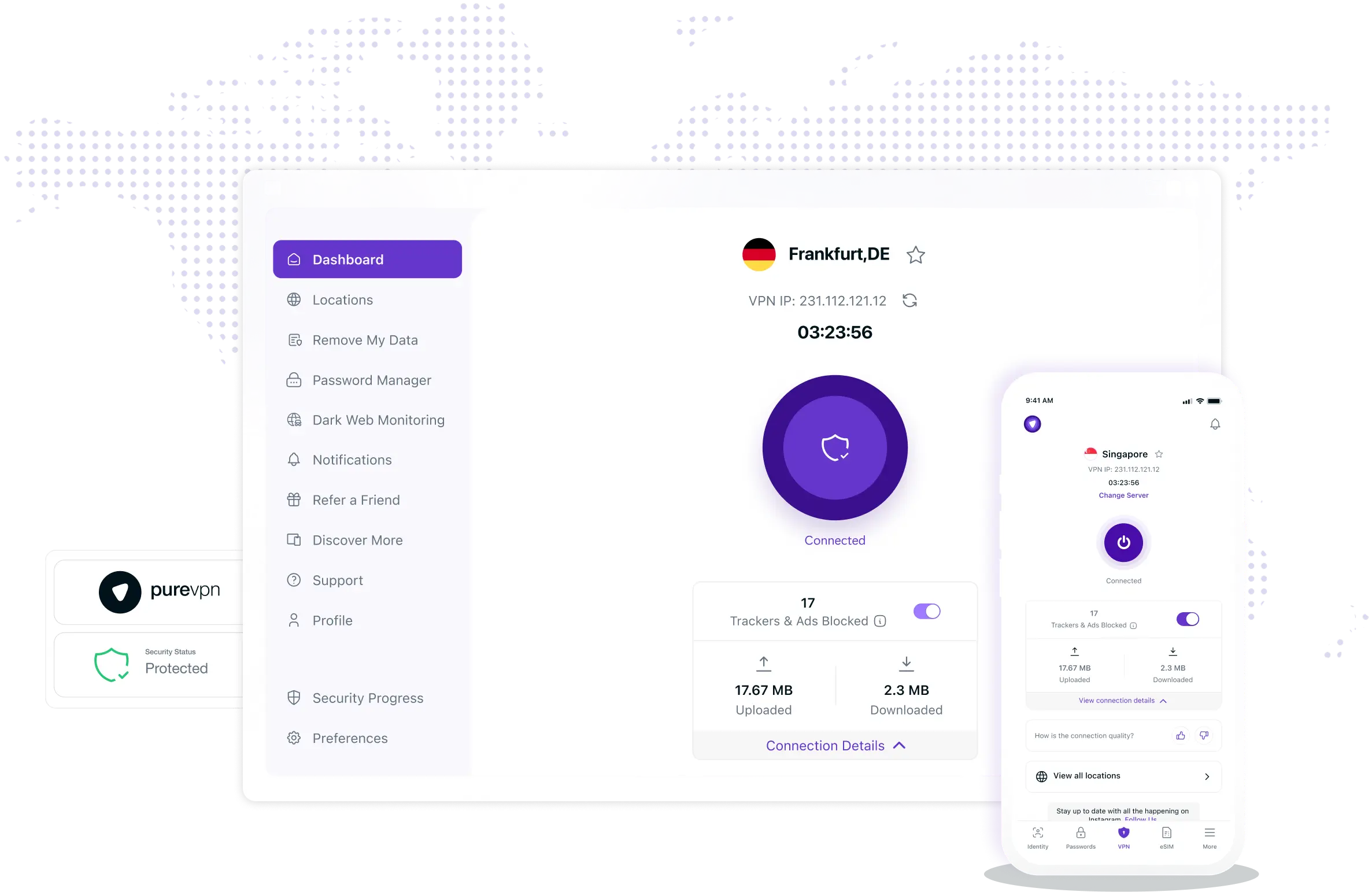


How to Set Up and Use a VPN for Sony Smart TVs
To install VPN on Sony Smart TV, you should follow these instructions:
-
1
Download and install the PureVPN app from the Google Play Store.
-
2
Open PureVPN and log into your account.
-
3
Connect to any server of your choice.
-
4
You are all set to use a VPN on your Sony smart TV.

-
1
Access your router’s web interface by typing its IP address in a web browser.
-
2
Check if your router is VPN-compatible. If not, you may need to update it with VPN-capable firmware.
-
3
Make sure your router supports VPNs. If not, you will need to install VPN-compatible firmware like FreshTomato.
-
4
In the VPN settings, enter the necessary information (PureVPN credentials, server address, protocol).
-
1
Connect your Sony smart TV to the VPN-enabled router.
-
2
Once the download finishes, click Install and wait for Kodi to install.
-
3
After installation, click OPEN to launch Kodi or DONE to open it later.
-
4
Click Delete to remove the APK file from your device.
-
5
Confirm by clicking Delete again.
-
1
Launch the Downloader app and enter “https://kodi.tv/download” in the URL field, then click Go.
-
2
Once the download finishes, click Install and wait for Kodi to install.
-
3
After installation, click OPEN to launch Kodi or DONE to open it later.
-
4
Click Delete to remove the APK file from your device.
-
5
Confirm by clicking Delete again.
-
1
Launch the Downloader app and enter “https://kodi.tv/download” in the URL field, then click Go.
-
2
Once the download finishes, click Install and wait for Kodi to install.
-
3
After installation, click OPEN to launch Kodi or DONE to open it later.
-
4
Click Delete to remove the APK file from your device.
-
5
Confirm by clicking Delete again.
-
1
Launch the Downloader app and enter “https://kodi.tv/download” in the URL field, then click Go.
-
2
Once the download finishes, click Install and wait for Kodi to install.
-
3
After installation, click OPEN to launch Kodi or DONE to open it later.
-
4
Click Delete to remove the APK file from your device.
-
5
Confirm by clicking Delete again.

Why Should You Use a VPN on a Sony Smart TV?
Using a VPN for Sony smart TV hides your real IP address to keep your streaming activities private from eavesdroppers, so no one can track what you are watching. Also, it prevents your internet provider from slowing your connection, allowing for a smooth streaming experience with no buffering. A VPN also protects your data from cybercriminals while you watch your favorite content.

Change Your Sony Smart TV’s IP Address and Location
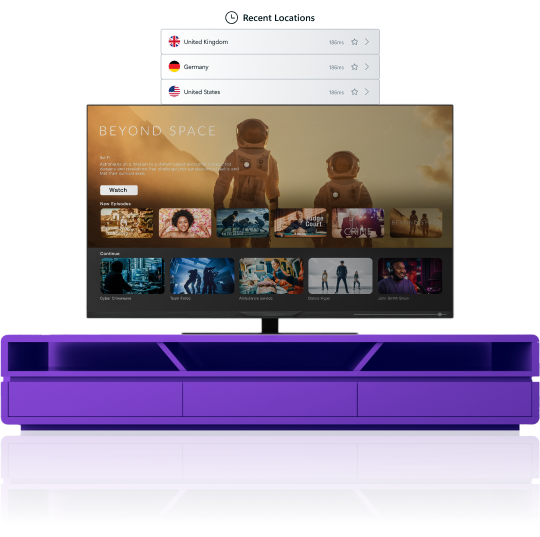
By using a VPN on your Sony Smart TV, you can change your TV’s IP address. This makes it appear like you are streaming from another country, allowing you to access apps and shows that are not available in your region. You can also dodge internet censorship, so you can watch anything you want without any barriers.
Why Choose PureVPN?

Robust Encryption
Protect your connection with AES 256-bit encryption to keep your streaming sessions hidden from prying eyes.

10 Multi-Logins
Use a single PureVPN account on up to 10 different devices simultaneously and cover your entire household.

Split Tunneling
Choose which apps use the VPN and which do not, so you can switch between local and global content with ease.

Stream Anything
Access content on region-locked platforms like US Netflix, Hulu, and Prime Video, no matter where you are.

Global Server Network
Choose from over 6,000 servers spread across 65 countries, including the US, UK, Canada, and Australia.

Ultra-Fast Speeds
Enjoy watching the movies, TV shows, and documentaries you love buffer-free with speeds of up to 20 Gbps.
Should I Use a Free VPN for Sony Smart TVs?
Free VPNs might seem appealing, but they come with a lot of issues like slow speeds, weak security, and data limits. Some even track what you do online and sell that information to third parties. With a premium VPN like PureVPN, you get fast speeds, strong security, and unlimited access to content, making your streaming experience much safer and smoother.

Frequently Asked Questions
Can I use a VPN on my Sony smart TV to access content from other regions?


Indeed. You can use a VPN on your Sony Smart TV to watch content from other countries. A VPN helps you change your virtual location, so you can access shows and movies that are otherwise unavailable in your region.
What is the best VPN for Sony smart TV?
For the best Sony smart TV VPN, look no further than PureVPN. With our global server network, you can stream content from across the world while staying private and secure.
Is using a VPN on a Sony smart TV safe?
Yes, using a VPN on your Sony smart TV is completely safe. It protects your data with military-grade encryption and lets you access more content from around the world.