Best Password Manager for Android
Protect your Android credentials with PureVPN’s Password Manager. Enjoy one-tap autofill, zero-knowledge architecture for privacy, and seamless syncing across all your phones, tablets, and other devices.


What is an Android Password Manager?
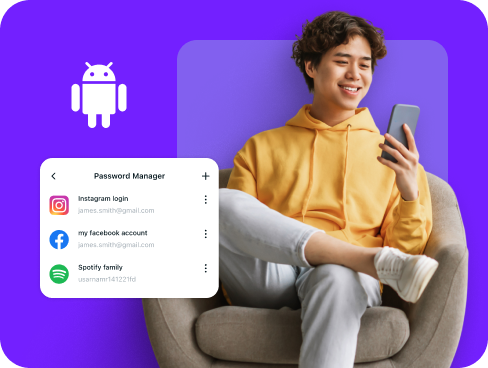
An Android password manager stores your usernames and passwords, creates strong passwords for new accounts, and fills them automatically when you need them. While Google offers its own password manager through your Google account, many Android users choose third-party managers for better security features and control over their data.
Why Do You Need a Password Manager on Android?
Your Android phone holds the keys to your digital life, but weak passwords put everything at risk. A password manager on Android helps you:
Manage All Your Credentials in One Place
Between work apps, social media, and banking, you probably have more passwords than you can remember. A password manager stores them all in one secure location, ready when you need them.
Create Strong, Unique Passwords
Using the same password everywhere is quite dangerous. A password manager creates complex, different passwords for each account, protecting you even if one service gets hacked.
Log in Easily and Quickly
Stop wasting time typing passwords manually. With convenient features like autofill and Biometric Lock (available on Web), you can sign into apps and websites with a single tap.
Sync Passwords Across Devices
Your passwords follow you everywhere. Switch from your Android phone to your tablet or computer, and all your credentials will be available there, synced and secure.
Store More Than Just Passwords
Keep your payment cards, secure notes, and WiFi passwords safe too. Everything stays encrypted in your vault, accessible only to you through your Android device.
What Makes PureVPN the Best Password Manager for Android?
PureVPN’s Password Manager gives Android users complete security without complicated setup. Here’s what sets it apart:
Auto-Fill Across Apps and Browsers
Enable auto fill once, and PureVPN fills your passwords everywhere. Works seamlessly in Chrome, Firefox, and most Android apps without copying or typing.
Cross-Device Syncing
Your vault syncs instantly between your Android phone, tablet, Windows PC, or any other device. Everything stays encrypted during sync, keeping your data safe in transit.
Biometric Lock + Master Password Protection
Use your fingerprint for quick access or your master password as backup. Two layers of security mean only you can open your vault, even if someone gets your phone.
Encrypted Notes for Sensitive Data
Store bank details, WiFi passwords, recovery codes, and personal notes. Everything gets the same military-grade encryption as your passwords, organized and searchable.
Built-In Password Generator
Tap once to create hard-to-guess passwords no hacker can crack. Save them directly to your vault when creating new accounts or updating old ones.
Monitor Your Vault’s Health
See which passwords need updating at a glance. The password health feature flags weak, duplicate, or old passwords so you can fix security issues before they matter.
The Real Power Is in the Integration
Where others just keep your passwords, PureVPN also shields the path you take to use them.
Logins That Leave No Trace
Every login happens through PureVPN’s encrypted connection. Your real IP stays hidden, and our audited no-logs policy means there’s no record of your activity anywhere.
Invisible by Design
Your password manager runs inside the VPN tunnel. Every sync, every autofill, every vault access travels through top-tier encryption that hackers cannot penetrate.
One App, One Encrypted Ecosystem
Everything works together in one app. Your VPN protects your connection, your password manager secures your credentials, and tracker blocking keeps advertisers away.
Protection That Activates Instantly
Open PureVPN and you’re protected instantly. Your connection is encrypted, your location hidden, and your passwords locked behind a master password.
How to Set Up PureVPN’s Password Manager on Android
Get started by following these steps:
Step 1

Download the PureVPN Android app and sign into your account
Step 2

Open Password Manager from the menu and set your master password.
Step 3

Import existing passwords or add new ones, enable autofill, and explore the other features.

Frequently Asked Questions
Find answers to common questions about PureVPN Password Manager here.
Does Google have a free password manager?


Yes, Google includes a password manager with every Google account that saves and fills passwords in Chrome and Android apps. It works well for basic needs but lacks advanced security features.
Why should I use a third-party password manager on my Android?
Third-party managers give you more security options, work across all platforms (not just Google), and include features like encrypted notes, password health monitoring, and VPN protection that Google’s basic password manager does not offer.
Are Android password managers safe?
Yes, quality password managers like PureVPN use the same AES 256-bit encryption that banks use. Combined with Biometric Lock and zero-knowledge security, your passwords stay safe even if your phone is lost.
What is the best Android password manager?
The best Android password manager combines strong security with simple daily use. PureVPN delivers both through automatic form filling, cross-platform sync, and built-in VPN protection all in one app.