Best Password Manager for Edge
Keep browsing on Edge without password hassles. With PureVPN’s Password Manager, you can create strong logins, lock them in an encrypted vault, and make sign-ins instant across all your devices.


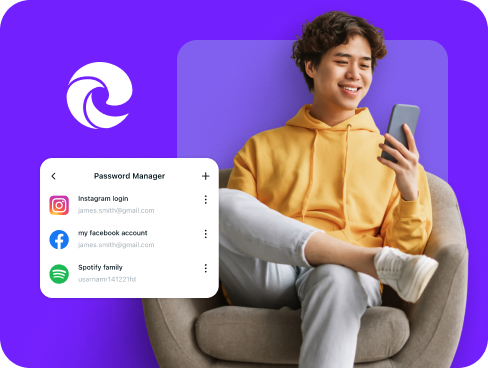
What is Edge Password Manager?
An Edge password manager saves your logins, creates strong passwords, and fills them automatically when you browse. Edge has a built-in password manager tied to your Microsoft account, many users still choose third-party managers for extras like encrypted notes and broader cross-platform support
Why Do You Need a Password Manager on Edge?
Browsing in Edge is only as safe as the passwords you use. A manager takes the stress out of security by helping you:
Manage All Your Credentials in One Place
From banking and streaming to work apps and shopping accounts, logins pile up fast. A password manager keeps them all searchable and secure inside one encrypted vault.
Create Strong, Unique Passwords
Weak or recycled passwords are an open door for attackers. Create long, unique combinations for every account to shut down brute force and reuse attacks.
Log in Easily and Quickly
Stop typing passwords manually on every site. With autofill support, you can log into any site with one click, making your browsing faster and more convenient.
Sync Passwords Across Devices
Move smoothly between devices. Your vault stays encrypted and up to date, giving you secure access wherever you sign in.
Store More Than Just Passwords
Keep card numbers, Wi-Fi keys, recovery codes, and personal notes secured under the same encryption as your logins. All of it stays organized and accessible.
What Makes PureVPN the Best Password Manager for Edge?
PureVPN’s Password Manager combines strong encryption with simple, everyday usability. Here’s what makes it stand out:
Auto-Fill Across Apps and Browsers
Log in with a click. PureVPN drops your saved credentials directly into Edge sign-in fields, removing the hassle of typing or remembering passwords.
Cross-Device Syncing
Your vault stays updated everywhere you browse. Move from desktop to phone to tablet and always have the latest logins ready to use.
Biometric Lock + Master Password Protection
Unlock with Windows Hello face or fingerprint recognition for quick access or use your master password, giving you two strong layers of control.
Encrypted Notes for Sensitive Data
Keep recovery codes, license keys, and private notes locked in the same encrypted vault as your Edge logins—organized and accessible only to you.
Built-In Password Generator
Create unique, complex passwords the moment you sign up for a new account. One click delivers logins strong enough to resist modern attacks.
Monitor Your Vault’s Health
Stay on top of security with alerts for weak, reused, or old passwords. PureVPN shows you what to fix and helps strengthen your vault.
The Real Power Is in the Integration
Most managers stop at storing passwords. PureVPN protects the way you use them, adding security at every step:
Logins That Leave No Trace
Every sign-in is routed through PureVPN’s encrypted tunnel, hiding IP and location details. Outsiders can’t link activity back to you.
Invisible by Design
Vault syncs and autofills blend with your VPN traffic. There are no separate streams to monitor; everything stays inside one encrypted channel.
One App, One Encrypted Ecosystem
No switching between tools or exposing yourself in the gaps. PureVPN combines your vault, VPN, and tracker blocker in a single, sealed-off environment.
Protection That Activates Instantly
The moment you connect, your traffic is encrypted and your IP is hidden. Password activity flows through the tunnel, while your vault stays secured at all times.
How to Set Up PureVPN’s Password Manager on Edge
Getting started takes just a minute:
Step 1

Download PureVPN or use the web app, then sign into your account.
Step 2

Click the Password Manager icon, create your master password and explore the other features.
Step 3

Import passwords or add them manually, then let autofill handle the rest.

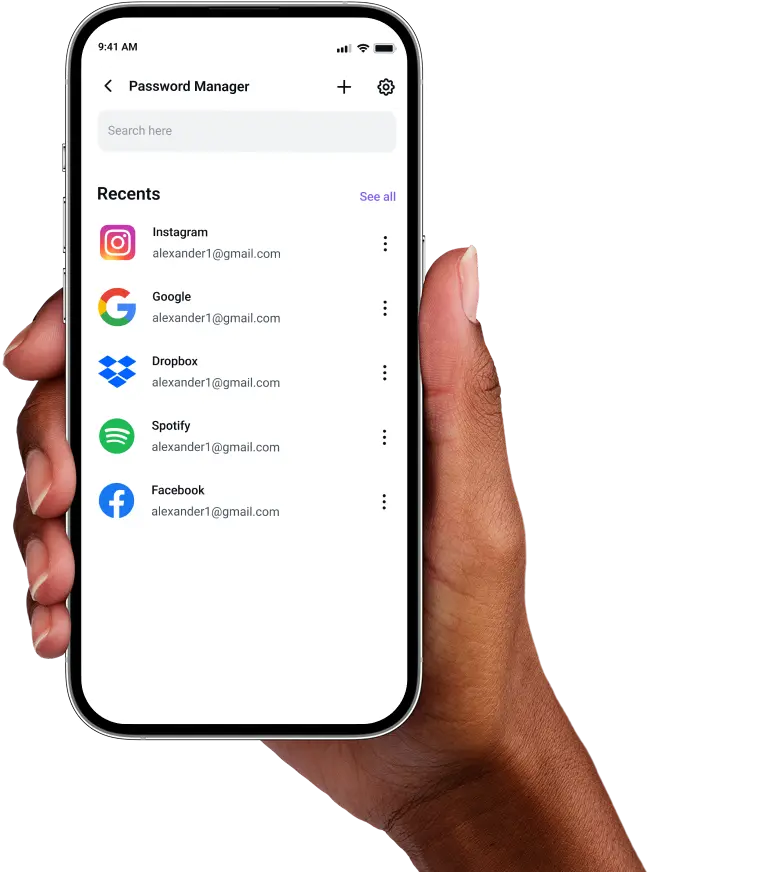
Frequently Asked Questions
Find answers to common questions about PureVPN Password Manager here.
Does Edge have a free password manager?


Yes, Microsoft Edge includes a free password manager that syncs with your Microsoft account. It saves and autofills logins across devices and provides breach monitoring, but it doesn’t support features like encrypted notes or wider cross-platform syncing.
Why should I use a third-party password manager on Edge?
Third-party password managers for Edge offer more comprehensive features than the built-in option. You get stronger password generation, cross-platform compatibility, encrypted storage for sensitive notes, and the ability to share credentials securely with family or team members.
Are Edge password managers safe?
Yes, password managers from trusted providers like PureVPN use military-grade AES 256-bit encryption. They also employ zero-knowledge architecture, meaning even the provider cannot access your data, and support biometric authentication methods.
What is the best Edge password manager?
The best password manager for Edge offers strong security, simple access, and protection that goes beyond the browser. PureVPN’s Password Manager delivers encrypted storage, cross-device syncing, VPN protection, and biometric unlocking capabilities, making it a great choice for Edge users.