Best Password Manager for iOS
Keep passwords safe on your iPhone and iPad with PureVPN’s Password Manager. Store credentials in an encrypted vault, autofill logins with a tap, and keep your details available across your devices.


What is iOS Password Manager?
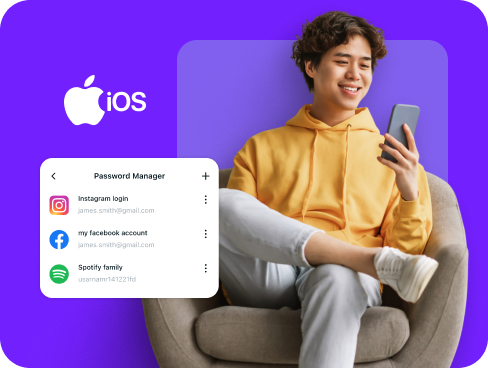
An iOS password manager gives you a single, secure place to handle your logins across iPhone and iPad. It stores credentials in a protected vault, generates stronger alternatives when you create new accounts, and makes sign-ins faster whether you’re in Safari, Chrome, or an app.
Why Do You Need a Password Manager on iOS?
iPhones and iPads are secure, but your accounts aren’t if the passwords are weak. A password manager closes that gap and makes them easier to manage. Here’s why you need one:
Manage All Your Credentials in One Place
Instead of scattered logins across apps and browsers, everything lives in one encrypted vault. You open the app, search, and sign in, so you no longer have to memorize dozens of passwords.
Create Strong, Unique Passwords
Attackers rely on reused passwords. Give every online account its own unique and hard-to-guess password, reducing the chance of multiple accounts being exposed in one breach.
Log in Easily and Quickly
Typing long passwords on a touchscreen slows you down. With automatic form detection and autofill capabilities, you can put the right details into Safari, Chrome, and apps in seconds.
Sync Passwords Across Devices
Whether you’re on your iPhone, iPad, or even a non-Apple device, your encrypted vault stays updated. Add or change a login once and it’s ready everywhere you use our manager.
Store More Than Just Passwords
A password manager isn’t limited to logins. It also secures your cards, Wi-Fi details, and personal notes in one place, giving you a single spot to protect the data you can’t afford to lose.
What Makes PureVPN the Best Password Manager for iOS?
PureVPN combines password management with privacy protection in one app. Your passwords stay secure while your internet connection remains private, giving iPhone and iPad users complete digital security.
Auto-Fill Across Apps and Browsers
Fill in login details with a tap in Safari, Chrome, and supported apps on iOS. No more retyping long strings or juggling between apps just to sign in.
Cross-Device Syncing
Save a password once and it’s updated everywhere. Your encrypted vault stays consistent across iPhone, iPad, Mac, Windows, and Android devices.
Biometric Lock + Master Password Protection
Set up Biometric Lock on the web app for speed, or use your master password. Both options keep your vault locked tight against unauthorized access.
Encrypted Notes for Sensitive Data
Keep more than just logins protected. Add recovery codes, payment details, or personal notes to your vault, with every item encrypted and available only to you.
Built-In Password Generator
Create long, random passwords on demand. Use them to strengthen new accounts or replace weak ones, so every login on your iOS device is harder to break.
Monitor Your Vault’s Health
Quickly see if any of your saved passwords are weak, reused, or outdated. The health checker makes it simple to spot risks and update them before problems occur.
The Real Power Is in the Integration
Other managers stop at storing your logins. PureVPN goes further by protecting the way you access them on iPhone and iPad:
Logins That Leave No Trace
Each sign-in normally exposes details like your IP and location. With PureVPN, those identifiers are masked, and no logs are kept, leaving nothing behind to exploit.
Invisible by Design
Every time your vault syncs or fills a password, the data moves through an encrypted VPN tunnel. That means no third party can observe, intercept, or tamper with it.
One App, One Encrypted Ecosystem
No need to run separate apps for VPN, password storage, and tracker blocking as PureVPN combines all three. Fewer moving parts mean fewer gaps for attackers to target.
Protection That Activates Instantly
Run PureVPN and your connection locks down immediately, while your vault stays protected under its own encryption—two separate defenses working together at all times.
How to Set up PureVPN’s Password Manager on iOS
Start using PureVPN Password Manager on your iPhone in three simple steps:
Step 1

Download PureVPN from the App Store and sign in with your account credentials
Step 2

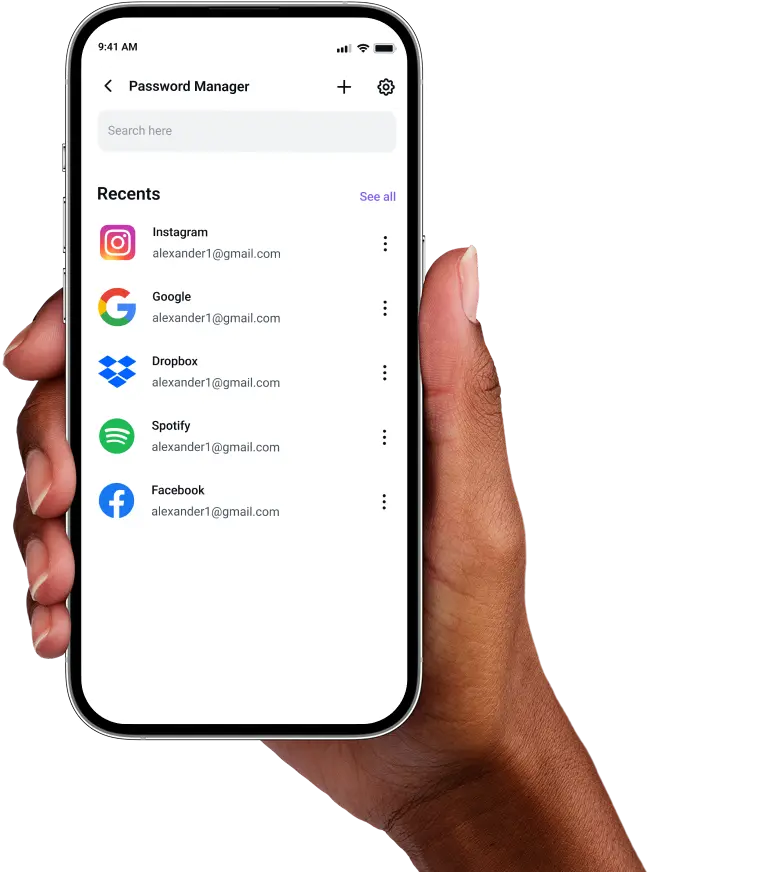
Open Password Manager from the main menu, create your master password, and explore other features.
Step 3

Import your passwords, generate new ones, and let autofill log into apps and websites.

Frequently Asked Questions
Find answers to common questions about PureVPN Password Manager here.
Does iOS have a free password manager?


Yes, iOS includes the Passwords app that stores and autofills your credentials across Apple devices. It works well for basic password storage but lacks advanced features like cross-platform support and encrypted notes.
Why should I use a third-party password manager on iOS
Third-party managers like PureVPN work across all your devices, not just Apple products. You get stronger password generation, encrypted note storage, security monitoring, VPN protection, and more.
Are iOS password managers safe?
Password managers from trusted providers like PureVPN use military-grade encryption to protect your data. Combined with biometric authentication and zero-knowledge architecture, your passwords remain safe even if someone accesses your iPhone.
What is the best iOS password manager?
PureVPN stands out by combining password management with VPN protection in one app. You get secure password storage, cross-platform syncing, Face ID unlock, and encrypted internet access without switching between multiple apps on your iPhone.