Best Password Manager for Linux
Secure every login on Linux with PureVPN’s encrypted Password Manager. Autofill instantly, protect access with a master password, and keep passwords, notes, and other information safe in one vault.



What is Linux Password Manager?
A Linux password manager securely stores all your credentials, helps you create strong, unique passwords, and automatically fills them when needed. Unlike basic keyring services, it offers extra features such as cross-platform syncing, password sharing, and health reports.
Why Do You Need a Password Manager on Linux?
Every account you create adds another password to remember. A password manager takes the pressure off by enabling you to:
Manage All Your Credentials in One Place
From banking to developer tools, the number of accounts piles up fast. A password manager acts like a central vault, giving you one secure place for all your credentials.
Create Strong, Unique Passwords
Hackers love predictable or repeated passwords. A password manager generates long, complex ones for every account, closing the door on brute-force and other attacks.
Log in Easily and Quickly
No more retyping endless strings of characters. With autofill and Biometric Lock (on Web), you can make secure access feel effortless instead of tedious.
Sync Passwords Across Devices
Take your credentials wherever you go. Whether coding on your Linux desktop, working on a laptop, or checking apps on your phone, your vault stays in sync.
Store More Than Just Passwords
Store more than logins. Keep your SSH keys, API tokens, Wi-Fi credentials, and notes locked safely in a single encrypted vault, accessible within seconds.
What Makes PureVPN the Best Password Manager for Linux?
PureVPN’s Password Manager gives Linux users advanced protection without the hassle. Here’s why it stands out:
Auto-Fill Across Apps and Browsers
Skip the hassle of typing or pasting passwords. Autofill credentials directly in supported Linux apps and browsers, so you can log in seamlessly and without effort.
Cross-Device Syncing
Move between Linux distributions, Windows machines, or mobile devices with ease. Your vault stays encrypted, updated, and perfectly synced wherever you sign in.
Biometric Lock + Master Password Protection
Use Biometric Lock for super-quick logins or fall back on your master password for complete control, with all data encrypted end to end.
Encrypted Notes for Sensitive Data
Keep SSH keys, server credentials, configuration files, and private notes fully encrypted and neatly organized in one vault.
Built-In Password Generator
Generate complex, unique passwords in seconds. Whether it’s for new accounts or system updates, you’ll never have to rely on weak or reused passwords again.
Monitor Your Vault’s Health
Keep your accounts strong with automatic checks for weak, reused, or aging passwords, so you can change them before it’s too late.
The Real Power Is in the Integration
Most password managers focus on storing passwords. We secure both your passwords and the path to them.
Logins That Leave No Trace
Hackers depend on trails like IP addresses and metadata. PureVPN keeps them hidden, and with a verified no-logs policy, there’s nothing left to follow.
Invisible by Design
With your vault running inside a VPN, every action, from autofill to syncing, travels through an encrypted tunnel. Nothing leaks, nothing exposed.
One App, One Encrypted Ecosystem
No juggling apps or leaving security gaps. PureVPN unites your vault, VPN, and tracker blocker into one tightly sealed environment.
Protection That Activates Instantly
The second you open the app, protection switches on—encrypting your traffic, masking your identity, and securing your credentials with layered defenses..
How to Set Up PureVPN’s Password Manager on Linux
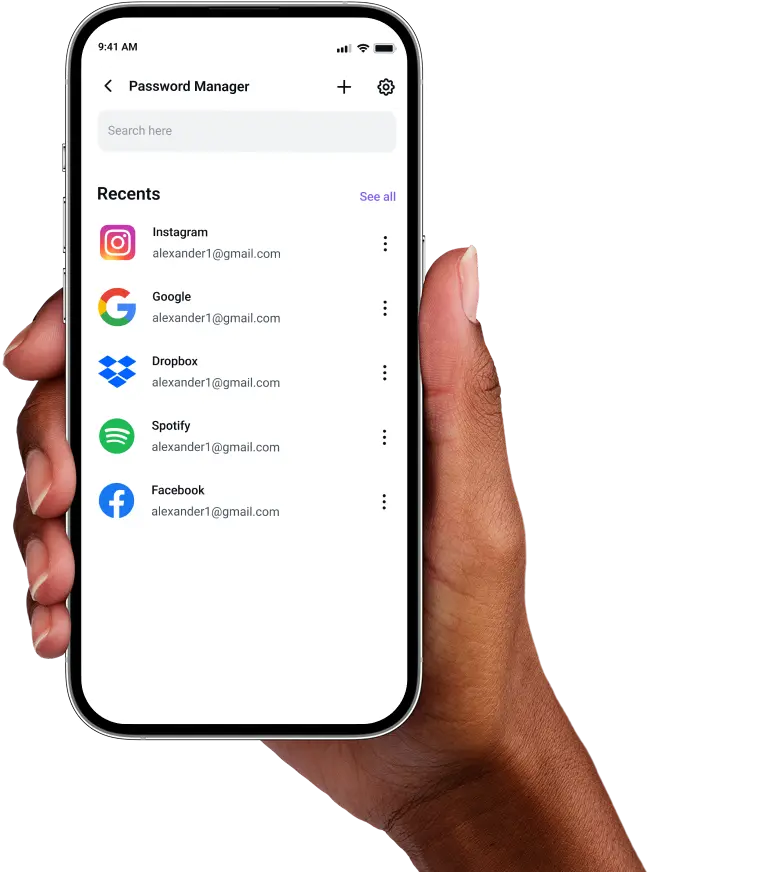
Getting started with the PureVPN Password Manager takes just a minute, just follow these three steps:
Step 1

Download the PureVPN Linux app and log in.
Step 2

Navigate to Password Manager to create your master password.
Step 3

Add your credentials manually or import them from your browser and generate strong, unique passwords.

Frequently Asked Questions
Find answers to common questions about PureVPN Password Manager here.
Does Linux have a free password manager?


Yes, Linux distributions include keyring services like GNOME Keyring and KWallet that store passwords locally. However, these are limited to local storage and lack features like cross-platform sync and advanced security tools.
Why should I use a third-party password manager on my Linux system?
A third-party manager gives you flexibility and stronger protection. You can generate unique passwords, sync across all devices, store sensitive notes, and get tools like a health checker—all in one encrypted vault.
Are Linux password managers safe?
Absolutely. If you choose a trusted provider like PureVPN, you have nothing to worry about. With AES 256-bit encryption, zero-knowledge architecture, and master password protection, your data stays private and accessible only to you.
What is the best Linux password manager?
The best option combines security, simplicity, and cross-device access. PureVPN’s manager delivers all three with strong encryption, autofill support, and the extra shield of built-in VPN integration.