Best Password Manager for Ubuntu
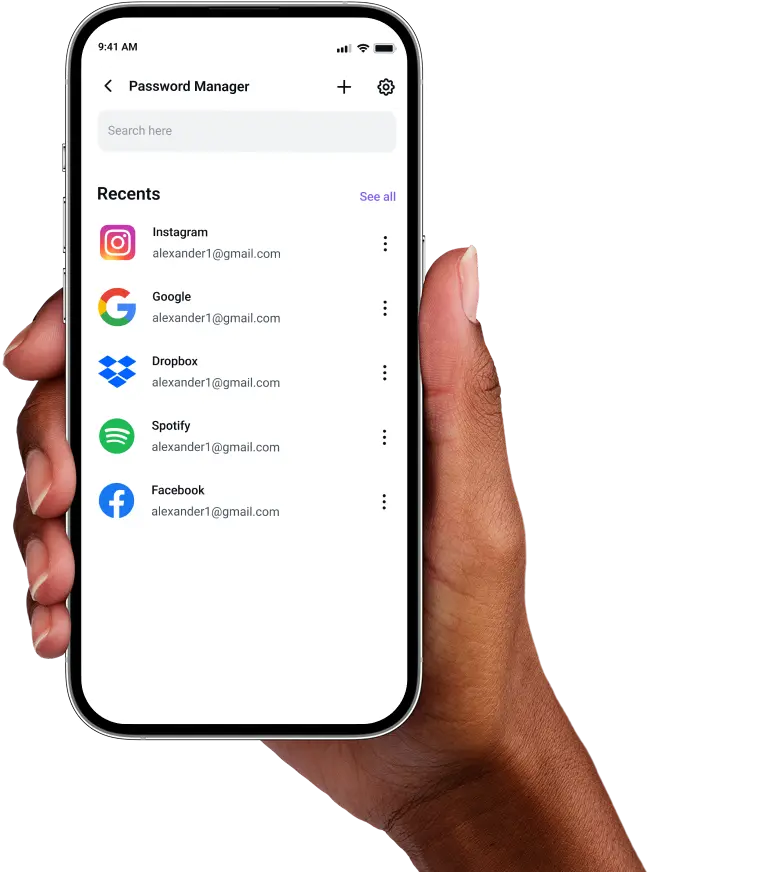
Protect your Ubuntu accounts with PureVPN’s secure Password Manager. Generate and fill passwords instantly, back them up across every device, and lock private details in a vault only you can access..



What is Ubuntu Password Manager?
An Ubuntu password manager stores your login credentials, generates strong passwords, and autofills them across browsers and apps. While Ubuntu includes basic keyring services like GNOME Keyring and KDE Wallet by default, many users prefer dedicated password managers for advanced features like cross-platform sync and encrypted storage of sensitive data beyond just passwords.
Why Do You Need a Password Manager on Ubuntu?
Ubuntu may protect your system well, but your online accounts are a different story. A password manager makes sure the weakest link isn’t the password you use to log in:
Manage All Your Credentials in One Place
No more scattered sticky notes or relying on memory. Put all your logins in one encrypted vault, so you always know where to find them.
Create Strong, Unique Passwords
Short, repeated passwords are an open door for attackers. Give every account its own long, random password to stay safe from password-based attacks.
Log in Easily and Quickly
Typing passwords by hand is slow and prone to mistakes. With autofill, your details appear instantly when you need them, so you can focus on what matters.
Sync Passwords Across Devices
Switching between Ubuntu, your phone, or another operating system? Your vault travels with you, keeping the same credentials updated everywhere.
Store More Than Just Passwords
Your digital life includes more than logins. Keep notes, Wi-Fi details, and documents safe in the same encrypted space, always within reach.
What Makes PureVPN the Best Password Manager for Ubuntu?
PureVPN’s Password Manager keeps your accounts safe without adding complexity. Here’s how it helps Ubuntu users stay secure:
Auto-Fill Across Apps and Browsers
Save time by letting the autofill feature handle your logins. No more typing long passwords by hand or juggling them between devices.
Cross-Device Syncing
Your vault stays encrypted and up to date across Ubuntu and other platforms. Add a password once, and it’s ready everywhere you sign in.
Biometric Lock + Master Password Protection
Secure your vault with a master password you control, or set up the Biometric Lock through the web app for simple, quicker access.
Encrypted Notes for Sensitive Data
Keep more than just passwords safe. Store Wi-Fi credentials, private notes, and other sensitive information inside the same encrypted vault.
Built-In Password Generator
Create strong, unique passwords in seconds. Use them to replace weak or reused logins and keep your accounts protected from attacks.
Monitor Your Vault’s Health
Get notified if your passwords are weak, duplicated, or outdated, which makes it easy to strengthen your security before problems arise.
The Real Power Is in the Integration
Other password managers stop at storage. PureVPN protects the way you connect, sync, and use your credentials every day.
Logins That Leave No Trace
Without protection, accessing accounts reveals details like your IP address. With PureVPN, those details are hidden, and a no-logs policy ensures nothing is recorded along the way.
Invisible by Design
Your vault is shielded behind a VPN, so activity such as filling logins or syncing data is fully encrypted. Outsiders see nothing, leaving no weak spots for attacks.
One App, One Encrypted Ecosystem
Instead of relying on separate apps, PureVPN keeps your vault, VPN, and tracker blocker in one place. That means fewer gaps and more consistent protection.
Protection That Activates Instantly
As soon as you connect, your internet traffic is encrypted, your identity is concealed, and your saved credentials remain locked in the vault.
How to Set Up PureVPN’s Password Manager on Ubuntu
Just follow these simple steps to get started:
Step 1

Open the web version of PureVPN’s Password Manager.
Step 2

Click the Password Manager tab, then create your master password and configure your security preferences.
Step 3

Import existing passwords or add credentials manually and generate secure passwords.

Frequently Asked Questions
Find answers to common questions about PureVPN Password Manager here.
Does Ubuntu have a free password manager?


Ubuntu includes free keyring services like GNOME Keyring and KDE Wallet that store passwords locally. These integrate with desktop environments but lack features like cross-platform sync, password generation, and encrypted note storage that dedicated managers provide.
Why should I use a third-party password manager on Ubuntu?
Third-party password managers on Ubuntu offer superior security, cross-platform compatibility, and advanced features. You gain password generation, encrypted storage for various data types, and seamless synchronization across all your devices and platforms.
Are Ubuntu password managers safe?
Yes, when using trusted providers like PureVPN, you have nothing to worry about. We employ AES 256-bit encryption and zero-knowledge architecture, ensuring only you can decrypt and access your vault data.
What is the best Ubuntu password manager?
The best password manager for Ubuntu combines robust security, Linux compatibility, and ease of use. PureVPN’s integrated manager delivers with military-grade encryption, autofill support, and seamless VPN protection.