Best Password Manager for Windows
Protect every login on your Windows 10, Windows 11, or older PCs with PureVPN’s Password Manager. Auto-fill credentials across browsers and apps, unlock with Windows Hello, and keep everything locked inside one encrypted vault.



What is Windows Password Manager?
A Windows password manager secures your logins, generates strong passwords, and fills them automatically in browsers and apps. Microsoft’s Credential Manager offers only basic features, while PureVPN adds advanced tools like secure note storage and cross-device syncing.
Why Do You Need a Password Manager on Windows?
Most Windows users juggle dozens of accounts across work, gaming, and banking. Weak or reused passwords lead to breaches and lockouts. A password manager reduces the risk of that by helping you.
Manage All Your Credentials in One Place
From Microsoft logins to banking accounts, keep every password stored in one encrypted vault. Access them quickly and securely without scattered notes, spreadsheets, or forgotten details.
Create Strong, Unique Passwords
Stop relying on birthdays or recycled logins. The generator creates long, random passwords for each site, blocking brute-force attacks and protecting you from credential-stuffing threats.
Log in Easily and Quickly
No more typing long strings or resetting forgotten credentials. With automatic form detection and autofill support, you can access your accounts instantly in Chrome, Edge, Firefox, or desktop apps.
Sync Passwords Across Devices
Switch between desktop, laptop, and mobile without losing track. Updates made on one device sync automatically everywhere, keeping your logins consistent and secure at all times.
Store More Than Just Passwords
Secure card details, license keys, Wi-Fi logins, private notes, and important documents inside your vault. Give your sensitive data the protection it deserves while making it easily accessible.
What Makes PureVPN the Best Password Manager for Windows?
PureVPN’s Password Manager delivers enterprise-level security with consumer-friendly simplicity. Here’s what sets it apart:
Auto-Fill Across Apps and Browsers
Sign in instantly without typing a single character. Autofill works securely in the background across your Windows setup.
Cross-Device Syncing
Your vault stays encrypted and updated everywhere. Add a password once and it’s ready on every device you use.
Biometric Lock + Master Password Protection
Unlock with biometrics for quick access. A master password adds a second layer of control to keep your vault firmly under your command.
Encrypted Notes for Sensitive Data
Whether it’s license keys, payment details, or private documents, store them in an encrypted vault and access them with ease.
Built-In Password Generator
Create secure logins in a click. Generate long, complex combinations that protect accounts without making them hard for you to manage.
Monitor Your Vault’s Health
Get alerts when passwords are weak, reused, or outdated, so you know which accounts need updating and keep hackers from breaking in.
The Real Power Is in the Integration
Standard password managers protect your stored passwords. PureVPN protects how you access them, too:
Logins That Leave No Trace
When you sign in on Windows, PureVPN hides the IP and location linked to that login. Nothing identifiable remains for outsiders to trace.
Invisible by Design
Autofill requests, vault syncs, and account updates all travel through an encrypted VPN tunnel. Outsiders might be able to see data moving, but they can’t read or intercept what’s inside it.
One App, One Encrypted Ecosystem
Manage your VPN service, password vault, and tracker and ad blocker from a single Windows app. No need to juggle between programs—everything runs inside one encrypted environment.
Protection That Activates Instantly
Open PureVPN on your Windows and protection kicks in right away. Your traffic encrypts, your IP stays hidden, and your passwords remain sealed inside the vault from the very start.
How to Set Up PureVPN’s Password Manager on Windows
Start protecting your passwords in under two minutes with these simple steps:
Step 1

Download PureVPN for Windows sign in to your account
Step 2

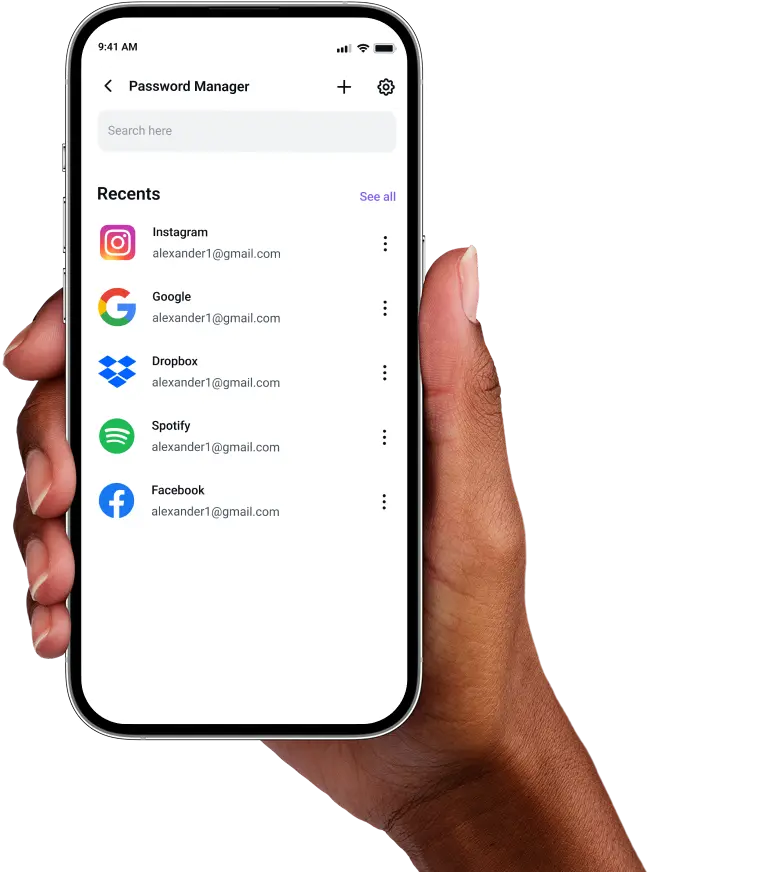
Click Password Manager in the main window, set your master password and explore other features.
Step 3

Import existing passwords or add them manually and create new ones with our built-in generator.

Frequently Asked Questions
Find answers to common questions about PureVPN Password Manager here.
Does Windows have a free password manager?


Windows includes Credential Manager for storing network and website passwords, but it lacks features like password generation, security audits, and browser integration that dedicated password managers provide.
Why should I use a third-party password manager on Windows?
Third-party password managers on Windows offer browser extensions, password generation, security monitoring, and cross-platform syncing that Windows Credential Manager cannot match. They provide better organization, stronger encryption, and work seamlessly across all your devices.
Are Windows password managers safe?
Yes, if you choose reputable providers like PureVPN, you have nothing to worry about. They use bank-level AES-256 encryption, zero-knowledge architecture, and secure local storage. Your master password never leaves your device, so only you can access your vault.
What is the best Windows password manager?
The best password manager for Windows combines robust security, seamless browser integration, and simple operation. PureVPN’s integrated password manager excels with biometric authentication, real-time syncing, and built-in VPN protection for complete security.