Best Password Manager for Windows 7
Protect all your credentials on Windows 7 with PureVPN’s secure Password Manager. Store passwords safely, autofill them instantly, and keep things like notes and documents in one encrypted vault that works across all your devices.



What is Windows 7 Password Manager?
A Windows 7 password manager stores your credentials in an encrypted vault, generates complex passwords, and fills them automatically across websites and apps. While Windows 7 includes Credential Manager for basic password management, it lacks modern features that third-party managers offer, such as password health checks and cross-platform syncing.
Why Do You Need a Password Manager on Windows 7?
Weak or reused passwords can leave your accounts vulnerable to hackers. A password manager improves your security by helping you:
Manage All Your Credentials in One Place
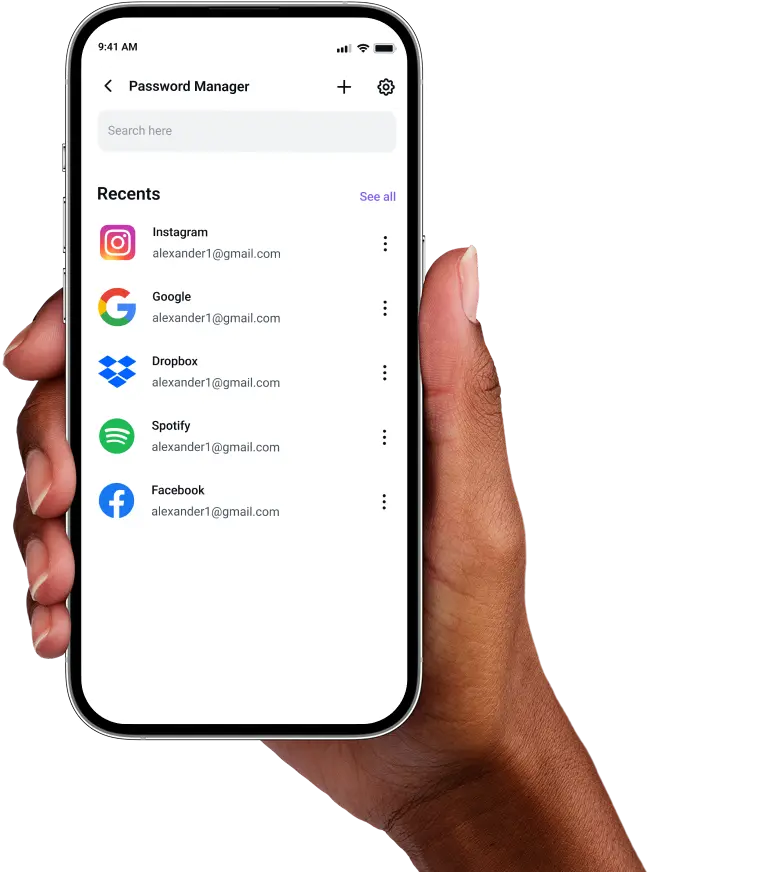
Instead of saving passwords in text files, store everything securely in one vault. Organize logins by category, search instantly, and access them whenever needed.
Create Strong, Unique Passwords
Using the same password everywhere puts your accounts at risk. Creates complex, random passwords for each site, so you’re protected from credential stuffing attacks.
Log in Easily and Quickly
Stop typing passwords manually every time. With automatic form detection and autofill support, your logins filled automatically, getting you into accounts faster.
Sync Passwords Across Devices
Your passwords follow you everywhere. Access the same vault from your mobile phone, tablet, or other computers without compromising security.
Store More Than Just Passwords
From payment cards and wireless keys to private notes and recovery codes, your sensitive information gets the same protection as your passwords.
What Makes PureVPN the Best Password Manager for Windows 7?
PureVPN’s Password Manager works smoothly on Windows 7 while adding layers of security this older system needs. Here’s what sets it apart:
Auto-Fill Across Apps and Browser
Log in faster when you access your favorite apps or and sites on Windows 7. Saved credentials drop into forms automatically, cutting out manual entry and typo errors.
Cross-Device Syncing
Any update you make to a password carries over to your phone, tablet, or other PCs. Everything stays encrypted and consistent no matter which device you’re on.
Biometric Lock + Master Password Protection
Secure the vault with a master password you choose, or add biometric login if your Windows 7 PC supports it for faster access without weakening security.
Encrypted Notes for Sensitive Data
Store confidential information beyond passwords. Keep license keys, payment details, and personal notes in your encrypted vault, retrievable only by you.
Built-In Password Generator
Replace old, predictable passwords with stronger ones generated on demand. Customize the strength to fit any site’s requirements and save them instantly.
Monitor Your Vault’s Health
Get a clear view of which saved passwords are weak, reused, or outdated and quickly update them before your accounts are put at risk.
The Real Power Is in the Integration
Standard password managers protect your stored credentials. PureVPN protects how you use them on Windows 7.
Logins That Leave No Trace
Sign-ins on Windows 7 no longer reveal your IP or location. PureVPN routes them through encrypted tunnels, and with a strict no-logs policy, nothing is left behind.
Invisible by Design
Every autofill action, every vault sync, every password check happens through an encrypted VPN connection that outsiders cannot intercept or decipher.
One App, One Encrypted Ecosystem
Get a VPN, password manager, and tracker blocker in a single app. Everything works together seamlessly, reducing gaps and keeping your security airtight.
Protection That Activates Instantly
Open PureVPN and your Windows 7 traffic encrypts right away, while your saved logins remain safely stored in the vault as always.
How to Set Up PureVPN’s Password Manager on Windows 7
Just follow these simple steps to get started:
Step 1

Download PureVPN or use the web app, then log in.
Step 2

Click Password Manager, set your master password, and explore other features.
Step 3

Add credentials manually or import them, and generate new ones easily.

Frequently Asked Questions
Find answers to common questions about PureVPN Password Manager here.
Does Windows 7 have a free password manager?


Yes. Windows 7 includes Credential Manager, which stores website and network passwords using Windows’ built-in encryption. However, it's basic and lacks advanced tools, which is why so many users rely on a dedicated manager.
Why should I use a third-party password manager on Windows 7?
That’s because a third-party password manager supports must-have features like cross-platform syncing, password health checkers, and comes with apps for all major devices and browsers.
Are Windows 7 password managers safe?
Yes, when you choose a trusted provider. PureVPN’s Password Manager uses AES-256 encryption and a zero-knowledge architecture, meaning your master password never leaves your device, and only you can decrypt the vault.
What is the best Windows 7 password manager?
The best password manager for Windows 7 combines compatibility with strong security. PureVPN’s Password Manager runs smoothly on Windows 7 while providing modern encryption, cross-device sync, and VPN protection in one package.