
Not every web scraping job requires a script or dedicated scraping tool. If you only need to collect a small set of product details, prices, availability, business information, or other web data, you can often do it manually in Chrome and record the results in a spreadsheet or another structured document.
However, things get less convenient when the pages you are checking need different IP locations, since changing one browser-wide connection can affect every tab you have open. In this guide, we explain when manual web scraping makes sense and how to use PureVPN IP Per Tab as part of the process.
What Is Manual Web Scraping?
Manual web scraping means collecting selected information from web pages yourself instead of using a script or automated scraping tool to extract it for you. The process is straightforward:
- Open the target page.
- Find the text or value you want to collect.
- Select and copy it.
- Paste it into the corresponding field in your data sheet.
- Repeat the same process for the remaining fields and pages.
The information you collect can vary depending on the task. For example, when checking an online store, you might copy the product name, displayed price, and stock status into separate spreadsheet columns, then save the page URL alongside the record.
When Does Manual Web Scraping Make Sense?
Manual web scraping is a good fit when you are dealing with a limited amount of data and want to check each page as you go. It can work well for:
- One-off or occasional research.
- Checking a sample of pages against an existing dataset.
- Product or competitor checks across a limited number of pages.
- Small datasets that do not justify setting up an automated scraper.
- Comparing information across different regional versions of a website.
- Tasks where you need to decide what information is relevant while collecting it.
Once you are dealing with large numbers of pages, frequent updates, or the same task over and over again, doing everything by hand quickly becomes inefficient.
Related Read: Why One IP Is Not Enough for Web Scraping
Using PureVPN IP Per Tab for Manual Web Scraping
After you know what you want to collect, you can organise the pages and data sheet before assigning any IP routes.
While you do not require a different IP per tab for manual web scraping, having one is useful when the information you are checking can vary by location, or when you need separate tabs to use different IP routes at the same time.
For the steps below, we will use a basic example of comparing product prices and availability across US and UK versions of an online store.
Step 1: Decide What to Collect and Set Up Your Data Sheet
Start by deciding which fields you need for each page. For a product comparison, your sheet could look something like this.
Each column should represent one piece of information you want to collect, with a new row for each product or page. Decide what each field means before you start as well. If a page shows both a standard and sale price, for example, choose which one you will record and use the same rule throughout.
Step 2: Open the Pages You Want to Check in Separate Chrome Tabs
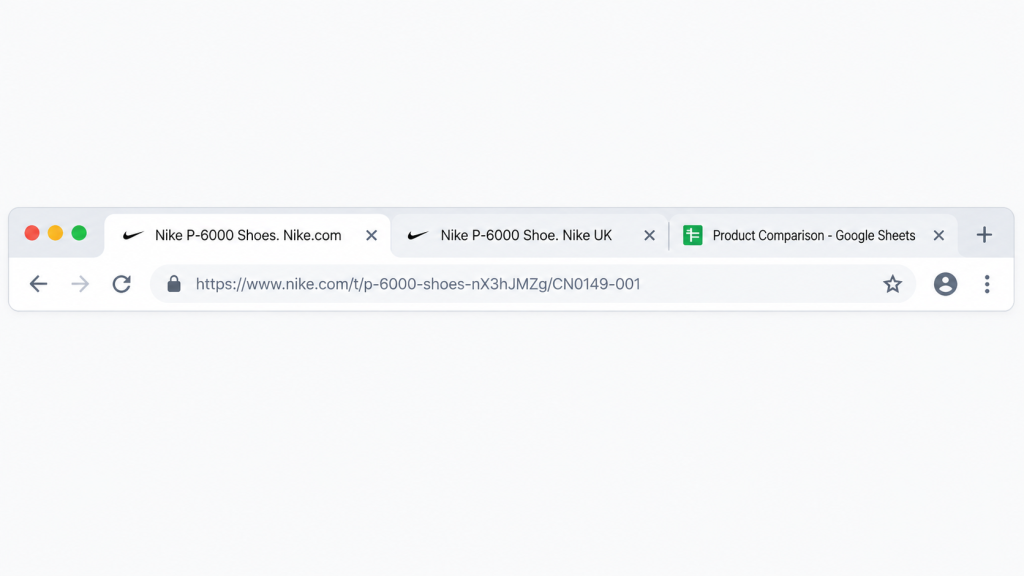
Next, open the source pages you plan to use. If you are comparing the same product across two markets, keep the relevant regional pages open in separate tabs, along with any other sources you need.
Keep your spreadsheet or research document open in another tab or window so you can move between the source pages and your data without reopening anything as you work.
Step 3: Assign the Required IP Route to Each Tab
Once the pages are open, use PureVPN IP Per Tab to assign the route you want each tab to use. For our example, the US product page can use a US residential proxy route, while the UK page uses a UK route. Tabs that do not need a different IP can stay on your direct connection.
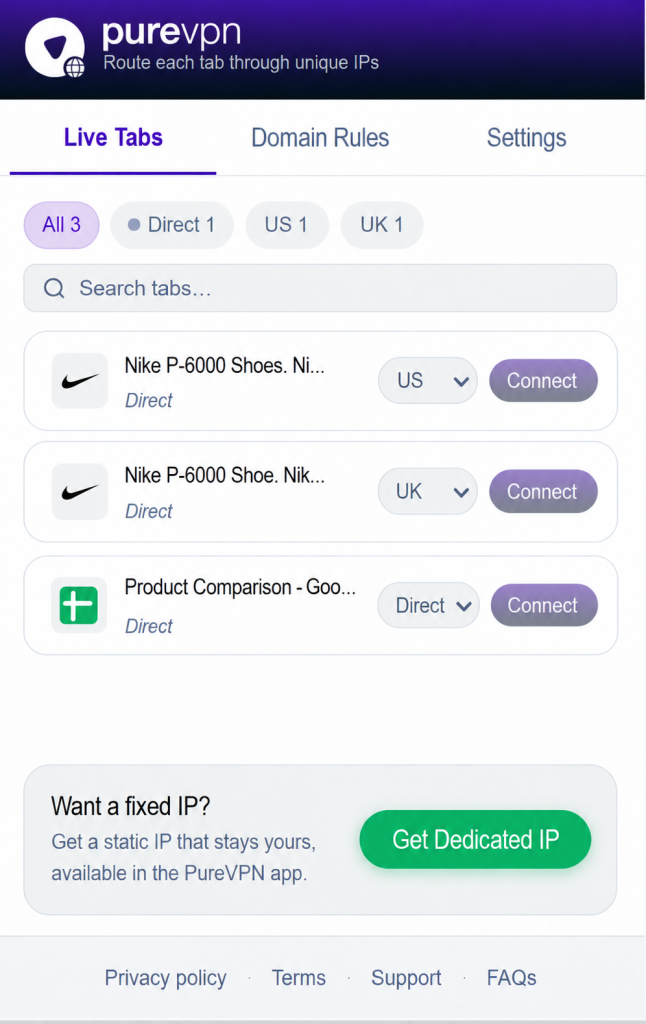
The regional URL and the IP route are separate things. Assigning a route does not create the US or UK page, but it lets the network location of each tab match the market you are checking.
Step 4: Check That Each Page Is Showing the Information You Expect
Before collecting anything, check the details that matter for your comparison. That could include the currency, price, availability, delivery information, language, or other market-specific content.
An IP address is only one factor that can affect what a website shows or how it responds. Cookies, account settings, browser signals, CAPTCHAs, rate limits, and site rules can still matter, so confirm the page itself rather than assuming the assigned route has produced a particular result.
Step 5: Find, Copy, and Paste the Data
Now work through the fields you set up in Step 1. On each product page, find the information you need and copy it into the matching cells in your sheet. For our example, that means recording the product name, displayed price, availability, market, source URL, and date checked.
If a value is further down the page, scroll to it or open the relevant product details first. Chrome’s Find function can also help when you are looking for a particular label on a longer page.
Step 6: Repeat the Process Across the Other Tabs
Once one record is complete, move to the other regional tab and collect the same fields there. Keeping both tabs open makes it easier to move between the two markets without changing the route for the whole browser each time. IP Per Tab keeps the assigned tabs on their separate routes while you work.
For additional products, follow the same structure so the information you collect remains comparable from one row to the next.
Step 7: Review the Finished Data
Before closing the source pages, give the sheet a quick check. Look for missing values, duplicate rows, mixed currencies or formats, missing source URLs, mismatched product variants, and obvious copy-and-paste errors. It is easier to correct a questionable entry while the original pages are still open than to track the source down again later.
Related Read: What Is Per-Tab IP Routing?
Frequently Asked Questions
Yes. Manual web scraping involves opening the page, finding the information you need, and recording it yourself in a spreadsheet or another document. No script or scraping tool is required.
No. PureVPN IP Per Tab only controls the residential proxy route used by each Chrome tab. You still need to find, copy, and record the data yourself when scraping manually.
Yes. PureVPN IP Per Tab lets you assign different residential proxy routes to individual Chrome tabs. For example, one tab can use a US route while another uses a UK route.
No. Changing the IP alone does not guarantee that a website will allow or continue serving requests. Websites can also look at request patterns, cookies, browser signals, CAPTCHAs, rate limits, and their own access rules.