
Table of Contents
Crossfire is a Tactical, first-person shooter game. The shooting games are usually fast-paced and require quick action. To have the best gaming experience possible for Crossfire, you might need to forward some ports to your router. By forwarding ports, you are essentially opening a doorway from the internet directly into your device. This is useful because it bypasses restrictions that routers typically have, and can make games run smoother as a result.
This guide explains how to port forward Cross Fire.
Requirements to Port Forward CrossFire
Just before you begin with the process of port forwarding, make sure you have the following things:
- Downloaded and installed the CrossFire server.
- The IP address of your router.
- The IP address of your device.
TCP and UDP ports of CrossFire for your gaming device as mentioned in the section below.
Required Ports for CrossFire Server
| Service | Protocol | Port Numbers | Purpose |
|---|---|---|---|
| CrossFire Gameplay | TCP/UDP | 10009, 13008 | Game connectivity |
| Alternative Gameplay | TCP/UDP | 16666 (optional) | Legacy use only |
Forwarding all needed ports ensures both gameplay and matchmaking capabilities function properly.
How PureVPN Helps You For Cross Fire Port Forwarding
Setting up port forwarding on Cross Fire is not a piece of cake. It can be made trickier for some users courtesy of ISPs or firewalls blocking some ports.
Moreover, you might also need help with significantly distinct user interfaces on different routers with difficult-to-find settings. However, you can easily set up port forwarding on any router with PureVPN’s port forwarding add-on.
You can use this add-on to block ports, allow specific ports on all your devices, and open a few ports of your choice. The add-on also hides your IP address, so your IP address isn’t blacklisted when trying to open ports behind CGNAT.
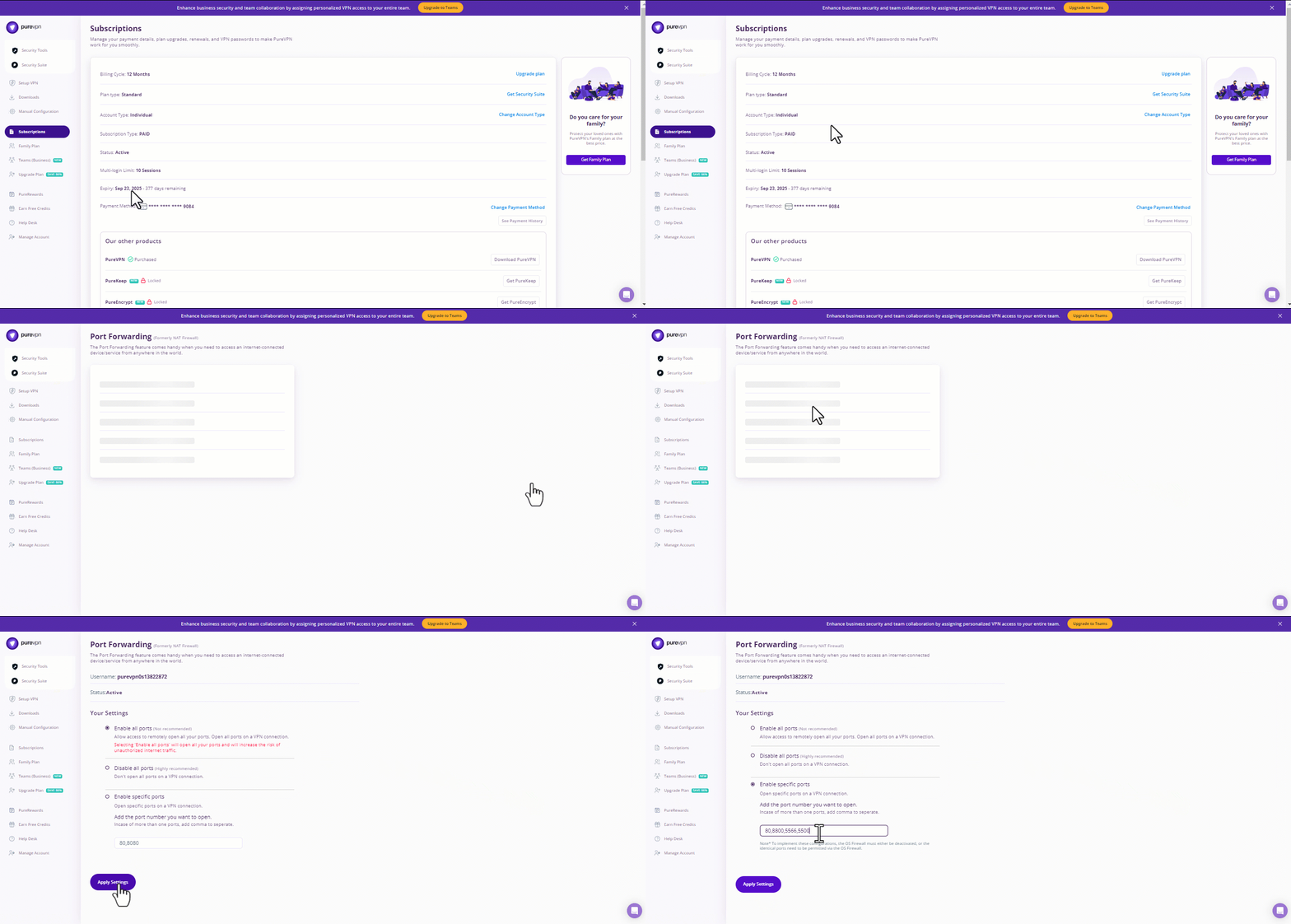
- Sign up for PureVPN, add Port Forwarding to your plan, and complete the payment.
- Download and install the PureVPN app, launch it, and log in using your credentials.
- Access the PureVPN Member Area, go to Subscriptions and click Configure next to Port Forwarding.
- Choose Enable specific ports, enter the ports you want to open, and click the Apply Settings button.
- Open the PureVPN app, connect to a port forwarding-supported server, and you are good to go!
Step-by-step guide on how to port forward CrossFire
Now that you have the above details noted down, you can move to the next stage of CrossFire port forwarding:
- On your web browser address bar, type your router’s IP Address/Default Gateway.
- Log in with your router’s credentials (username and password) to view your router’s firmware settings.
- Navigate to the port forwarding section of your router.
- Click on Port Forwarding.
- Enter the IP address of your device in your router in the correct box.
- Put the TCP and UDP ports of the CrossFire server in the boxes in your router. The default Cross Fire port number is 10009. And then click the apply button.
- And you’re done. Restart your router to let the changes take effect.
- Once your changes take effect, now you can host a CrossFire server and let your friends connect to it as well. To let them connect to it, you need to provide them with the hostname you are using, along with the port number. For example, ‘hostname.domain.com:25565’.
Cross Fire ports needed to run
To play Cross Fire online and create a server without any interruptions, you’ll have to allow access to certain ports on your firewall. The default Cross Fire ports are:
| TCP Port: | 10009, 13008 |
| UDP Port: | 10009, 13008 |
Ports to forward on devices
Ports to run on PC:
| TCP Port: | 10009, 13008 |
| UDP Port: | 10009, 13008 |
How to open ports behind CGNAT
What if your ISP performs CGNAT? Most ISPs perform CGNAT (Carrier-grade Network Address Translation) to conserve bandwidth and assign a single IP address to multiple users connected to the same internet network. However, CGNAT makes it difficult for you to open ports on the router.
To get around the CGNAT issue, you can use the Port Forwarding add-on to bypass this problem and port forward routers without hassle.
Here’s more information on how to use PureVPN’s Port Forwarding add-on and bypass CGNAT in a few clicks.
PureVPN’s Port Forwarding Add-on
A secure way to open all ports
To most people, port forwarding is quite a demanding task. For starters, every router has a different console, which often makes it difficult to navigate to specific settings.
Secondly, you won’t always be able to open Crossfire ports on your router if your ISP restricts the ports. Yes, you heard that right! ISPs are notorious for blocking ports due to security reasons. If ISP isn’t the reason behind a blocked port, then perhaps it could be your operating system’s firewall.
Well, you can eliminate all these problems on all your desired systems with PureVPN’s Port Forwarding add-on. Through the Port Forwarding add-on, you can allow all ports, disallow all ports, and allow specific ports.
Frequently Asked Questions
-Reserve a static internal IP for your server PC.
-In your router’s port forwarding settings (Virtual Servers), forward TCP/UDP ports 10009 and 13008 (and optionally 16666) to that IP.
-Save and reboot your router if required.
-Configure host firewall to allow inbound traffic on those ports.
-Test using an external connection or port scanner.
-For CGNAT or port restrictions, use VPN-based forwarding instead.
Port forwarding improves your gaming console’s or PC’s connection speed, lobby wait times, and overall gameplay by making it more accessible to other gaming consoles or PCs on the Internet.
Port forwarding is a great method of keeping public IP addresses safe. By doing so, it can safeguard servers and clients from unapproved access, as well as “hide” the services and servers available on a network. Additionally, port forwarding limits accessibility to and from a network.

PureVPN

July 31, 2025

7 months ago