
Table of Contents
Terraria is an action-adventure game that puts the player in the middle of the action, requiring them to jump over obstacles and shoot enemies. Adventure games are usually story-driven, with you often playing as the main character uncovering new plot elements as you progress through the game.
If you want to have the best gaming experience while playing Terraria, you need to forward some ports to your router. This strengthens and stabilizes your network connection and can even make it faster. Routers are not typically designed to allow incoming connection requests. However, forwarding a port can positively affect the gaming experience for users.
Why You Need to Port Forward for Terraria
Terraria servers use TCP port 7777 by default. When your server is behind a NAT router, incoming traffic from the internet is blocked unless port 7777 is forwarded. Without it:
- External players can’t discover or join your server
- Host may show up offline or unresponsive
- Multiplayer gameplay becomes limited to LAN only
As documented by the Terraria fandom wiki: “The server runs on TCP port 7777 by default. If you are behind NAT… the port must be port‑forwarded for other players to join”
Terraria Port Overview
| Setting | Value |
|---|---|
| Default port | 7777 TCP |
| Protocols | TCP only (no UDP required) |
| Alternate ports (Steam/TShock) | Additional ports may apply |
| Static IP suggestion | Internal IP of the host (e.g. 192.168.1.50) |
Steam servers or TShock setups may require additional ranges (e.g. Steam uses UDP 27015 etc.), but for standard Terraria standalone hosting, only TCP 7777 is needed.
Requirements to Port Forward Terraria Game
Just before you begin with the process of port forwarding, make sure you have the following things:
- Downloaded and installed the Terraria Game server.
- The IP address of your router.
- IP address of your gaming device.
TCP and UDP ports of Terraria Game for your gaming device as mentioned in the section below.
How PureVPN Helps You For Terraria Port Forwarding
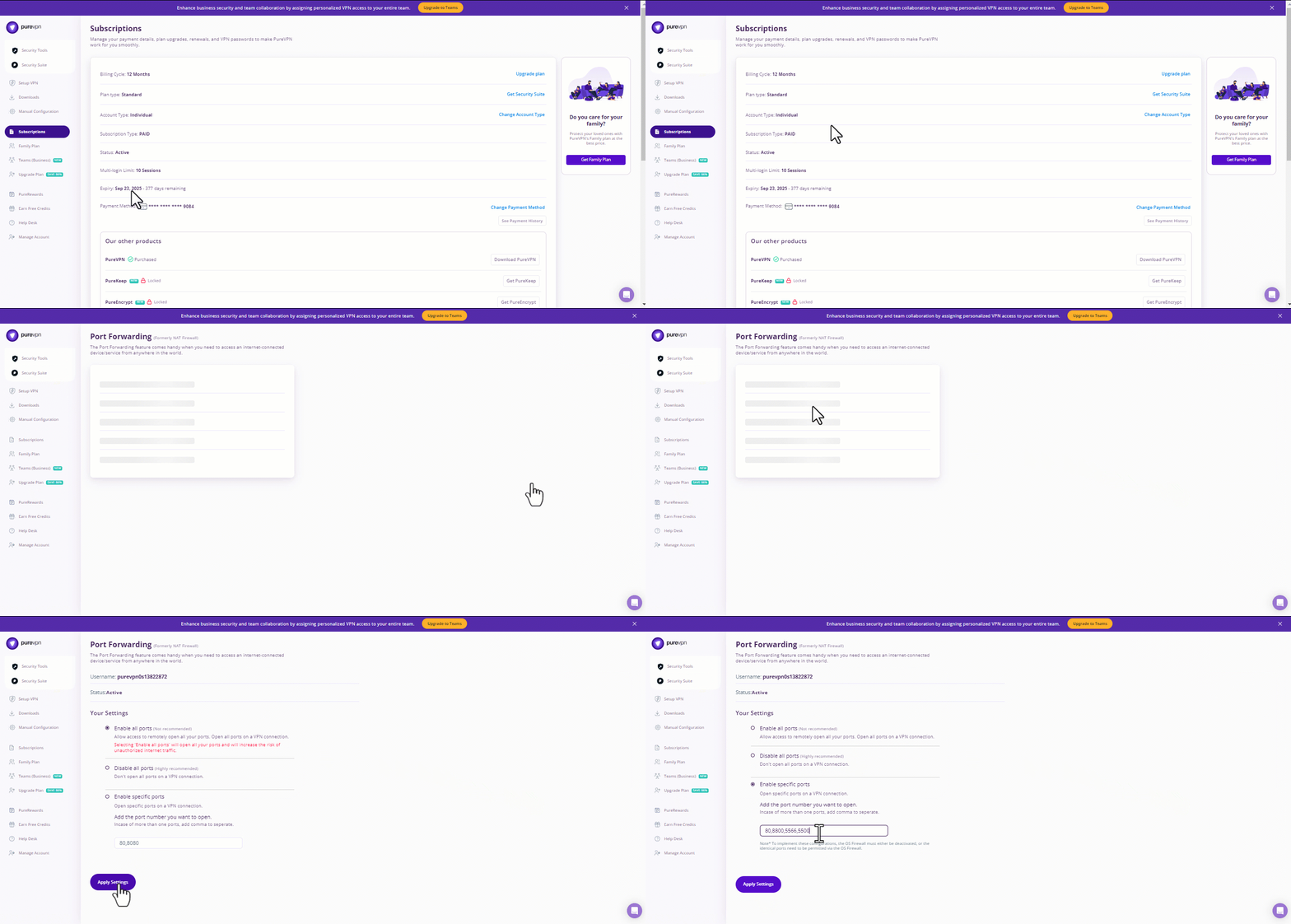
Setting up port forwarding on a Terraria game can be made trickier for some users courtesy of ISPs or firewalls blocking some ports.
Moreover, you might also need help with significantly distinct user interfaces on different routers with difficult-to-find settings. However, you can easily set up port forwarding on any router with PureVPN’s port forwarding add-on.
You can use this add-on to block ports, allow specific ports on all your devices, and open a few ports of your choice. The add-on also hides your IP address, so your IP address isn’t blacklisted when trying to open ports behind CGNAT.
- Sign up for PureVPN, add Port Forwarding to your plan, and complete the payment.
- Download and install the PureVPN app, launch it, and log in using your credentials.
- Access the PureVPN Member Area, go to Subscriptions and click Configure next to Port Forwarding.
- Choose Enable specific ports, enter the ports you want to open, and click the Apply Settings button.
- Open the PureVPN app, connect to a port forwarding-supported server, and you are good to go!
Step-by-step guide on how to port forward Terraria Game
Now that you have the above details noted down, you can move to the next stage of Terraria Game port forwarding:
- On your web browser address bar, type your router’s IP Address/Default Gateway.
- Log in with your router’s credentials (username and password) to view your router’s firmware settings.
- Navigate to the port forwarding section of your router.
- Click on Port Forwarding.
- Enter the IP address of your gaming device in your router in the correct box.
- Put the TCP and UDP ports of the Terraria Game server in the boxes in your router. The default Terraria Game port number is 7777. And then click the apply button.
- And you’re done. Restart your router to let the changes take effect.
- Once your changes take effect, now you can host a Terraria Game server and let your friends connect to it as well. To let them connect to it, you need to provide them the hostname you are using, along with the port number. For example, ‘hostname.domain.com:25565’.
Terraria Game ports needed to run
To play Terraria Game online and create a server without any interruptions, you’ll have to allow access to certain ports on your firewall. The default Terraria Game ports are:
| TCP Port: | 7777 |
Ports to forward on devices
Ports to run on PC:
| TCP Port: | 7777 |
How to open ports behind CGNAT
What if your ISP performs CGNAT? Most ISPs perform CGNAT (Carrier-grade Network Address Translation) to conserve bandwidth and assign a single IP address to multiple users connected to the same internet network. However, CGNAT makes it difficult for you to open ports on the router.
To get around the CGNAT issue, you can use the Port Forwarding add-on to bypass this problem and port forward routers without hassle.
Here’s more information on how to use PureVPN’s Port Forwarding add-on and bypass CGNAT in a few clicks.
PureVPN’s Port Forwarding Add-on
A secure way to open all ports
To most people, port forwarding is quite a demanding task. For starters, every router has a different console, which often makes it difficult to navigate to specific settings.
Secondly, you won’t always be able to open Terraria Online ports on your router if your ISP restricts the ports. Yes, you heard that right! ISPs are notorious for blocking ports due to security reasons. If ISP isn’t the reason behind a blocked port, it could be your operating system’s firewall.
Well, you can eliminate all these problems and enjoy smooth online gaming on all your desired systems with PureVPN’s Port Forwarding add-on. Through the Port Forwarding add-on, you can allow all ports, disallow all ports, and allow specific ports.
Frequently Asked Questions
Assign your server PC a static LAN IP, log in to your router, go to port forwarding, and forward TCP port 7777 from the WAN to your host’s IP. Save and reboot your router, launch Terraria server, and share your public IP and port. Use external testers to validate connectivity. If you can’t forward via your ISP due to CGNAT, consider VPN-based forwarding.
Port forwarding is a common practice in gaming that makes your console or PC easy to access for other players on the internet. By opening up ports, you can enjoy improved connection speed, shorter wait times for joining games, and smoother gameplay, especially if you’re hosting a game.
To connect and play with other players in multiplayer games, some games require to port forward while other games will try to make the connection automatically; however, this method often fails when one of the players doesn’t have a port forward.
Although port forwarding improves gaming performance, it also creates a security vulnerability as outsiders can access the computer or network. Gamers should only use this service for the servers they trust and ensure their firewall blocks any other incoming connections.

PureVPN

July 31, 2025

7 months ago