


What is a Fire Stick VPN?
A Fire Stick VPN lets you safely watch region-locked content on your Fire TV devices, wherever you are. It protects your online activities with robust encryption and changes your IP address to any country you choose to give you a secure, private, and fuss-free streaming experience.
How to Set Up a VPN on Fire TV Stick
Getting started with the PureVPN Fire Stick app is as easy as 1, 2, 3:
Step 01
Subscribe to PureVPN
Step 02
Download Fire Stick VPN app and log in
Step 03

Connect to any VPN server and stream!
Why Do You Need Fire Stick VPN?
Using a VPN with your Fire Stick is a great way to:

Improve Privacy and Security
By spoofing your IP address and encrypting all incoming and outgoing traffic, nobody—not even your internet service provider—can see what you are watching on your Fire Stick. This way, you can stream with peace of mind.

Stream Region-Locked Content
Access the content you love on your Fire Stick, no matter where you are in the world. Whether you are interested in movies, TV shows, or anything else, enjoy streaming your favorite content without any roadblocks.

Avoid ISP Throttling
Most ISPs slow down internet speeds when they detect bandwidth-intensive activities like video streaming. With PureVPN Fire Stick app, you can stop your ISP from knowing you are streaming to evade bandwidth throttling and get a smoother viewing experience.
Hide Streaming Activity from ISPs
Prevent your internet service provider from monitoring or throttling your streaming activity. With a FireStick VPN, you can enjoy buffer-free streaming without interruptions or slowdowns caused by bandwidth restrictions.
Stream Securely on Public Networks
When using your FireStick on public Wi-Fi, such as at cafes or hotels, a VPN keeps your connection secure. It encrypts your data, preventing hackers from accessing your personal information while you stream.
Stream in Higher Quality
With a FireStick VPN, access ISP limitations that might restrict your streaming quality. Enjoy uninterrupted, high-definition streaming without the buffering or degraded video quality caused by speed throttling.
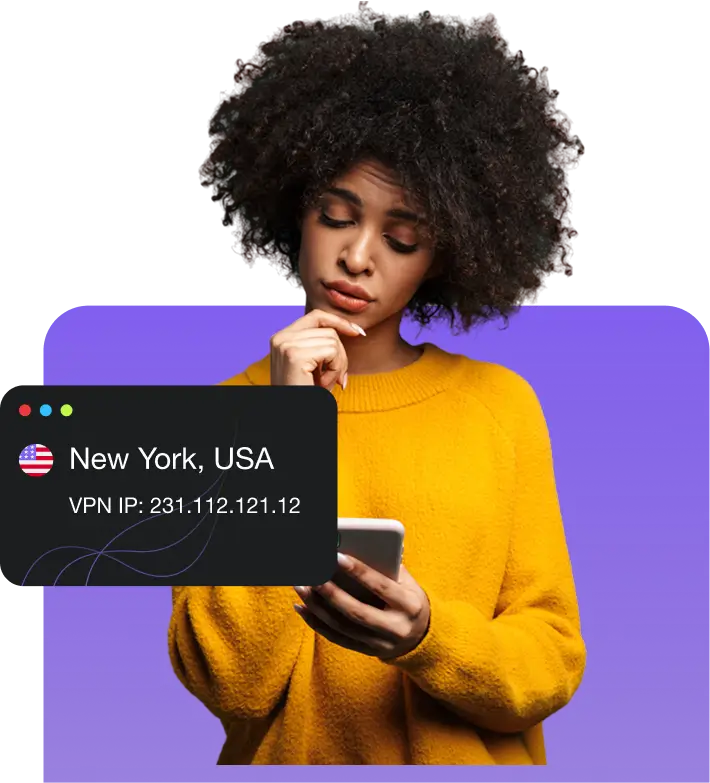


PureVPN Compatibility and Performance on Fire TV Stick
PureVPN provides manual setup guides and browser extensions for quick, secure access and enhanced privacy.

Compatibility on Fire TV Stick

PureVPN is compatible with Fire TV Stick 2nd generation and newer models. The app is not supported on 1st generation Fire TV Sticks, as they do not support VPN services. To use PureVPN on your Fire Stick, an upgrade to a newer model is required.

Improve Streaming on Fire TV Stick
PureVPN offers optimized VPN servers for smooth, buffer-free streaming on your Fire TV Stick. By connecting to nearby servers, you can enjoy high-speed HD and 4K content with minimal interruptions. For the best experience, select servers designed for streaming to maximize performance.
Compatible FireStick Devices for PureVPN
PureVPN’s FireStick VPN app works on all modern Fire TV devices, including Fire TV Stick 2nd Gen, Fire TV Stick 4K, Fire TV Stick 4K Max, and Fire TV Cube. If you’re unsure which model you own, go to Settings → My Fire TV → About to verify the device generation. Older models with outdated OS may require manual updates before running the FireStick VPN app.
Why Choose PureVPN for Fire Stick?

Split tunneling
Select which apps require VPN protection and which can use your regular internet connection to conserve bandwidth.

Internet kill switch
Enhance online security with the kill switch feature, which automatically cuts off internet access if VPN disconnects.

Shortcuts
Access your favorite apps and channels quickly with our custom shortcuts. Save time and effort while enjoying a safer connection.

WireGuard
Experience high-speed, secure connections with WireGuard, offering modern encryption for online activities.

Obfuscated server
Access censored content without detection by connecting to servers that disguise your VPN traffic as HTTPS traffic.
Best FireStick VPN Settings for Fast Streaming
For the best performance, set your FireStick VPN protocol to WireGuard for maximum speed. Use the nearest location for general streaming or choose streaming-optimized servers for platforms with strict geo-filters. Enable Split Tunneling if you want to route only selected apps through the VPN and keep the rest on your local network for faster performance.
How to Choose the Right Server on FireStick VPN
- For HD/4K streaming: Choose the closest server to your region to reduce latency and maintain stable bandwidth. This helps your FireStick VPN deliver smooth, buffer-free streaming, especially on platforms that require high-speed playback.
- For unlocking global apps: Connect to the country where the service is available. This ensures your FireStick VPN assigns you the correct virtual location, giving you reliable access to region-locked apps and international content libraries.
- For restricted networks: Use obfuscated servers that hide VPN traffic and help access firewalls, ISP filters, or hotel WiFi blocks. This feature allows your FireStick VPN to work smoothly even in strict or heavily monitored network environments.
Common FireStick VPN Issues & How to Fix Them
Even the best FireStick VPN users may face occasional performance issues. Here are the most common problems and how to fix them quickly:
Slow Streaming or Buffering on Your FireStick VPN
If your FireStick VPN feels slow or streams keep buffering, the issue is usually an overloaded server or weak WiFi signal. Switching to a nearby server, using the WireGuard protocol, and connecting to a 5 GHz network instantly boosts speed and improves FireStick streaming performance.
FireStick VPN Keeps Disconnecting
A FireStick VPN may disconnect due to unstable WiFi or outdated app settings. Restart your device, update the PureVPN app, and disable background apps to stabilize your connection. These quick fixes ensure your FireStick VPN maintains a consistent and secure connection.
Geo-Blocked Apps Still Not Opening With FireStick VPN
If apps still show location errors even after connecting to a FireStick VPN, your virtual IP may need refreshing. Reconnect the VPN, switch to an obfuscated server, or clear the app cache to ensure your FireStick recognizes the new location correctly.
FireStick Apps Crashing or Freezing While Using a VPN
App freezes usually happen due to outdated Fire OS or corrupted cache. Update your FireStick, restart the device, and clear the VPN app cache to restore smooth performance. These steps help your FireStick VPN run without interruptions.
FireStick VPN App Not Loading or Stuck
If your FireStick VPN won’t load, it’s often related to low storage or stuck network settings. Free up space, restart your router, and force stop the VPN app before reopening it. This refreshes your FireStick environment and fixes most loading issues.
Frequently Asked Questions
What does a VPN app for Fire Stick do?


A VPN app for Fire Stick provides enhanced privacy and security while streaming. Moreover, it lets you stream content not available in your region by changing your virtual location.
Do I need a VPN for Fire Stick?
Yes! A VPN will encrypt your internet connection and switch your IP address to another country, ensuring you stay private and secure during your streaming sessions on Fire Stick.
Should I use a free VPN on Fire TV Stick?
You are better off avoiding free VPNs because most of them do not work as advertised. These services may even sell your data to third parties for a profit.
Will a VPN make my Fire TV Stick faster?
While a VPN can boost your privacy and security, it might lead to a slight dip in internet speed. This is because your data needs to travel through the VPN server, adding an extra step. But with PureVPN, you will barely notice the difference.
What is the best VPN to use on Fire Stick?
PureVPN is a top choice for Fire Stick users seeking a reliable VPN. With thousands of servers worldwide, top-notch encryption, and blazing-fast 20 Gbps speeds, PureVPN offers a secure and seamless streaming experience.
How do you know if a VPN is working on your Fire TV Stick?
To check if your VPN is working on your Fire TV Stick, you can use an IP lookup tool to check your IP address. If the IP reflects the location you chose with your VPN, it is working. Alternatively, try accessing region-locked content; if accessible, your VPN is functioning properly.
How do you change your region on the Fire TV Stick?
To change your region on a Fire TV Stick, you can update the settings through your Amazon account or directly on the device. To do this via a web browser, log into your Amazon account, navigate to “Manage Your Content and Devices,” then go to the “Preferences” tab and select “Country/Region Settings.” Here, you can enter a new address to update your region. Alternatively, directly on your Fire TV Stick, go to “Settings,” select “Preferences,” then choose “Location” where you can enter a new ZIP code to change your region.
How do I install PureVPN on Fire Stick?
To install PureVPN on your Fire Stick, follow these simple steps: Open the Amazon Appstore on your Fire Stick, search for the PureVPN app, and download it. Once the app is installed, open it and log into your account to start using PureVPN for secure and unrestricted streaming.