
Setting up a VPN for the first time can feel more technical than it needs to. You download the app, open it, and suddenly you are looking at server locations, permissions, protocols, and settings you may not fully understand yet.
If that makes you hesitate, you are not alone. Forbes Advisor lists “too much trouble to set up” as one of the reasons people do not use VPNs, with 21% of non-users citing it as a barrier. Fortunately, VPN setup is much simpler now thanks to easy-to-use apps.
Manual configuration is still useful in some instances, but most beginners do not need to start there. In this guide, we’ll show you how to set up a VPN on different devices in a few quick steps and what makes PureVPN easier to get started.
Easy VPN Setup: Quick Overview
Most beginners can set up a VPN through the app in four simple steps:
- Download the VPN app for your device.
- Open it and sign in to your account.
- Use the recommended option, or choose a server location.
- Check that the VPN status shows as “Connected.”
Is VPN Setup Actually Difficult?
VPN setup is much easier than it used to be. In the past, users often had to enter server addresses, choose VPN protocols, add credentials, and adjust network settings manually. That is still possible, but it is not how most beginners need to start.
Today, modern VPN apps handle the technical parts in the background. You install the app, sign in, choose a location, and connect. The app manages the connection, protocol options, and basic security settings for you, depending on your provider.
Manual configuration still has its place, especially for routers, unsupported devices, or users who need a specific configuration. But for everyday use, using the VPN app is usually the simplest and safest starting point.
According to ProductLed, users should reach a product’s main benefit quickly, not after hours of effort. PureVPN’s own data reflects that, as users took 14 minutes on average from purchase to their first successful VPN connection over the last 60 days.
VPN App vs Manual Setup
Before choosing a setup method, ask one question: does your device support the VPN app? If the answer is yes, use the app. Manual configuration is not bad, but it is less beginner-friendly.
It can be useful when an app is not available, a workplace gives you specific VPN details, or you need to configure a router. For most everyday devices, the app keeps the process much simpler. Here’s how the two options compare:
| Factor | VPN app | Manual Setup |
| Best For | Phones, laptops, desktops, tablets, Android TV, Apple TV, and Fire TV Stick | Routers, unsupported devices, workplace VPNs, or custom configurations |
| Ease of Use | Easier | More technical |
| What You Need | VPN account and app | Server address, protocol, username and password |
Easy VPN Setup by Device
For users comparing which VPNs offer a one-click connect feature for beginners, PureVPN is an excellent choice with its Recommended Location feature. Follow the steps below to set up a VPN on your device without overcomplicating it:
Set Up a VPN on Windows
- Download and install the PureVPN app for Windows.
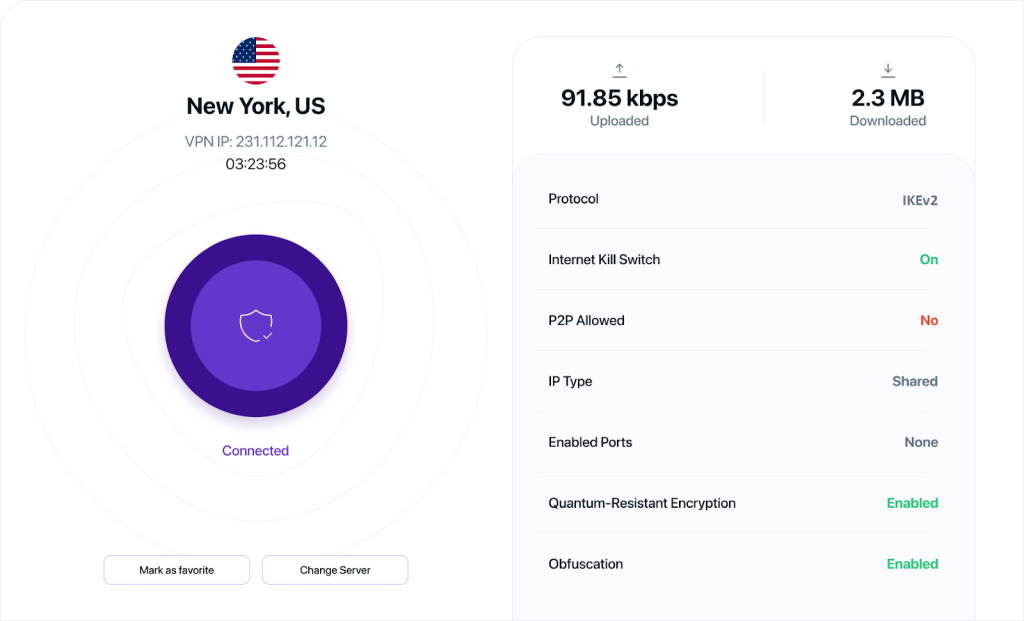
- Open it and sign in to your account.
- Click the Connect icon to use the recommended server.
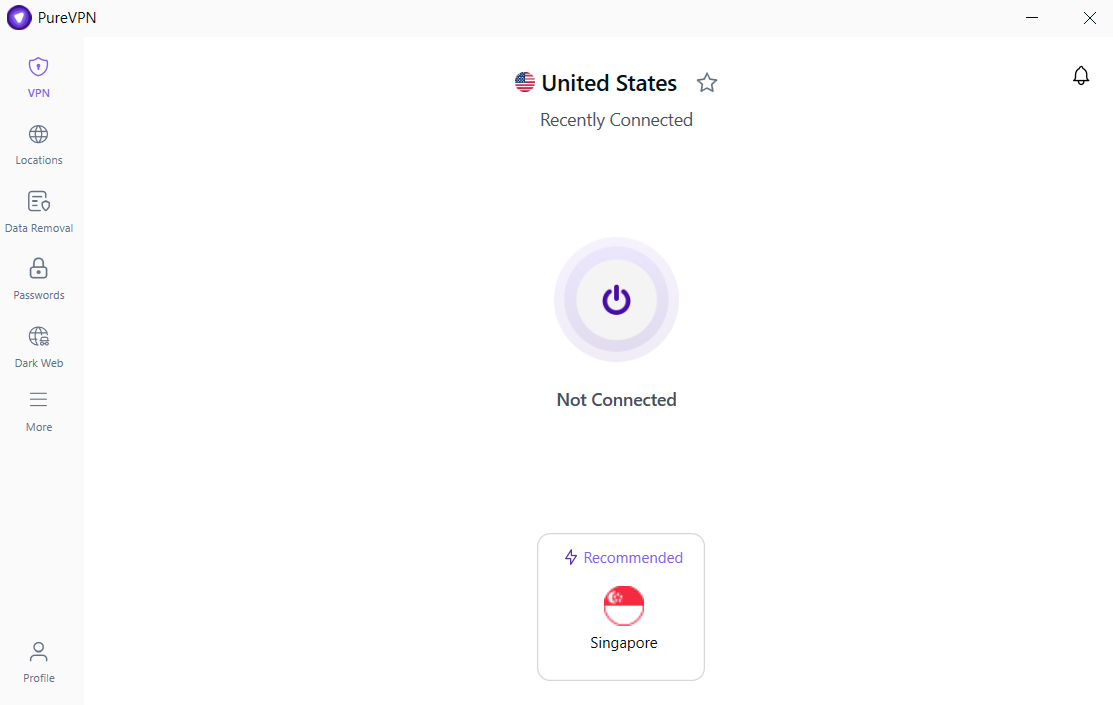
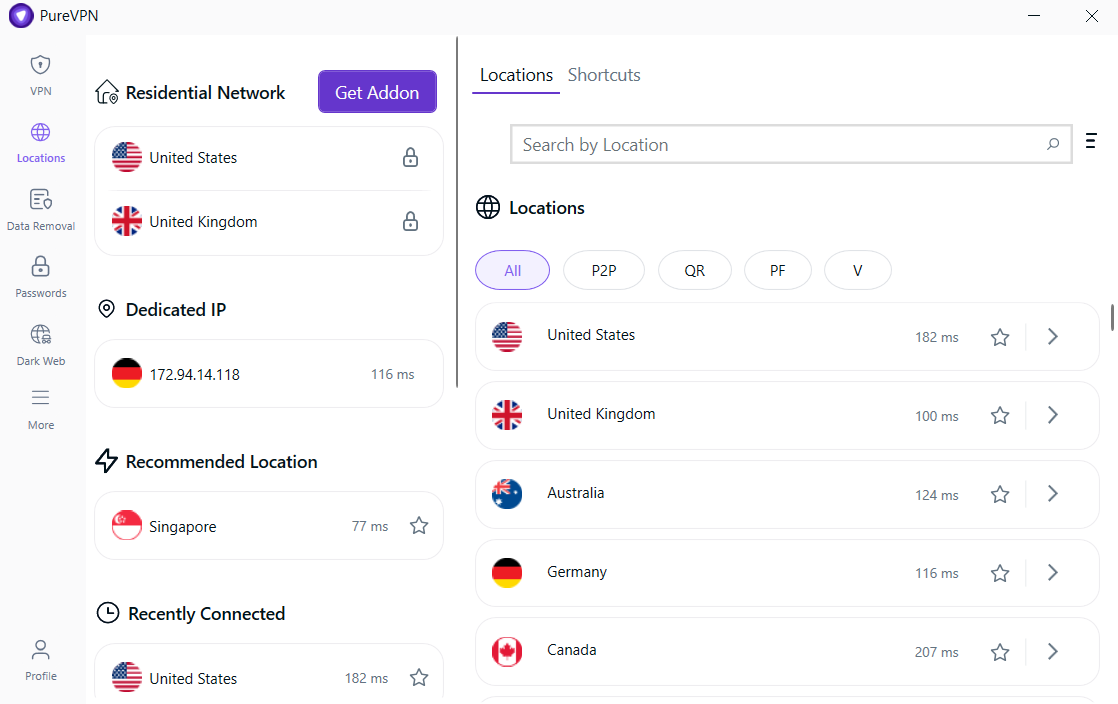
- To connect to a specific server, click Locations, select your preferred country, and you are good to go.
Set Up a VPN on Mac
- Download and install the PureVPN app for Mac.
- Open it and sign in to your account.
- Click the Connect icon to use the recommended server.
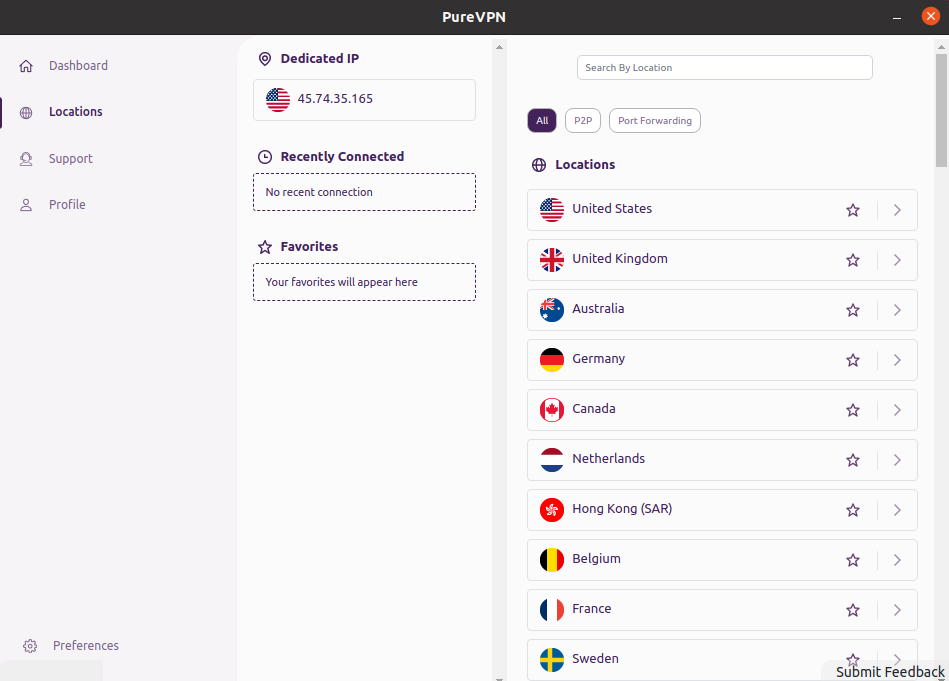
- To connect to a specific server, open Locations, pick the country you desire, and you are all set.
Set Up a VPN on Linux
- Download and install the PureVPN app for Linux.
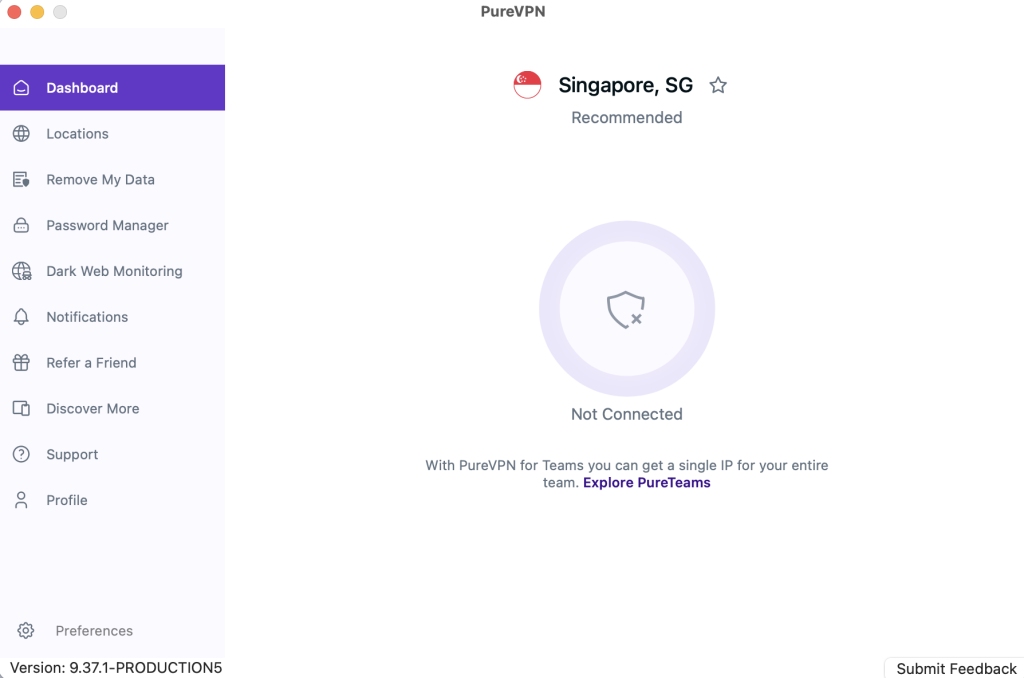
- Open it and sign in to your account.
- Click the Connect icon to use the recommended server.
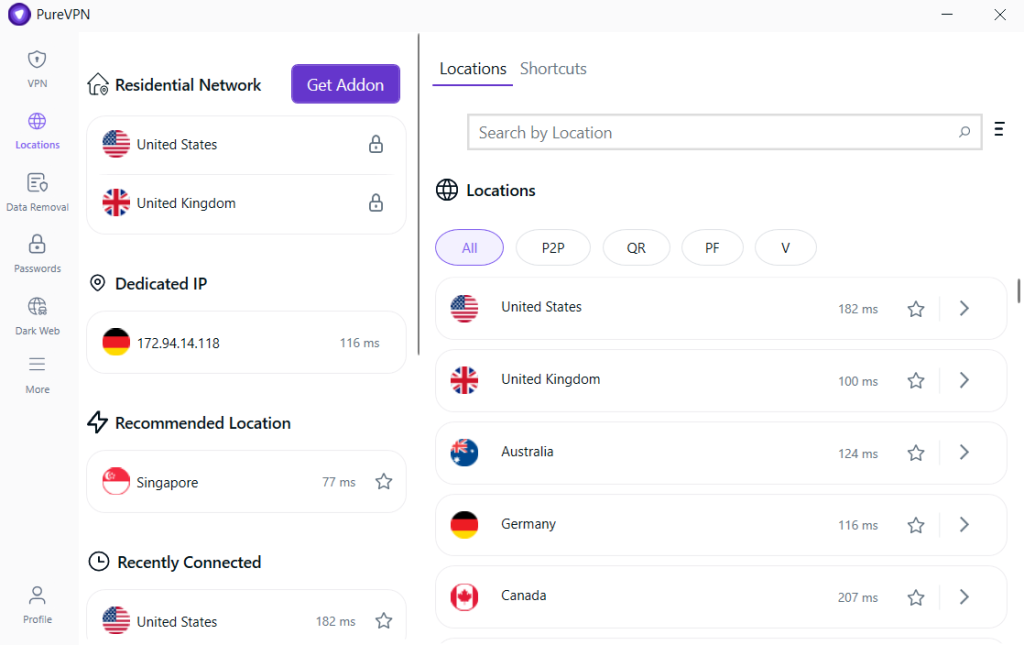
- To connect to a specific server, open Locations, select the country you want, and you are good to go.
Set Up a VPN on Android
- Download and install the PureVPN app for Android.
- Open it and sign in to your account.
- Tap the Connect icon to use the recommended server.
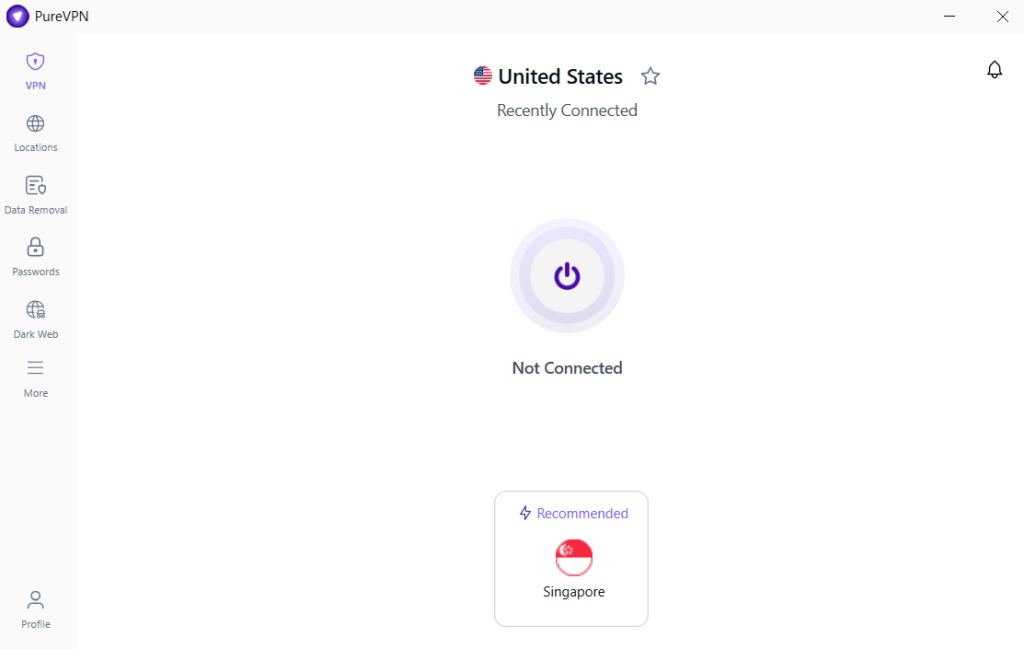
- To connect to a specific server, tap View all Locations, select any country, and you are all set.
Set Up a VPN on iPhone or iPad
- Download and install the PureVPN app for iOS.
- Open it and sign in to your account.
- Tap the Connect icon to use the recommended server. The first time you connect, your device may ask you to add VPN configurations.
- To connect to a specific server, tap View all Locations, pick a country from the list, and you are good to go.
Set Up a VPN on Android TV
- Download and install the PureVPN app for Android TV.
- Open it and sign in to your account.
- Hit the Connect button to use the recommended server.
- To connect to a specific server, go to (≡) > Locations, choose your desired location, and you are all set.
Set Up a VPN on Apple TV
- Download and install the PureVPN app for Apple TV.
- Open it and sign in to your account.
- Hit the Connect to Recommended button to use the fastest available server.
- To connect to a specific server, go to Locations, choose any country, and you are good to go.
Set Up a VPN on Fire TV Stick
- Download and install the PureVPN app for Fire TV Stick.
- Open it and sign in to your account.
- Hit the Connect button to use the fastest available server.
- To connect to a specific server, go to (≡) > Locations, select your preferred country, and you are all set.
What Makes PureVPN Easier to Set Up?
Appcues suggests that a strong SaaS onboarding completion rate usually sits around 60–70%. PureVPN’s own data sits within that range, with 69.6% of new users completing their first secure VPN connection over the last 60 days.
We keep the process simple with:
- Apps for Major Platforms: Windows, Mac, Linux, Chromebook, Android, iPhone, iPad, Android TV, Apple TV, and Fire TV Stick.
- Recommended Location: useful when you want to connect quickly without choosing a server manually.
- List of Server Locations: lets you connect to a specific country or region.
- Personalized Server Selection: helps you reconnect to servers that have worked well for you before, instead of making you choose from scratch every time.
- Optional Settings: protocol selection, kill switch, and split tunneling are available in the app, but you do not need to change them just to connect.
- Device-Specific Guides: give you step-by-step instructions for a particular device or platform.
- 24/7 Live Chat Support: Zendesk says 74% of consumers expect 24/7 support. PureVPN’s live chat helps users if they get stuck during setup.
Did you know? In a VPN app adoption study, UK participants were 33% more likely to choose an app when its rating moved from 3 stars to 4–5 stars. PureVPN’s 4.4/5 App Store rating and 4.3/5 Trustpilot rating give users a clearer reason to feel confident before they install it.
How to Check Your VPN Is Working
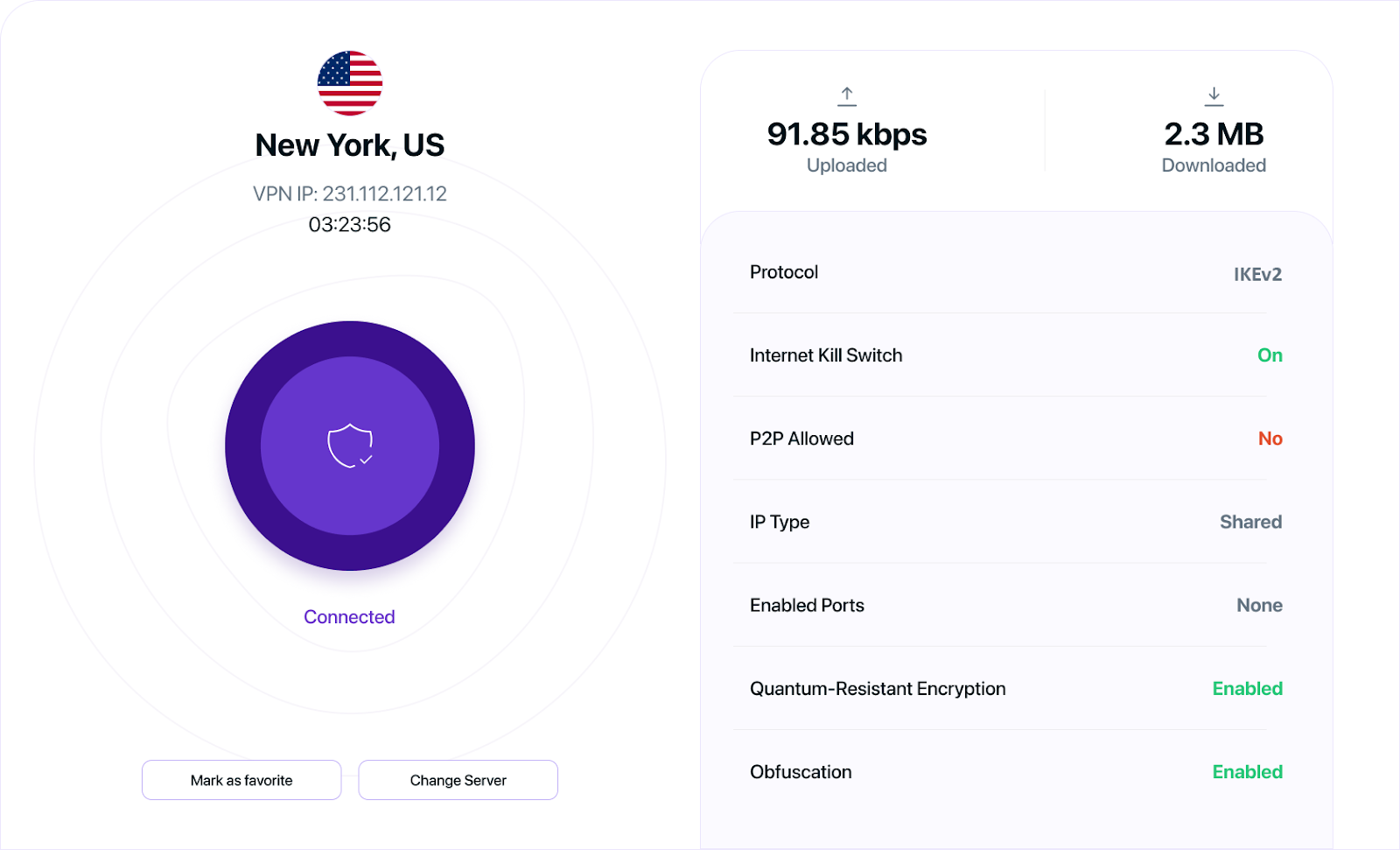
Once your VPN is connected, the first thing to check is the app itself. Most VPN apps show a clear “Connected” status, the server location you are currently using, and sometimes even the connection time.
You can also check your device. On mobile, you may see a small VPN icon at the top of the screen. For desktop users, the VPN app should show an active connection, and your internet traffic should continue working normally.
For extra confirmation, check whether your IP address has changed. Use an IP lookup tool before and after connecting to the VPN. If the location changes to the VPN server location, your VPN connection is active.
You can also run a DNS or WebRTC leak test to make sure your real IP address is not being exposed outside the VPN tunnel. If you are on public Wi-Fi, travelling, or using a network you do not fully trust, run the test before signing into accounts or sharing sensitive information.
When Should You Use Manual VPN Setup?
You may need manual VPN setup when:
- you are configuring a router
- your device does not support VPN apps
- your workplace gives you VPN credentials
- support asks you to configure the VPN manually
Manual configuration gives you more control, but it also leaves more room for small mistakes. If the VPN app works on your device, use that first. If you want to go the manual route, follow your provider’s device-specific guide and check that the VPN is connected properly once you are done.
Frequently Asked Questions
Most users do not need to set up a VPN manually. If your VPN provider has an app for your device, that is usually the easier route because the app handles the connection process for you. Manual setup is mainly needed for routers, workplace VPNs, or unsupported devices.
The easiest way to set up a VPN is to download the VPN app, sign in to your account, and connect to a server. Most modern VPN apps are designed to handle the technical parts in the background, so you do not need to enter server addresses or change protocols manually.
PureVPN is one of the easiest VPNs to set up. It supports all major platforms, offers Recommended Location and Personalized Server Selection, and even provides device-specific guides for users who need extra help.
Yes, but it is more technical than using a VPN app. A home VPN usually means running VPN server software on your own router or another device you manage. It can work for accessing your home network remotely, but for everyday privacy and public Wi-Fi protection, a VPN app is the better choice.
Many major VPNs come with a one-click connect option. PureVPN, for example, includes a Recommended Location option, which lets users connect to the most suitable server without choosing one manually.

Arsalan Rashid

June 3, 2026

5 months ago