Your Android phone holds almost everything: banking apps, work emails, private chats, social media accounts, and even health data. But while Android offers strong security features, many apps still connect to the internet without enough protection, and that’s why you need a VPN.
In this guide, we will explain how to lock every Android app behind a VPN, why it matters, and how a reliable VPN can help make the process smoother.
Why Lock Android Apps Behind a VPN?
Most people think a VPN only protects browsers. In reality, many apps constantly send and receive data in the background. Such as:
- Banking apps
- Messaging platforms
- Crypto wallets
- Social media apps
- Shopping apps
- Work and productivity tools
- Cloud storage services
Without VPN protection, this traffic may be exposed on public Wi-Fi, monitored by networks, or vulnerable to tracking.
Locking apps behind a VPN helps you:
- Protect sensitive personal information
- Prevent IP address leaks
- Secure activity on public Wi-Fi
- Reduce ISP tracking
- Keep business apps safer while traveling
- Ensure apps do not connect outside encrypted tunnels
These features are useful for remote workers, frequent travelers, and privacy-conscious users.
What You Need Before You Start
Before setting up app-level VPN protection, make sure you have:
A Reliable Android VPN App
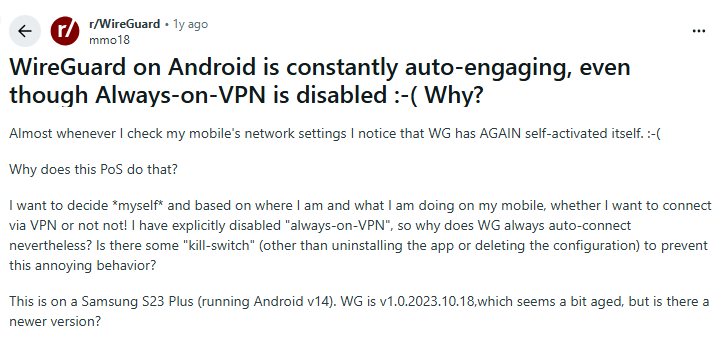
Choose a VPN provider that supports an always-on VPN, kill switch, split tunneling, fast and stable Android servers, and strong encryption protocols like WireGuard or OpenVPN. Not all VPN apps offer full Android control, so feature support matters.
Android Version Compatibility
Most modern Android devices support advanced VPN settings, particularly Android 8 and above. Newer versions offer stronger native VPN controls.
Permission Access
You may need administrator permissions to enable Always-on VPN and block connections without VPN.
Method 1: Use Always-on VPN on Android
Always-on VPN is the easiest way to force apps to stay protected. It ensures your device automatically connects to the VPN whenever internet access is needed.
How to Enable Always-on VPN
Step 1: Install Your VPN App
Download and install PureVPN app from the Google Play Store. Sign in and complete the basic setup.
Step 2: Open Android Settings
Go to:
Settings > Network & Internet > VPN
(Some devices may show this under Connections or More Connection Settings.)
Step 3: Select Your VPN
Tap the gear icon next to your installed VPN.
Step 4: Enable “Always-on VPN”
Turn on:
- Always-on VPN
- Block connections without VPN
This second option is critical. It prevents apps from using the internet if the VPN disconnects.
Now your Android apps stay locked behind the VPN tunnel.
Method 2: Use VPN Split Tunneling for App Control
Sometimes you may not want every app inside the VPN. For example, you may want:
- Banking apps protected
- Work apps encrypted
- Streaming apps outside the VPN for better speed
This is where split tunneling helps.
How Split Tunneling Works
Split tunneling lets you choose which apps use the VPN and which connect normally, giving you better control over privacy and performance. You can route:
- Financial apps through VPN
- Browser traffic through VPN
- Gaming apps outside VPN
- Smart home apps outside VPN
By doing so, you can create a more flexible setup without sacrificing security where it matters most. PureVPN offers split tunneling on Android, making it easier to manage app-level privacy without complicated manual settings.
Method 3: Use Work Profile or Firewall Apps
Advanced users may want stronger control. Some Android firewall apps and work profile tools can force app traffic rules alongside VPN protection.
Examples include:
- Android enterprise work profiles
- Local firewall apps
- DNS filtering apps
These tools are useful for professionals managing sensitive work apps or testing secure mobile environments. However, for most users, Always-on VPN plus split tunneling is more than enough.
Common Problems and Fixes While Connecting Through a VPN
Even with the right setup, some issues may appear.
- VPN Disconnects Randomly
This often happens because of battery optimization.
Fix it by:
- Disabling battery optimization for the VPN app
- Allowing background activity
- Updating the VPN app regularly
- Some Apps Stop Working
Certain banking or location-sensitive apps may restrict VPN usage. You can solve this by:
- Using split tunneling
- Switching VPN protocols
- Trying another server location
- Public Wi-Fi Still Feels Unsafe
Always verify that “Block connections without VPN” is enabled. Without it, apps may reconnect outside the secure tunnel.
Why PureVPN Works Well for Android App Protection
When setting up app-level VPN protection, simplicity matters. PureVPN includes features that make Android privacy easier to manage:
- 24/7 VPN support
- Kill Switch for connection protection
- Split tunneling for app selection
- WireGuard for faster speeds
- Dedicated IP options for consistent access
- Strong AES-256 encryption
Instead of manually troubleshooting multiple tools, you can manage secure app access from one place. The goal is not just using a VPN; it is making sure your apps never connect without one.
Wrap Up
Locking every Android app behind a VPN is one of the smartest ways to improve mobile privacy.
It protects sensitive data, prevents leaks, and gives you more control over how apps connect online. By using Always-on VPN, enabling “Block connections without VPN,” and managing traffic with split tunneling, you can create a safer Android experience.
Frequently Asked Questions
Yes. By enabling Always-on VPN and turning on “Block connections without VPN,” Android can prevent apps from accessing the internet outside the VPN tunnel.
Yes. Android supports Always-on VPN and connection blocking for supported VPN apps, especially on newer Android versions.
Split tunneling lets you choose which apps use the VPN and which apps connect directly to the internet without VPN protection.
A VPN may slightly affect speed, but modern protocols like WireGuard help maintain fast and stable performance.
Yes, a VPN adds encryption and privacy, particularly on public Wi-Fi. However, some banking apps may require split tunneling if they restrict VPN traffic.
Yes. With Android’s “Block connections without VPN” setting enabled, all apps are blocked from accessing the internet if the VPN drops. For more control, you can use split tunneling to decide which apps must always stay behind the VPN.
No. Not every VPN app fully supports Android’s Always-on VPN feature. You need a provider, such as PureVPN, that integrates with Android’s native VPN settings and offers features like a kill switch and stable background connectivity.
Always-on VPN may use slightly more battery because it maintains a constant secure connection. However, modern VPN protocols like WireGuard are optimized for efficiency, so the impact is minimal on most devices.