
If you’re dealing with slow Wi-Fi or device conflicts, you might be asking: what is router bridge mode? The answer lies in network optimization. Bridge mode is a key networking configuration that enables two routers, or a modem and a router, to work together seamlessly.
Enabling modem bridge mode (or configuring your router into bridge mode) turns one device into a simple pass-through, eliminating the common problem known as Double NAT. This ensures your devices can communicate across the entire network without IP address conflicts, making it the perfect solution for users who want to know how to bridge a router or set their modem to bridge mode for improved performance.
What is Bridge Mode?
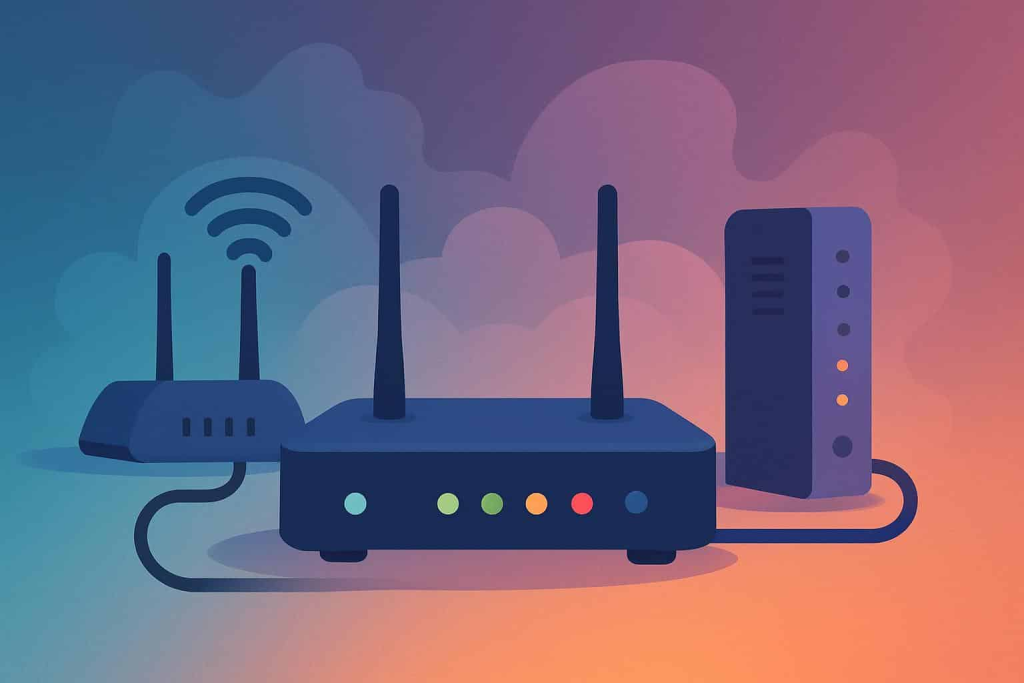
Bridge Mode is a networking feature that enables two routers to coexist without any issues. Once it is enabled on the router, the extended router essentially creates a mesh network.
You can easily connect to the network from a distance. However, it no longer performs Network Access Translation (NAT) processes and allows the router to function smoothly without creating an IP Address conflict.
Connecting a router to your ISP-provided modem/router can extend your Wi-Fi coverage. However, each router has its private IP address, and your devices can have a hard time communicating with each other. This situation is referred to as Double NAT.
Let’s take an example. Say you want to print an image via your smartphone wirelessly. If you’re using a router as an extender, your smartphone may be connected to the extender while your printer is connected to the ISP-provided modem/router.
In this situation, both networks are private, and your smartphone will be unable to communicate with your printer to print the image. Here’s where bridge mode comes into play and solves this problem by letting multiple routers share one Wi-Fi network.
How to Set Up Bridge Mode
Here’s how to set it up on a NETGEAR router:
Before you begin with the bridging process, note down the WiFi settings of the primary router to which this router will connect. Have the SSID, WiFi security mode, wireless password, and operating frequency (either 2.4 GHz or 5 GHz) written down with you.
- Open a web browser from the device that’s connected to the network of the router that will run in bridge mode
- Type http://www.routerlogin.net and press Enter
- On the login screen, enter the router’s username and password
- Head over to Settings > Advanced Settings > Advanced Setup > Wireless Bridge
- Click the Enable Bridge Mode checkbox
- Click the Setup Bridge Mode Wireless Settings button
- Enter the settings of the other router (wireless frequency, SSID, WiFi security mode, and WiFi password)
- Click the Apply button
Your settings are saved. The router will restart and enable bridge mode.
For optimal online privacy and security, you must have WiFi security enabled on your network router. This ensures that any device connected to the WiFi network is backed by encryption which keeps your online activities private.
Why Use Bridge Mode?
Routers have what’s known as NAT. When connecting a router that has NAT to a modem with built-in NAT capabilities, you might encounter issues without enabling bridge mode. Additionally, it helps by:
- Increasing your Wi-Fi coverage and allowing devices to communicate smoothly
- Preventing IP address conflicts and connecting issues
Advantages of Using Bridge Mode
It is highly beneficial if you want to extend the range of your WiFi. While its use isn’t limited to businesses, it is mainly used by large-scale offices and commercial spaces where a single router isn’t a viable option.
If you rely on a wireless security camera, such as a WiFi camera, bridging your routers can help maintain consistent coverage and reduce connection issues that could otherwise compromise your surveillance system.
This setup is especially beneficial in environments with high internet traffic or where multiple digital products rely on a stable connection.
When you’re close to the ISP-provided WiFi router, you will get a good reception. However, as you move farther away, you start to lose signals to a point where the device is no longer connected to the WiFi network. It is an effective solution for this problem, as it “bridges” the connection to the further-away network and extends the range.
By connecting multiple routers to a single ISP-provided modem/router, devices connected to the routers will not communicate with each other. It allows you to connect numerous devices, extend the WiFi, provide faster speeds, and improve reliability.
Disadvantages of Using Bridge Mode
The primary disadvantage of using it is that it limits some of the features available on a router. Bridge mode may disable helpful features, such as parental controls, MAC address filtering, and a few other things.
There’s a way to get around this, and it’s by bridging your primary ISP-provided modem/router instead of the connected router. However, it may not be possible as some ISP-supplied routers often lack this option. If that’s the case, then you should enable it on the secondary router and connect all your devices there instead.
Router as Bridge Wireless
A router as a wireless bridge connects two separate networks without using cables, extending Wi-Fi coverage. In this mode, the router acts as a bridge between an existing Wi-Fi network and devices that need connectivity, without creating a new subnet. This is useful for connecting devices in another building or extending coverage where running cables is impractical.
Bridge Mode Router Mode
Bridge mode on a router disables its routing features, including NAT and DHCP, turning it into a simple network bridge. It allows another router or gateway to manage network traffic while the bridged router simply forwards data. This setup is ideal for reducing network conflicts, improving performance, and integrating multiple routers in the same network.
Bridge Mode in Modem
Bridge mode in a modem allows the modem to act purely as a pass-through device, disabling its router functions like NAT and DHCP. This means all network traffic is forwarded directly to a connected router, which then handles IP assignment and routing. It is commonly used when you want to use your own router for better features or avoid network conflicts caused by double NAT.
When Should You Use Bridge Mode?
You should use if:
- You’re connecting a second router to your network
- You’re creating a mesh Wi-Fi system for your network
- You want to avoid CGNAT conflicts
Risks of Using Wireless Bridge Mode
Wireless bridge mode can be convenient, but there are some risks to consider before using it. One of the biggest risks is that it disables many of the security features that are built into your router. This means that your network will be more vulnerable to attack. Additionally, it can cause interference with other devices on your network, which can slow down your network speed. Finally, it can be difficult to troubleshoot if there are problems with your network.
The best way to protect your wireless connection is to use a VPN that encrypts your internet traffic from everyone including the ISP you are using. You can use a single VPN subscription on ten simultaneous devices at home or work and protect digital assets easily.
How to Connect Two Routers Using Bridge Mode for a Wireless Network?
Using a modem with bridge mode allows seamless integration of multiple devices by creating a network connection bridge. A wireless bridge network extends coverage, enabling a wireless router wireless bridge setup. Configuring your wifi router in bridge mode or as a wifi router wireless bridge connects two routers efficiently. Understanding bridge and router functions, including bridges & routers, ensures stable connectivity when setting up a two router connection. Activating bridge mode on modem optimizes network performance while maintaining security.
Frequently Asked Questions
If you turn on, your router will work as a bridge between your modem and your devices. This means that your router will no longer be able to manage your network traffic or protect your devices from malicious software. You will need to set up a new router to take its place. Plus, bridge mode is not recommended for most users.
No, does not turn off Wi-Fi. Bridge mode is a way to connect two (or more) different networks so that they can communicate with each other. When you enable bridge mode, your router will still broadcast a Wi-Fi signal, but it will be using a different network name (SSID).
To enable bridge mode, access your router or modem settings via a web interface, locate the “Bridge Mode” option, and activate it. Once enabled, the device forwards all traffic to another router or network device without performing routing, allowing for advanced network setups like connecting two routers.
Using bridge mode allows a router or modem to extend network coverage, reduce double NAT issues, and connect multiple routers. It is ideal for wireless bridges, two-router setups, or networks requiring seamless IP management, ensuring devices communicate efficiently across your home or office network.
The primary goal of wifi bridge mode is to extend Wi-Fi coverage by connecting two separate networks without using cables. When you bridge router to router, one device acts as a simple bridge, forwarding data and allowing the networks to function as one large, seamless network.
Bridging mode disables a device’s routing features, such as NAT and DHCP, turning it into a simple network bridge. This creates a bridge connection between two networks. The other device then handles the complex routing, which is why the setting is sometimes seen as a router mode bridge mode option.
Yes, the main disadvantage of enabling bridge mode is that it often limits some of the features available on the device, such as parental controls and MAC address filtering. It effectively makes the device stop functioning as a traditional router and start functioning as a simple bridge.
Wireless router as a bridge refers to configuring a router to connect to another network wirelessly, allowing devices connected to it to access the main network without running Ethernet cables.
Wireless router as a bridge works by receiving a Wi-Fi signal from a primary router and rebroadcasting or passing the connection to wired or wireless devices, effectively extending network access.
A wifi bridge mode router is a router configured to connect to another network wirelessly, allowing devices to access the main Wi-Fi network without creating a separate subnet.
What is bridge mode on a router is a setting that disables the router’s routing functions and allows it to act as a simple network bridge, passing internet traffic directly to another router.
What is bridge mode on a modem is a configuration that turns the modem into a pass-through device, allowing a connected router to handle all network management and IP addressing.
What is bridge mode for router means setting the router to extend or pass along a network connection without creating a new subnet, making it act as a bridge between networks.
Router wireless bridge mode is used to expand Wi-Fi without running extra cables.

PureVPN

January 12, 2026

3 months ago