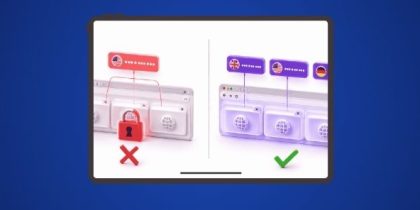
To obtain a new IP for every browser tab, install IP Per Tab by PureVPN from the Chrome Web Store. The extension assigns a separate residential proxy IP to each tab individually.
Why Most IP-Changing Methods Apply One IP to the Whole Browser
Standard IP-changing tools, including VPNs and most browser proxy extensions, apply a single IP address to the entire browser. This creates a real problem for anyone running parallel workflows: checking two different regional SERPs, previewing geo-targeted ads from multiple locations, or monitoring product listings across different markets. Each workflow interrupts the others every time the IP changes on your browser.
The root cause is how Chrome’s proxy API works by default. Most extensions call chrome.proxy.settings.set() once for the whole browser, not per tab. That single setting applies globally, which means true tab-level IP isolation is not possible unless the extension is specifically built to handle per-tab routing.
PureVPN’s residential proxy infrastructure powers IP Per Tab, which routes proxy assignments at the tab level rather than the browser level. You can still use PureVPN’s app, and use residential proxy on whole browser, but if you are someone looking for a tab-level proxy routing, you can use IP per tab chrome extension.
What PureVPN’s IP Per Tab Does Differently?
IP Per Tab is a Chrome extension built on Manifest V3 that assigns residential proxy IP addresses to individual browser tabs. Each tab holds its own IP session independently of every other tab open in the same Chrome window.
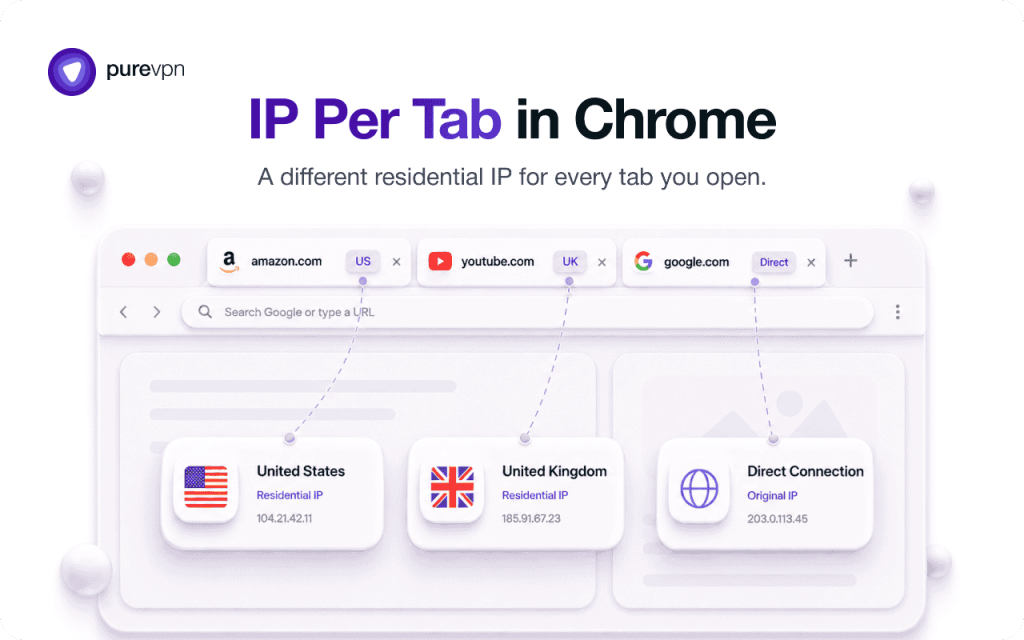
When a user focuses a tab, the extension switches the active proxy to that tab’s assigned IP in under 300 milliseconds. When the user switches to another tab, the extension applies that tab’s assigned IP instead. No manual switching. No profile juggling. No second browser.
The extension connects in under 3 seconds and draws IPs from PureVPN’s whitelisted residential proxy pool. These are IPs assigned by real ISPs to real home users, not datacenter IPs that websites identify and treat as automated traffic.
How to Set Up a Different IP on Each Tab?
Setting up IP Per Tab takes under 60 seconds from install to first working session.
- Add IP Per Tab by PureVPN from the Chrome Web Store.
- Log in with your PureVPN account credentials inside the extension.
- Select a residential proxy plan — plans start at 12 GB and go up to 50 GB.
- Open the extension popup and select a residential IP for the active tab.
- Open a second tab and assign a different residential IP from the same popup.
Each assignment persists across browser restarts via Chrome’s local storage. A tab assigned a US residential IP keeps that IP the next time the browser opens, without re-configuration.
Who Needs a Different IP Per Tab?
IP Per Tab is built for professionals who run more than one geo-sensitive workflow at the same time.
SEO professionals checking local SERP results need to see Google search results from different countries simultaneously. With IP Per Tab, a US residential IP goes on Tab 1 and a UK residential IP goes on Tab 2. Both SERP views stay open side by side without switching IPs between sessions. PureVPN’s anonymous browsing infrastructure ensures the residential IPs appear as real local users to search engines.
Ad verification analysts need to confirm that ads render correctly for users in target geographies. Tab 1 shows the ad as a US visitor sees it. Tab 2 shows the same ad as a UK visitor sees it. Both views stay live simultaneously. Residential IPs are critical here because ad networks serve different creatives to datacenter IPs than they serve to real residential users.
QA developers and testers verifying geo-conditional features, CDN routing behavior, and regional pricing logic can load the same URL across multiple tabs with different residential IPs and check regional variations in parallel rather than sequentially. PureVPN’s DNS leak protection ensures DNS queries route through the proxy tunnel, so geo-detection tests reflect what real regional users actually see.
E-commerce researchers monitoring product pricing across regional marketplaces can keep UK and US storefronts open in separate tabs with separate IPs, without one tab’s IP session contaminating the other’s results.
Domain Rules: Assign IPs Automatically by Website
IP Per Tab includes a Domain Rules engine that removes the need to manually assign IPs on return visits.
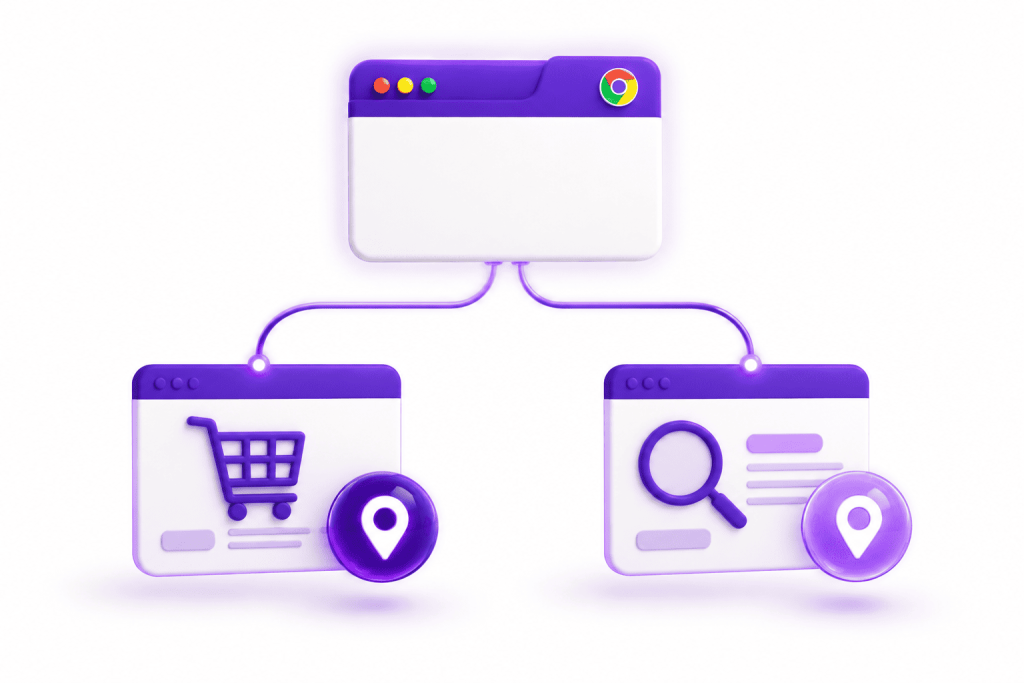
A domain rule maps a specific domain such as amazon.com or ebay.co.uk to a designated residential IP. Every time a tab navigates to a matching domain, the extension automatically applies the stored IP route. The rule fires on every navigation event, so the assignment applies immediately when a page loads.
Domain rules support exact domain matching and subdomain wildcards. A rule set for *.amazon.com covers amazon.com, seller.amazon.com, and all other subdomains automatically. Rules can be enabled, disabled, or deleted from the extension popup without losing saved configurations.
This is useful for recurring workflows. An SEO professional who checks UK SERPs every morning sets a domain rule for Google UK once. Every subsequent visit applies the UK residential IP without any manual action.
What IP Per Tab Is Not
IP Per Tab is a per-tab residential proxy router, not a VPN. It routes HTTP and HTTPS proxy traffic for individual Chrome tabs and does not encrypt the full device connection the way PureVPN’s VPN apps do.
The extension includes WebRTC leak protection toggle in the Settings tab, which prevent real IP exposure through WebRTC API calls. For full device-level encryption alongside per-tab IP control, use IP Per Tab alongside a PureVPN subscription. The two products operate independently and do not conflict.
Frequently Asked Questions
No. IP Per Tab runs inside regular Chrome. Separate IP sessions for each tab do not require additional browsers, profiles, or extensions.
IP Per Tab uses residential proxy IPs sourced from PureVPN’s whitelisted pool. These are real ISP-assigned IP addresses, not datacenter IPs. Available locations currently include the US and UK.
No. Tab assignments persist across browser restarts using Chrome’s local storage. Each tab keeps its assigned IP route until the user manually changes it.
The extension detects the tab focus change and applies that tab’s assigned residential IP within 300 milliseconds. Switching between tabs switches IPs instantly and silently.
No. IP Per Tab is a per-tab proxy extension. It manages proxy routing inside Chrome and does not encrypt device-level traffic. For full VPN protection, PureVPN’s apps handle encryption separately and work alongside IP Per Tab without conflicts.

Arsalan Rashid

September 2, 2026

1 month ago