
A VPN can affect your ping because your traffic may have to travel through an extra server before it reaches the website, app, or game you are using. Sometimes, you may barely notice the difference. Other times, it can mean slower responses, gaming lag, or delays on video calls.
High ping is not always the VPN’s fault. Server distance, routing, protocol, server load, and your own internet connection can all play a part in how fast your traffic gets a response. In this guide, we will explain what VPN ping means, why it sometimes increases, and how you can lower it.
What Is VPN Ping?
VPN ping is the time it takes for data to travel from your device to a server and back while you are connected to a VPN. It is measured in milliseconds, or ms.
A lower ping means your connection responds faster, which is important for real-time activities such as online gaming, video calls, remote desktop sessions, and voice chats. A higher ping means the response takes longer, which can cause lag, delayed actions, or choppy calls.
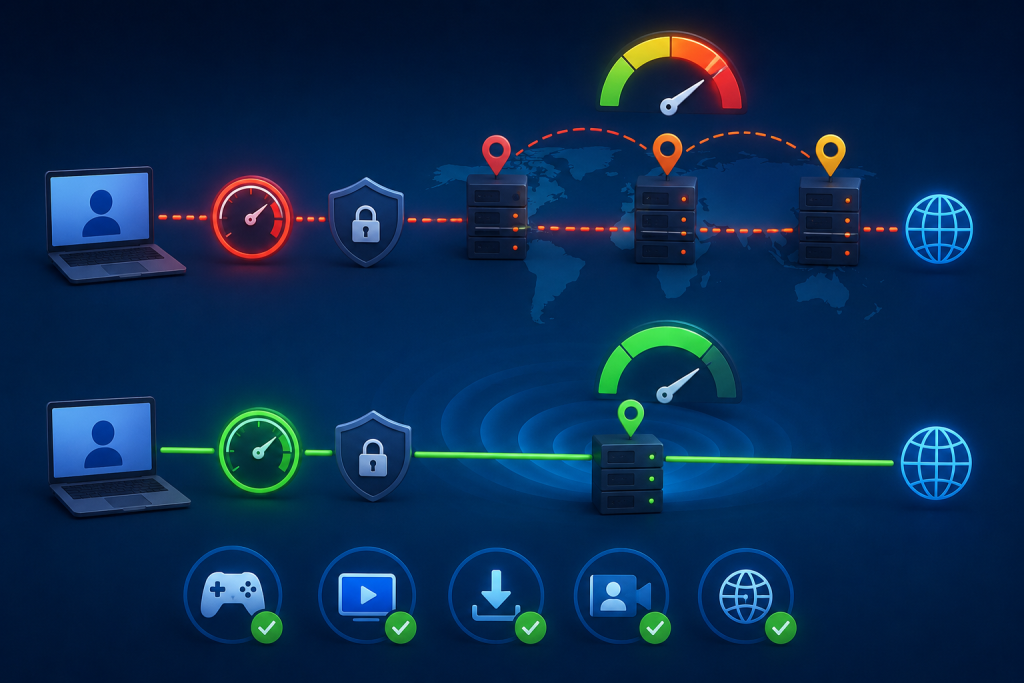
Ping is different from download speed. A connection can have fast download speeds but still feel slow in a game or video call if the ping is high.
VPN Ping vs VPN Latency
VPN ping and VPN latency are closely related, but they are not exactly the same thing. Ping is the number you usually see in a speed test tool or game settings. It measures the round-trip response time of your connection.
Latency is the broader delay behind that number. High latency can show up as lag, late reactions, or delayed responses. When people say their VPN ping is high, they are usually talking about one visible sign of higher latency.
What Is a Good Ping for VPN Use?
There is no single perfect ping for every VPN user, but these ranges give you a practical idea of what to expect:
| Ping | Quality |
| Under 30 ms | Fast response |
| 30–60 ms | Smooth for most activities |
| 60–100 ms | Usable, but not ideal for competitive gaming |
| 100–150 ms | Noticeable delay |
| 150+ ms | Poor for gaming and calls |
Why Does a VPN Sometimes Increase Ping?
The most common causes are usually:
Server Distance
Server distance is one of the biggest reasons VPN ping goes up. If you connect to a VPN server far from your real location, your traffic has to travel farther before it reaches the website, app, or game server. A nearby VPN server usually gives you a lower ping as the round trip is shorter.
VPN Routing
A VPN can change the route your traffic takes across the internet. Sometimes that route is efficient. Other times, it may send traffic through a longer or busier path than your normal ISP connection. That extra routing can add delay, even if your download speed still looks fine.
Server Load
VPN servers can slow down when too many people are connected at the same time. The server still works, but more users are sharing the same resources. If your VPN app shows server load, choosing a less crowded server can help reduce ping.
VPN Protocol
The VPN protocol also affects how quickly data is handled. Modern protocols like WireGuard and IKEv2 are usually better for speed and responsiveness than older options. Changing protocols may help if your current one feels slow, but it will not fix every ping issue.
Local Network Issues
High ping is not always caused by the VPN. Weak WiFi, background downloads, router problems, ISP congestion, or too many devices on the same network can all add delay.
Check your normal connection first if ping stays high across multiple VPN servers.
Can a VPN Lower Ping?
Yes, a VPN can lower ping in some cases, but it does not happen for everyone. A VPN may help when your ISP is sending traffic through a poor route, when the normal path to a game server is congested, or when the VPN server gives your traffic a more stable route.
The result depends on the VPN server location, routing, protocol, server load, and the network you are using. The best way to check is to test both connections. Compare your ping with the VPN turned off, then connect to a nearby VPN server and test again.
Who Does VPN Ping Affect the Most?
VPN ping matters most when an activity depends on fast, real-time responses. It usually affects:
- Competitive gamers: Delayed movement, late hit registration, rubber-banding, and voice chat delay can all become noticeable.
- People on video calls: Higher ping can create awkward pauses, delayed replies, or people talking over each other.
- Remote desktop workers: Clicks, typing, and screen changes can feel slow when the response time is high.
- Voice chat users: Delayed audio caused by high ping can make live conversations harder to follow.
- Streamers: Streaming is less sensitive to ping than gaming or calls, but poor connection stability or weak download speed can still cause buffering.
How to Test VPN Ping
The easiest way is to conduct a speed test before and after connecting to the VPN. First, test your normal connection. Then connect to a nearby VPN server and run the same test again. The difference between the two ping results shows how much the VPN is affecting response time.
You can also check ping inside some VPN apps. If the app shows server latency, choose a server with a lower ms value before connecting. For a manual check, you can use Command Prompt on Windows or Terminal on macOS and Linux:
- Windows: Open Command Prompt, type ping google.com, and press Enter.
- macOS/Linux: Open Terminal, type ping google.com, and press Enter.
You can replace google.com with another website or server address. For gaming, the most useful test is usually the ping shown inside the game or to the specific game server, because that is the connection you actually care about.
Tips to Lower VPN Ping
You cannot remove ping completely, but you can often reduce it by following these measures:
Choose a Nearby VPN Server
A nearby VPN server usually gives you lower ping because your traffic has a shorter round trip. If you are in the US, for example, a US regional server will usually respond faster than a server in Europe or Asia. The best location depends on what you are doing. For gaming, choose a VPN server close to the game server when possible.
Switch to a Faster VPN Protocol
VPN protocols handle traffic differently. Modern options such as WireGuard and IKEv2 are usually better for speed and responsiveness than older protocols. If your VPN feels slow, try switching protocols in the app settings and test your ping again.
Avoid Crowded VPN Servers
A busy VPN server can increase ping because more users are sharing the same resources. If your VPN app shows server load, choose a server with a lower load. If it does not show server load, try another server in the same region and compare the ping.
Use a Wired Connection
A wired connection is usually more stable than WiFi, especially for gaming, video calls, and remote desktop use. WiFi can add delay if the signal is weak, the router is overloaded, or there is interference nearby. If possible, connect your device directly to the router with an Ethernet cable.
Close Background Apps
Downloads, cloud backups, software updates, and open browser tabs can use bandwidth in the background. That can make ping worse, especially on a slower or crowded connection. Close anything you do not need before gaming, calling, or testing VPN ping.
Final Word
VPN ping can make a connection feel fast or frustrating, even when download speed looks fine. The main thing is to test it properly and avoid choices that add unnecessary delay. For most users, that means choosing a nearby VPN server, avoiding crowded servers, switching to a faster protocol when needed, and checking the local connection.

Arsalan Rashid

June 19, 2026

4 months ago