PureVPNHow To GuidesHow to Delete a YouTube Video in 6 Easy Steps [Updated 2026]
Deleting a YouTube video can be useful if the content is outdated, no longer relevant, or something you don’t want public anymore. Fortunately, YouTube makes it easy to permanently remove videos from your channel using a computer, smartphone, or iPad.
In this guide, you’ll learn how to delete a YouTube video step by step, manage community posts, delete your entire YouTube channel if needed, and understand what to do if you want a video removed that you didn’t upload.
Important:You can only delete videos uploaded from your own YouTube account. If you’re not the owner, you’ll need to report the video or submit a copyright request.
How to Delete a YouTube Video on Desktop (Step-by-Step)
If you’re using a computer or laptop, YouTube Studio is the easiest way to remove a video.
Steps:
Sign in to YouTube Studio with your Google account.
Click Content from the left-hand menu.
Hover over the video you want to delete.
Click the Options (three dots) icon.
Select Delete forever.
Confirm that you understand the deletion is permanent and click Delete video.
Once deleted, the video cannot be restored.
Detailed Guide: How to Delete a YouTube Video on a Computer [6 Step Easy Guide]
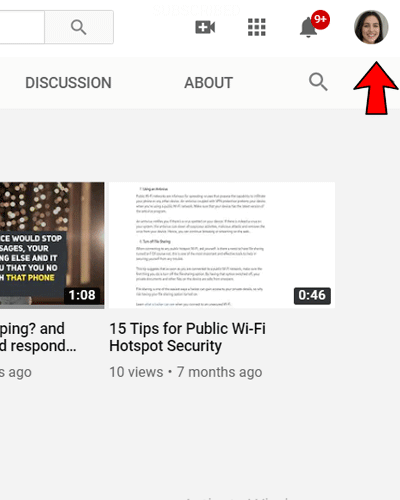
Head over to www.youtube.com. Login with your Google account if you haven’t already logged in. Once there, click on your account’s picture to open the navigation menu
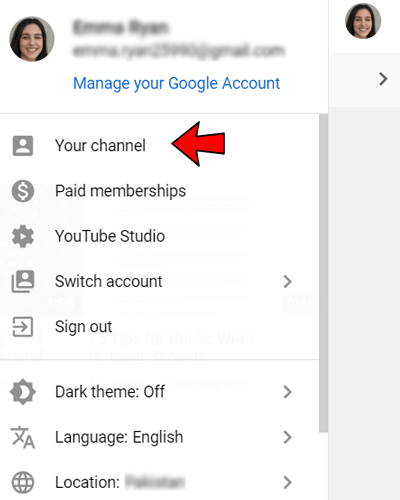
2. Click “My channel” and it will bring you to your profile page. Once there, you will have full access to the videos that you’ve uploaded on YouTube
3. On your channel, you’ll see two blue buttons below your cover photo. One will say “Customize Channel” and one will say “YouTube Studio (Beta)”. Click the right button – ”YouTube Studio”
4. On YouTube Studio, you’ll see your channel menu. Select the “Videos” tab and it will open up your entire uploads
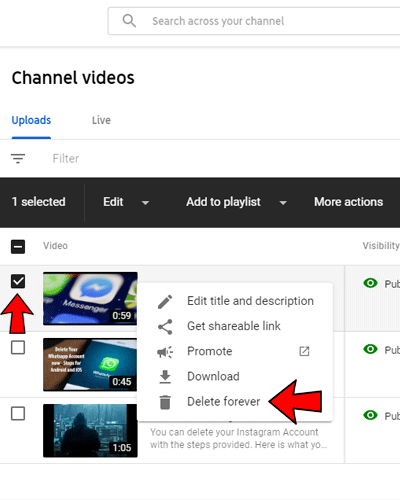
5. Now, select the video that you’d like to delete. Hover on a video and you’ll see two buttons: a play button and an “options” three-dot button. Click the dots to open up the menu and select “Delete”
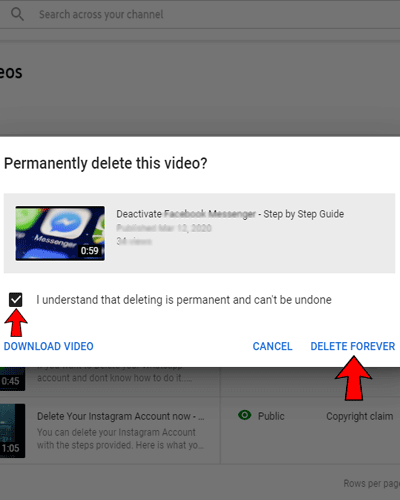
6. A pop-up box will appear where you’ll be asked if you want to permanently delete the video. Note that you can’t undo if you choose to permanently delete the video. Check the box that says you understand this is permanent, and click “Delete video”
Your video is now successfully deleted.
How to Delete a YouTube Video on Mobile (Android & iOS)
You can delete your YouTube videos directly from the YouTube app on your phone.
Steps:
Open the YouTube app and sign in.
Tap your Profile picture in the top-right corner.
Select Your videos.
Find the video you want to remove and tap the three-dot menu.
Tap Delete and confirm.
The video will be permanently removed from your channel.
How to Delete a YouTube Video on iPad
On an iPad, you can use either the YouTube app or the YouTube Studio app.
Steps:
Open the YouTube or YouTube Studio app.
Go to the Content section.
Locate the video you want to delete.
Tap the three dots next to the video.
Select Delete and confirm.
Managing Your Channel: Delete Posts or Your Entire Channel
Deleting videos isn’t the only way to manage your YouTube presence. You can also remove community posts or permanently delete your channel.
How to Delete a Community Post on YouTube
Steps:
Open YouTube Studio.
Go to Content and switch to the Posts tab.
Hover over the post you want to delete.
Click the three-dot menu.
Select Delete forever.
How to Delete Your YouTube Channel Permanently
If you no longer want your YouTube account, you can delete it completely.
Steps:
Open YouTube Studio.
Go to Settings → Channel → Advanced settings.
Select Remove YouTube Content.
Choose I want to permanently delete my content.
Follow the prompts and confirm.
Deleting your channel removes all videos, playlists, comments, and subscriptions permanently.
How to Remove a YouTube Video You Didn’t Upload
You can’t directly delete someone else’s video—but you can take action if it violates rules or uses your content.
Reporting a YouTube Video
Open the video.
Click the three-dot menu below the player.
Select Report.
Choose the violation type and submit.
Copyright Removal Request
Sign in to YouTube Studio.
Go to the Copyright tab.
Click New removal request.
Submit proof that the content belongs to you.
Want to reclaim your online privacy? You might want to check below how to delete your account guides of social media platforms:
Tanzeel is a dedicated movie buff who is equally passionate about TV shows, sports, and adventure. When not glued to the screen, you can find him exploring new trails on his trusty bike or strategizing his next move on the chessboard. He frequently write about his interests and love to share his travel experiences with his readers.