
What is Port Forwarding?
Port forwarding is a way of telling your router to send specific types of game traffic directly to your device. For a multiplayer title like Arma Reforger, this lets the game communicate smoothly with servers and other players without unnecessary blocks or delays. By opening the correct ports, you are able to bypass restrictive NAT or firewall rules that often cause connectivity issues.
Do You Need to Port Forward Arma Reforger?
If you’re experiencing strict NAT warnings, trouble joining community servers, or frequent disconnects in multiplayer, port forwarding Arma Reforger can help. Forwarding the right ports establishes a more direct link between your PC or console and the game’s servers, resulting in fewer errors, better session stability, and faster matchmaking.
Information Required for Arma Reforger Port Forwarding
Before you set up port forwarding, make sure you have:
1. The local IP address of your router.
2. The local IP address of your PC or console.
3. The TCP and UDP ports used by Arma Reforger.
How to Set Up Arma Reforger Port Forwarding
Here’s a step-by-step guide to port forward Arma Reforger:
Step #1: Access Your Router
1. Open your browser and type your router’s IP address.
2. Enter your admin credentials to log in.
3. Navigate to the Port Forwarding, NAT, or Virtual Server section.
Step #2: Create a New Rule
1. Add your PC or console’s local IP address.
2. Enter the TCP and UDP ports for Arma Reforger.
3. Assign your device a static IP (or set a DHCP reservation in your router) so the forwarding rule always points to the same device.
4. Save and apply the changes.
Step #3: Update Firewall Settings (PC Only)
1. Open Windows Firewall settings.
2. Create inbound and outbound rules for the forwarded ports.
3. Ensure Arma Reforger is allowed through the firewall.
Step #4: Test Your Connection
1. Use a port checker on PC or check your NAT type on console.
2. Launch Arma Reforger and try joining a multiplayer server.
Ports Needed to Run Arma Reforger
Ports to Forward on Steam
Ports to Forward on Xbox Series X|S
PureVPN’s Port Forwarding Add-On
Easy & Secured Way to Open All Ports
Manual port forwarding can be tricky, especially if you’re stuck behind shared IPs (CGNAT), if your network has two routers causing double NAT, or if your ISP’s router locks you out of the settings. PureVPN’s Port Forwarding add-on makes it simple. Instead of digging through router menus, you can enable the exact ports you need for Arma Reforger with just a few clicks.
How to Port Forward Arma Reforger with PureVPN
1. Subscribe to PureVPN and add Port Forwarding at checkout.
2. Download and install the PureVPN app for your device. Log in once done.
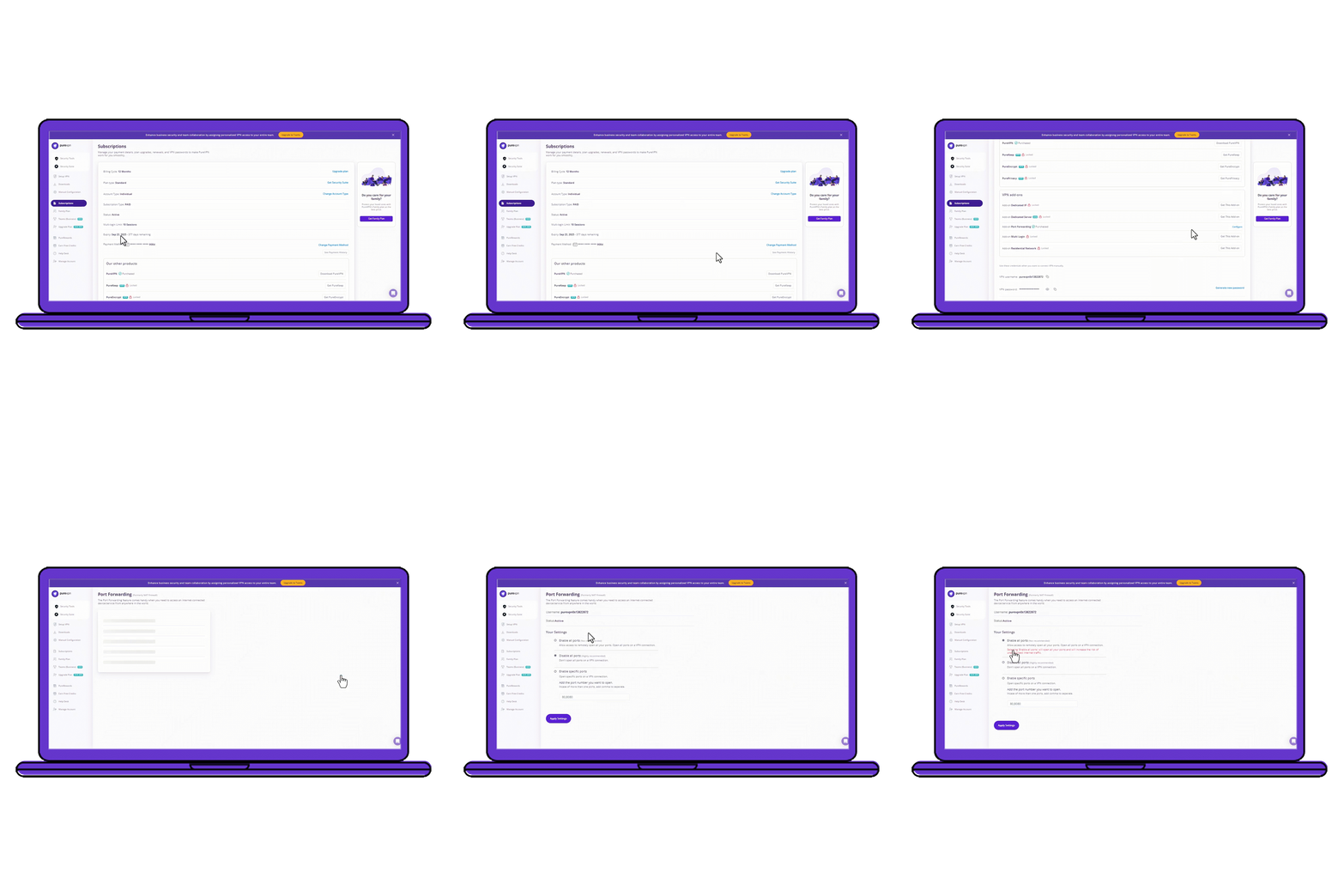
3. Go to the Member Area, open Subscriptions, and click Configure under Port Forwarding.
4. Select Enable specific ports and enter the Arma Reforger ports.
5. Connect to a port forwarding-enabled server and launch Arma Reforger.
Benefits of Using the Port Forwarding Add-On
PureVPN’s Port Forwarding add-on can help you in dozens of ways. Here are some top ways you can make the most of the add-on:
- Skip manual router and firewall setup.
- Bypass CGNAT and other ISP restrictions.
- Get an Open NAT instantly on your PC or Xbox.
- Stay secure while port forwarding with VPN protection.
- Improve multiplayer stability and reduce server join errors.
Frequently Asked Questions
What ports are required for Arma Reforger?
On PC (Steam), the game uses TCP ports 27015 and 27036, while the key UDP ports are 2001, 17777, 27015, and 27031–27036. For Xbox Series X|S, the game primarily relies on TCP port 3074 and UDP ports 88, 500, 3074, 3544, and 4500.
Does port forwarding help Arma Reforger?
Yes. By opening the required ports for Arma Reforger, you can enjoy smoother connectivity as it resolves strict NAT issues, reduces disconnects, and allows faster, more reliable access to multiplayer servers.
How do I port forward for Arma Reforger?
You can either log into your router, add your device’s IP, and manually open the TCP/UDP ports, or use PureVPN’s Port Forwarding add-on to configure everything with a few clicks.
Why is Arma Reforger port forwarding not working?
Check that your device has a static IP, you’ve entered the correct ports, and your firewall isn’t blocking traffic. If you’re behind CGNAT or double NAT, manual setup may fail, in which case PureVPN’s Port Forwarding add-on can solve the issue.